
Transfer Products / Inventory Between Locations #
Let’s transfer products/inventory between locations #
Follow the step-by-step instructions below.
Navigate to the login page #
Go to either https://login.lifelongpos.com or https://manage.acadiapos.com/login
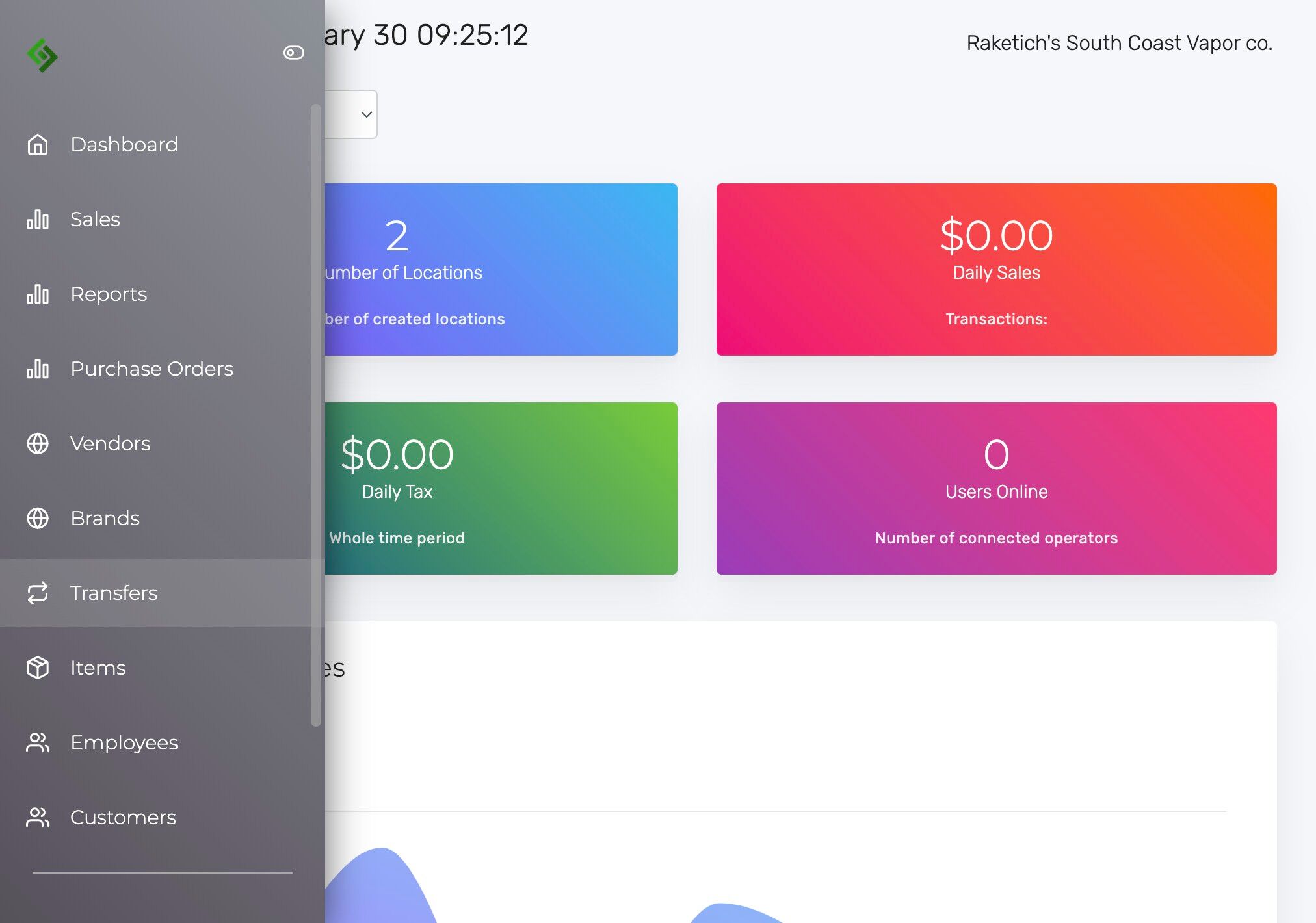
Click the “Transfers” tab on the left hand side of the screen #
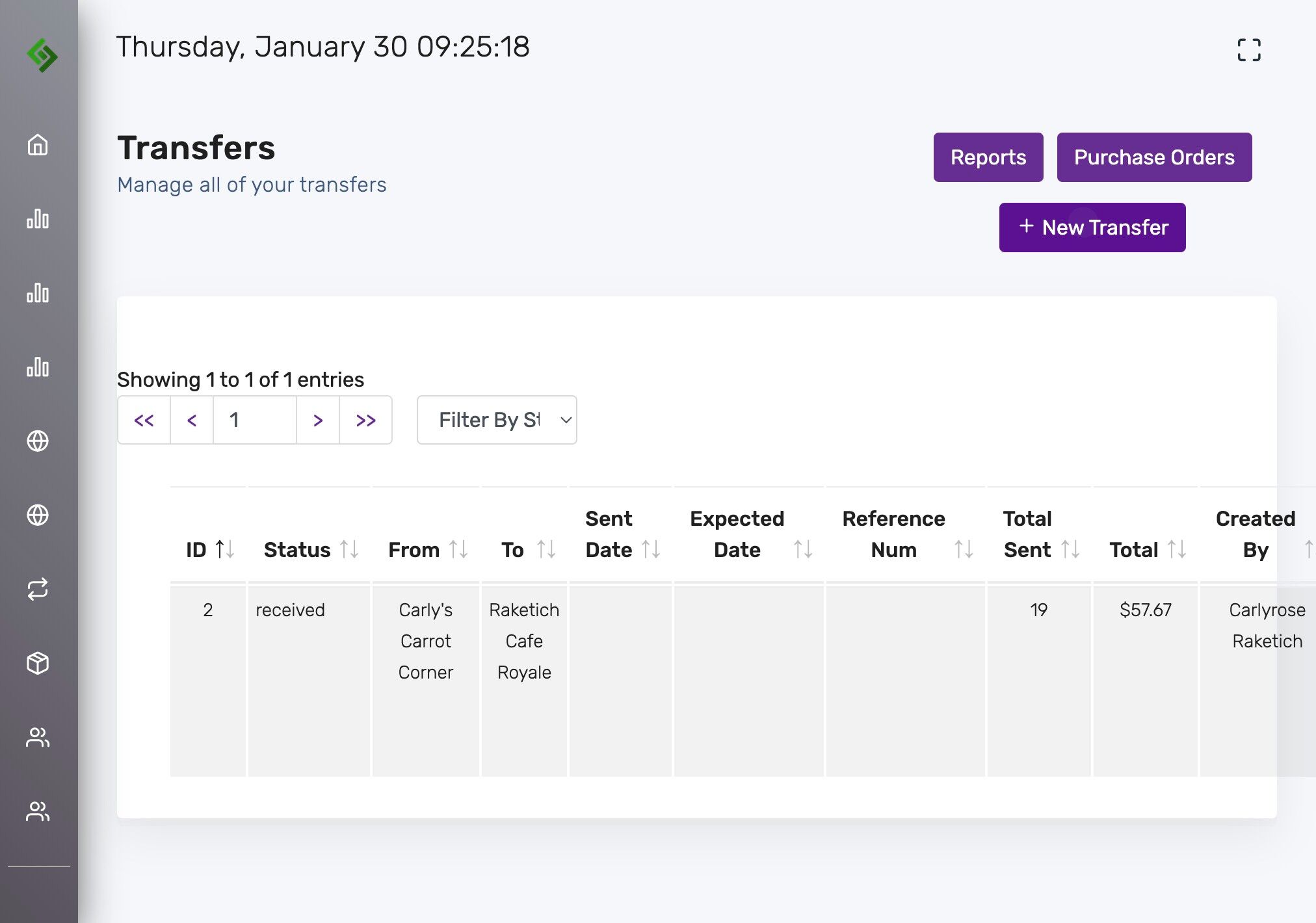
Click “New Transfer” #
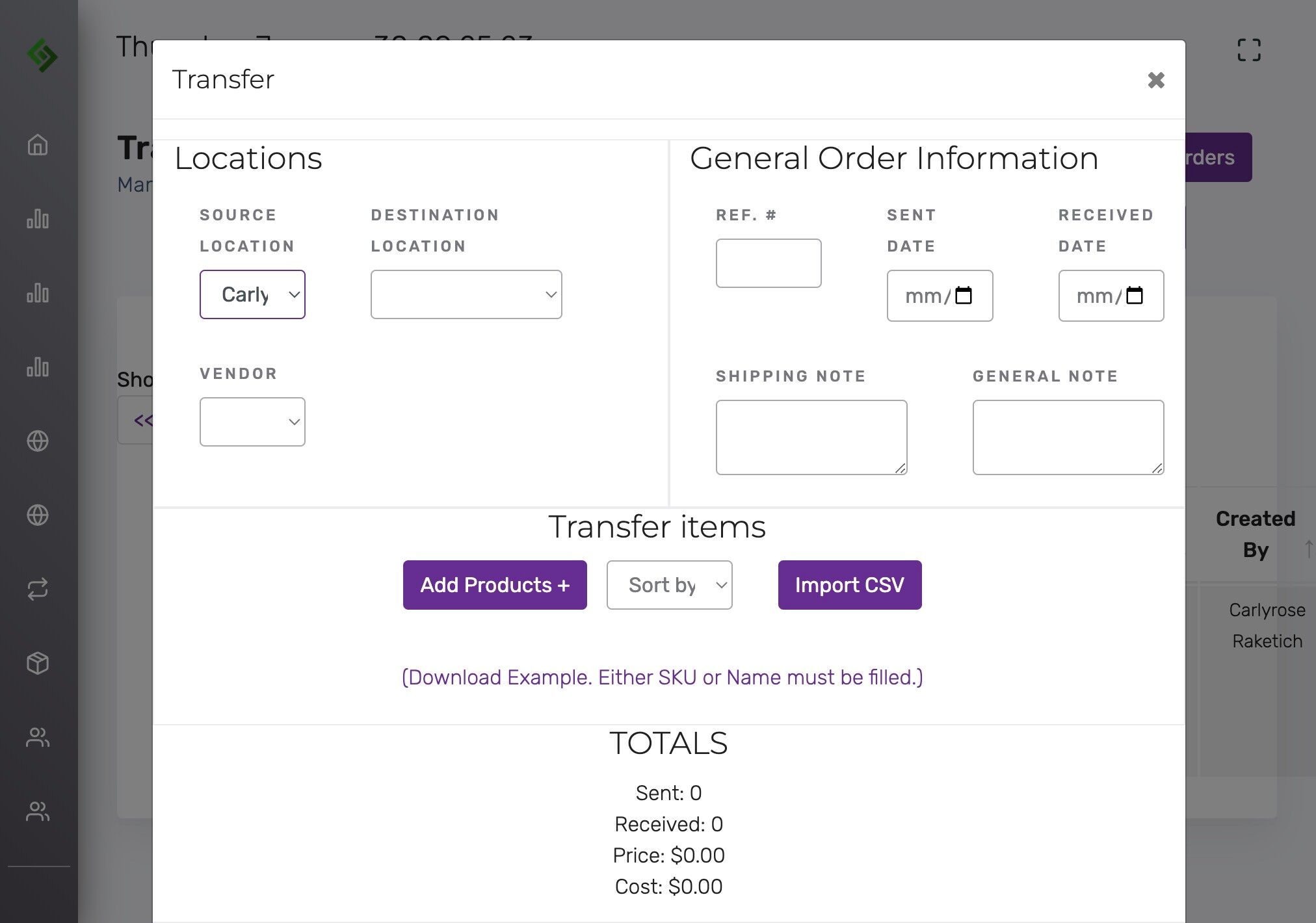
Select the Source Location #
Use the dropdown menu to choose the source location.
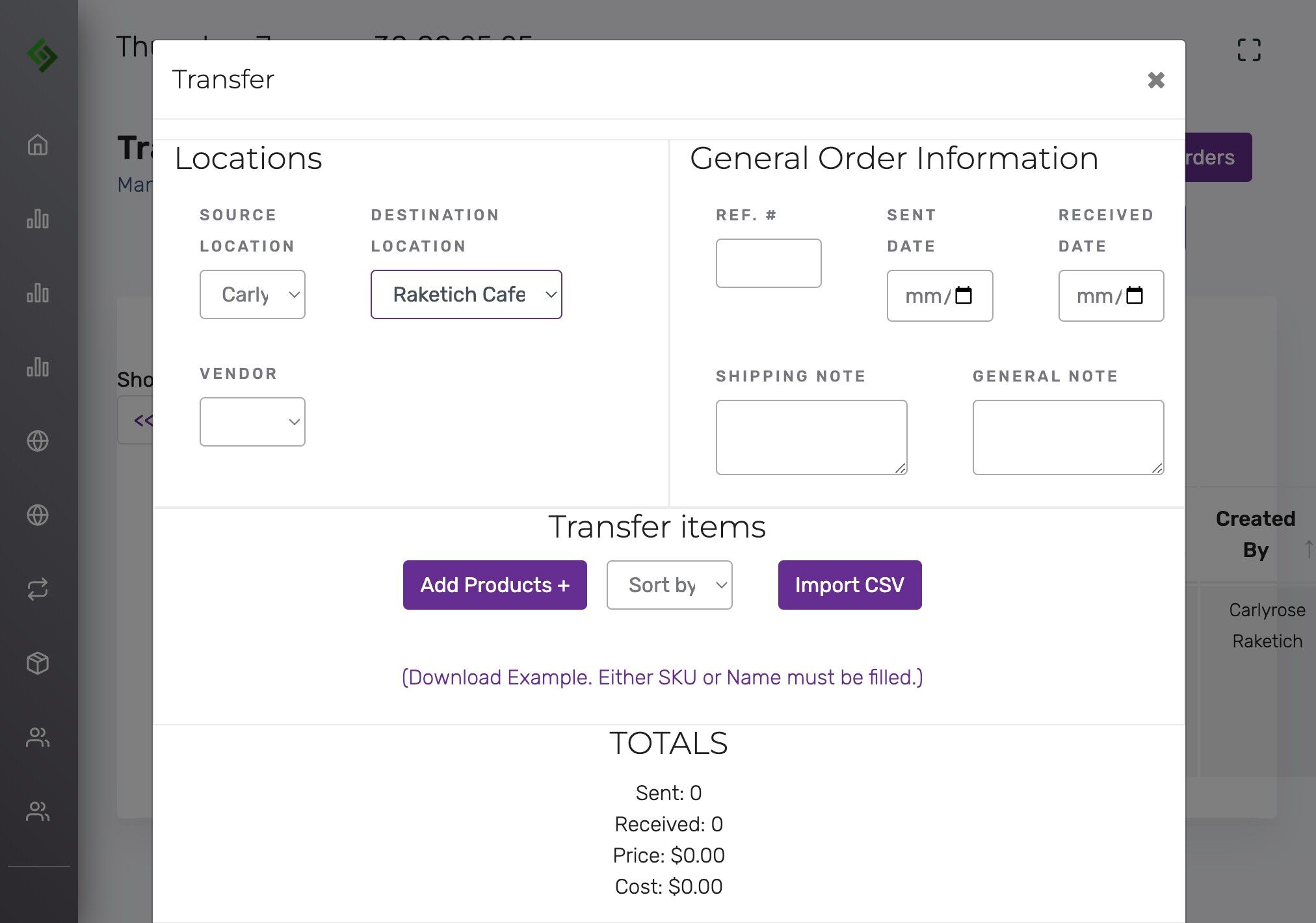
Select the Destination Location #
Add a reference number (optional) #
This helps in locating the transfer later.
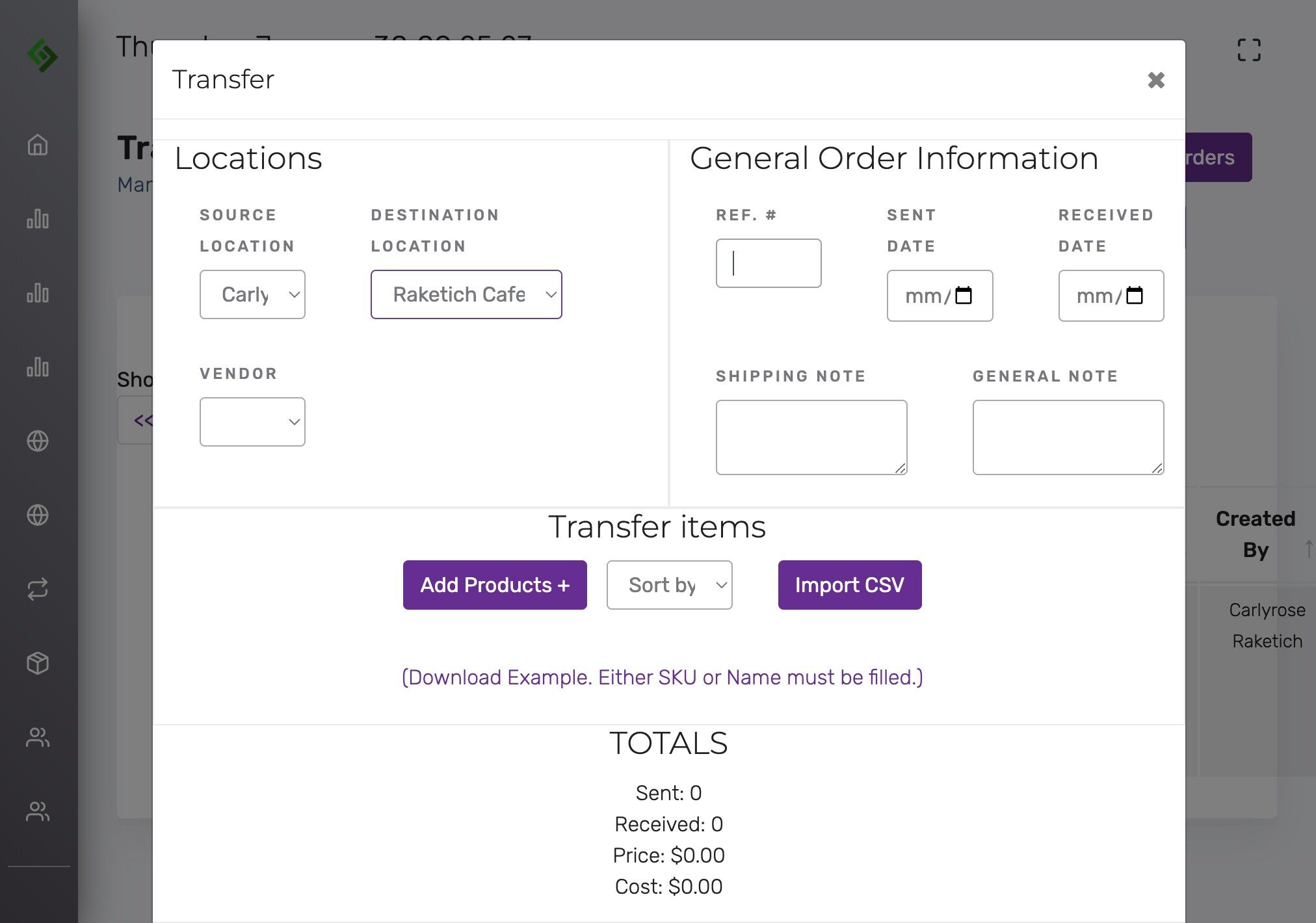
Select Sent Date and Received Date #
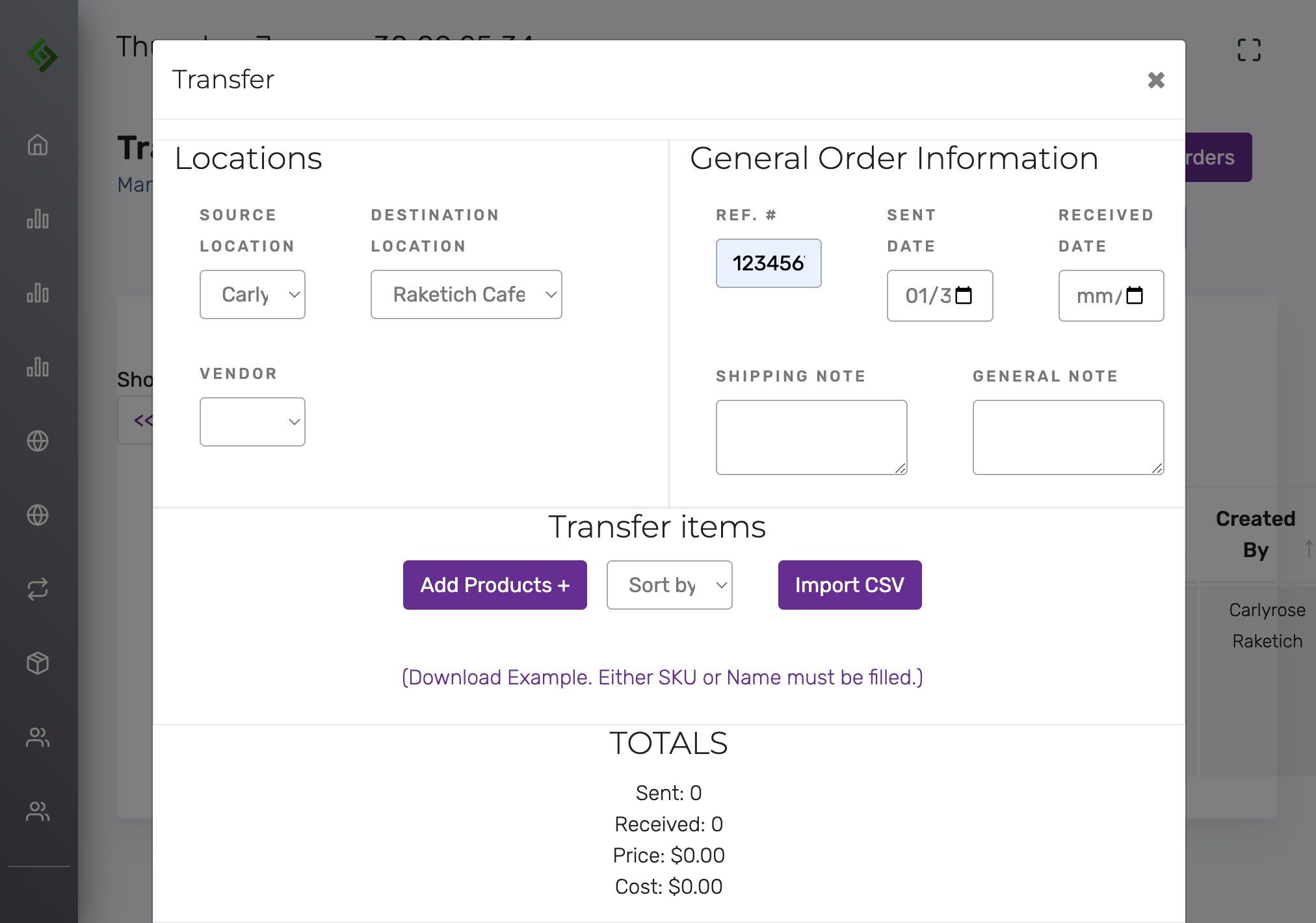
Click “Add Products +” #
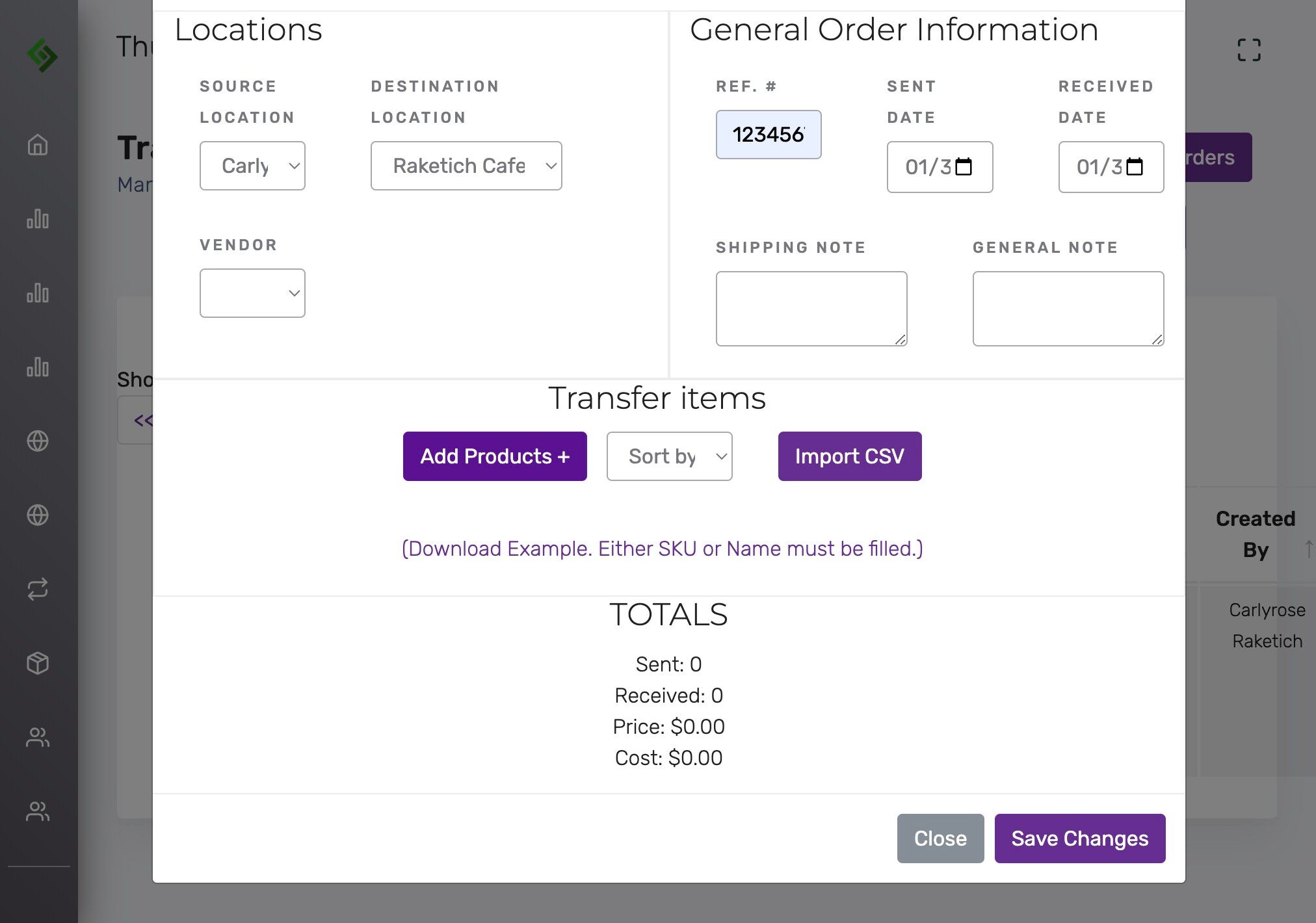
Search and add products to the transfer #
Click ‘Type to search’ and add items already in inventory.
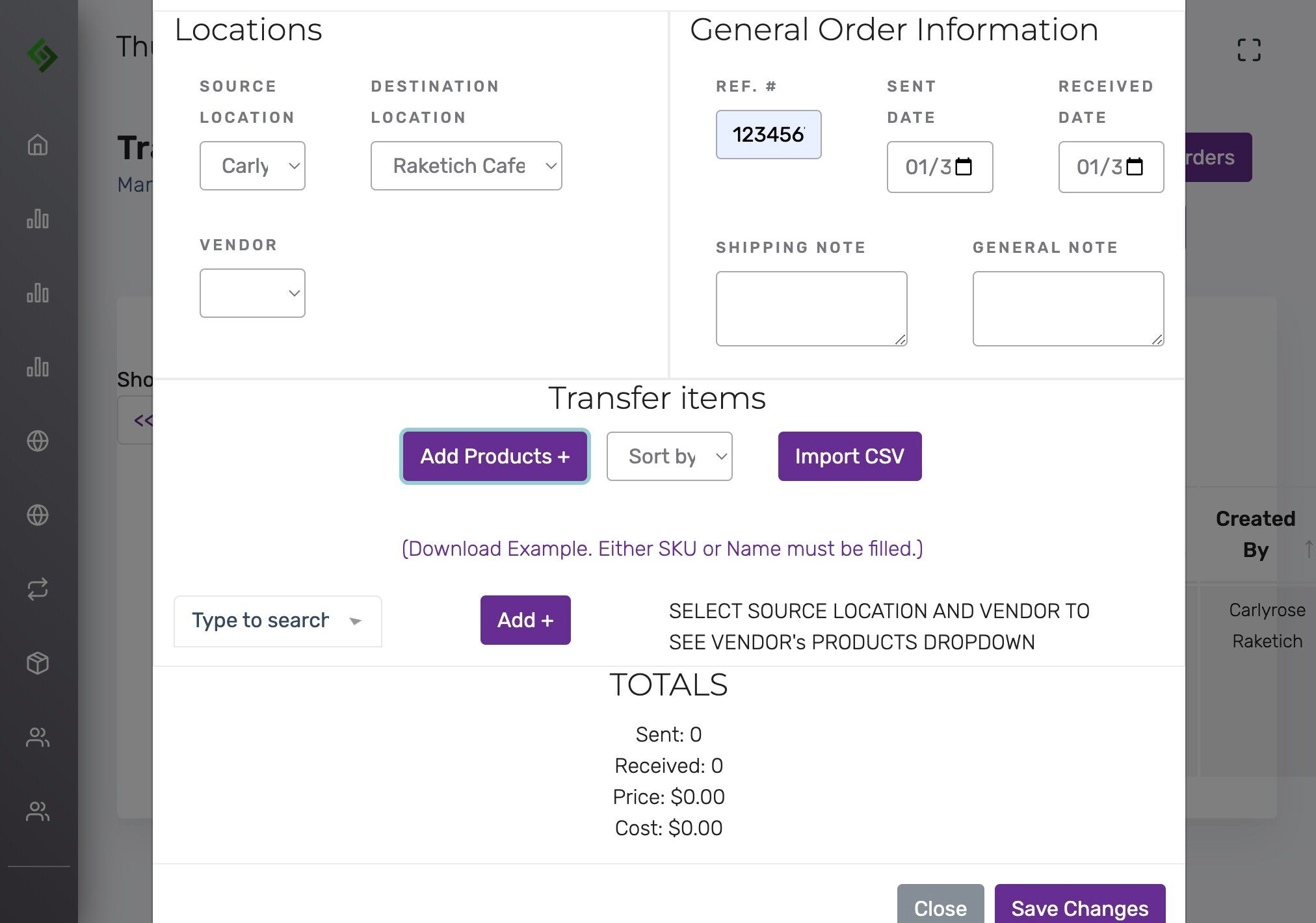
Add as many items as needed #
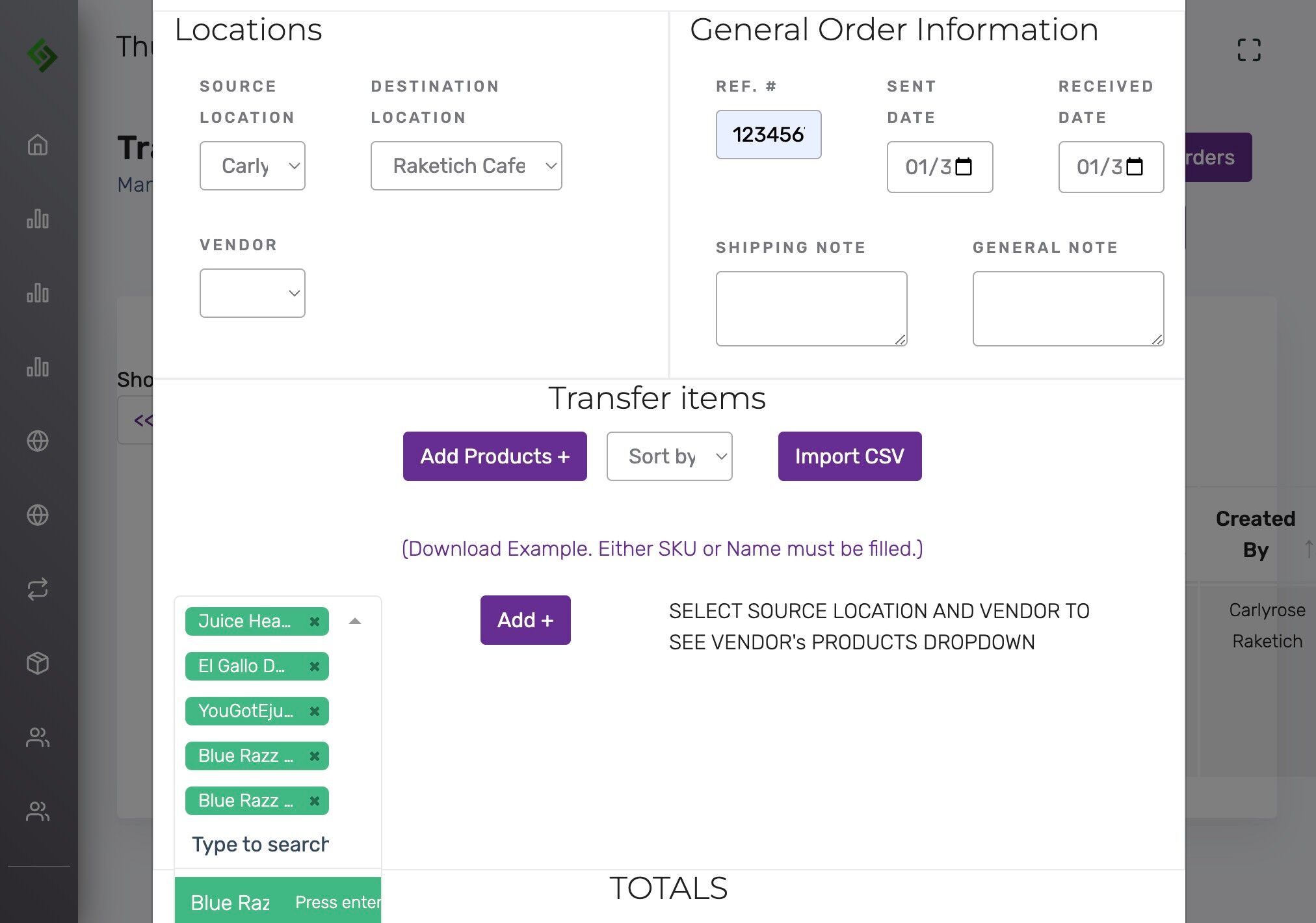
Click the ‘Add +’ button #
After selecting items to add to the transfer.
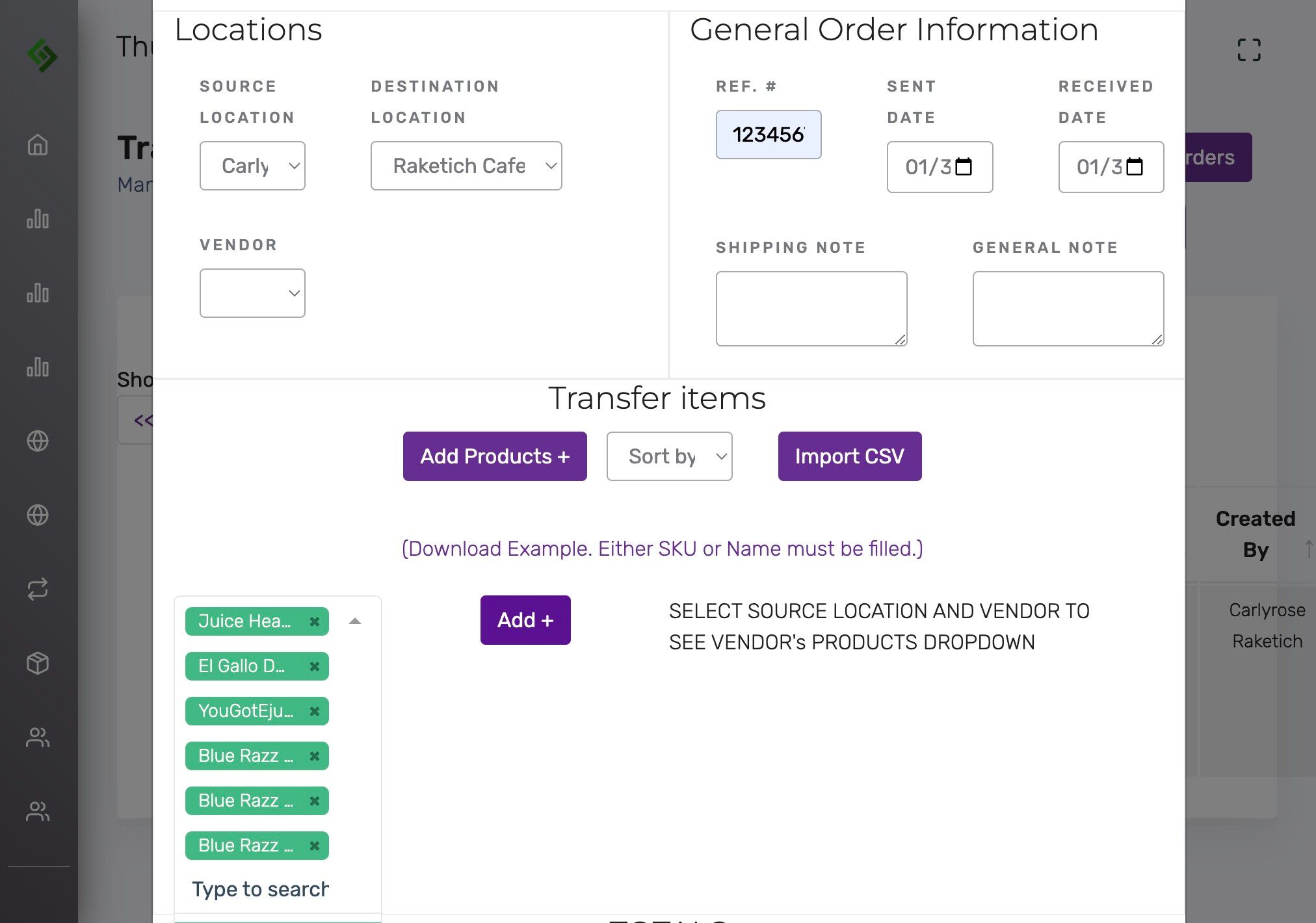
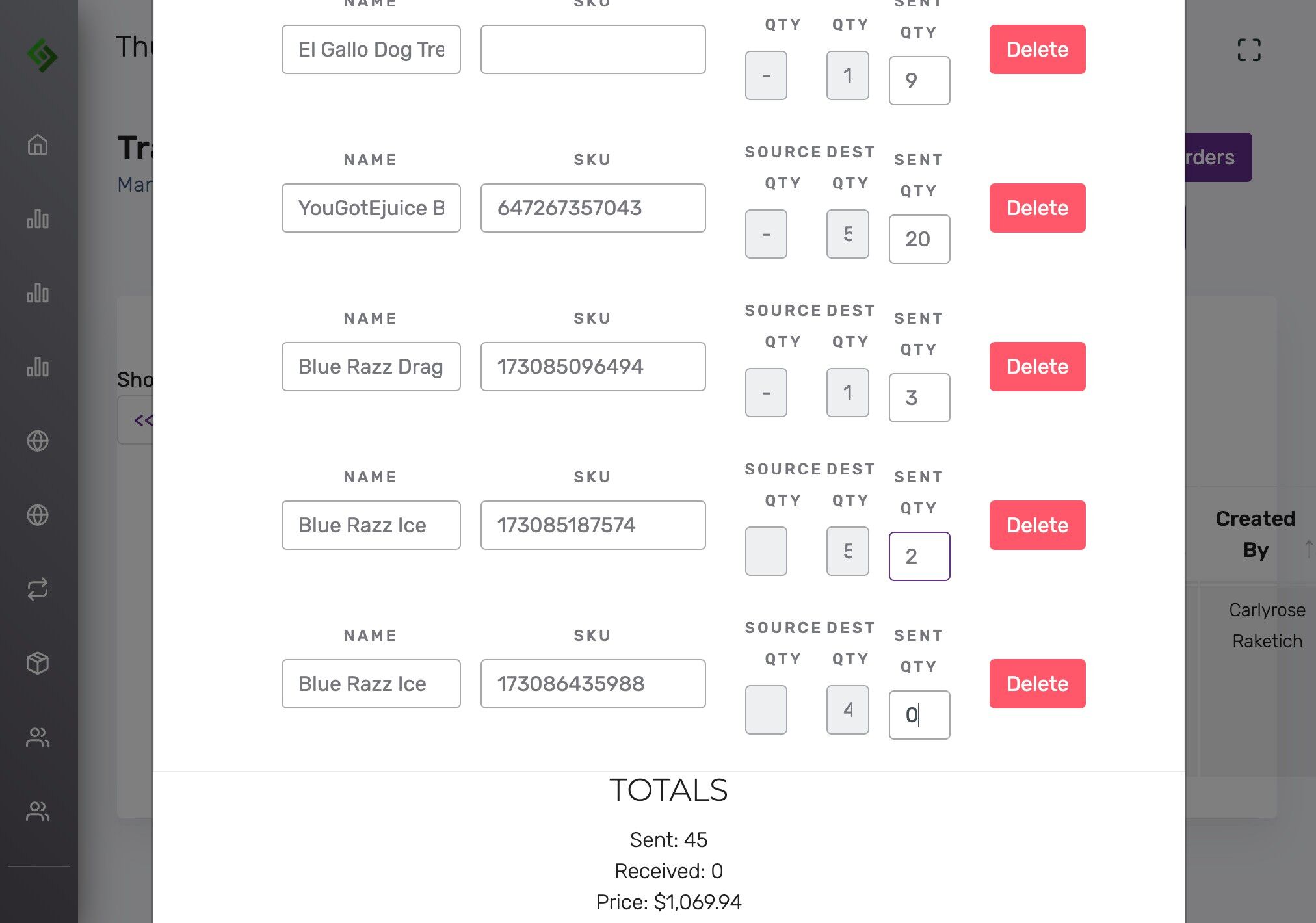
Enter the quantity being sent #
This is not a purchase order; enter the exact amount being shipped.
Click “Save Changes” #
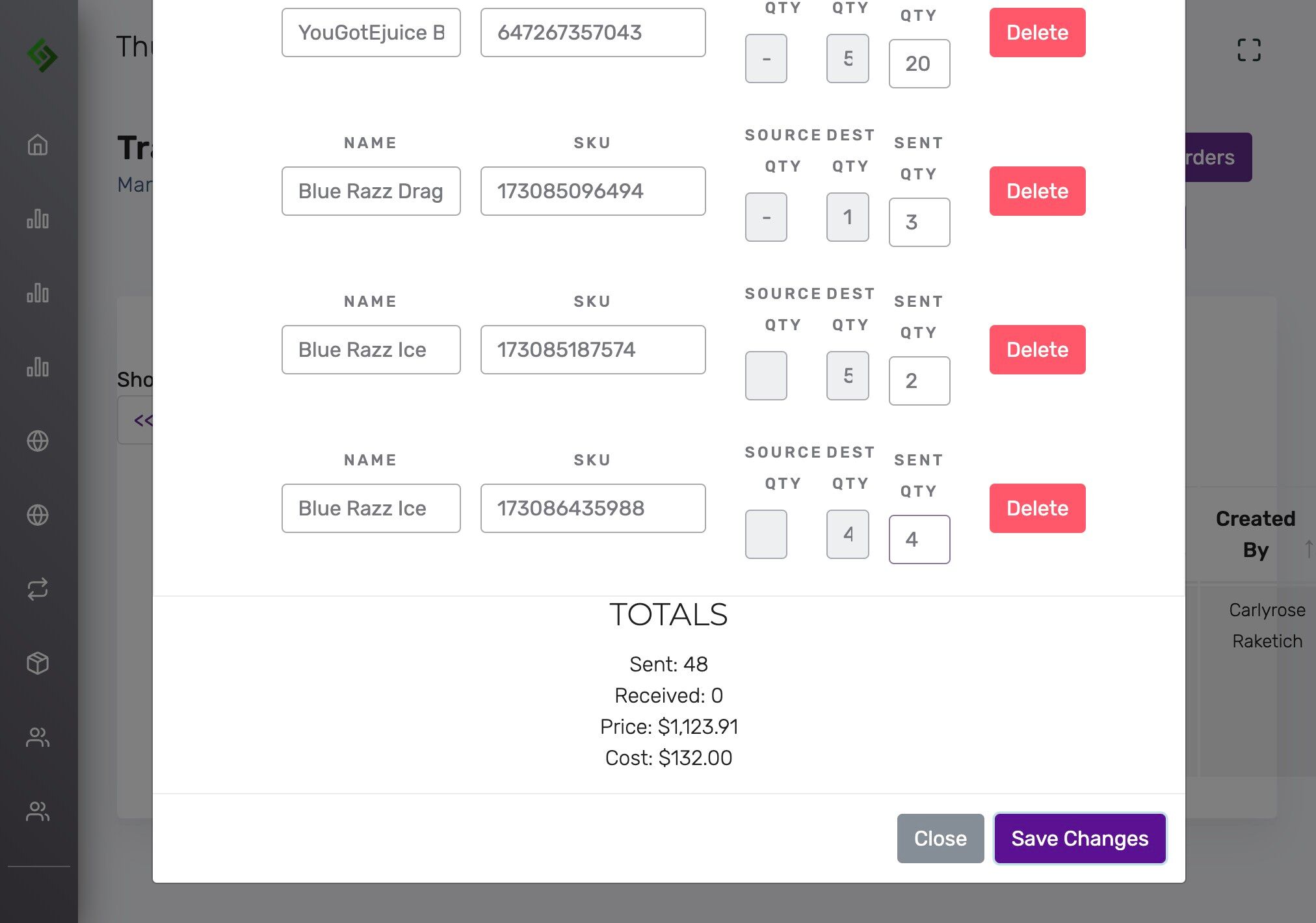
Status will now say “Open” #
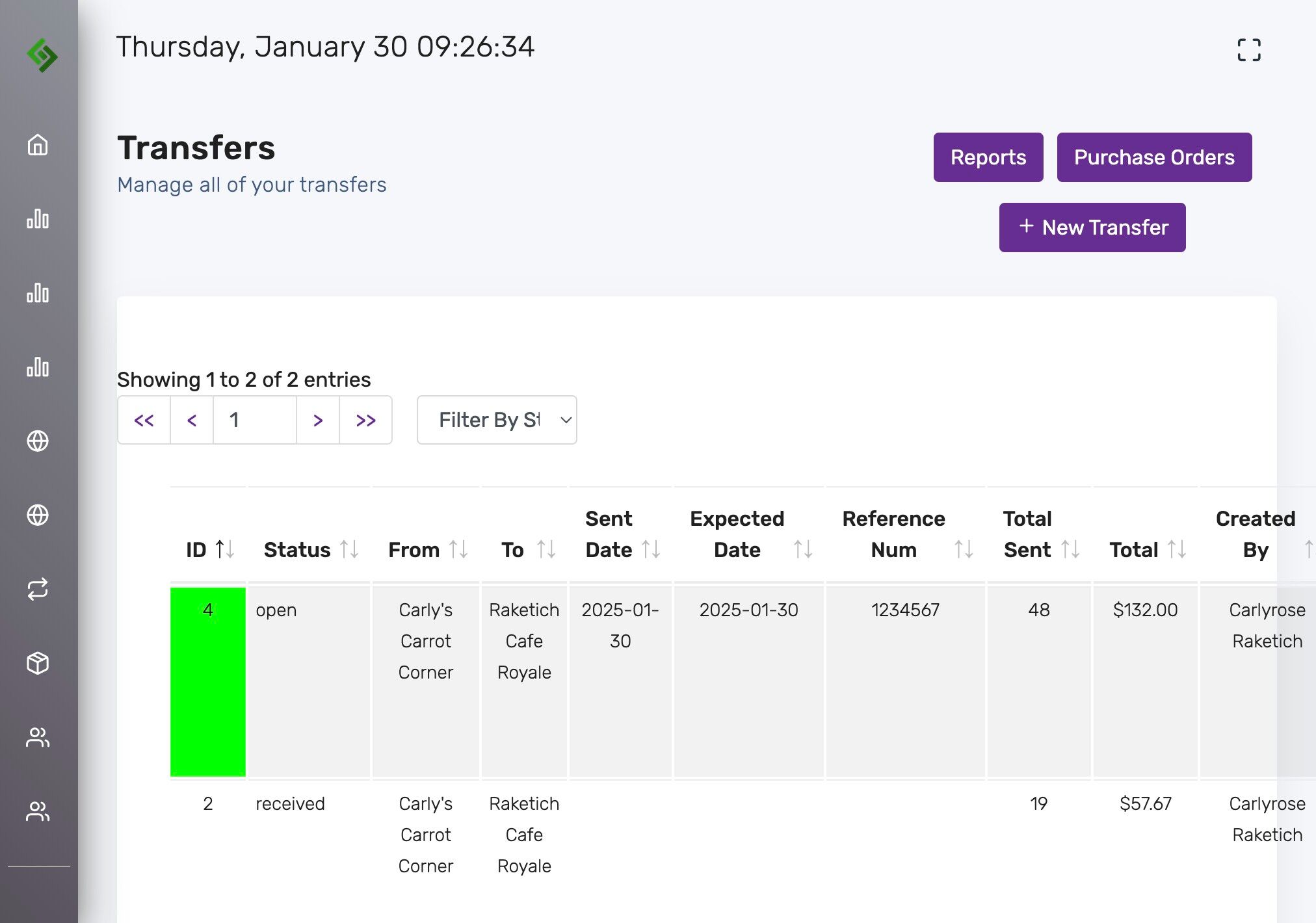
Click “To Sent” #
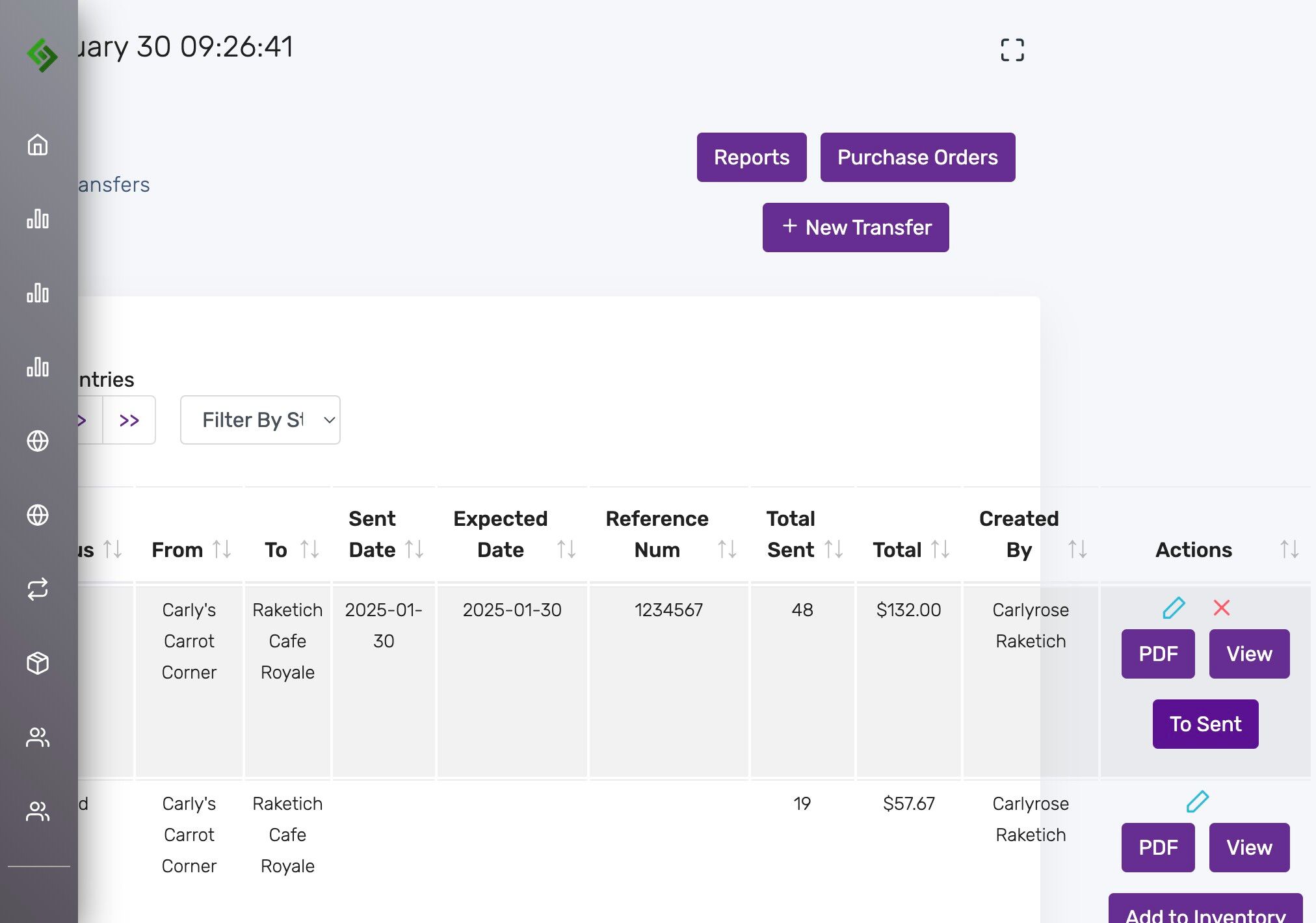
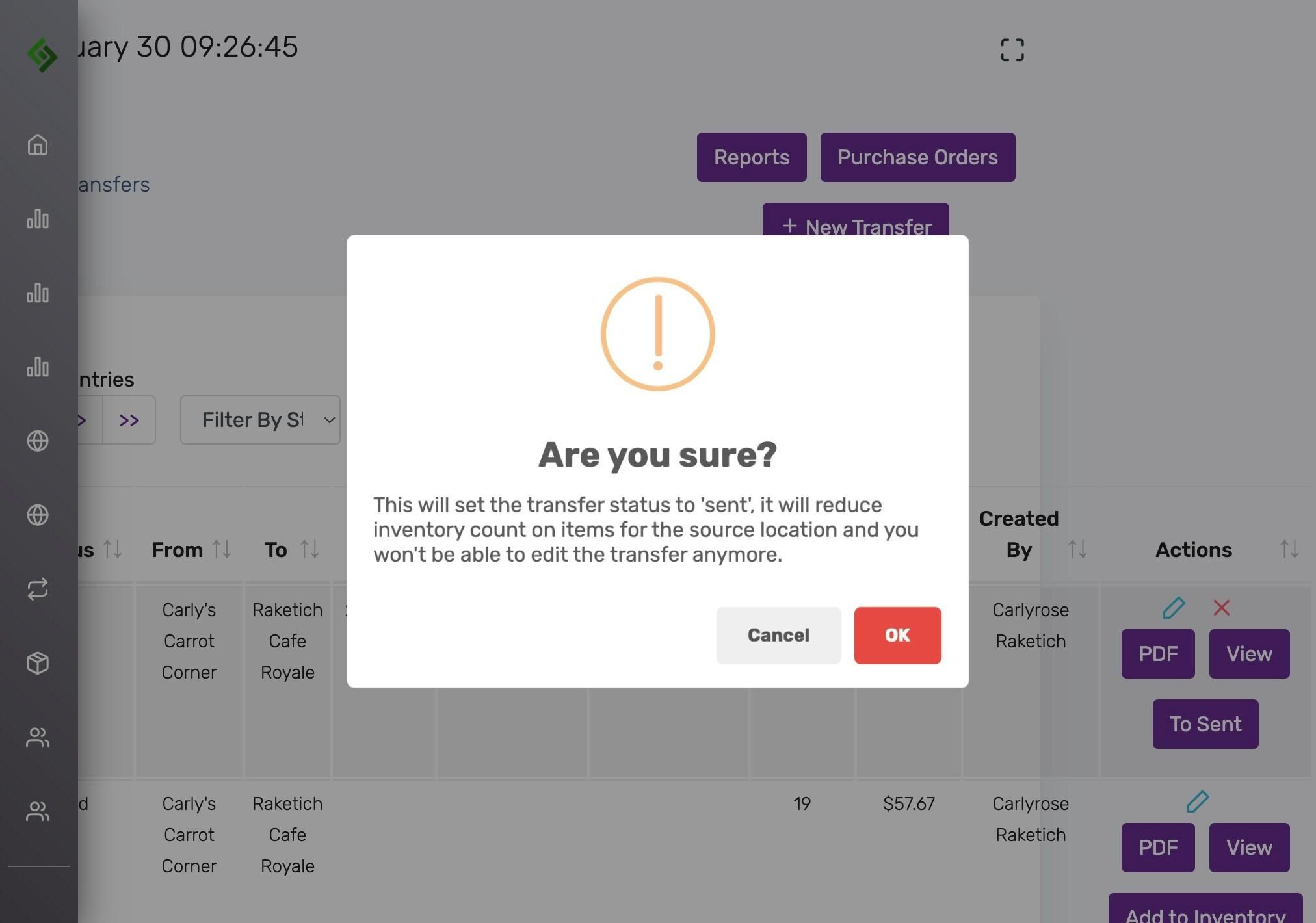
Review warning and confirm by clicking Ok #
Setting to ‘Sent’ reduces inventory at the source and locks the transfer.
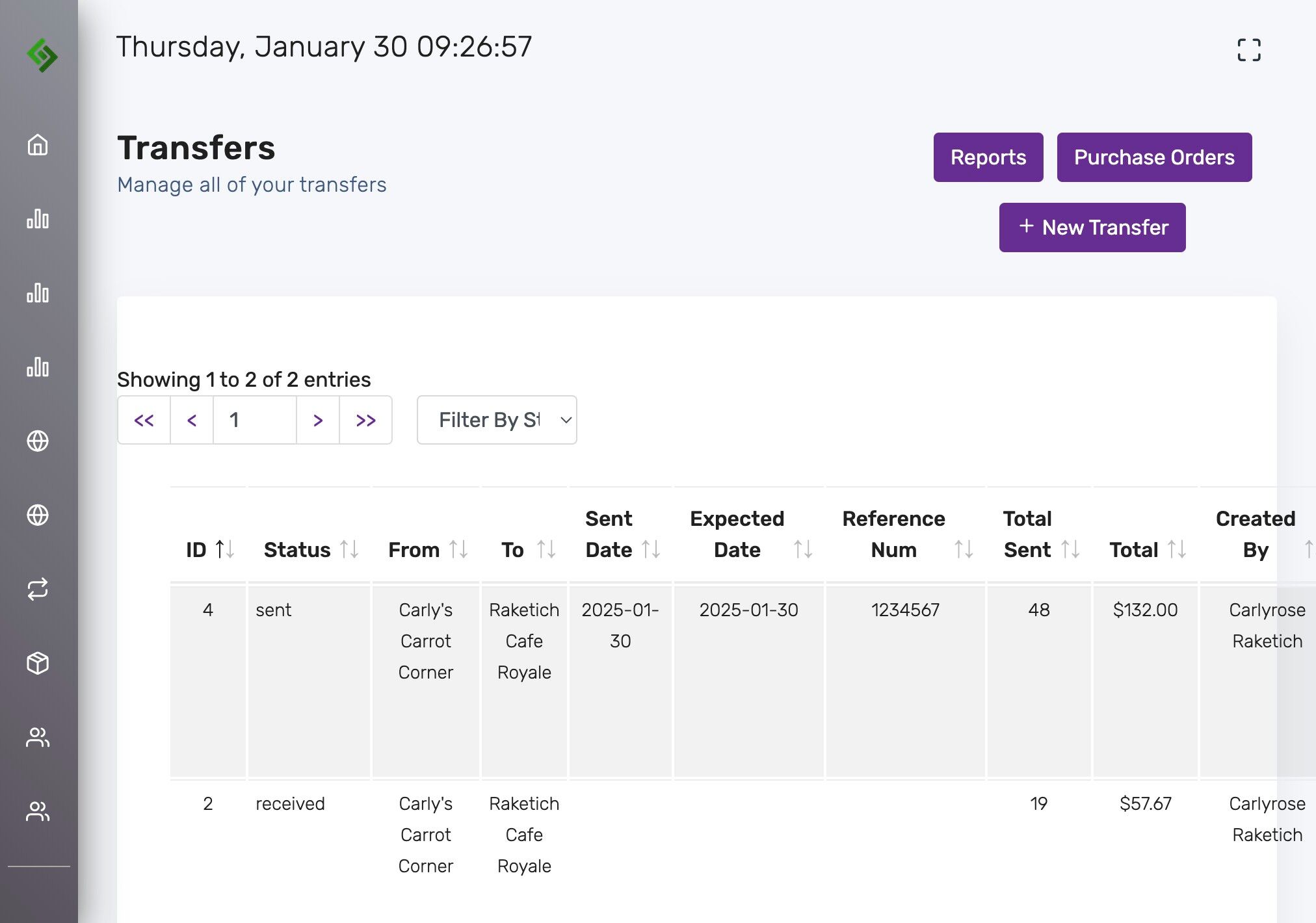
Status will now say “Sent” #
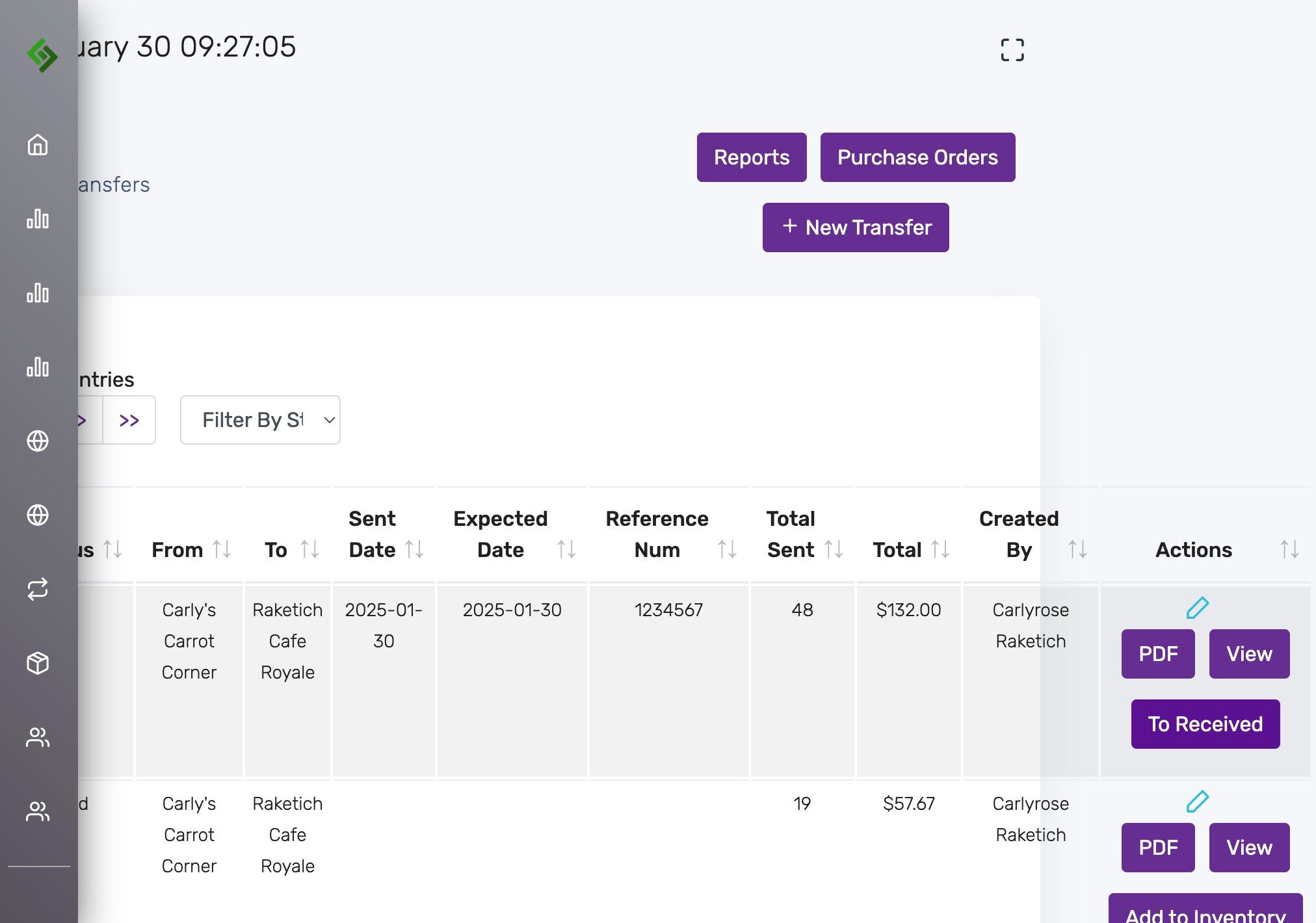
Click “To Received” when the transfer arrives #
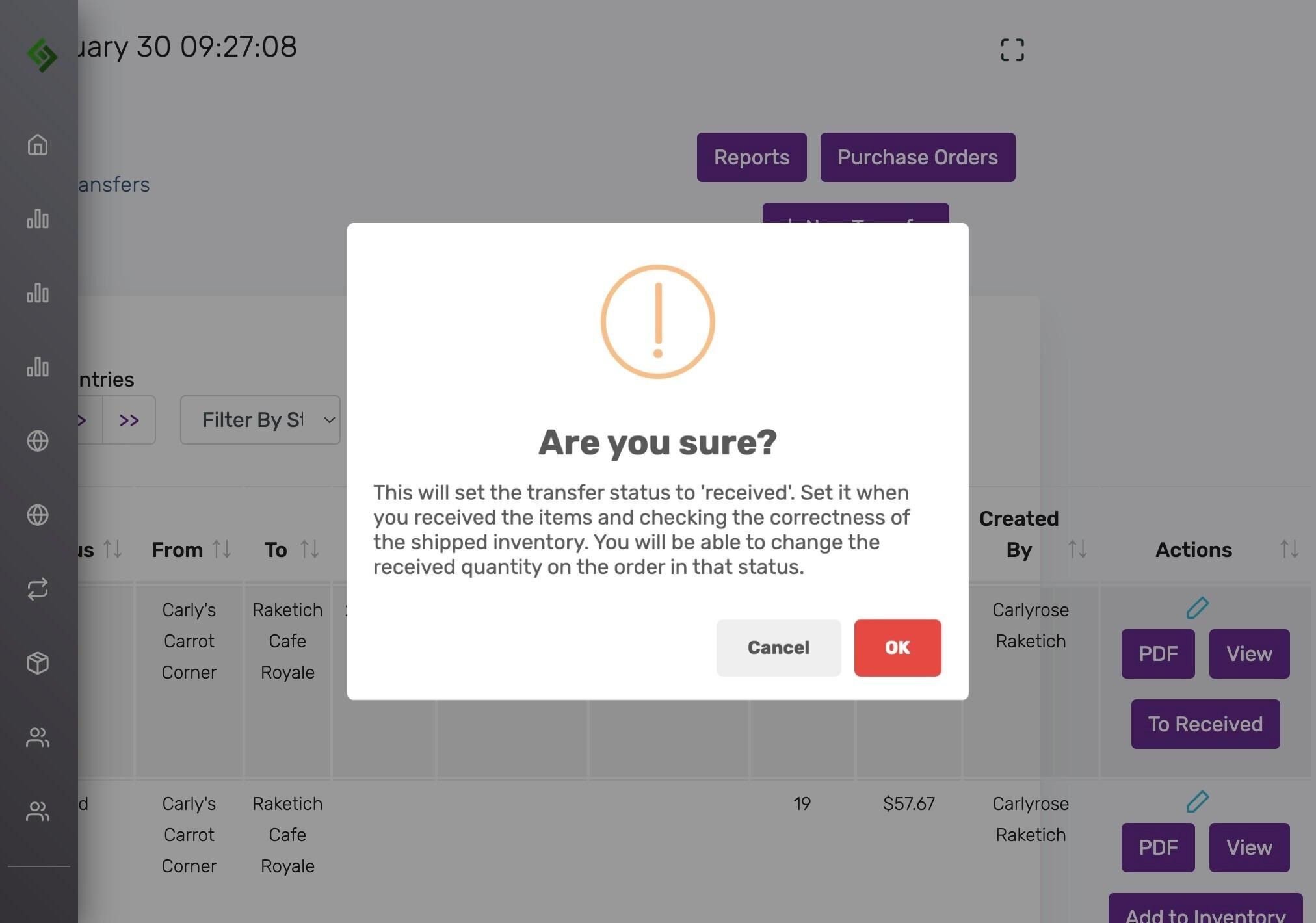
Read warning and confirm #
Only click OK if the shipment is verified. Adjust quantities if needed.
Edit quantities to ensure accuracy #
Click the blue pencil to confirm QTY sent matches QTY received.
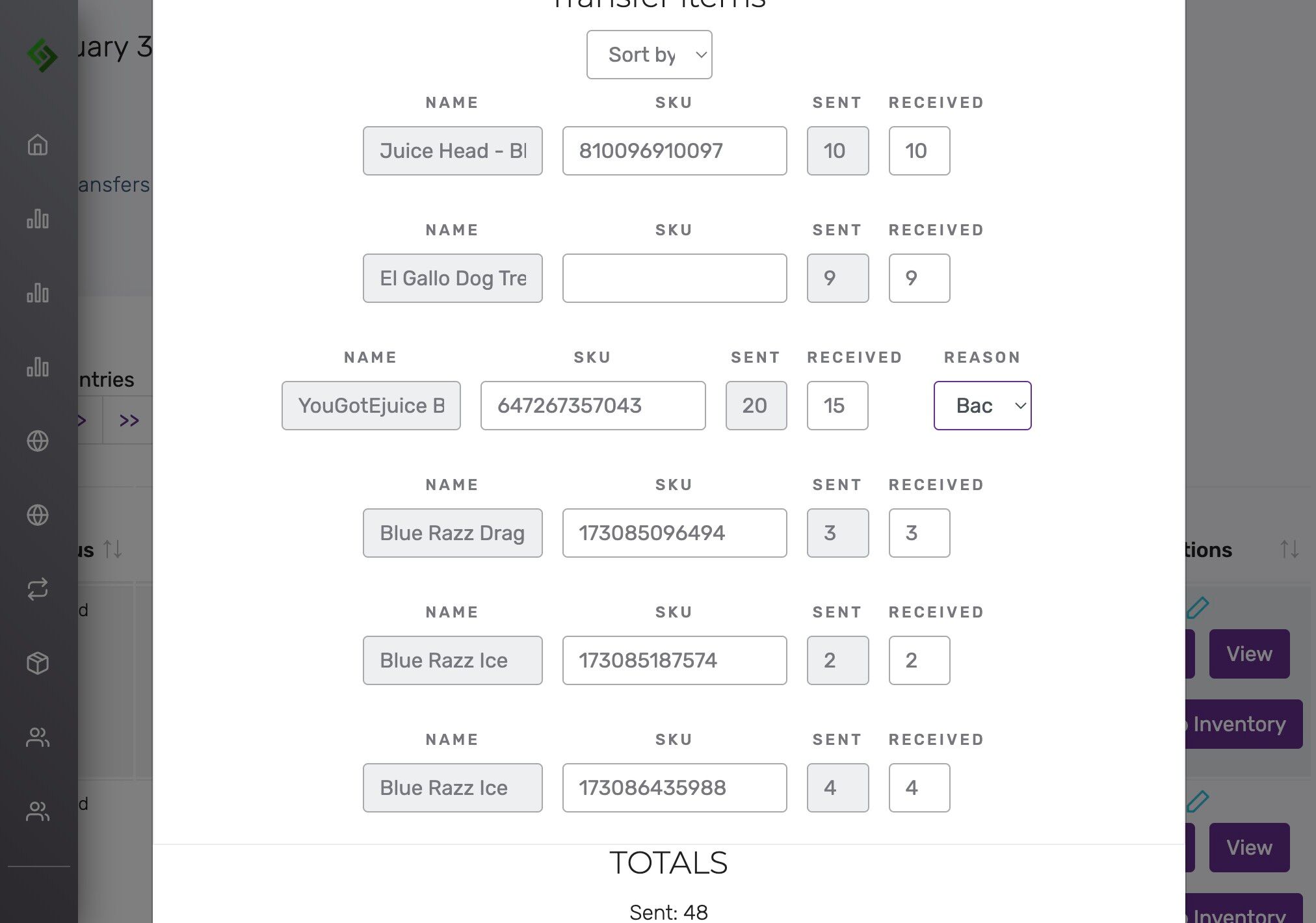
Update received quantity if less than sent #
Choose a reason from the dropdown for discrepancies.
- Wasted – Lost, damaged, or unsellable.
- Source Location – Still at original location.
- Another Location – Sent to a different location.
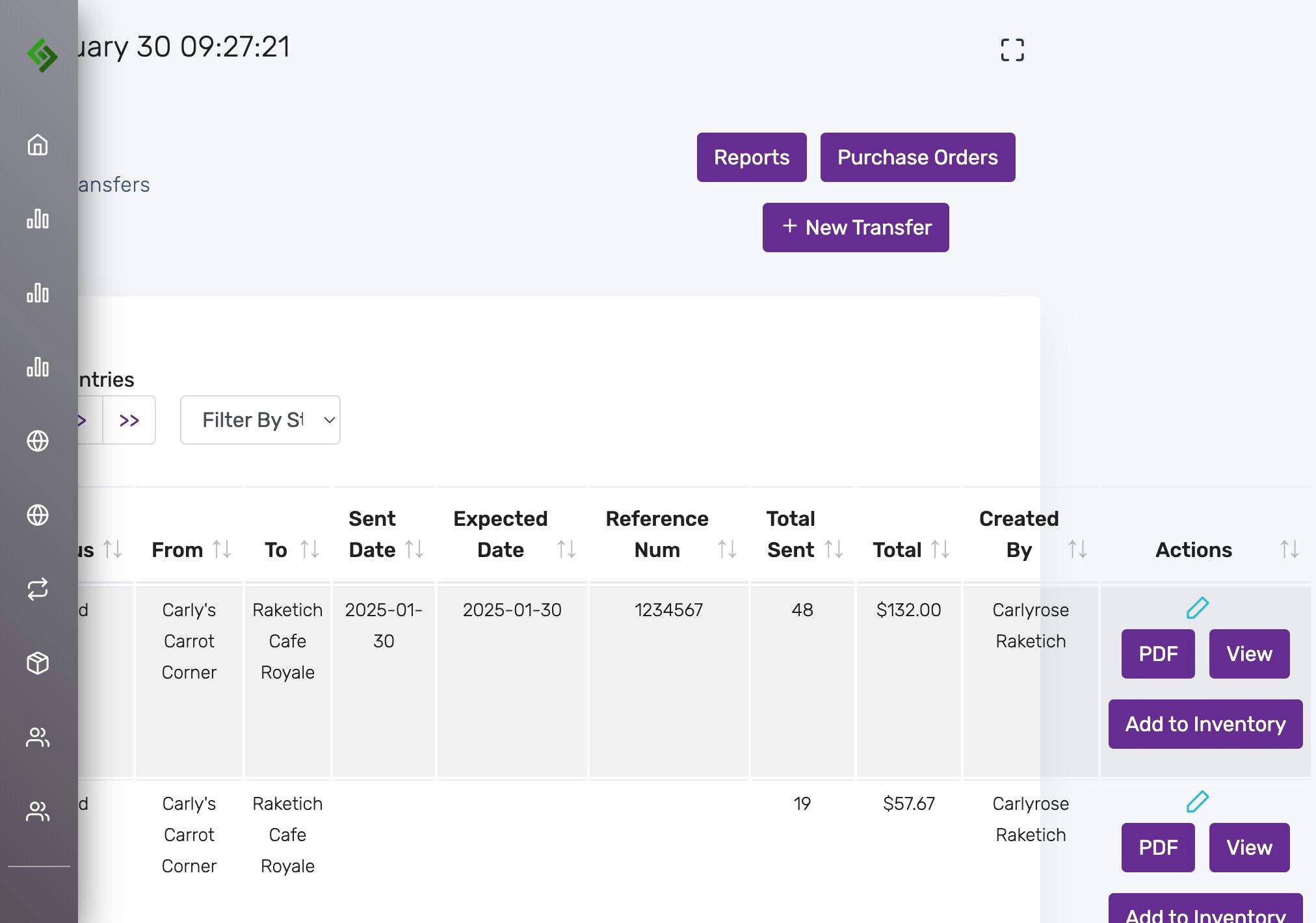
Click “Save Changes” #
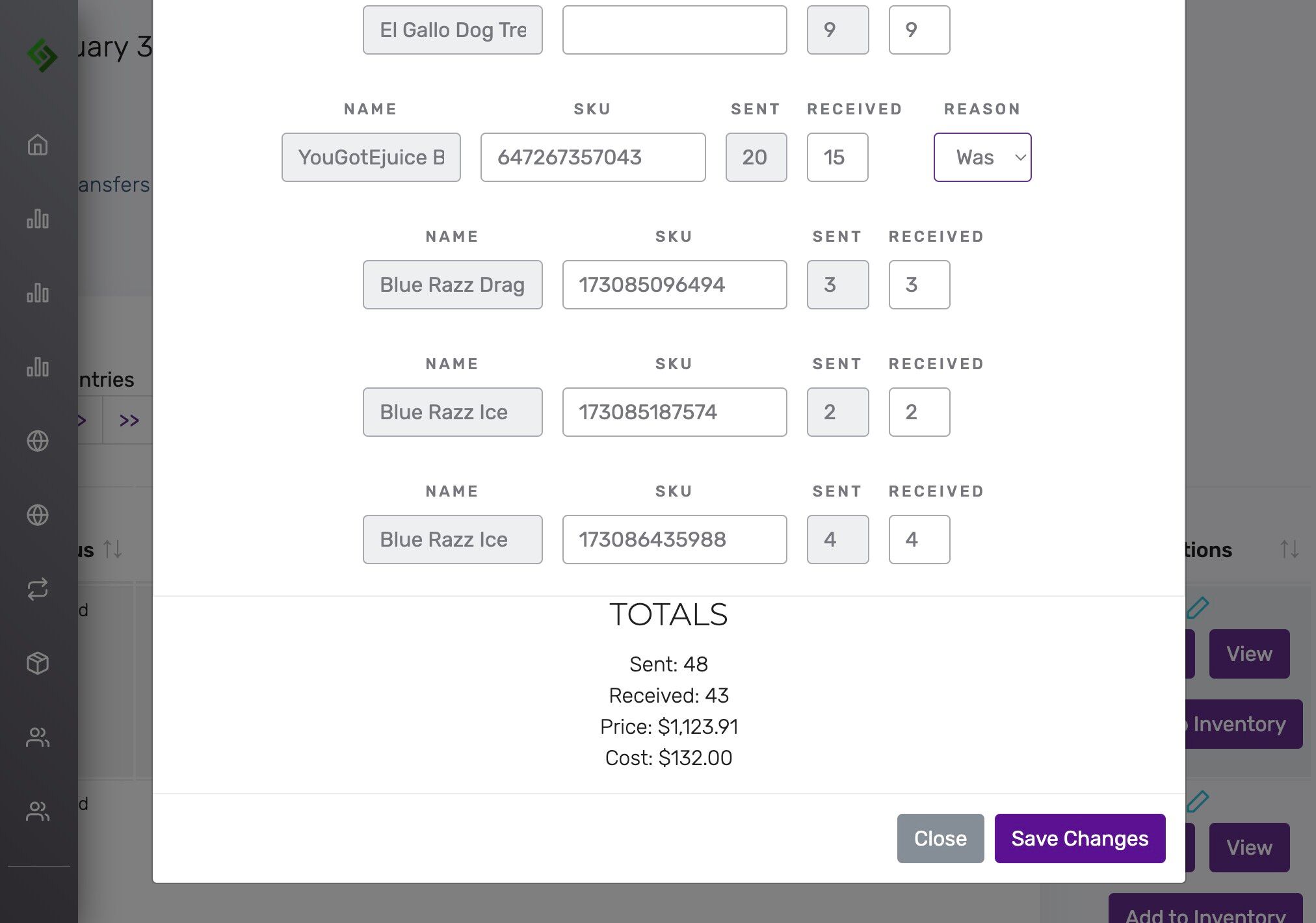
Click “Add to Inventory” #
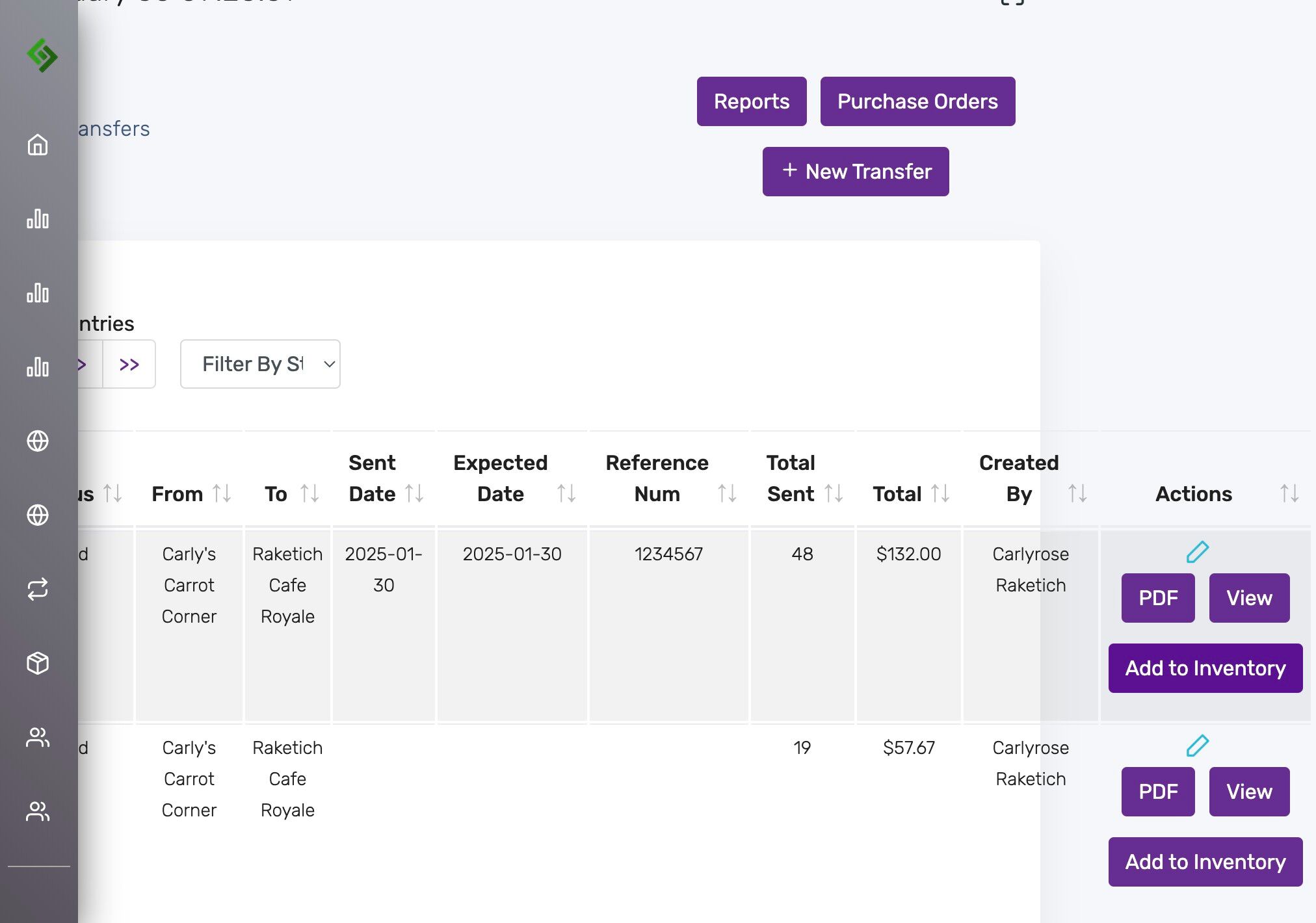
Review final warning #
This sets the transfer to ‘finished’, updates quantities, and archives the record.
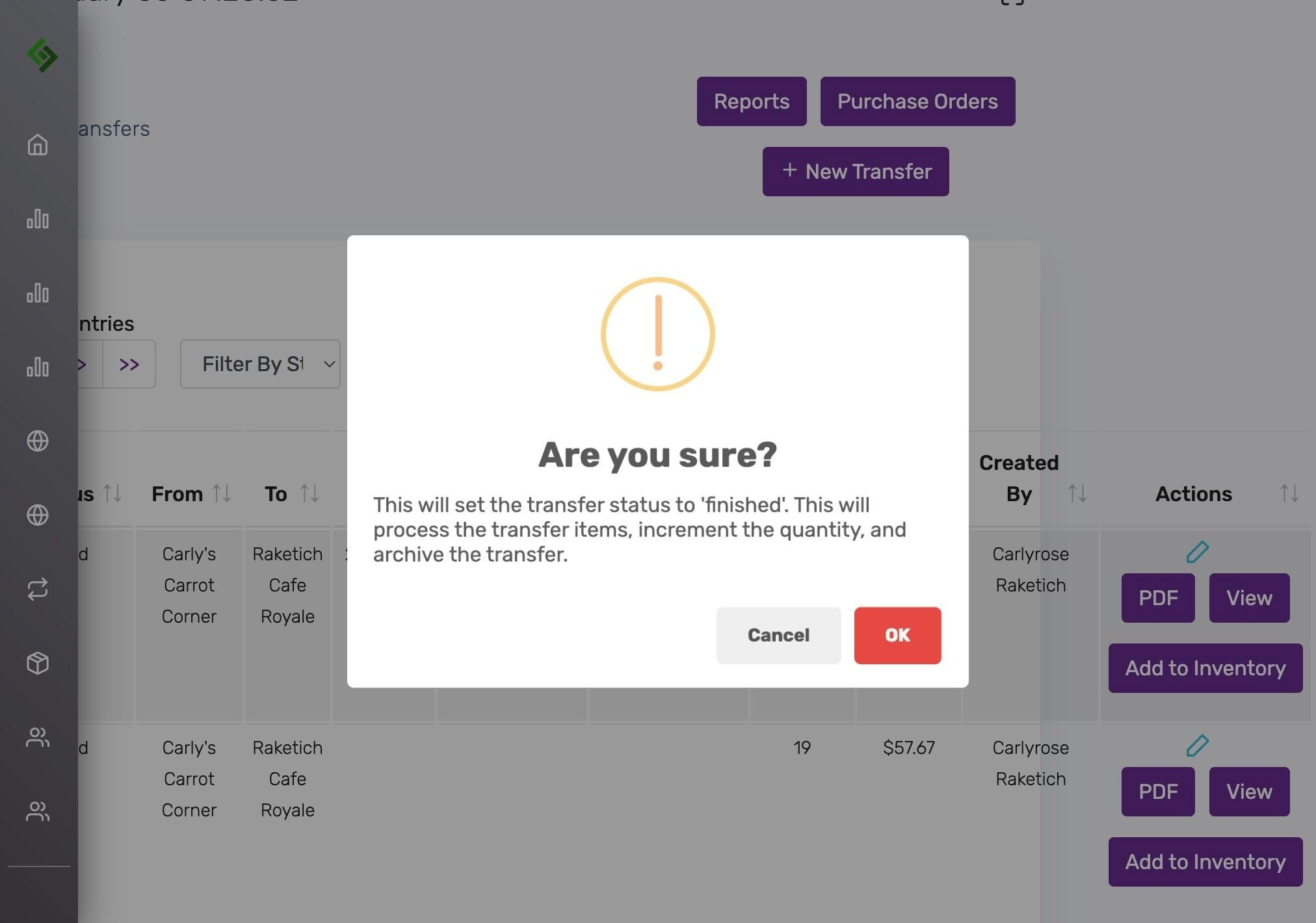
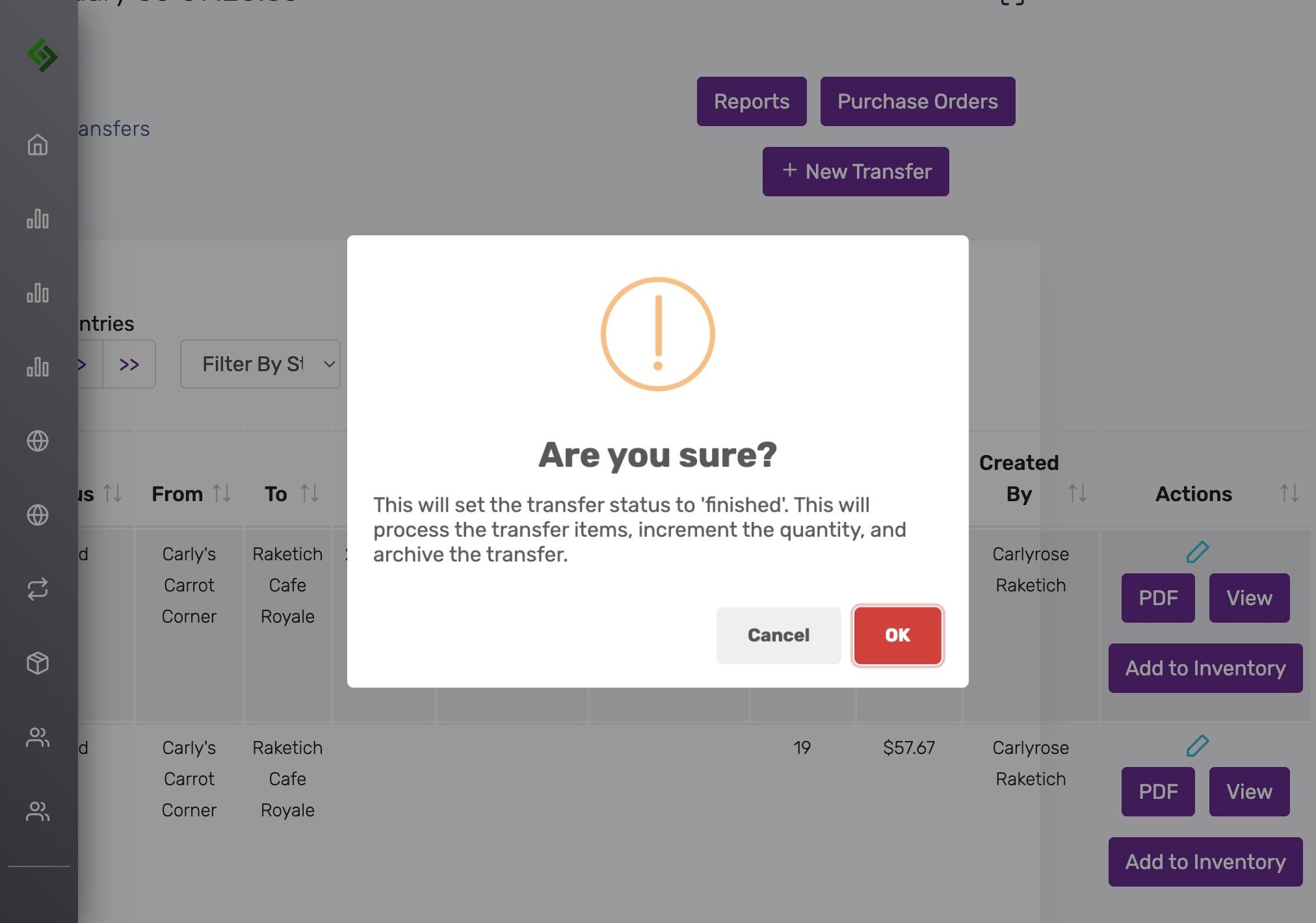
Click “OK” to finish the transfer #
Status will change to “Finished”.
Other purchase order and related topics #
- Creating New Purchase Orders
- Add Sku to Purchase Orders
- General Settings: Enabling Purchase Orders Tab
- Default Purchase Tax Rate % on Purchase Order
- Hide Finished Purchase Orders From Default View
- Transfer Products / Inventory Between Locations
- Creating a Purchase Order from the Low Stock Report


