Creating Open Tickets Tabs (Lifelong OS) (Bar / Restaurant) #
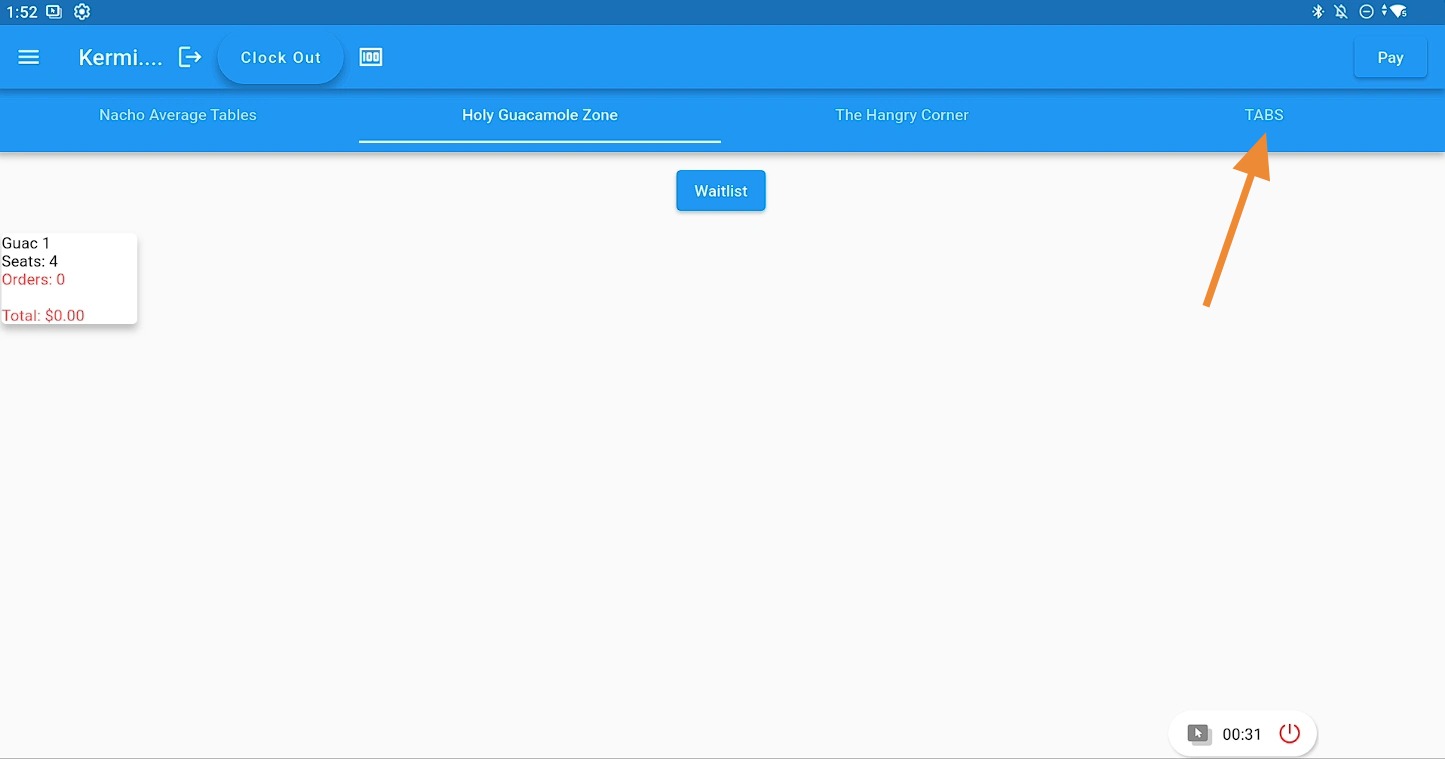
Open the Tabs section #
Launch Lifelong OS and click on the Tabs section to begin creating a new ticket tab.
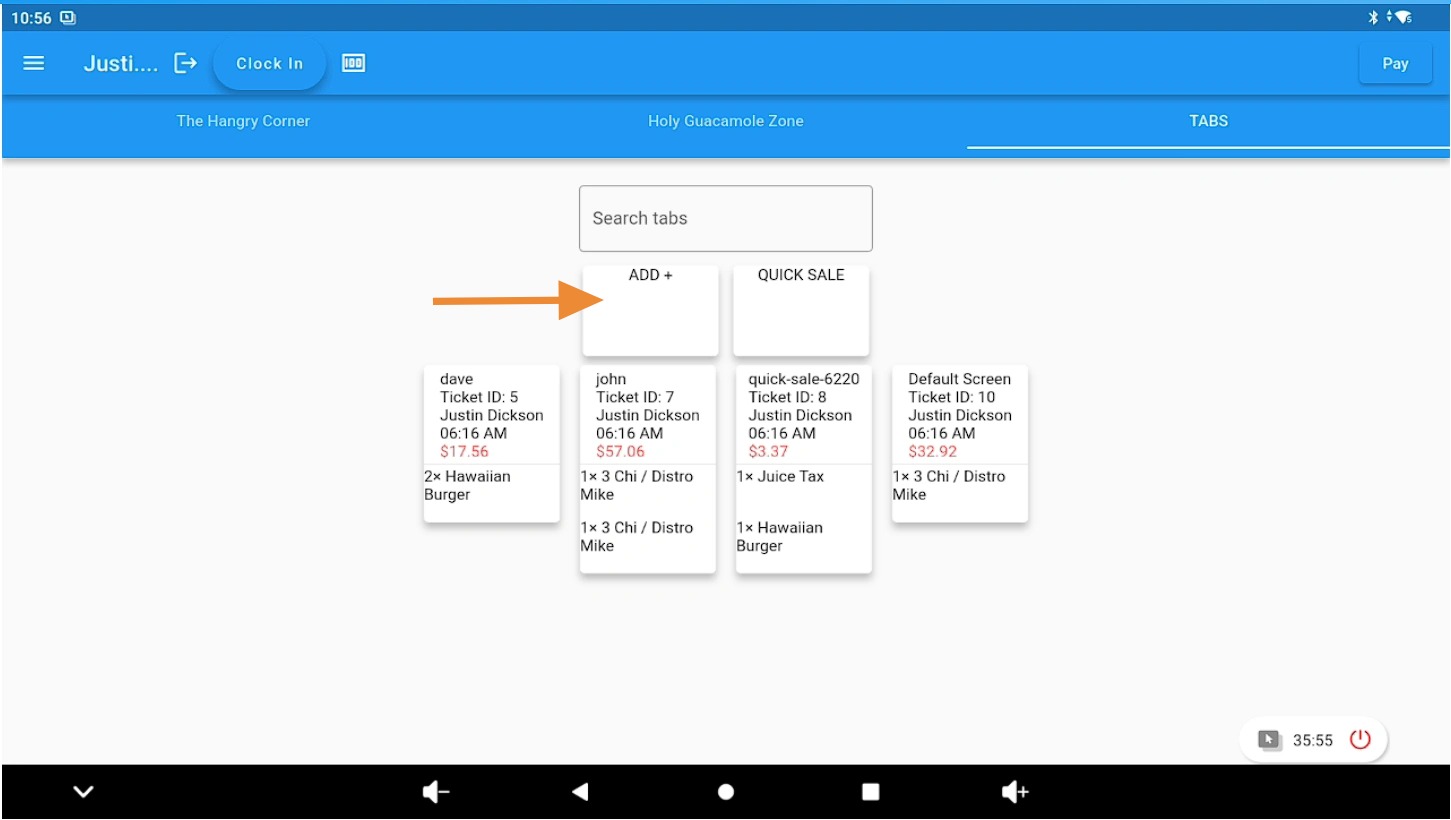
Create a new tab #
Use the ADD + button to enter a customer name and select items or products for the new tab.
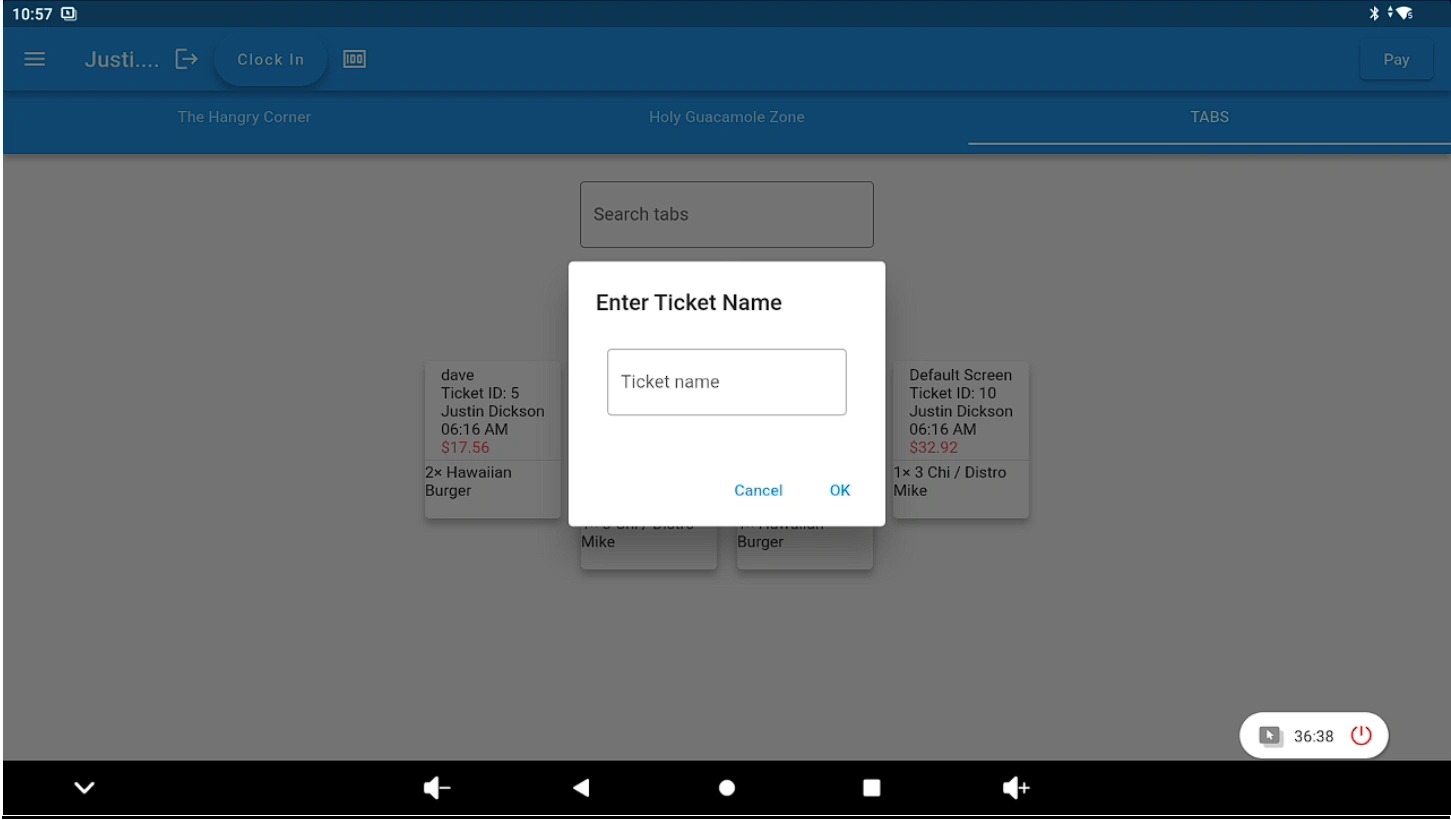
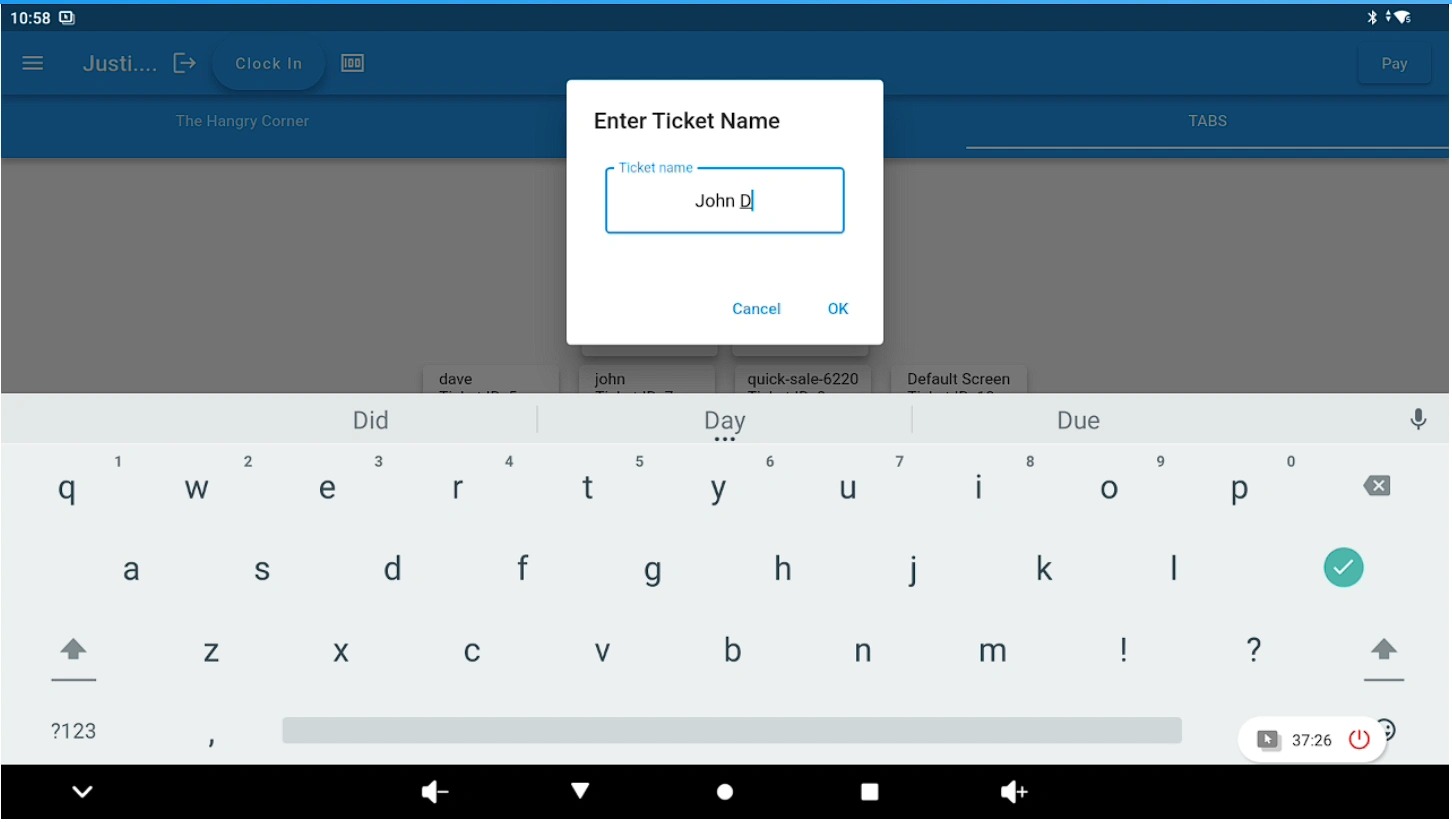
Enter the customer name #
On the new screen, type the customer’s name to label the tab.
Example tab name #
In this example, the tab name used is “John D.”.
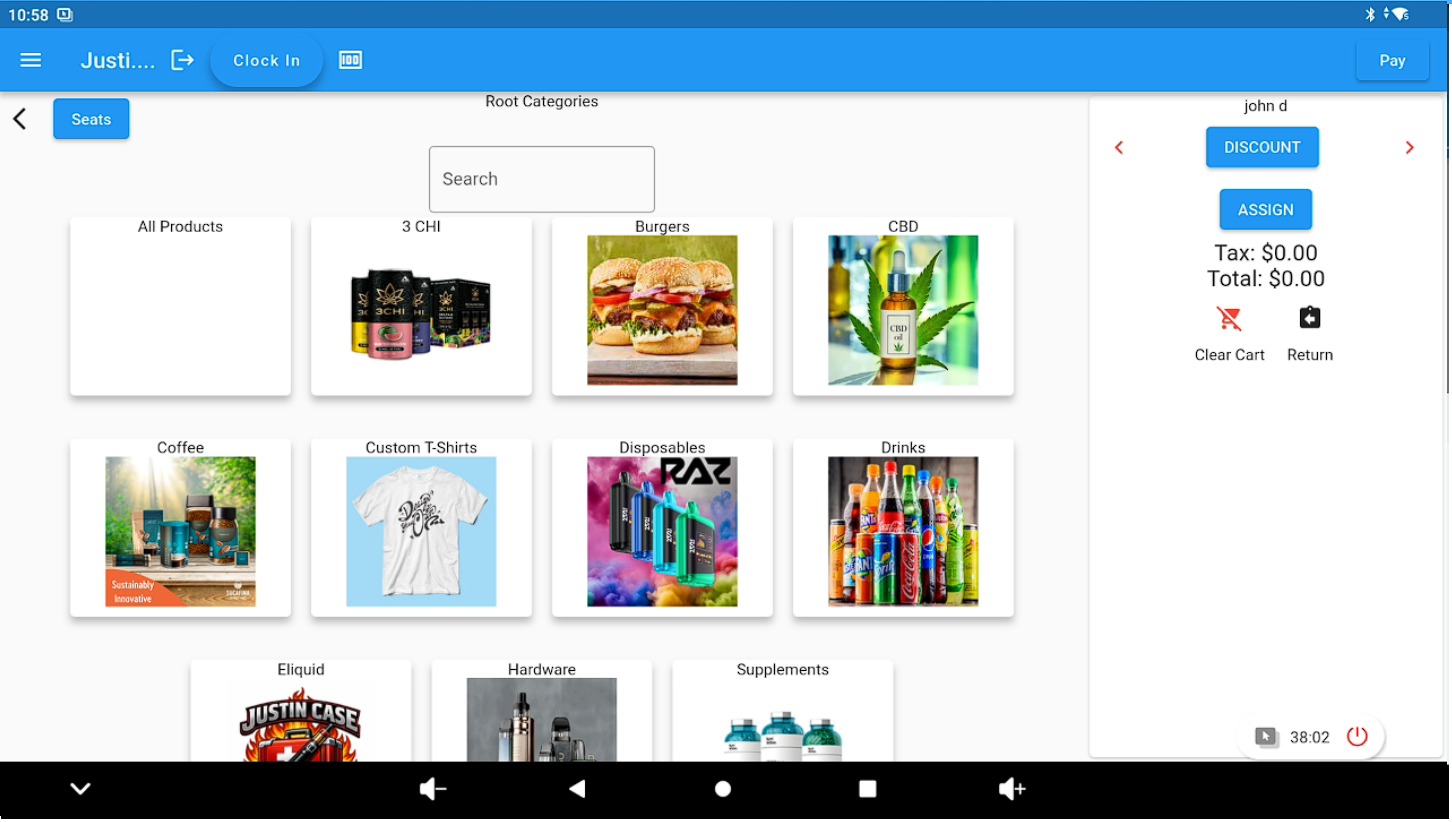
Select items for the tab #
Choose the item or product requested by the customer from the inventory screen.
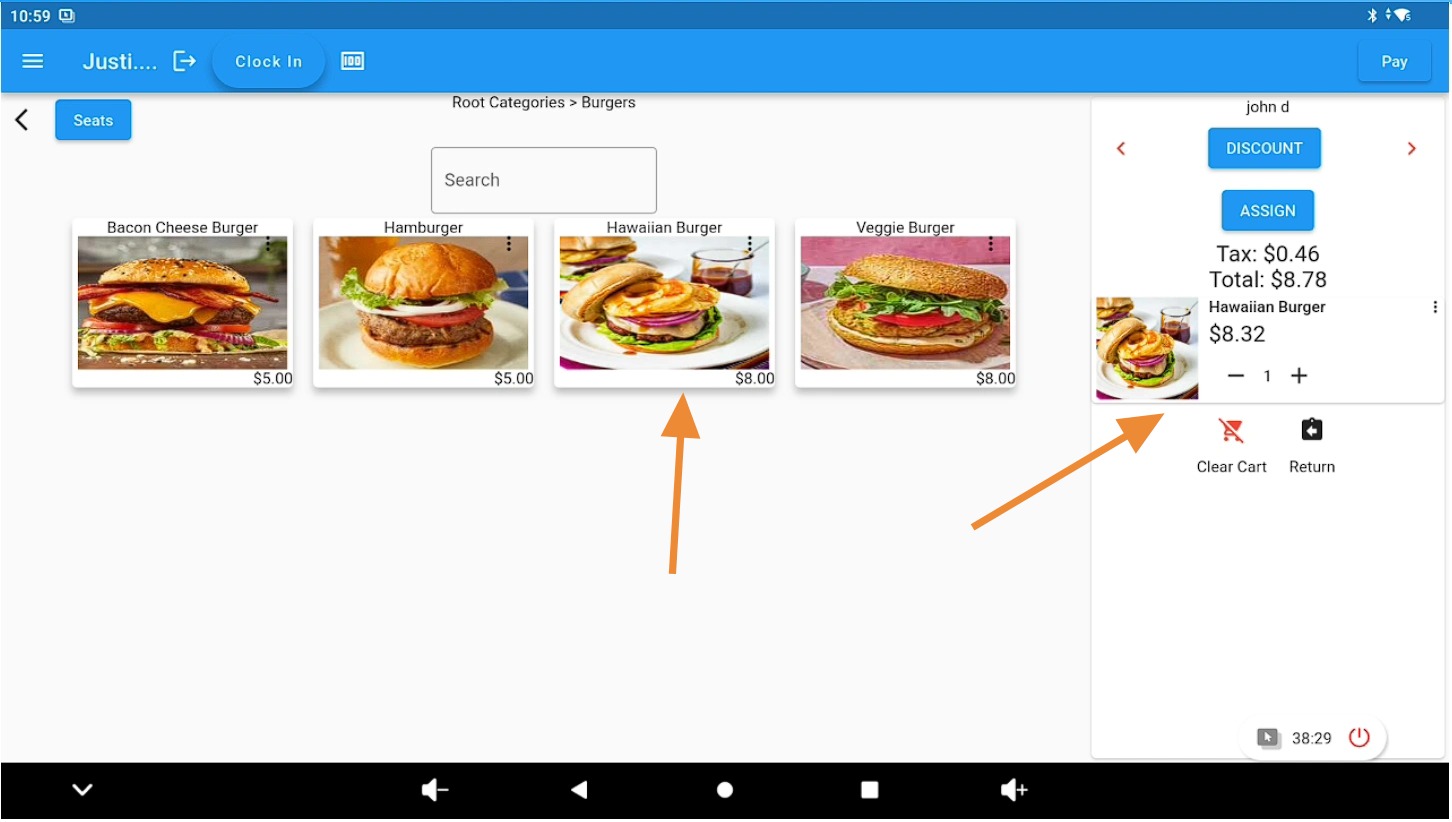
Add items to the cart #
Add at least one item to the cart to start the tab.
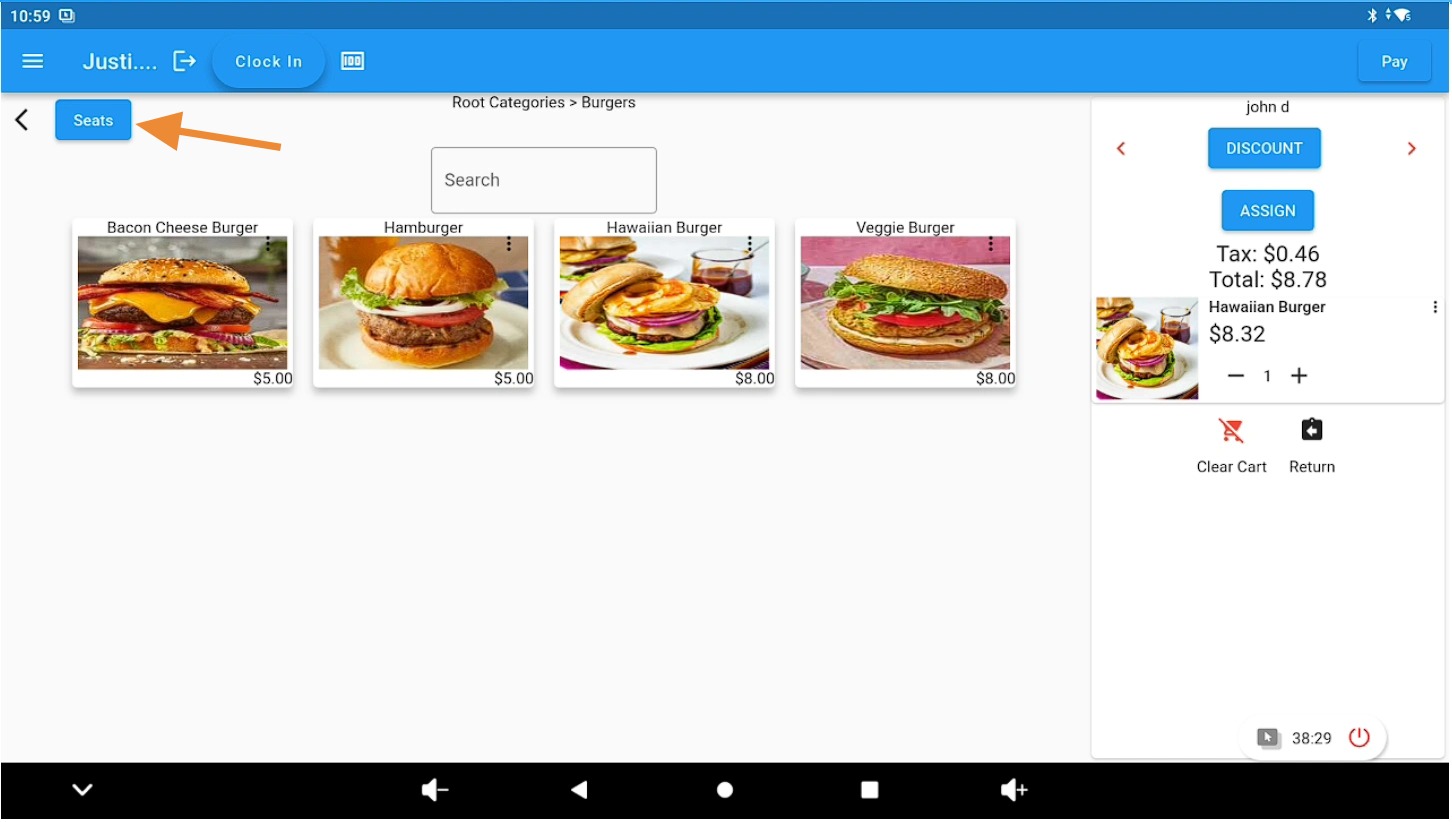
Return to tables or tabs view #
Use the Seats button to navigate back to the main tables or tabs screen.
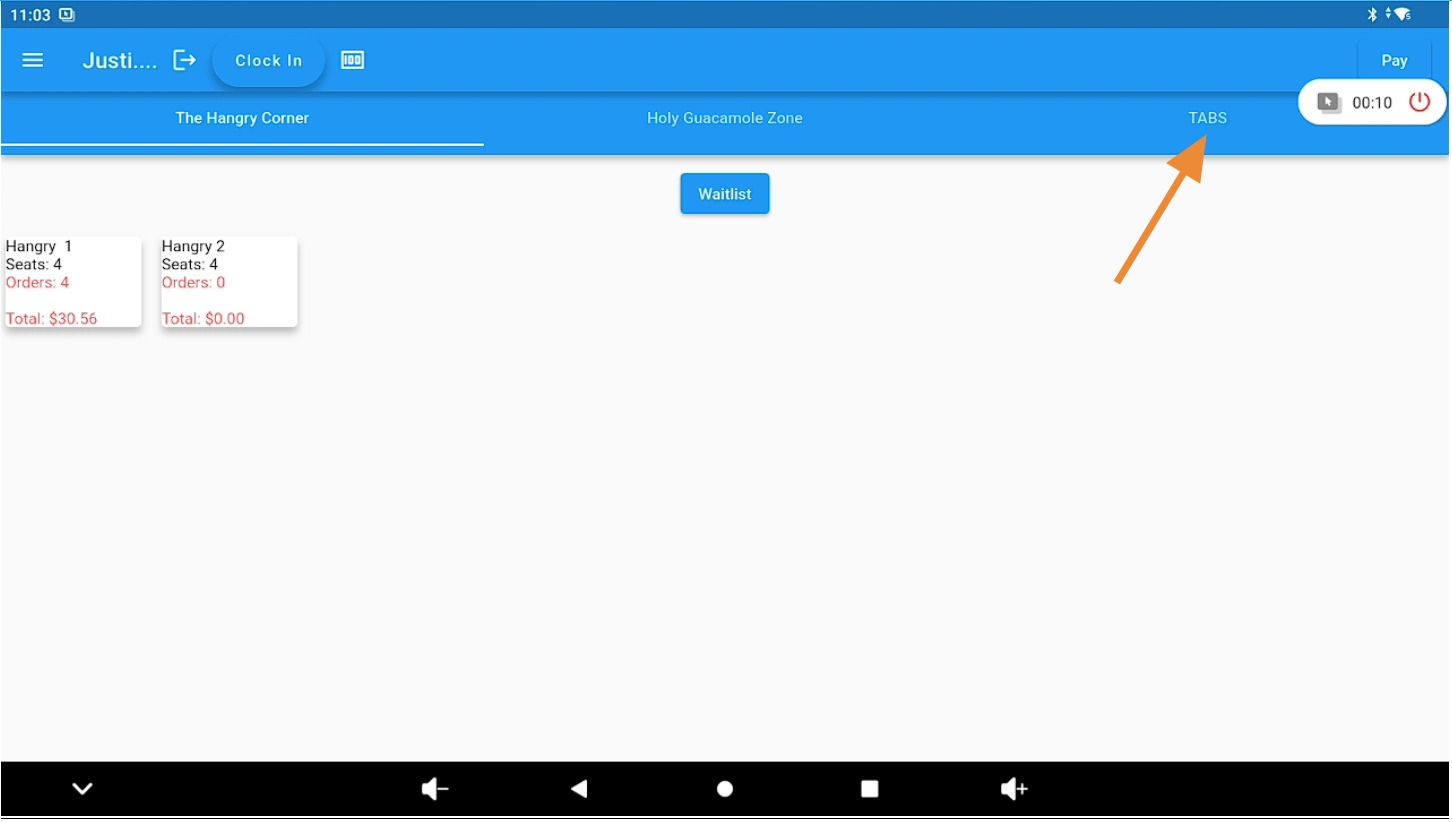
View the newly created tab #
Click on the Tab section to see the ticket you just created.
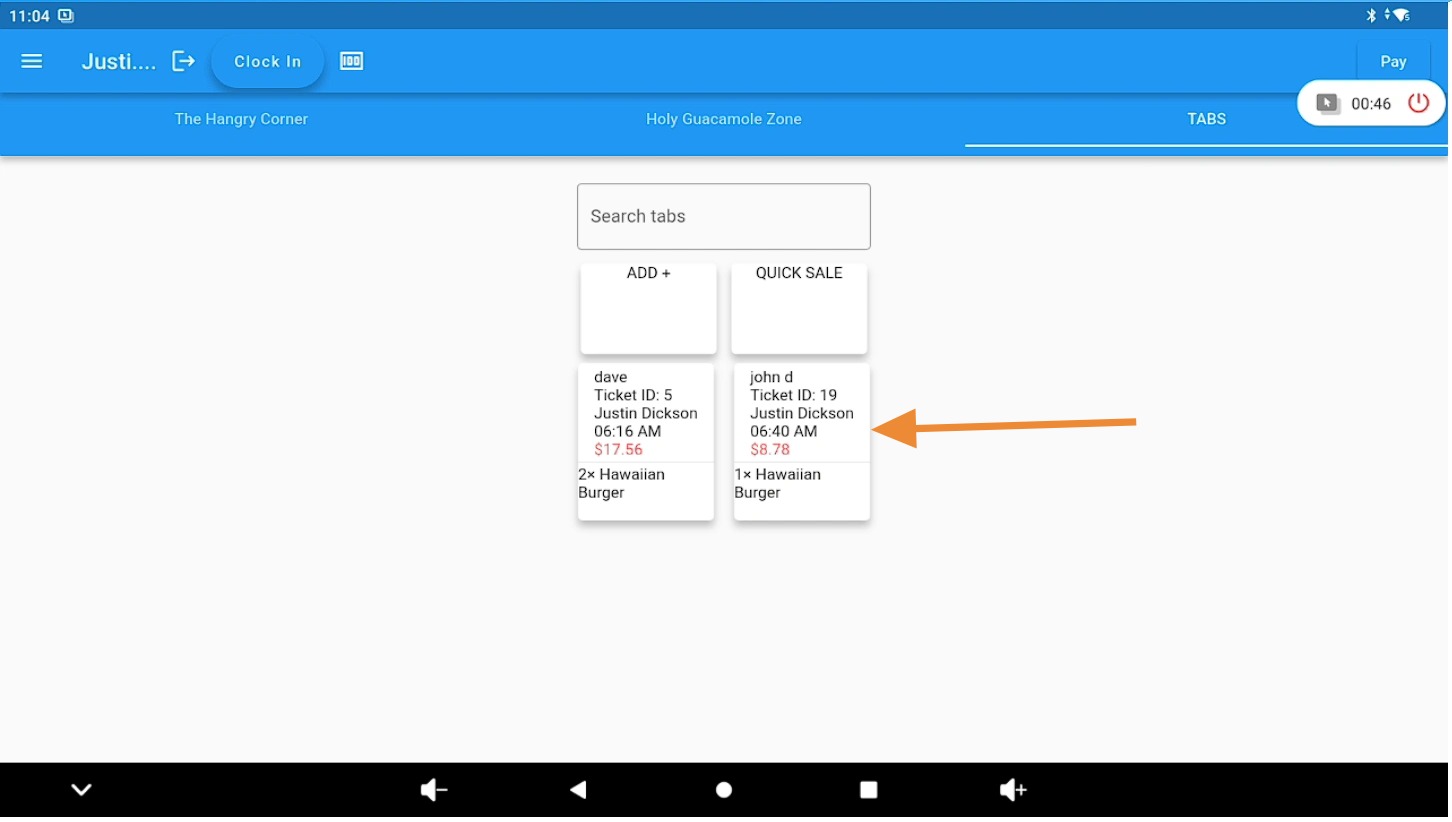
Complete checkout for the tab #
The ticket is now ready for checkout. Click on the tab to proceed.
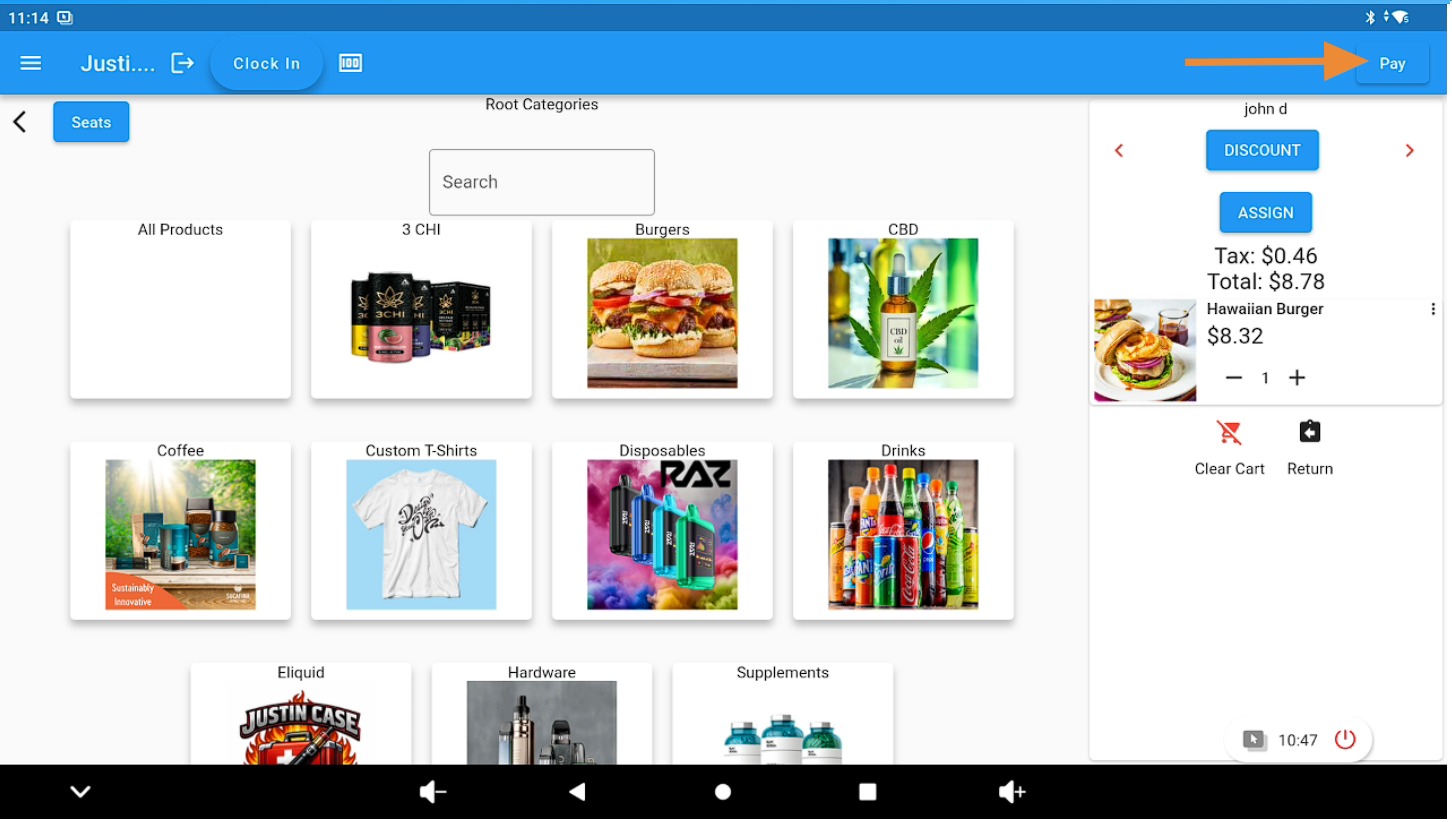
Click the Pay button #
Press the “Pay” button on the top right to start payment.
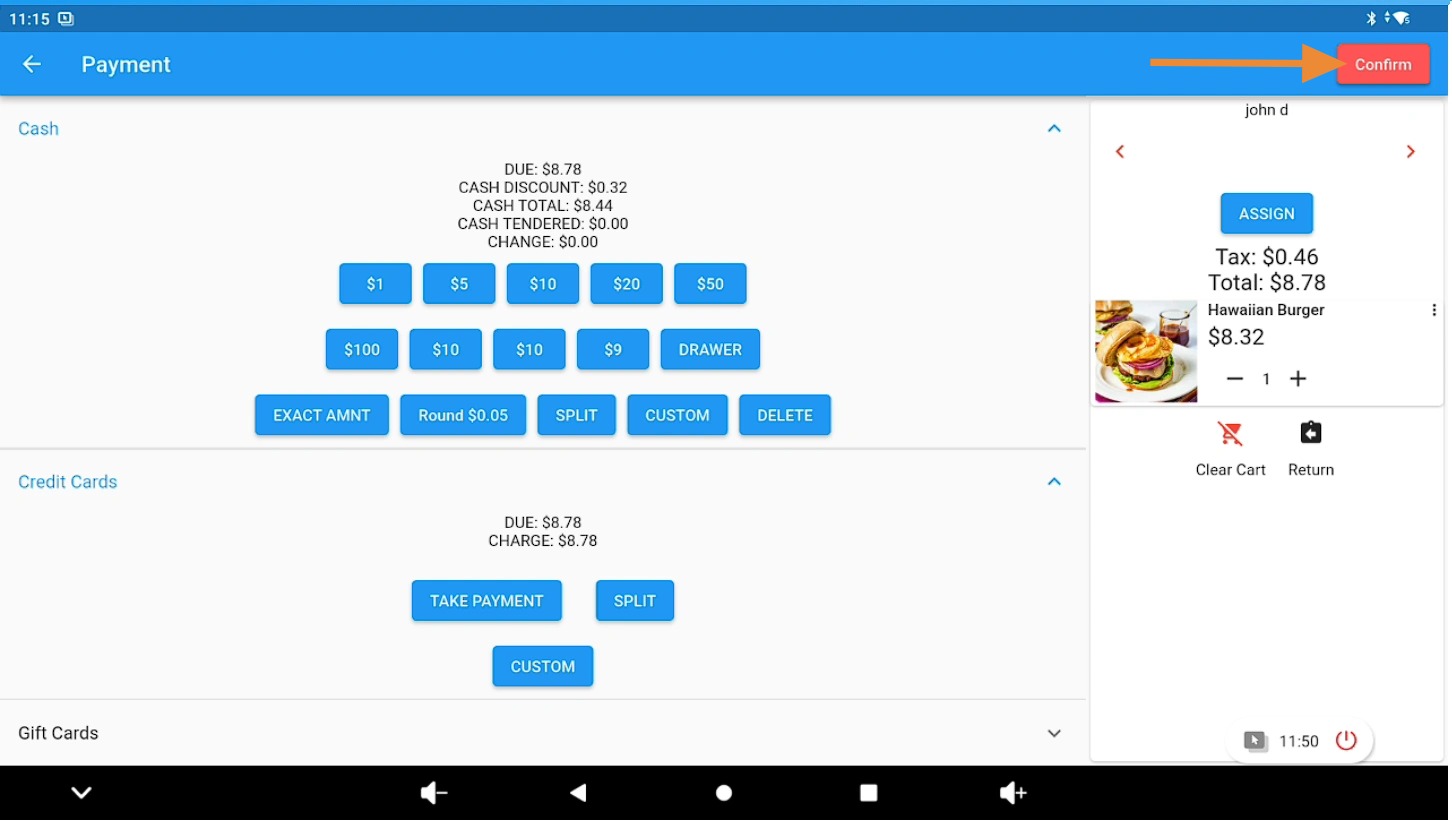
Finalize the transaction #
Complete payment with cash or card, then click “Confirm” to finalize.
Return to the main screen #
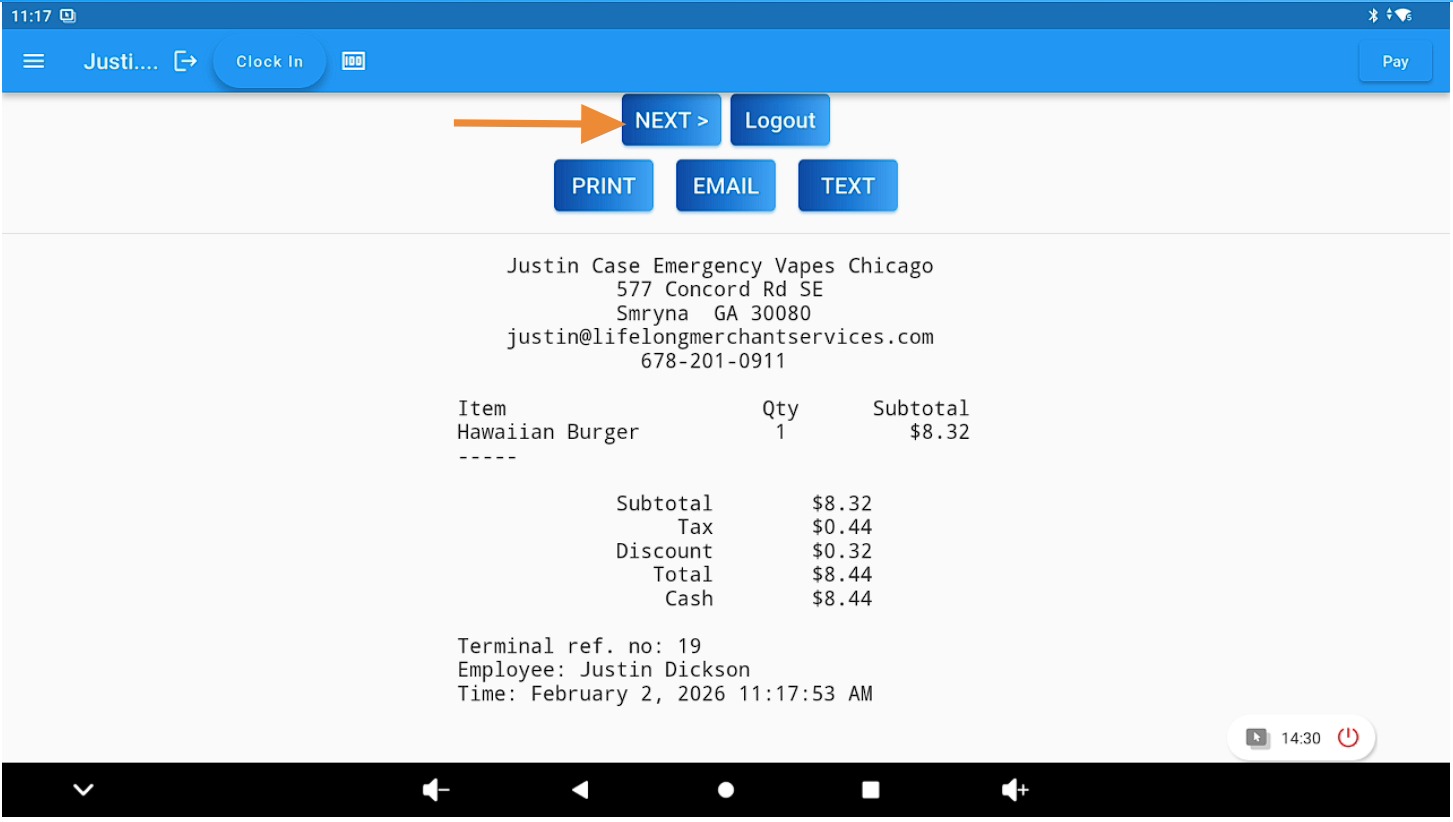
Click the “Next” button to go back to the main Lifelong OS screen.