
Invoice Payment Link On Lifelong POS Register App #
Making an Invoice #
Saving an Invoice #
Assign the customer who will be associated with the invoice.

Add Items and Click Pay #
Add items to the cart, then click Pay.

Select Payment by Invoice #
Swipe up on the left side of the screen until you see “Payment by Invoice”, then tap to select it.

Enter Order Amount #
Click on the “Order Amnt” button.

Confirm Invoice #
Click Confirm at the top right of the screen.

Complete and Start New Order #
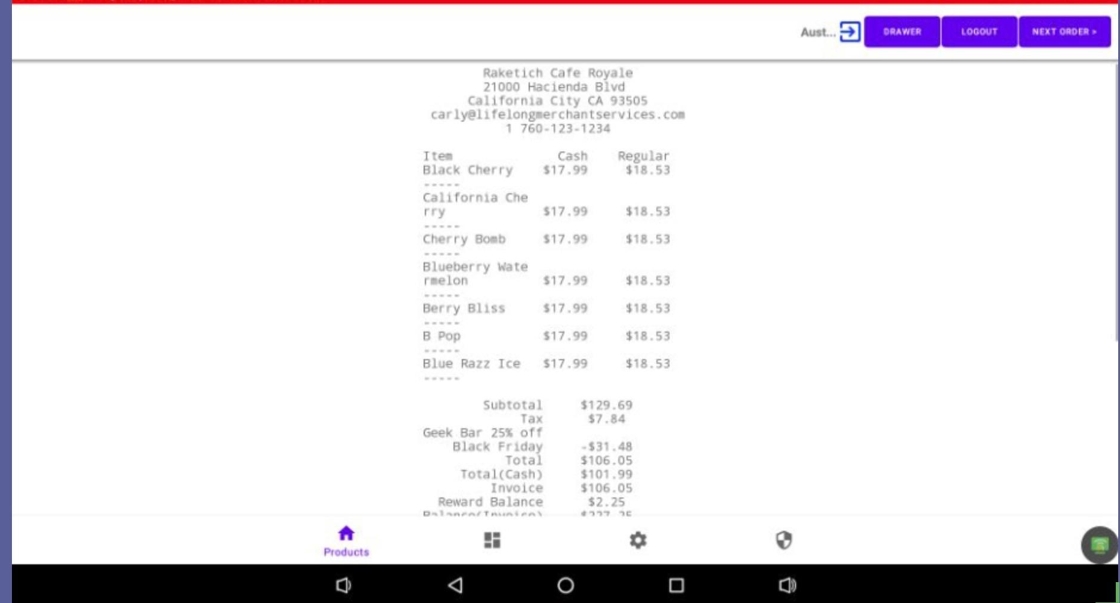
Print or email the receipt, then click the Next Order button at the top-right corner of the screen.
Sending an Invoice Link to the Customer on POS #
Assign the Customer #
First, assign the customer who will receive the invoice.

Open Payment Options #
Click the Pay button in the top-right corner of the screen.

Select Pay Invoice #
Click the “Pay Invoice” button.

Select the Invoice #
Find the invoice by clicking the dropdown menu.

Confirm Actions #
Click OK

Send the Invoice Link #
Click Yes, Do it

Re-select Payment by Invoice #
Swipe up on the left side of the screen again and select “Payment by Invoice”.

Send Payment Link #
Click the “Send Link to Pay” button.

Enter Customer Email #
Type in the customer’s email address, then press Enter.

Finalize Link Send #
Press OK

Reports #
Other useful associated links:


