
Creating Discounts : All Cart Items / Fixed Amount On Matched Items (Bundle) #
✅ How It Works #
Trigger condition: Customer must buy the selected bundled items in the cart (across all or selected categories/products).
Reward: Get $20 off each product (example: buy Starter Kit, Coils & Eliquid get $20 Off Each product)
1. Create a new discount rule #
Use the “All Cart Items / Fixed on Matched Items (Bundle)” option. Follow the step-by-step instructions below.
2. Navigate to Lifelong POS #
Go to https://login.lifelongpos.com/ on a web browser.
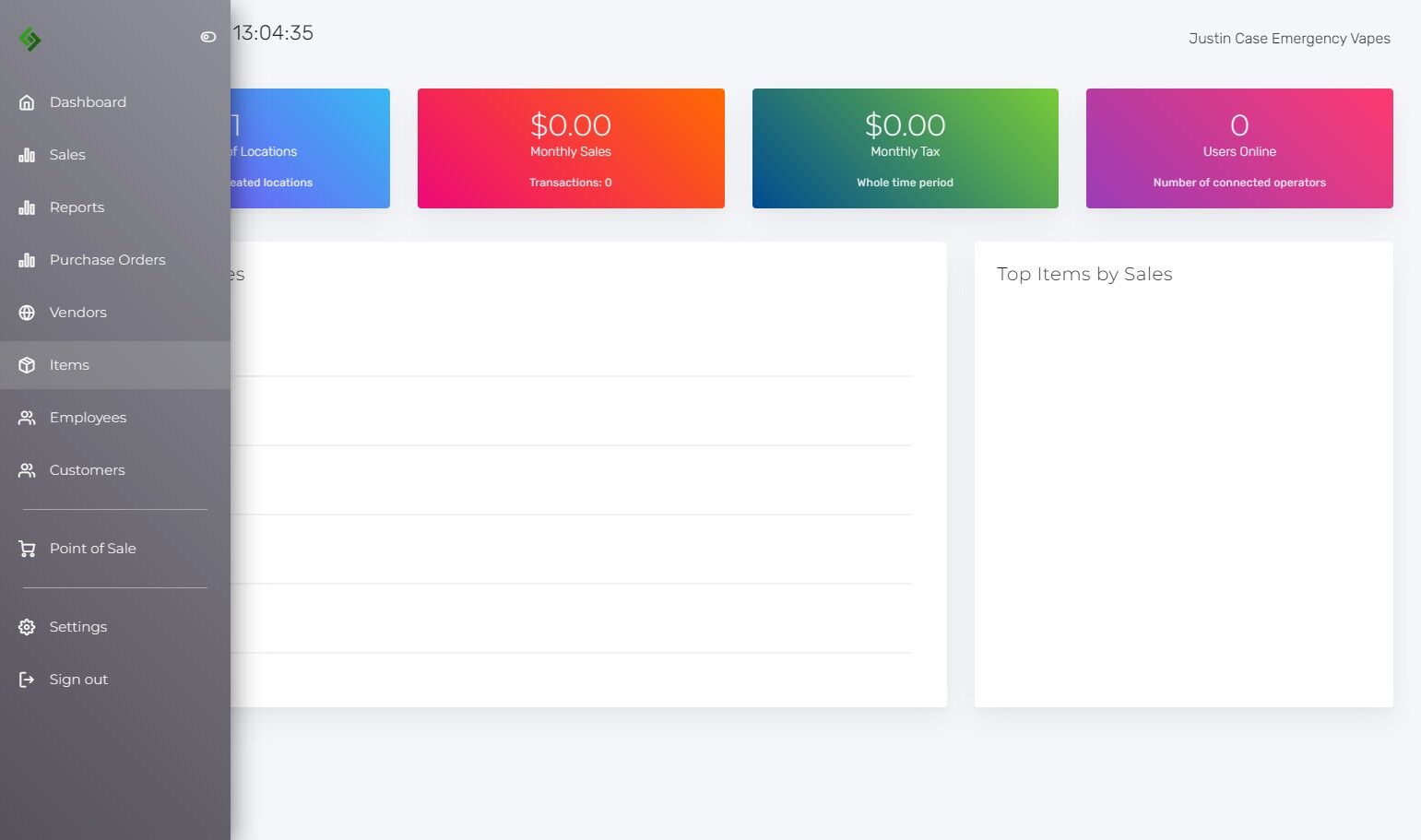
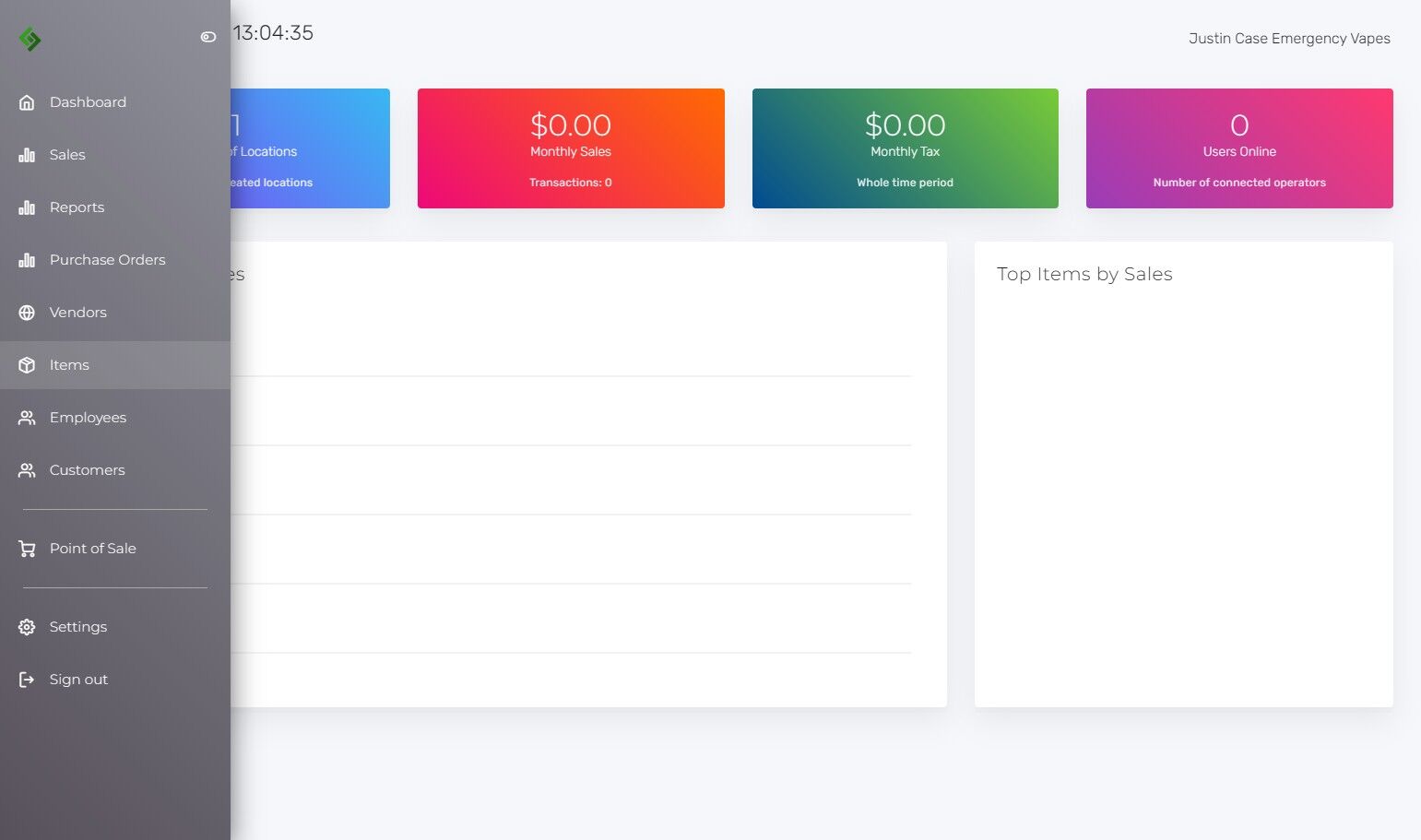
3. Click the “Items” tab #
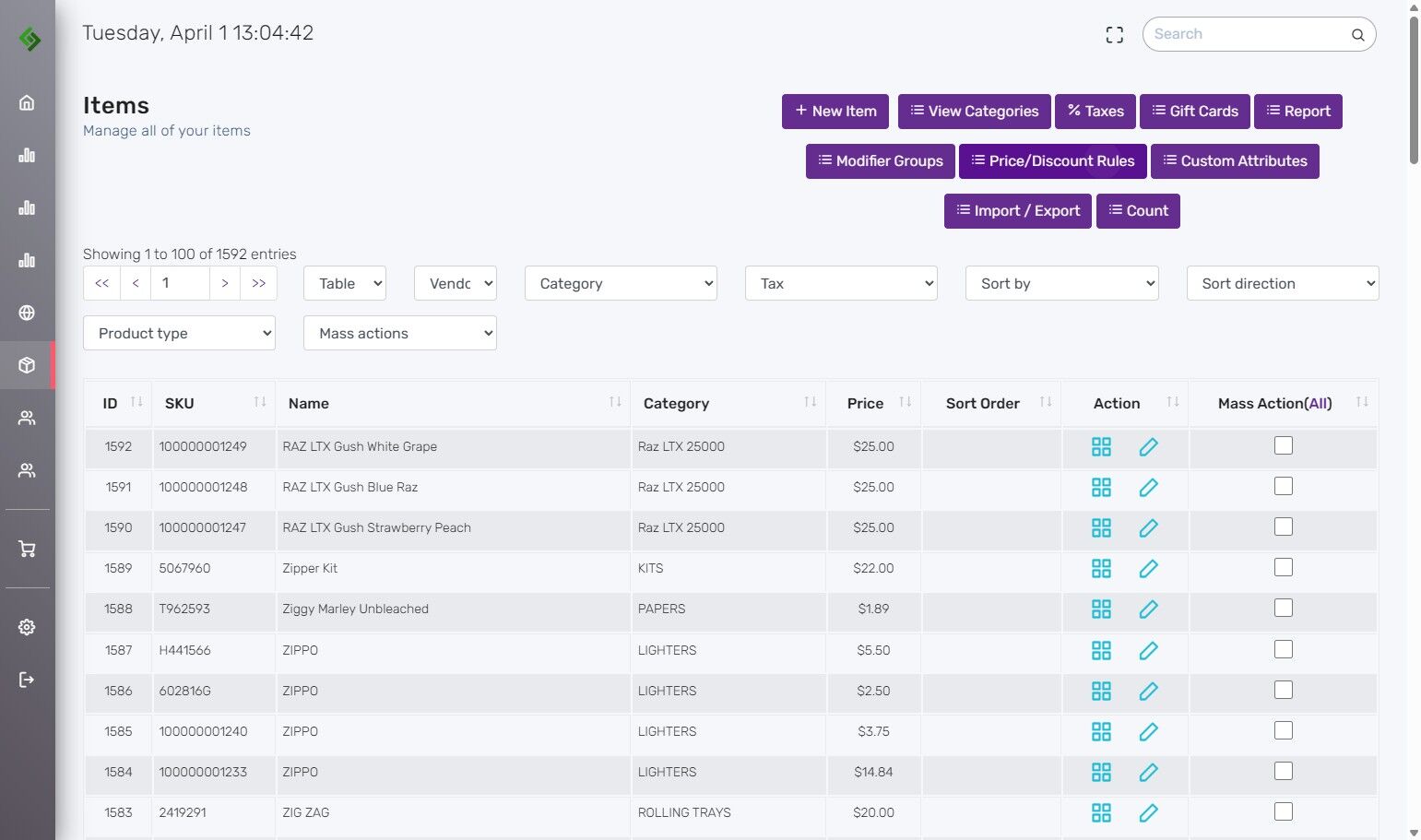
4. Select “Price/Discount Rules” #
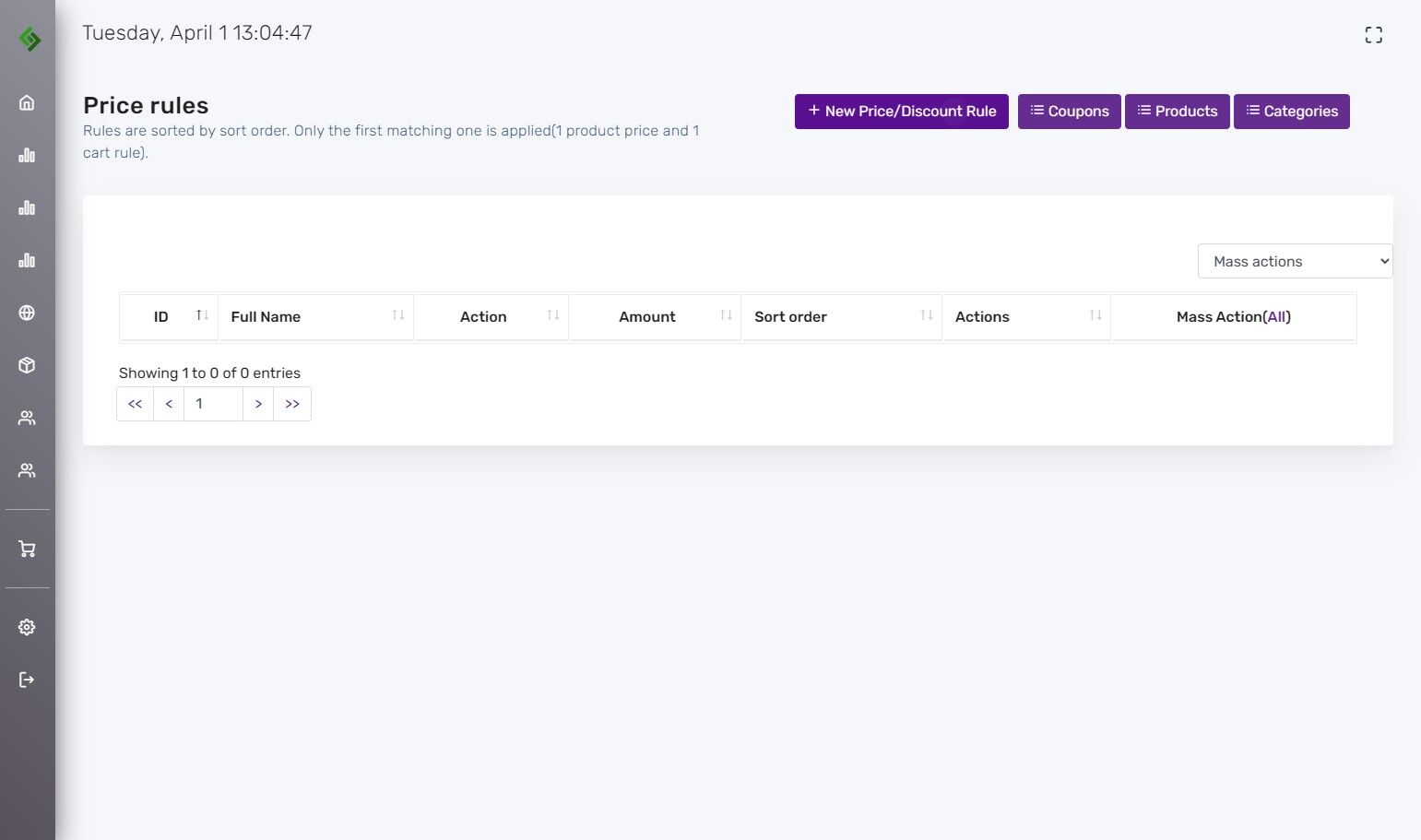
5. Click “New Price/Discount Rule” #
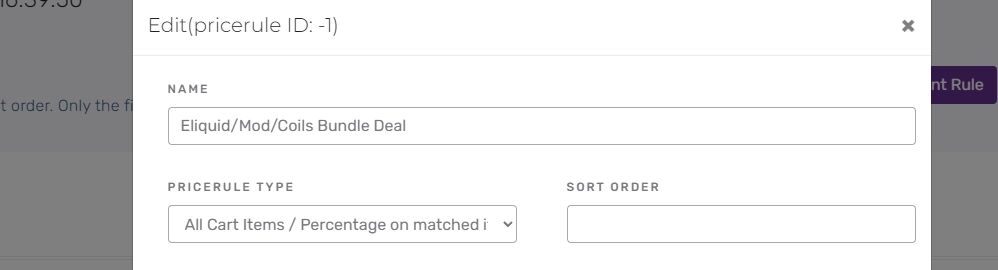
6. Name your discount #
Example: Type “Eliquid/Mod/Coils Bundle Deal”
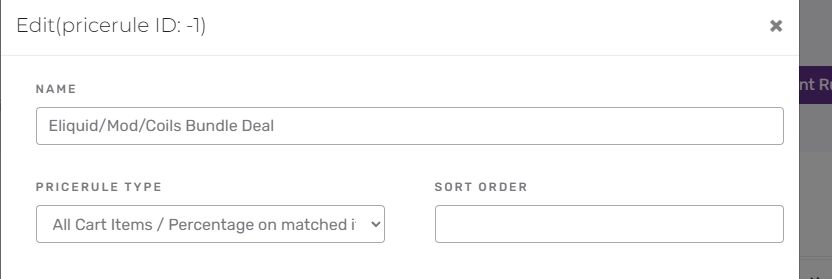
7. Choose the discount type #
Select “All Cart Items / Fixed On Matched Items (Bundle)” to set a fixed discount price for products.
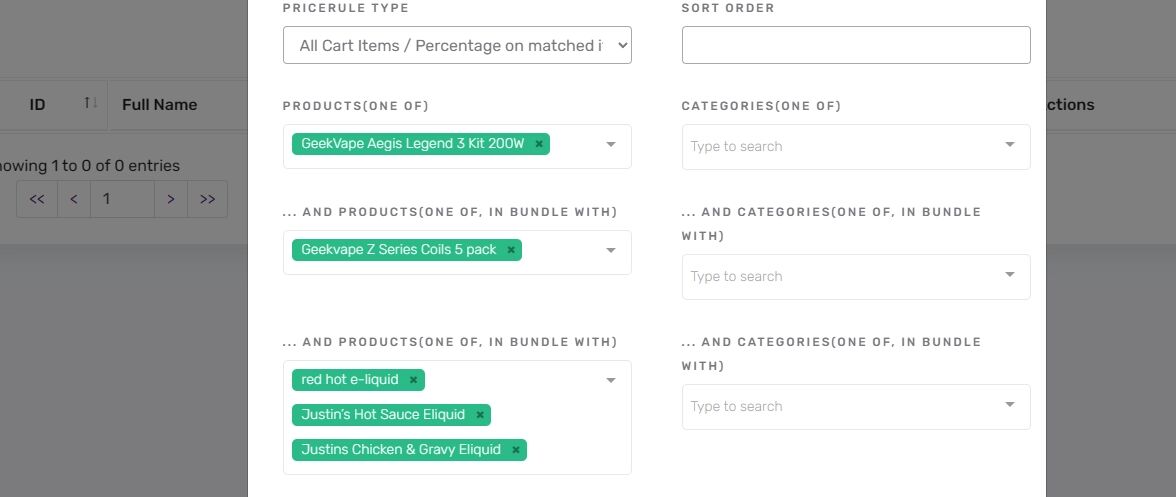
8. Select bundled products or categories #
Use the “Products(One Of)” boxes to select bundle items like a starter kit, coil, and E-liquid. You may also choose entire categories, but don’t mix products and categories.
9. Set the discount amount #
Enter the fixed discount amount (e.g., 20 for $20 off each bundle item).
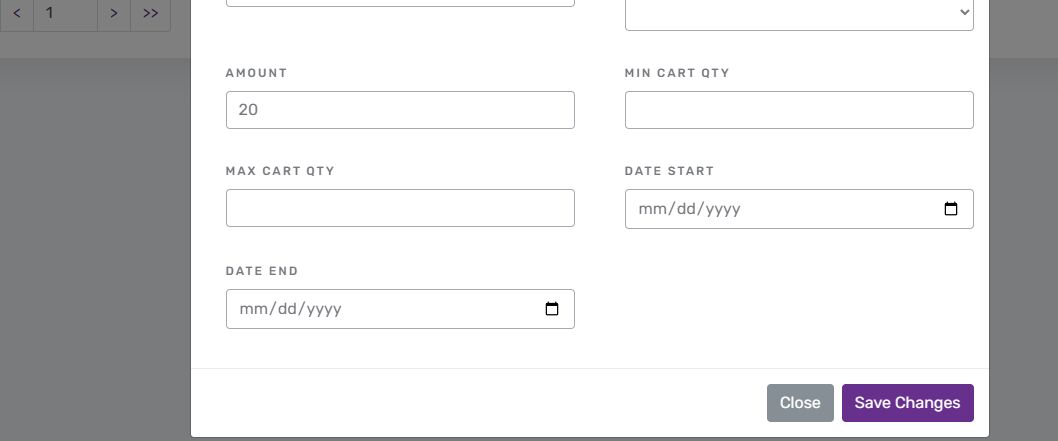
10. Save the changes #
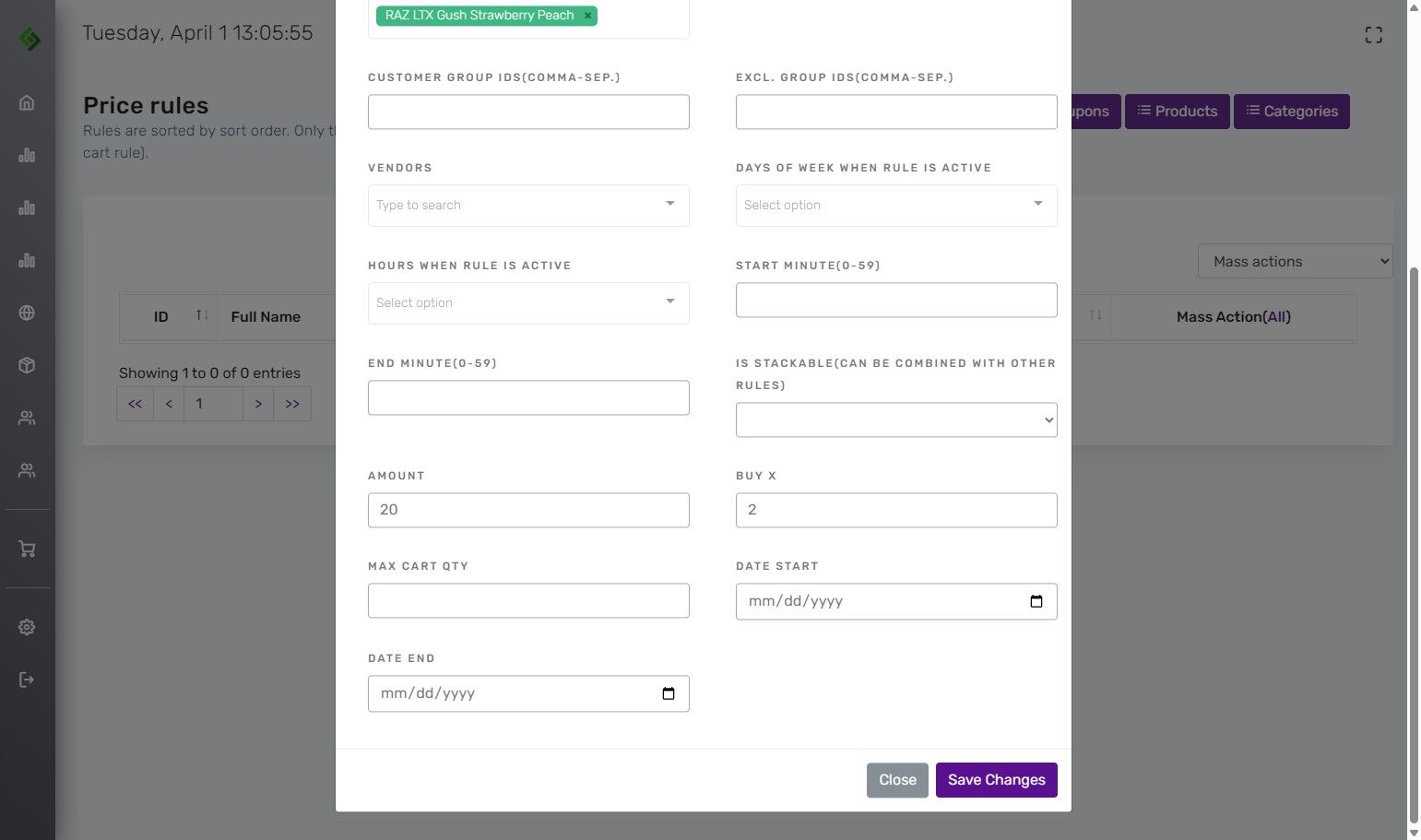
11. Customize discount settings #
- Days of the Week: Choose specific days for discount activation.
- Hours of the Day: Set hours (e.g., Happy Hour) for the discount.
- Start & End Dates: Define the discount’s time frame.
These options help you fine-tune when the discount is available.
12. Verify discount application #
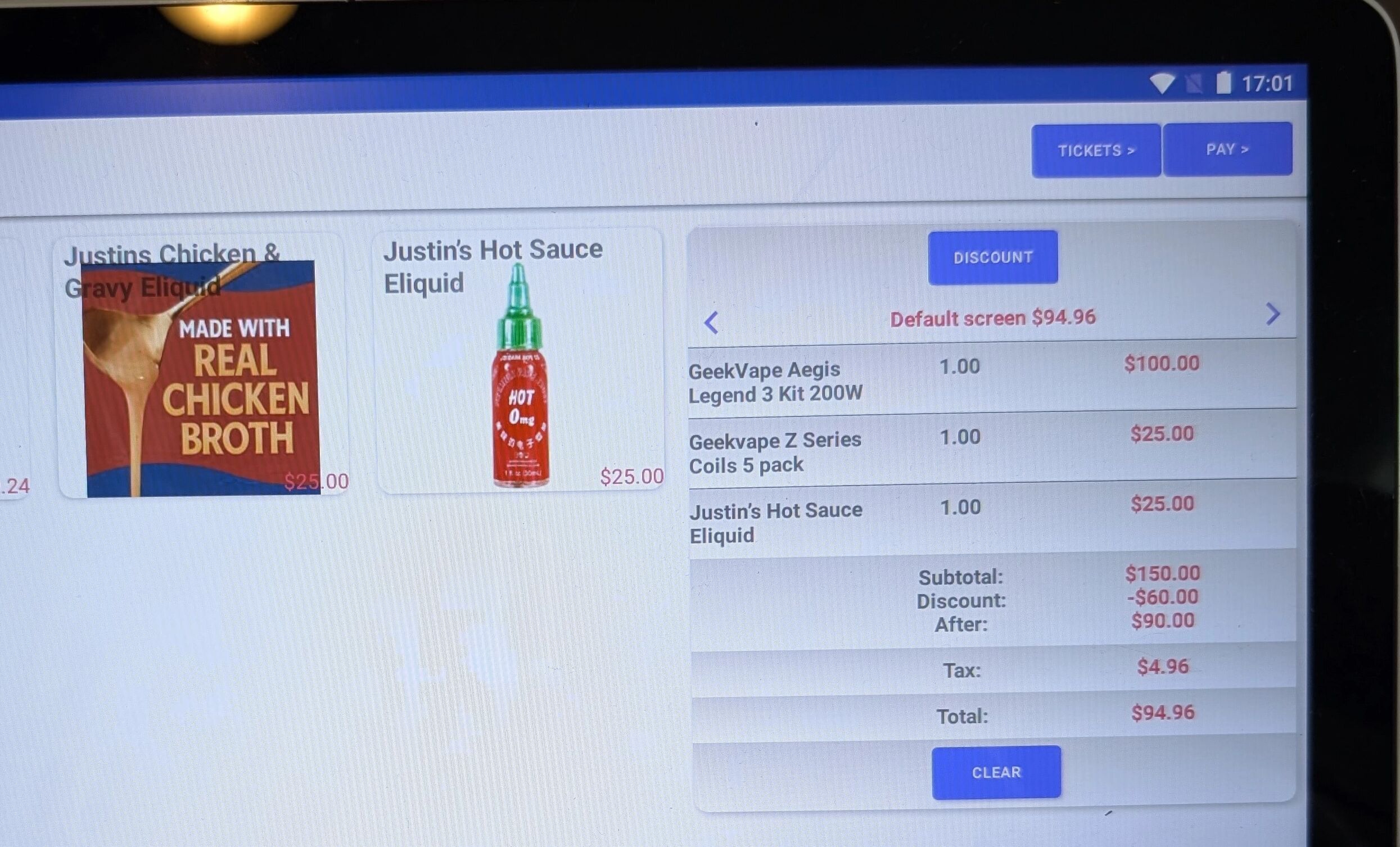
Add 3 items to the cart and the point of sale will apply the $20 discount per eligible item.
13. Additional Discount Guides #
Click here to see all the available guides for setting up Price and Discount Rules.


