Fix/Update: Forgot to Close Shift Issue with Unclosed Shifts in Lifelong POS #
Made by Lifelong Support with Scribe
Navigate to the Lifelong POS login page #

Click “Reports” from the left-hand menu #

Click the “Employee Reports” button #

Select “Shifts” from the “Report Type” dropdown #

Select the “Location” from the dropdown #

Select the “Start Day” using the date icon #

Select the “End Day” using the date icon #

Click the “Get Report” button #

Click the “Edit Pencil” icon next to the unclosed shift #

Enter the closing amount #
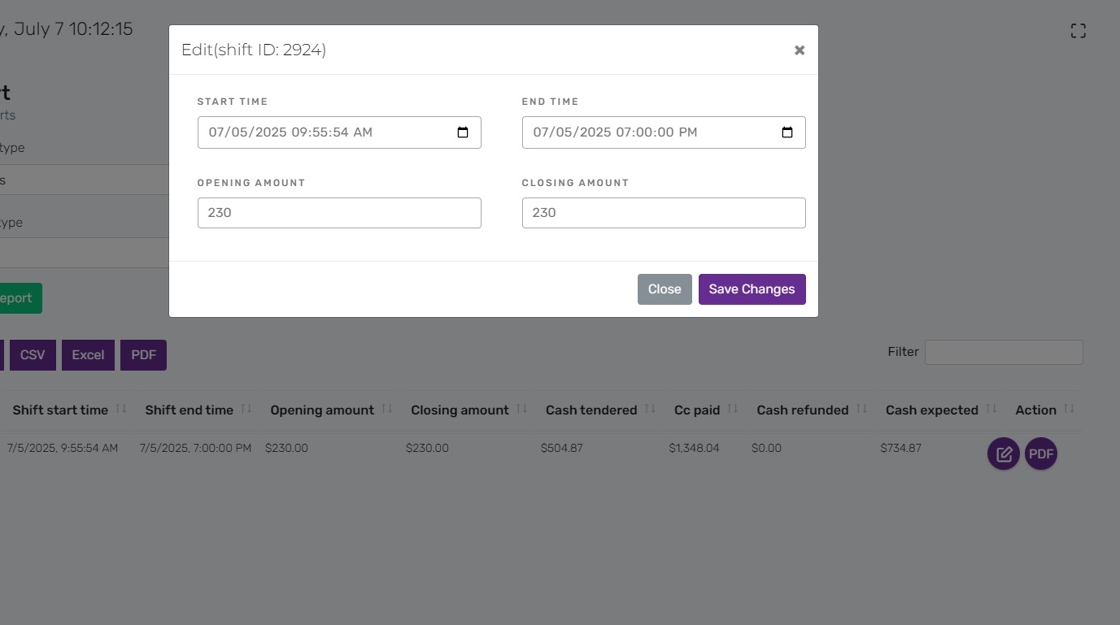
Enter the date and time the shift was closed #

Click “Save Changes” #


