
Employee Tasks Feature Lifelong POS #
This guide shows you how to create and manage employee tasks in Lifelong POS.
• It walks you through the step-by-step process of:
– Creating tasks
– Assigning them to employees or everyone
– Tracking task progress
• Using this guide can help you:
– Organize work more easily
– Save time and stay productive
– Keep track of what’s done and what’s pending
• It’s a helpful resource for anyone who wants to improve task management in their business.
Creating a Task #
Navigate to https://login.lifelongpos.com/

On the left-hand side of the page click the “Employees” tab

Click on the “Employee Tasks” button

Click “New Task“

Fill Out:
- Task Name – Name of the task
- Notes – Any details or instructions about the task
Add:
- Location – Select the location where the task should be completed
- Assigned Employees – Choose a specific employee or select All Employees
Select Frequency:
- One Time – Task is completed once
- Daily – Task repeats every day
- Biweekly – Task repeats every two weeks (choose the day of the week, e.g., Monday, Tuesday, Wednesday)
- Monthly – Task repeats once a month (choose the date, e.g., 1st, 20th, 30th)
Save Changes

Tip: If a task is assigned to a specific employee, it will only appear when that employee is logged in. To make a task visible to everyone, be sure to assign it to All Employees when creating the task.
Tasks/Task Progress View #
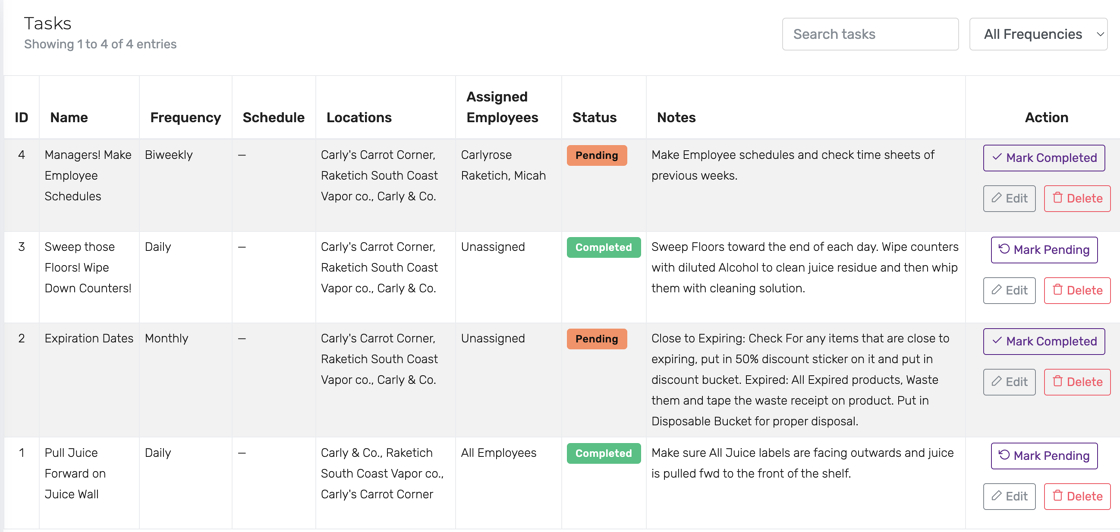
Employee Task Progress includes:
- Total Tasks
- Completed
- Pending

Tasks include:
- Name
- Frequency
- Schedule
- Assigned Employees
- Status: Pending/Completed
- Notes
- Action: Mark Completed (on POS or website), Edit, Delete
Lifelong POS App #
1. Click on the Settings gear tab
2. Click on the Tasks purple button

Employee Tasks:
- Click “Completed” once task is complete
- If a task is assigned to a specific employee, it will only appear when that employee is logged in. To make a task visible to everyone, be sure to assign it to All Employees when creating the task.


