
How to Set Up Royalties and Download Royalty Reports #
Setting up and Enabling Royalties #
1. Navigate to https://login.lifelongpos.com/login

2. Click on the Settings tab on the left-hand side.

3. Click General Settings

4. Use Ctrl + F (Windows) or Command + F (Mac) to search for “Royalties”. Under “Enable Royalties Reporting”, select “Enabled”.

5. Scroll to the bottom and click SAVE.
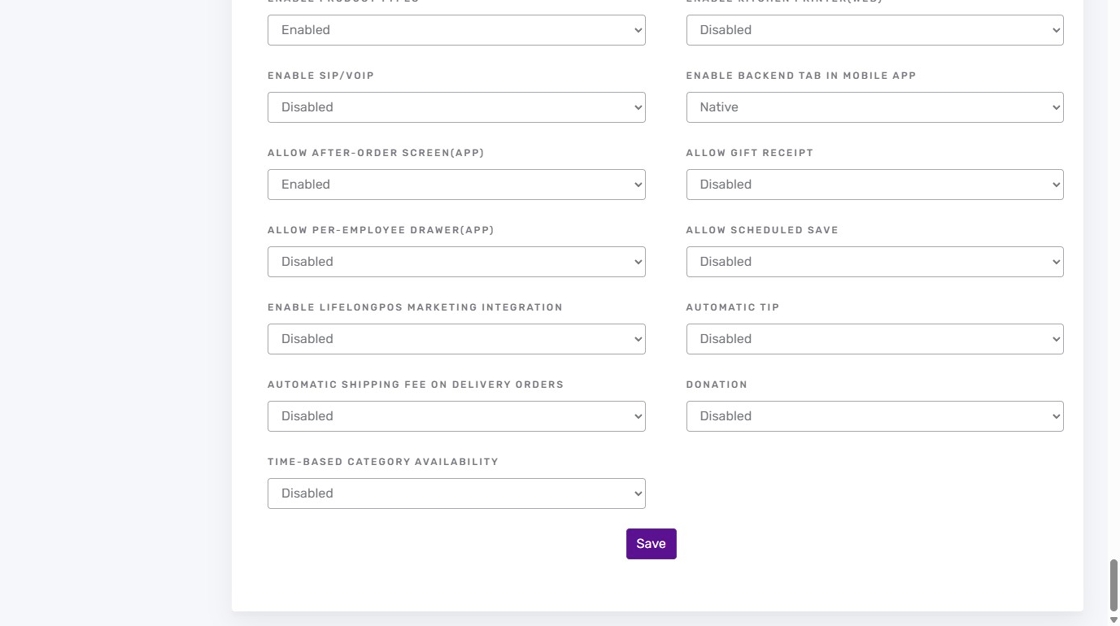
Tip: After saving, return to the ‘Royalties’ section under General Settings to complete the fields.
6. Enter the royalty percentage (number only, no % symbol).

7. Confirm the value format.

8. Scroll down and click SAVE again.

Generating Royalty Reports #
9. Click the Reports tab on the left-hand side.

10. Click Sales Reports.

11. Choose Royalty report under Report Type.

12. Select a location.

13. Choose an employee or select “All – Total Sum”.

14. Select a period type.

15. Set start and end dates.

Tip: For ‘Day’ period type, use the same date for start and end.
16. Click Get report.

Downloading Royalty Reports #
17. Choose CSV, Excel, or PDF to download the royalty report.


