
Creating Discounts: Product Price / By Percentage #
Create a Percentage Discount Rule #
Follow the step-by-step instructions below to create a discount using the “Product Price / By Percentage” option.
Navigate to Lifelong POS login #
https://login.lifelongpos.com/

Click the “Items” tab on the left #

Click “Price/Discount Rules” #
Located at the top right of the screen.
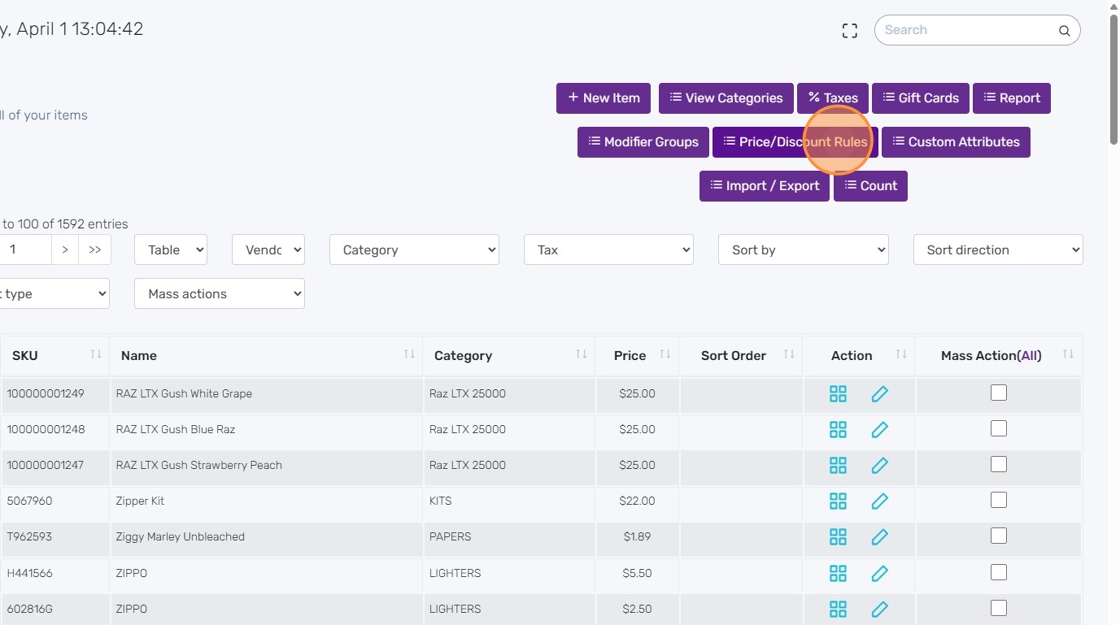
Click “New Price/Discount Rule” #

Enter a name for your discount #
Example: “Raz 10% Off”

Select “Product Price / By Percentage” #
This will allow you to apply a percentage discount to selected products.

Select Products or Categories #
Use the “Type to search” box to select individual products, or choose entire categories. Avoid selecting both at once.

Add more products if needed #
Click the dropdown again to include more items in the discount.

Review product list #
To remove a product, click the “X” next to its name.

Set discount percentage #
Under the “Amount” field, enter the discount percentage. Example: Enter 10 for 10% off.

Click “Save Changes” #

Customize Discount Timing #
- Days of the Week: Choose specific days for the discount to be active.
- Hours of the Day: Set active times such as Happy Hour.
- Start & End Dates: Define the duration for the discount rule.
Use these options to tailor when your discount is available.
Additional Discount Guides #
Refer to other guides for setting up price and discount rules in Lifelong POS.


