Managing Inventory via Warehouse Application on PAX A920/A920Pro Handheld #
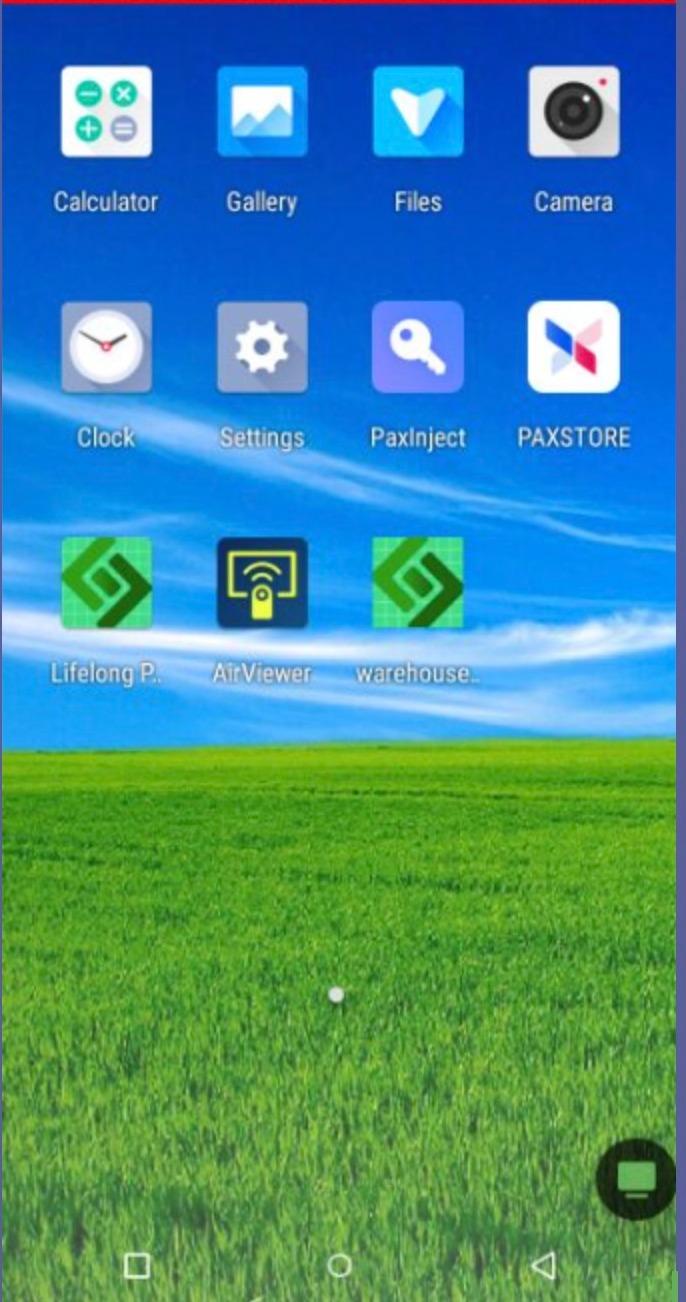
Click on Warehouse App #
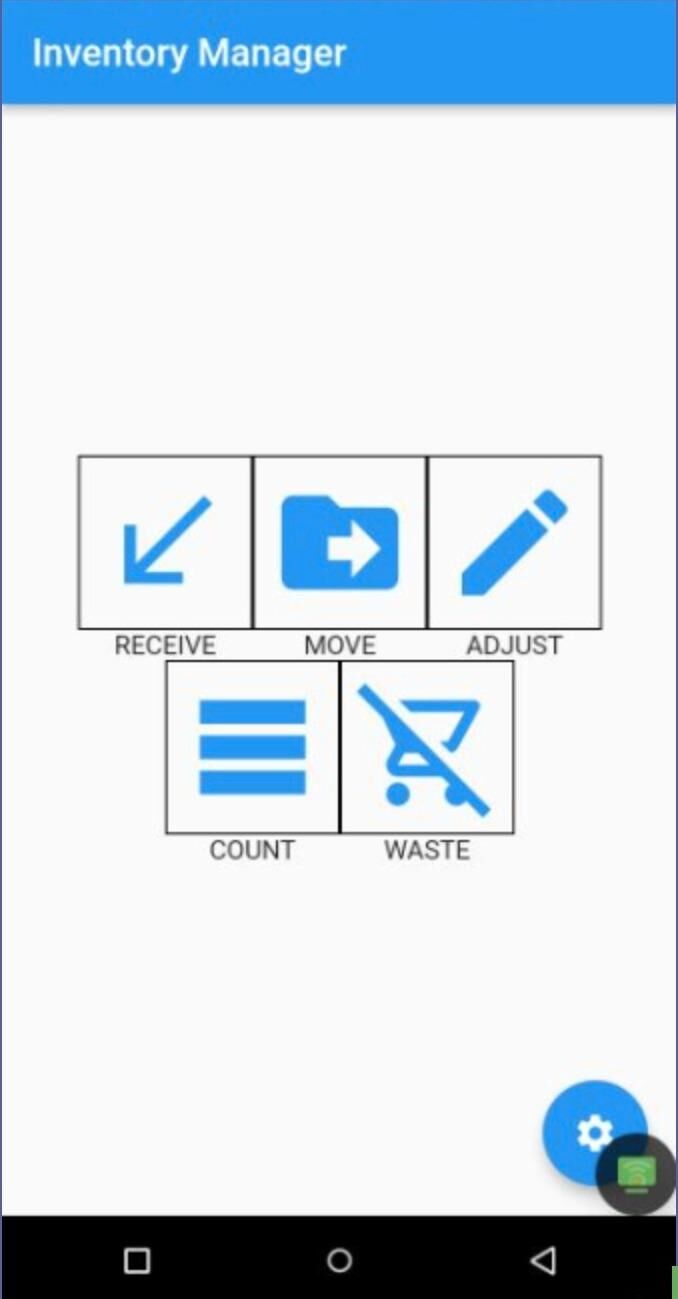
Click “Adjust” #
Ensure Device is Assigned to Correct Location #
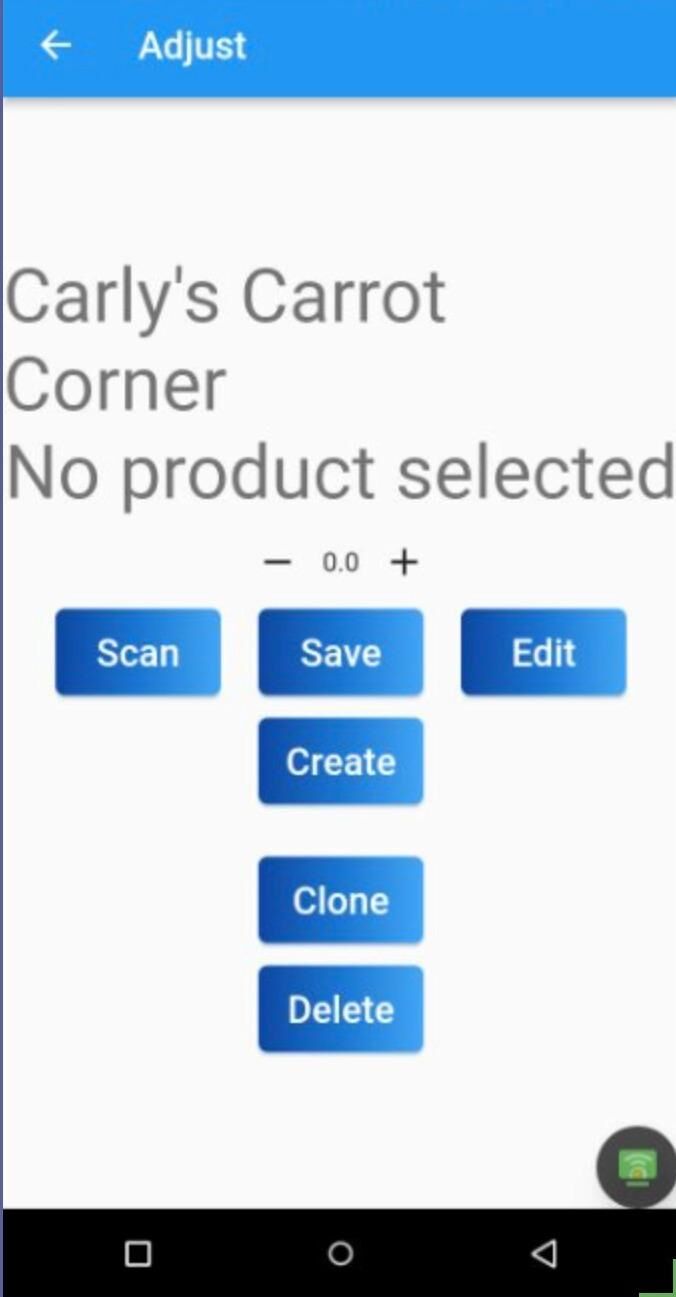
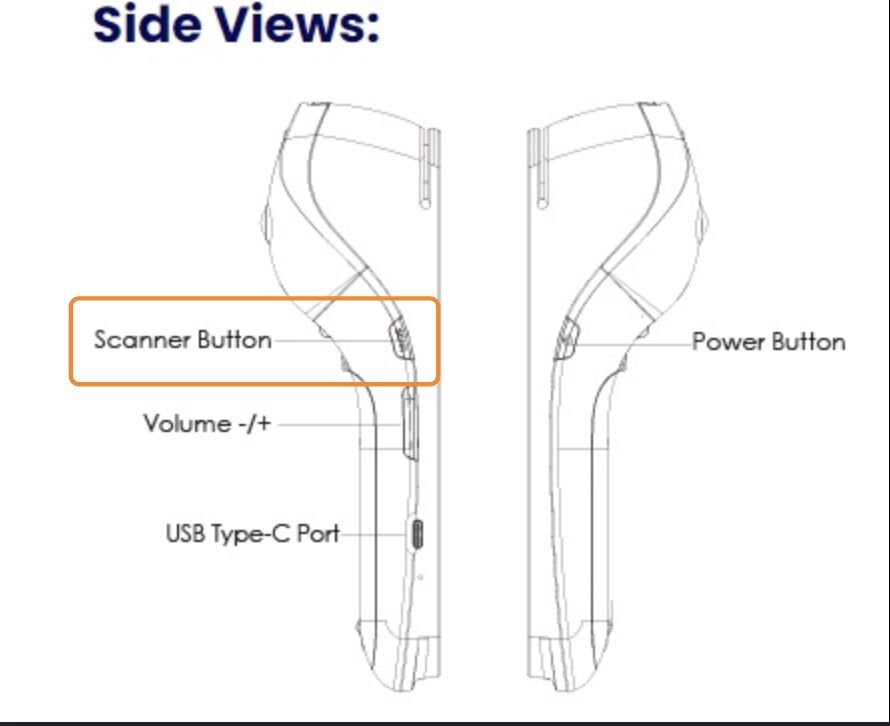
New Inventory: Scan with Side Button #
Click the Scan button on the side of the device. A red light will appear above the “tap” symbol. Point the light at the barcode or SKU.
Alternative Scan via Camera #
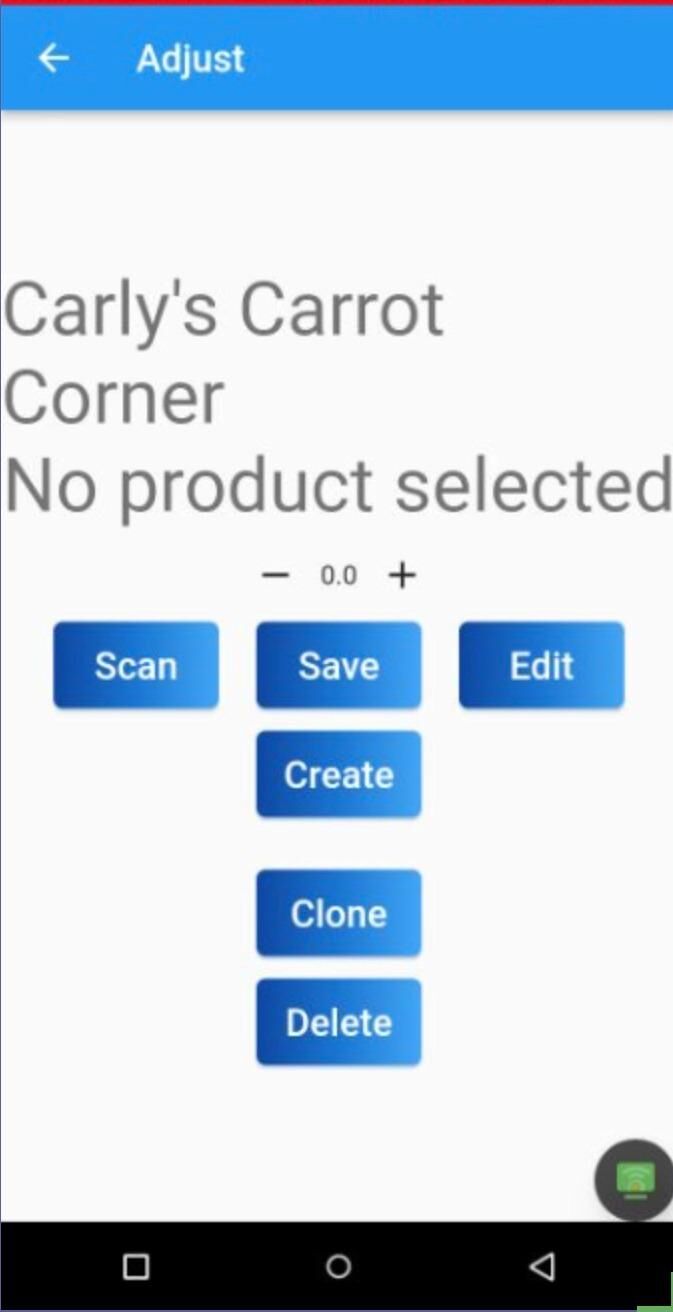
Click Scan. A camera will open to scan the SKU/Barcode.
SKU/Barcode Usage Confirmation #
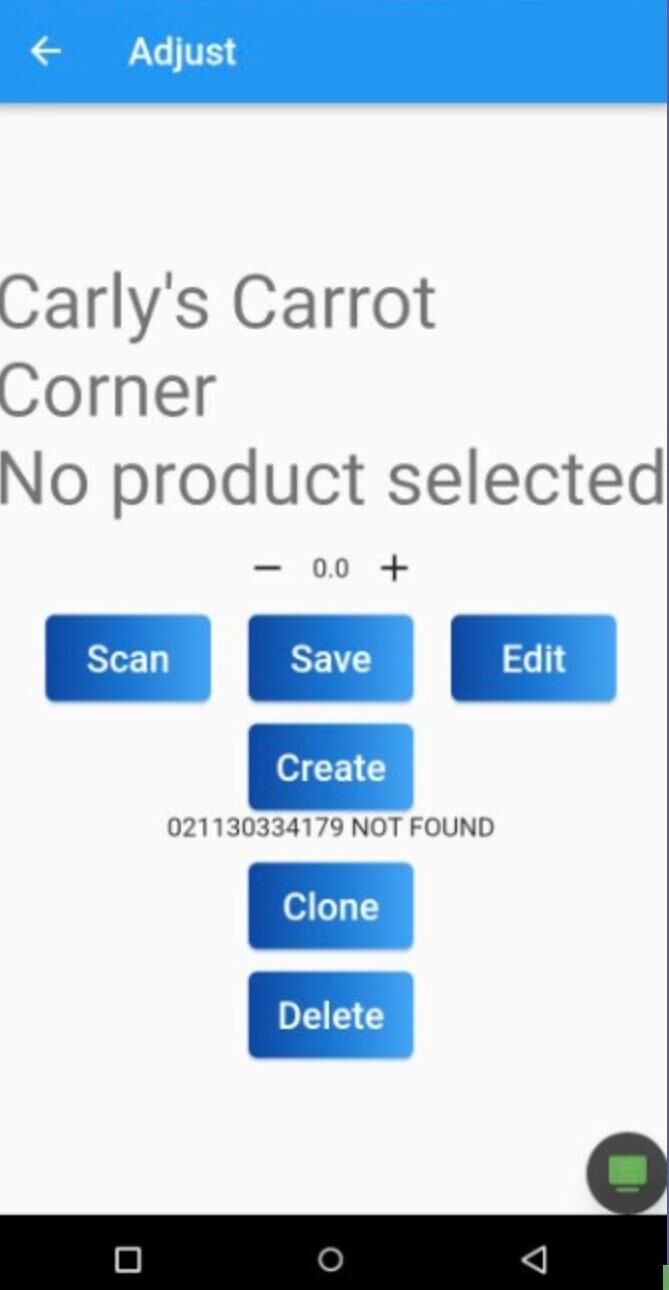
Create Item with Scanned SKU/Barcode #
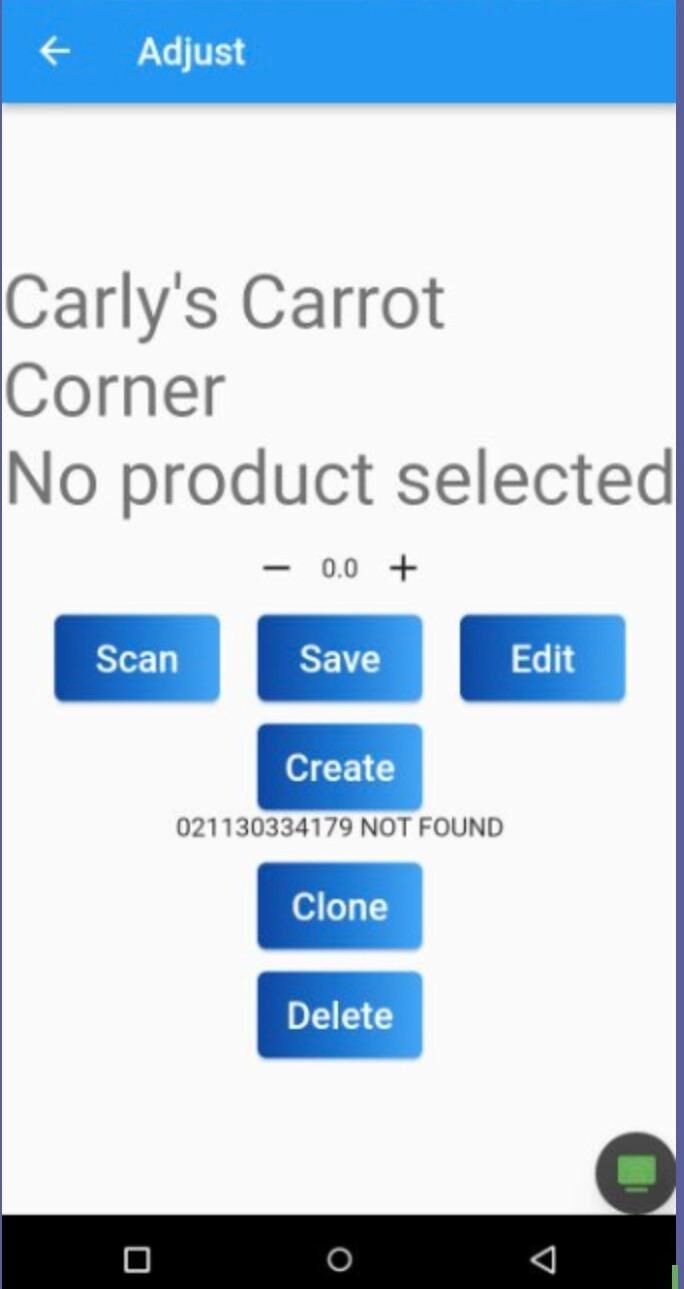
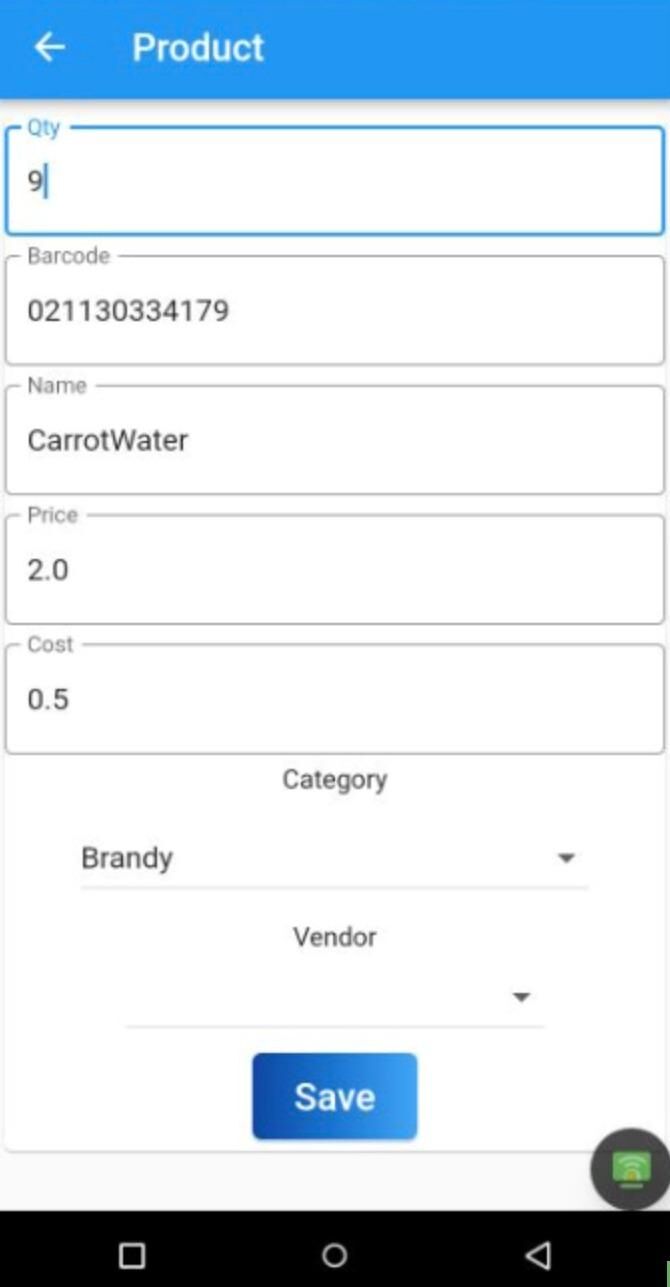
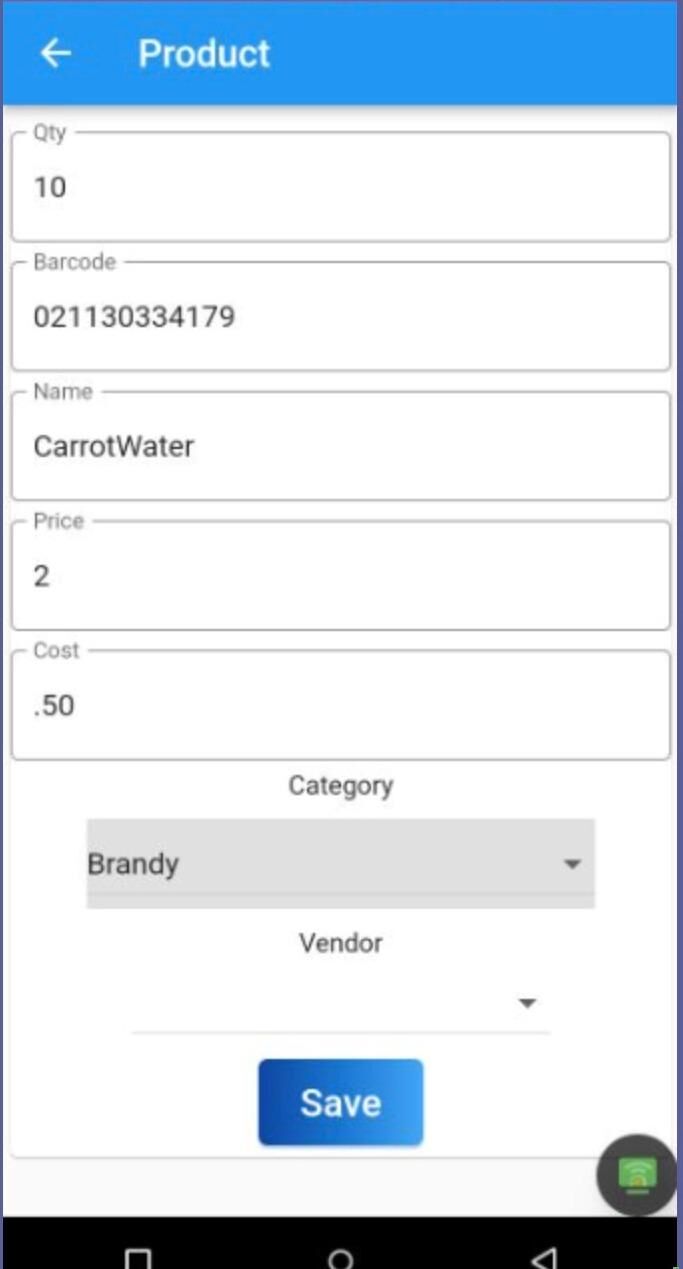
Add Data and Select Category #
Always press SAVE at the bottom of the screen before starting a new product.
Quick Adjust Quantity #
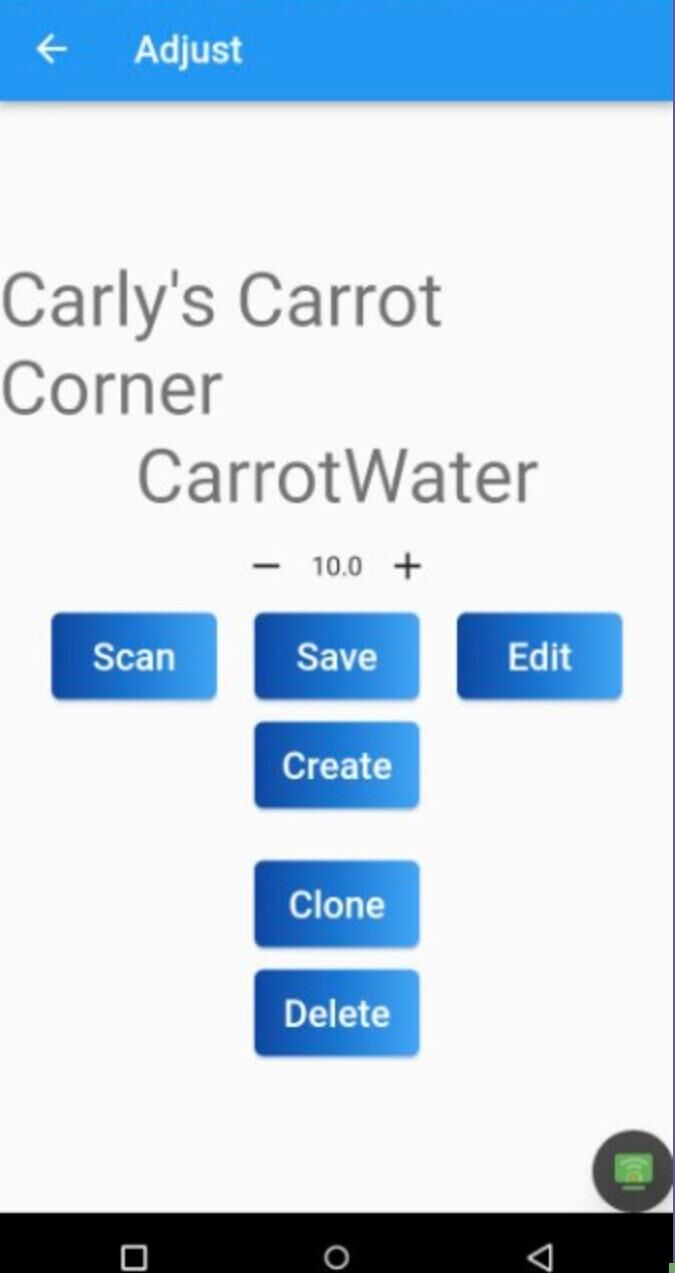
After saving, the new item appears at the top. Use the + or – buttons to adjust quantity. Always click SAVE.
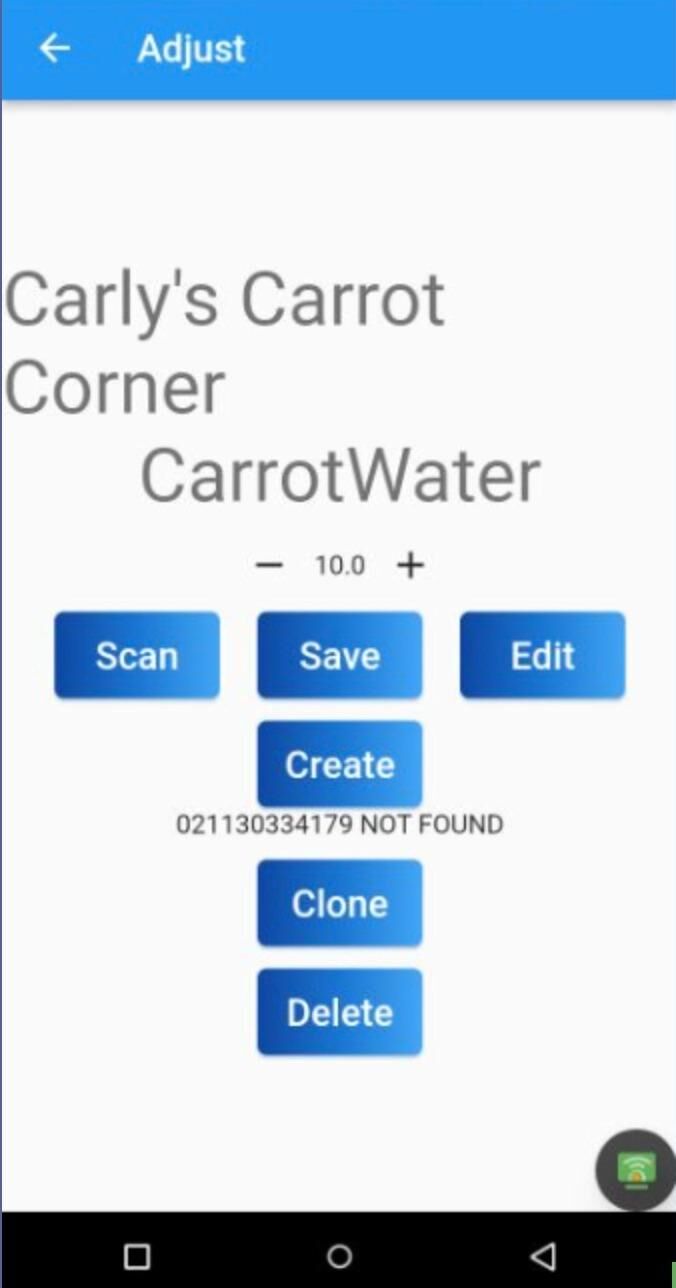
For Existing Products: Click Scan #
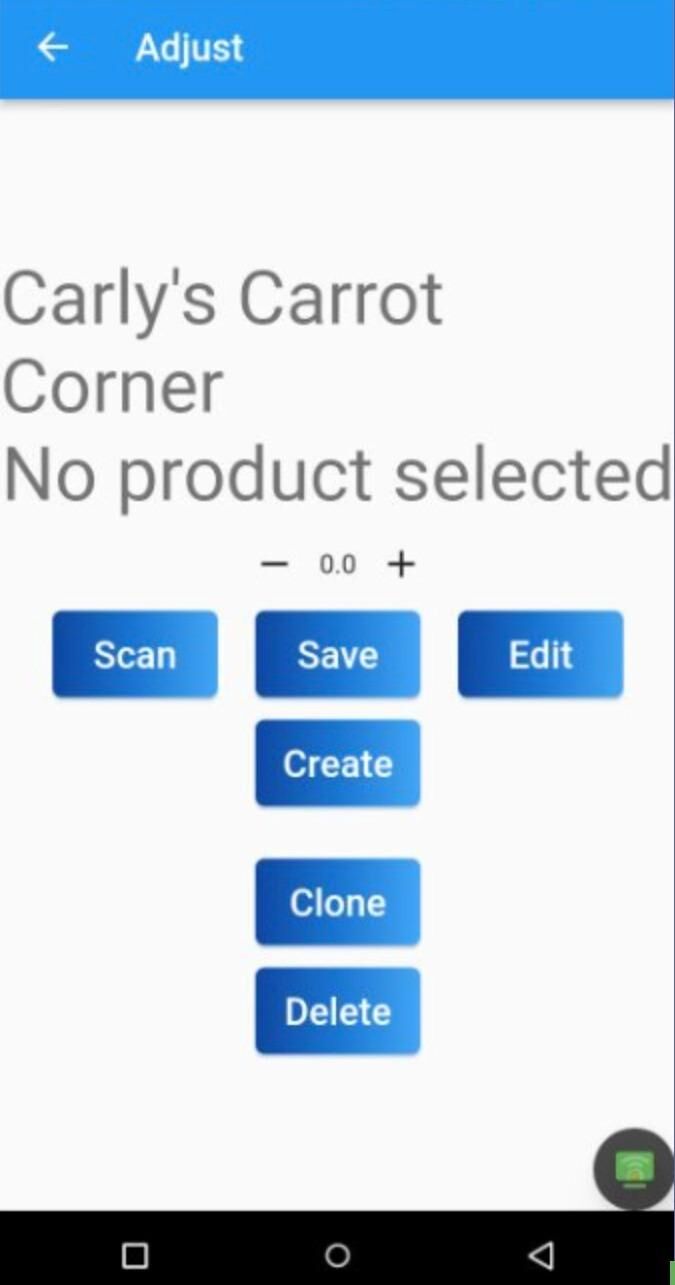
Adjust Quantity Using + or – #
Always press SAVE or continue to Edit.
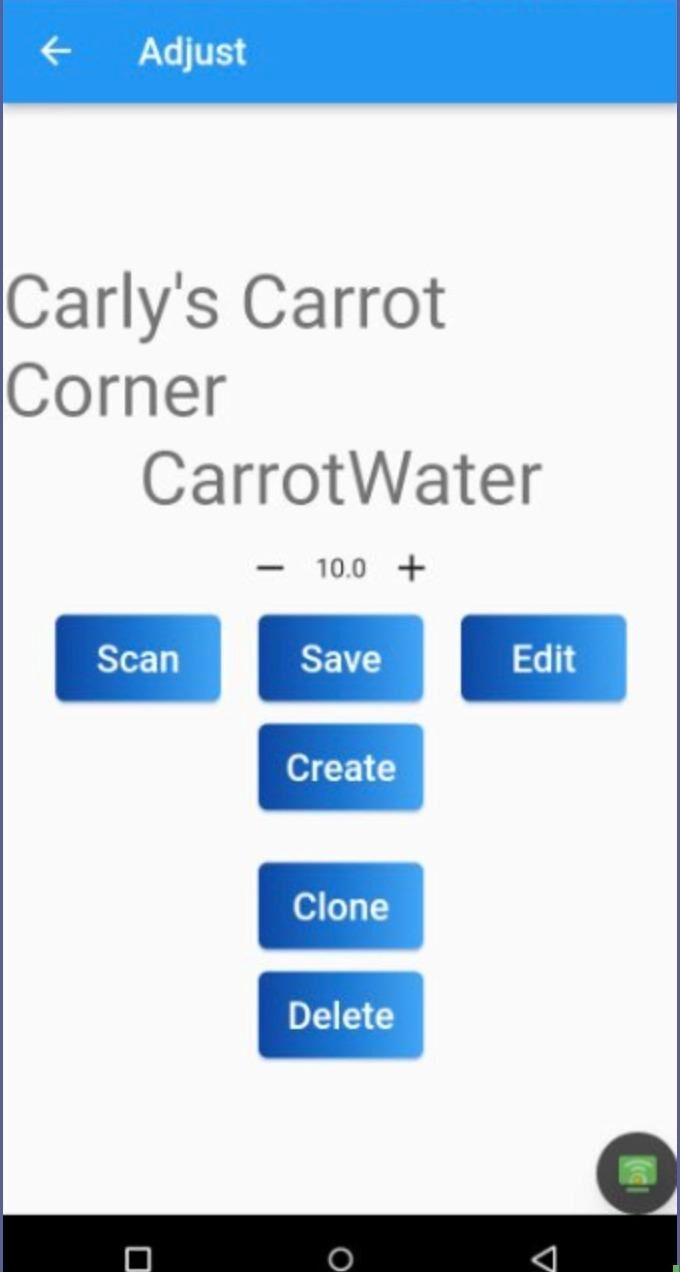
Edit to Update Product Details #
Qty, Cost, Price, Category can be modified.
Adjust Name, Price, Cost, or Category #
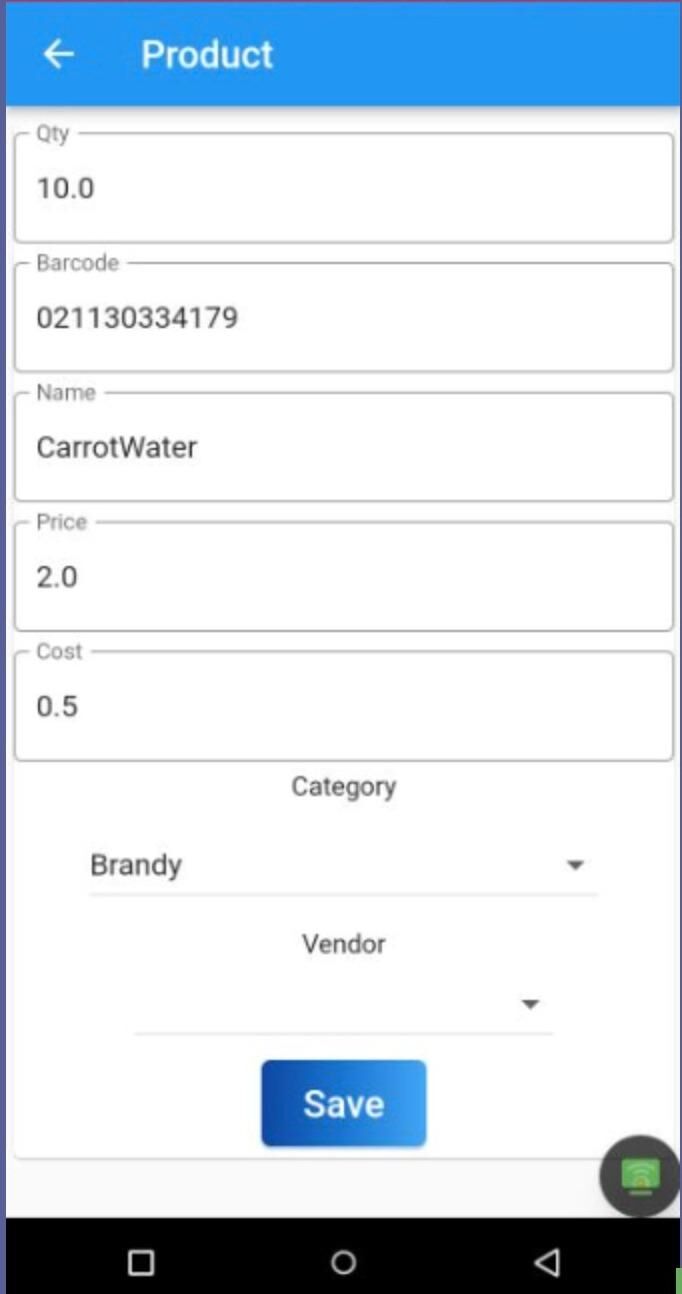
Final Step: Always Press SAVE #