
How To Adjust Tax Settings In Lifelong POS #
Let’s create or adjust your tax settings on the Point Of Sale register #
Follow the step-by-step instructions below.
Navigate to the Lifelong POS login page #
https://login.lifelongpos.com/

Select the “Items” tab #
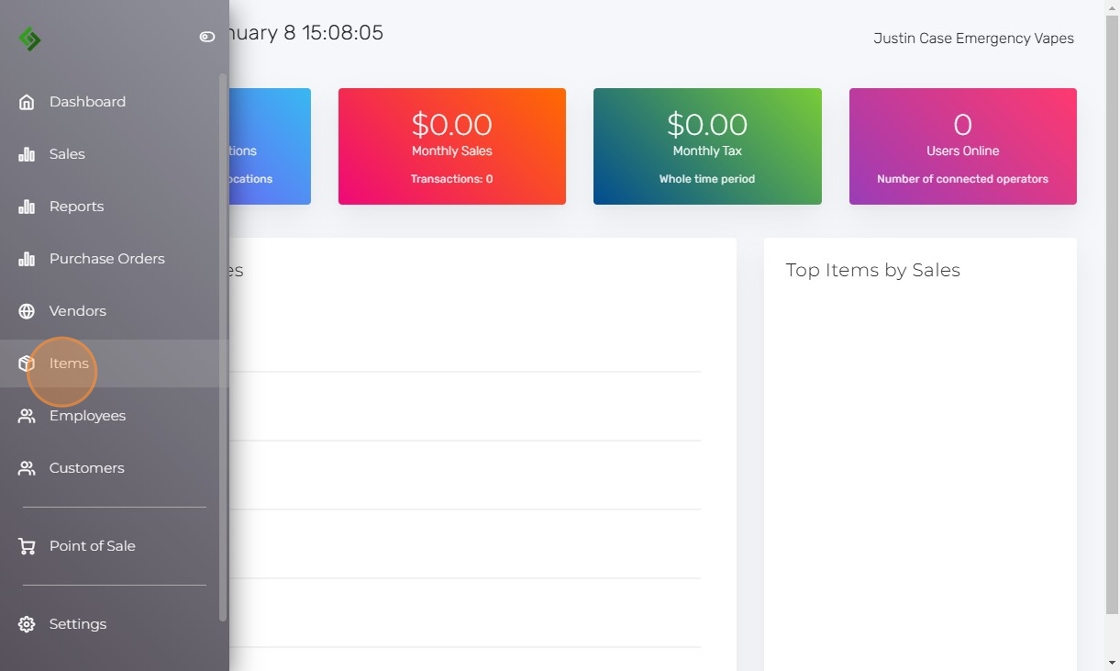
Click the “Taxes” button on the top right #

Edit your current sales tax #
Click on the pencil icon on the right side of the page.

Modify the tax percentage #
Edit your tax percentage and click “Save Changes.”

(Optional) Add taxes for specific products #
You may need to add taxes for items like hemp, delta, or amusement products.
Click “New Tax” #

(Optional) Add a tax breakdown for receipts #
Enter tax rates in the “Tax Breakdown” section using commas, e.g., 9.5,6. In the “Tax Breakdown (labels)” section, enter labels like “9.5% sales tax, 6% delta tax.”

(Optional) Set custom location tax rates #
Click “Open Custom Location Rates” and enter the specific rates for each store location.

Enter rates for each location #
This section is where you define tax rates per location.

Ensure all fields are complete before saving #
All required fields must be filled for each location to ensure accuracy.

Save your changes #
After reviewing all information, click the “Save Changes” button.


