
Cash Drawer: Open / Close Shift (Lifelong OS) #
Locate Shift Reports in the Backend #
To find shift reports, go to the website backend > Employees Tab > Shift Reports > Report Type: Shifts.
Open Shift / Cash Drawer #
Count the Drawer Before Opening #
Always count the drawer, including all coins and bills, down to the penny before opening the shift.
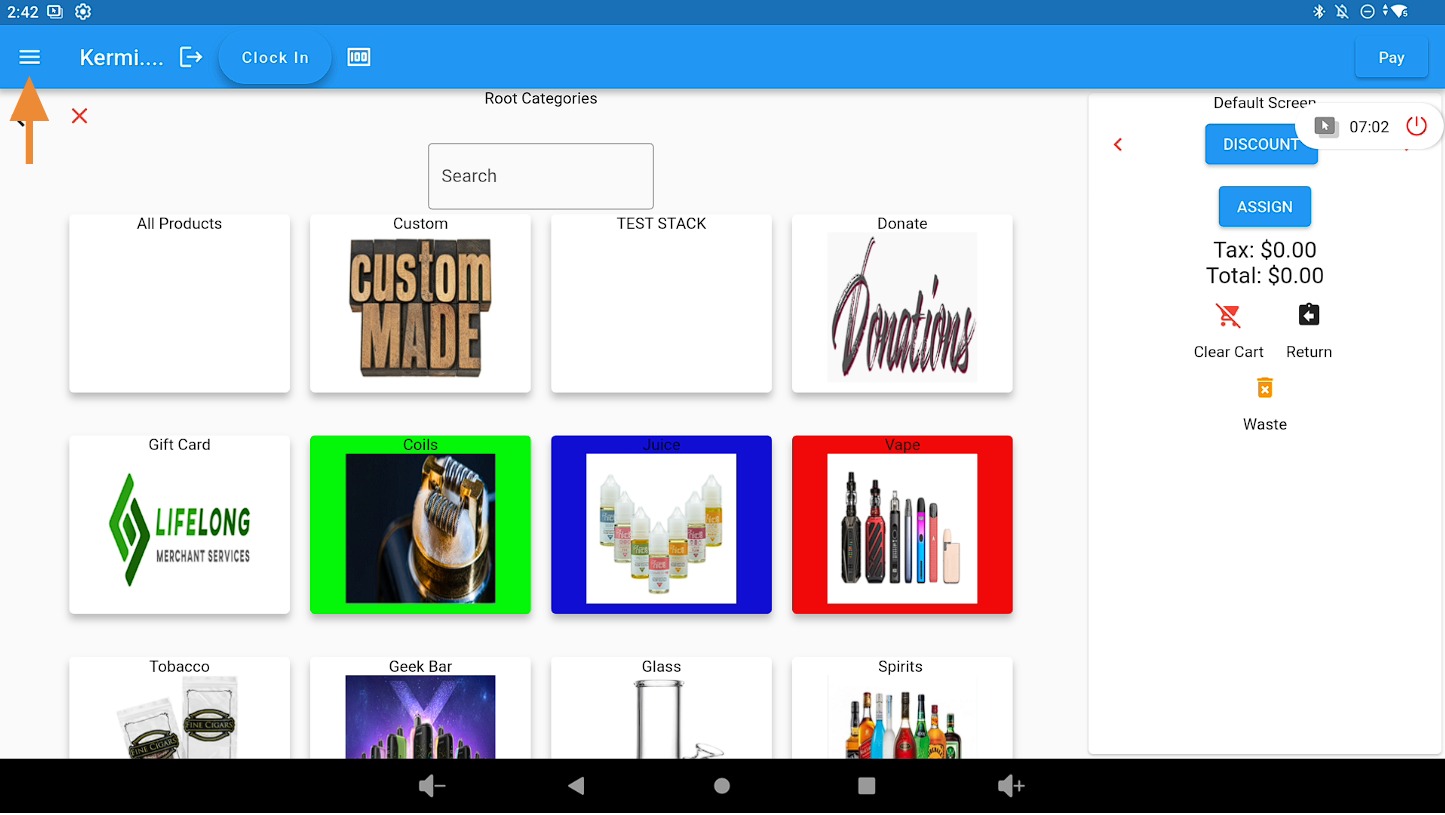
Open the Menu #
Click the three-line menu icon in the top-left corner of the POS screen.
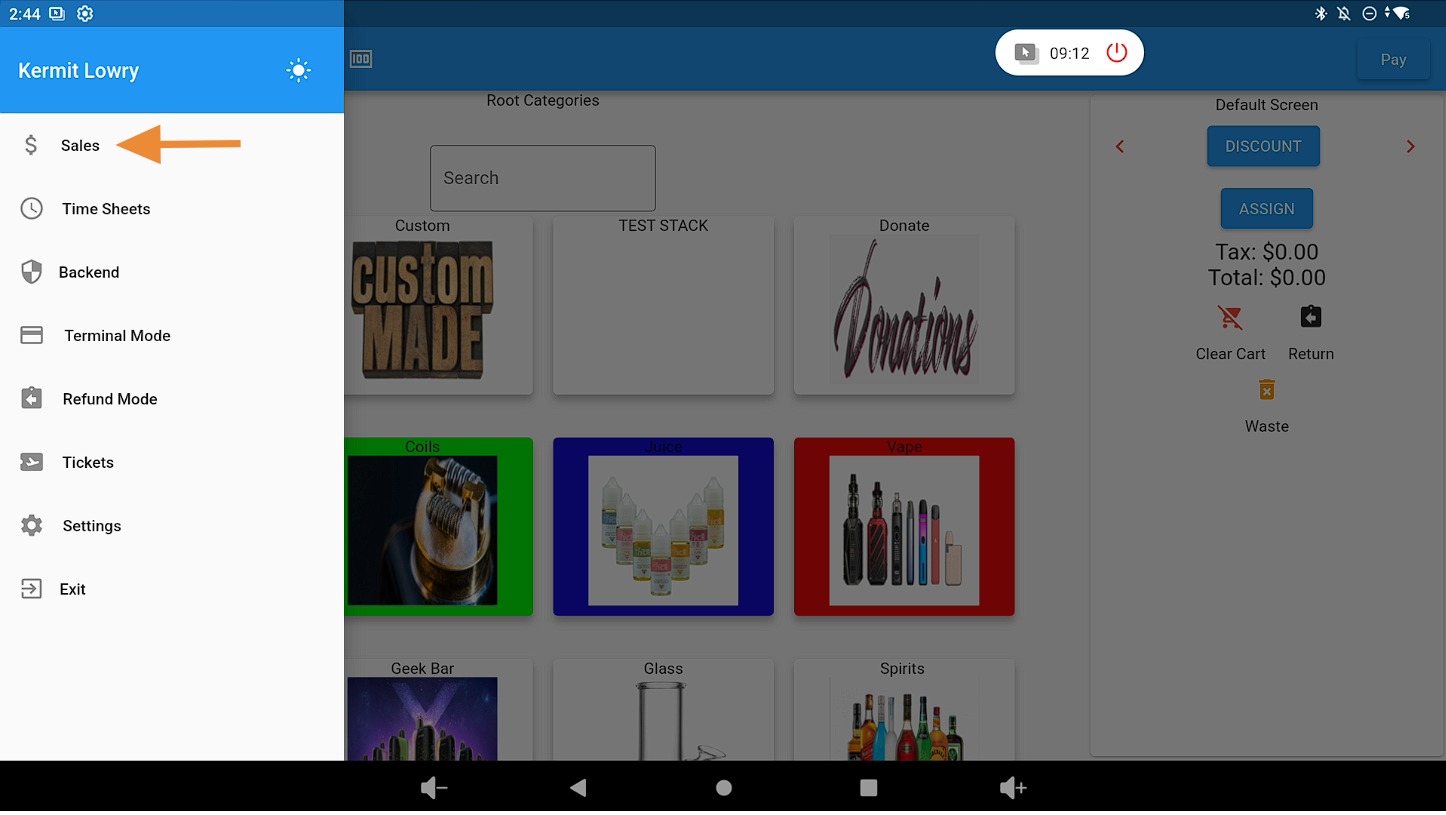
Select Sales Tab #
Click on the Sales tab.
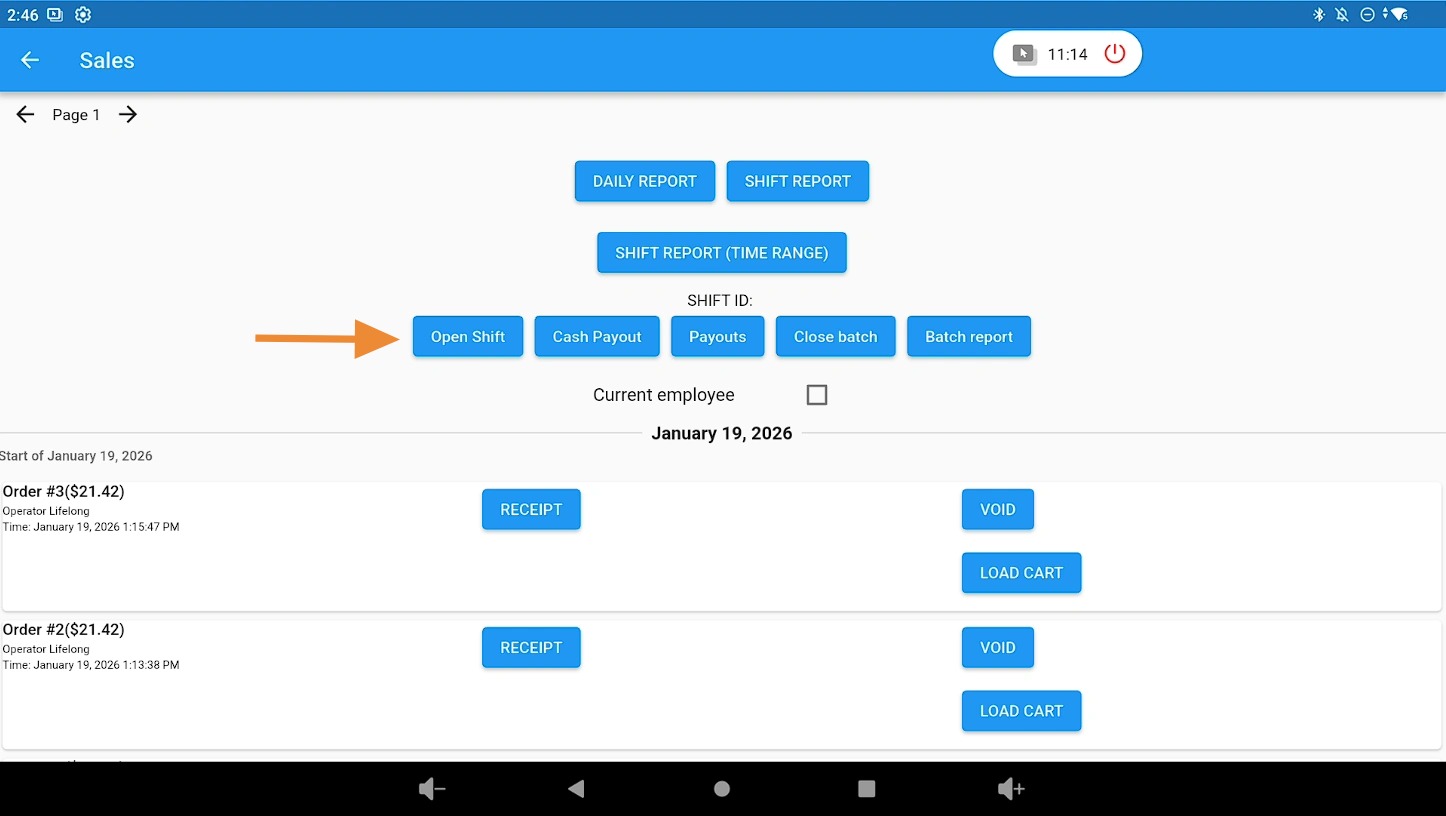
Click Open Shift #
Select the Open Shift button.
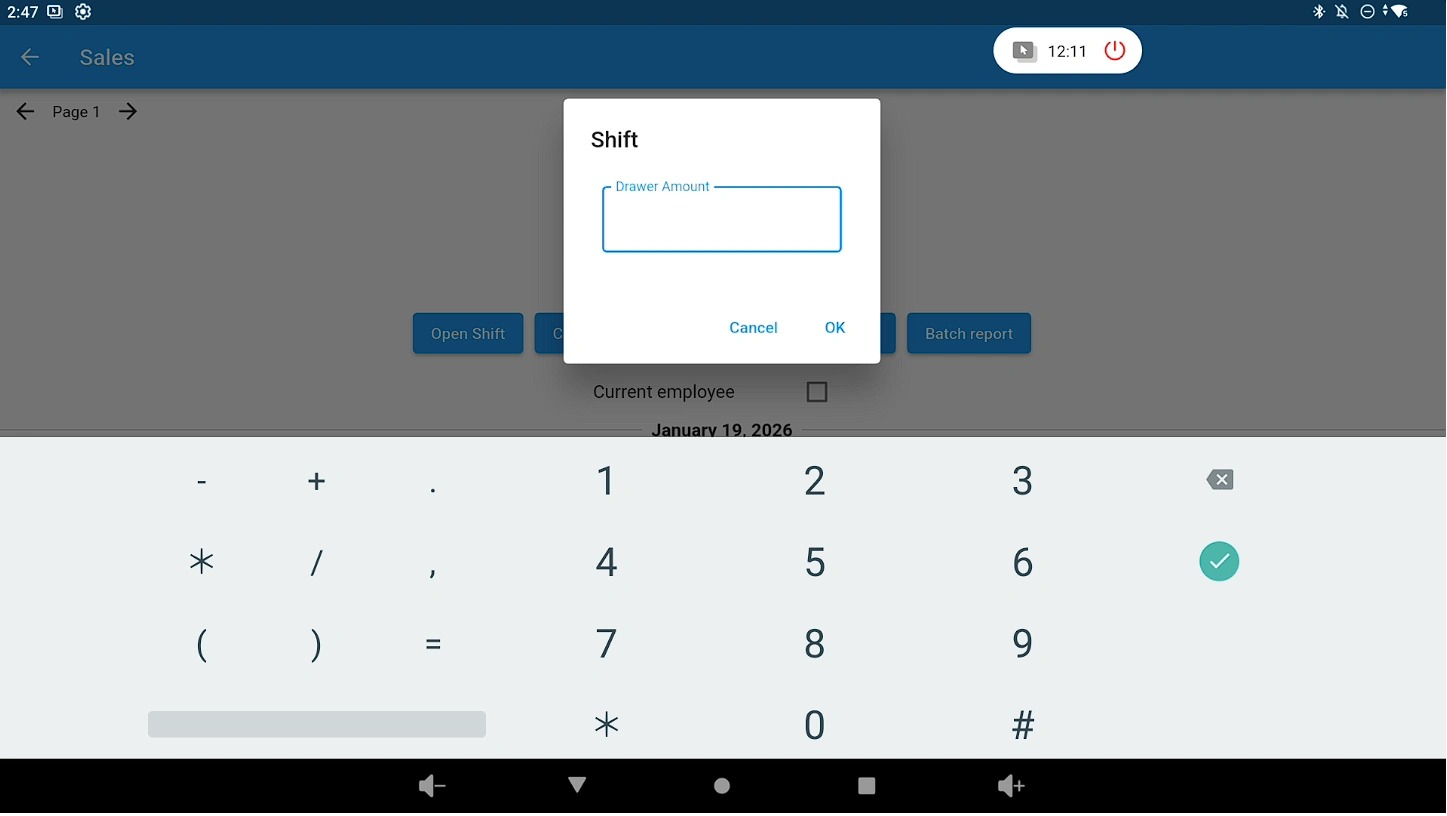
Enter Opening Cash Amount #
Enter the exact amount of cash you are starting the drawer with.
Close Shift / Cash Drawer #
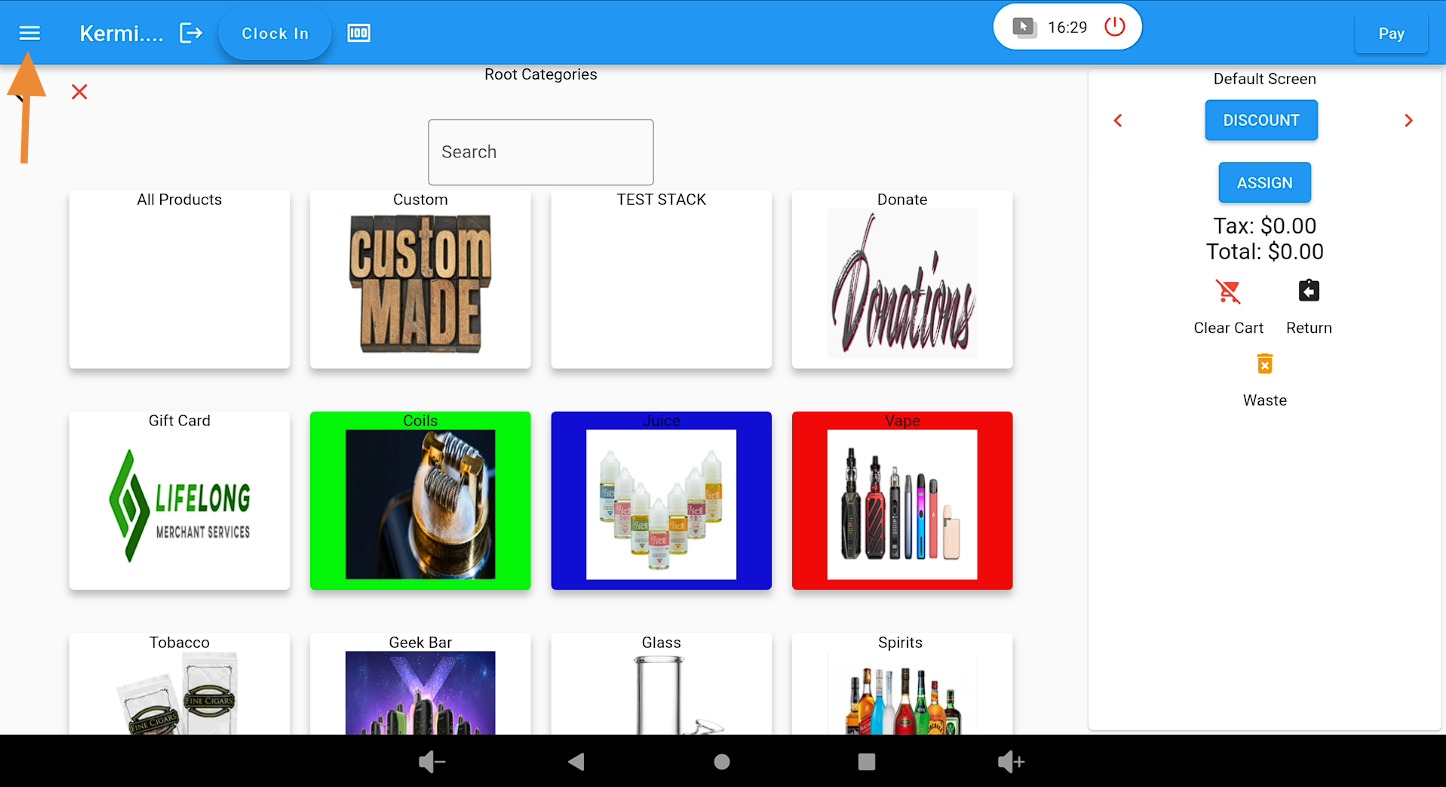
Open the Menu #
Click the three-line menu icon in the top-left corner of the POS screen.
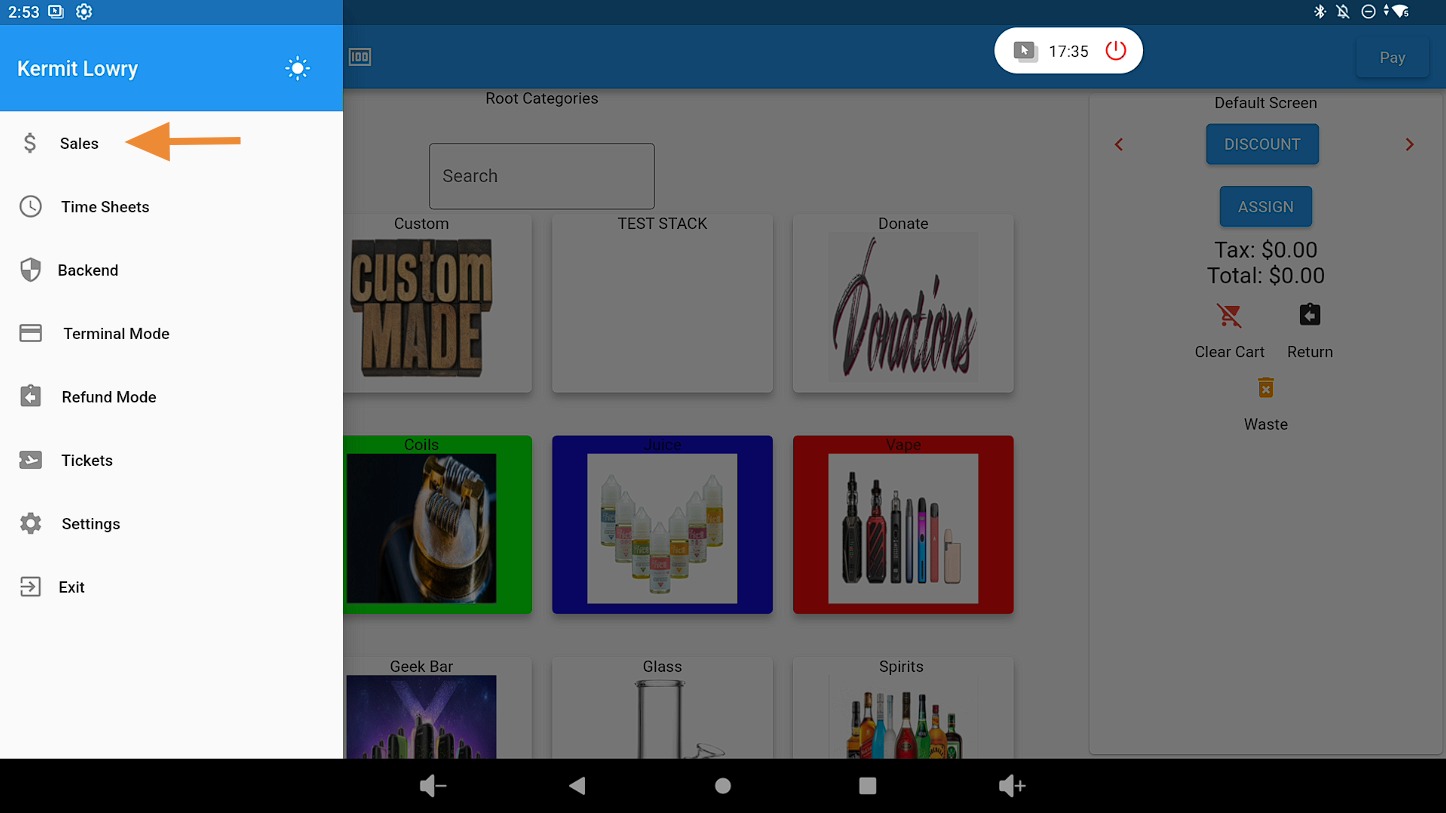
Select Sales Tab #
Click on the Sales tab.
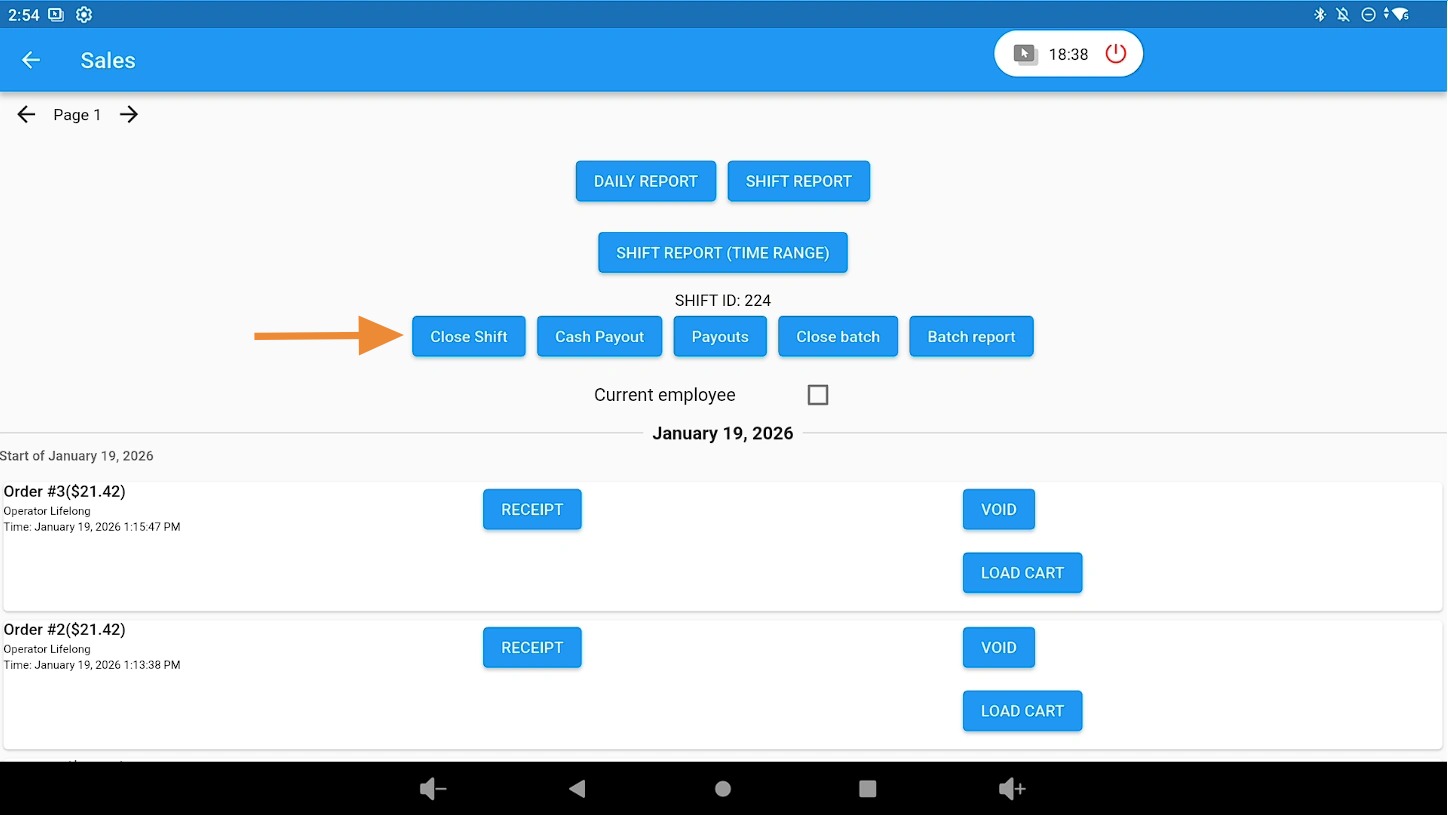
Click Close Shift #
Select the Close Shift option.
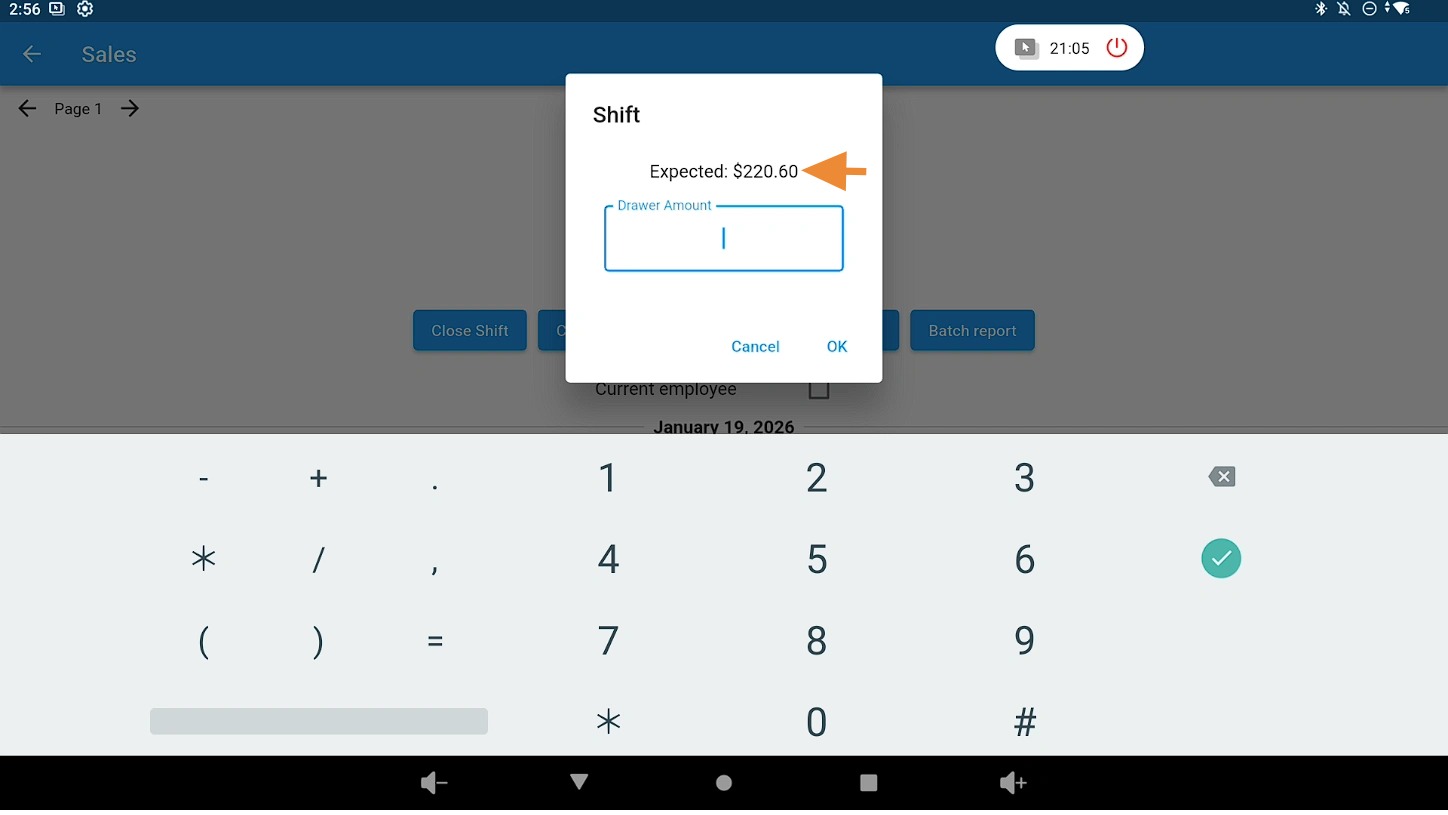
Enter Closing Cash Amount #
Count the cash in your drawer and enter the total amount. The expected amount will be displayed above for comparison.
Review the Shift Report #
A Shift Report receipt will print. It includes:
- Shift ID
- Employee
- Terminal
- Date/Time
- Transactions
- Total Shift Sales (Before Tax, Tax, and Total)
- Discounts
- Total Paid
- Cash Paid
- Earned (Loyalty rewards earned during shift, if applicable)
- Redeemed (Loyalty rewards redeemed during shift, if applicable)
- Total Shift Payouts
- All Payouts and Deposits
- Shift Closing Cash (Amount manually entered)
- Expected (System-calculated amount)
- Mismatched By (Over or under expected amount)
- Expected Calculation: + Shift Opening, + Paid, − Refunded, − Shift Payouts
After closing, the top of the screen will display Shift Not Opened, and the button will return to Open Shift for the next shift.
Related: Cash Drawer – Pay In / Payout (Lifelong OS) #
Reference guide: Cash Drawer: Pay In / Payout (Lifelong OS)


