
How to Create a New Customer Attribute Field #
Log in to your Lifelong backend #
Access login.lifelongpos.com or manage.acadiapos.com.
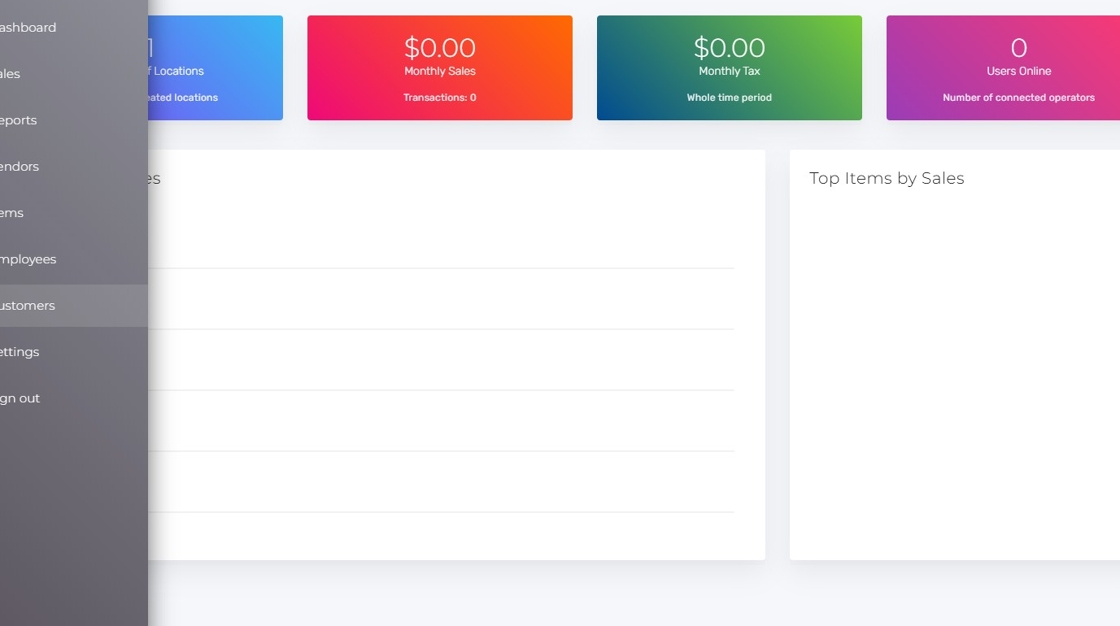
Navigate to the Customers tab #

Click “Customer Attributes” #

Click “New Customer Attribute” #

Enter Attribute Code and Name #
Use the provided fields to define your custom customer attribute.
Example: “Notes” or “Driver’s License #”

Select “String” under Custom Attribute Type #

Select “Text” under Frontend Input Type #

Enable “Show Customer List” #

Click “Save Changes” #

Optional: Set Attribute as a Select Option #
Example: “Military: Yes or No”

Locate Newly Created Attributes in the Admin Panel #
Edit a customer and scroll to the bottom of the page to view new attributes.
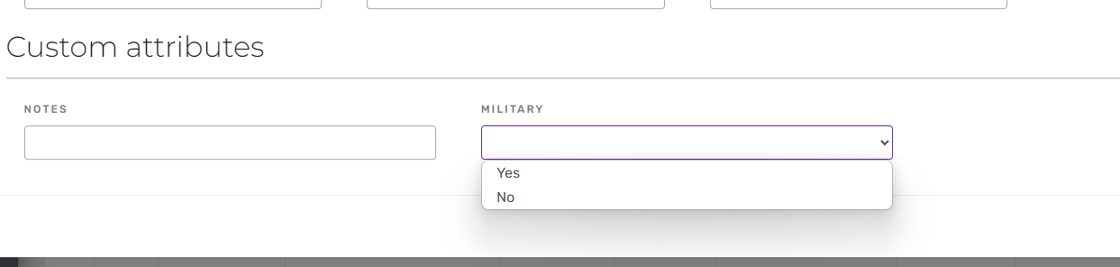
View Attributes on the POS Register #

Customer Notes Display #
You will now see the notes on the customer page.


