
How to Refund Cash and Card Transactions After the Day of Purchase (Lifelong OS – Retail) #
Made by Lifelong Support with Scribe
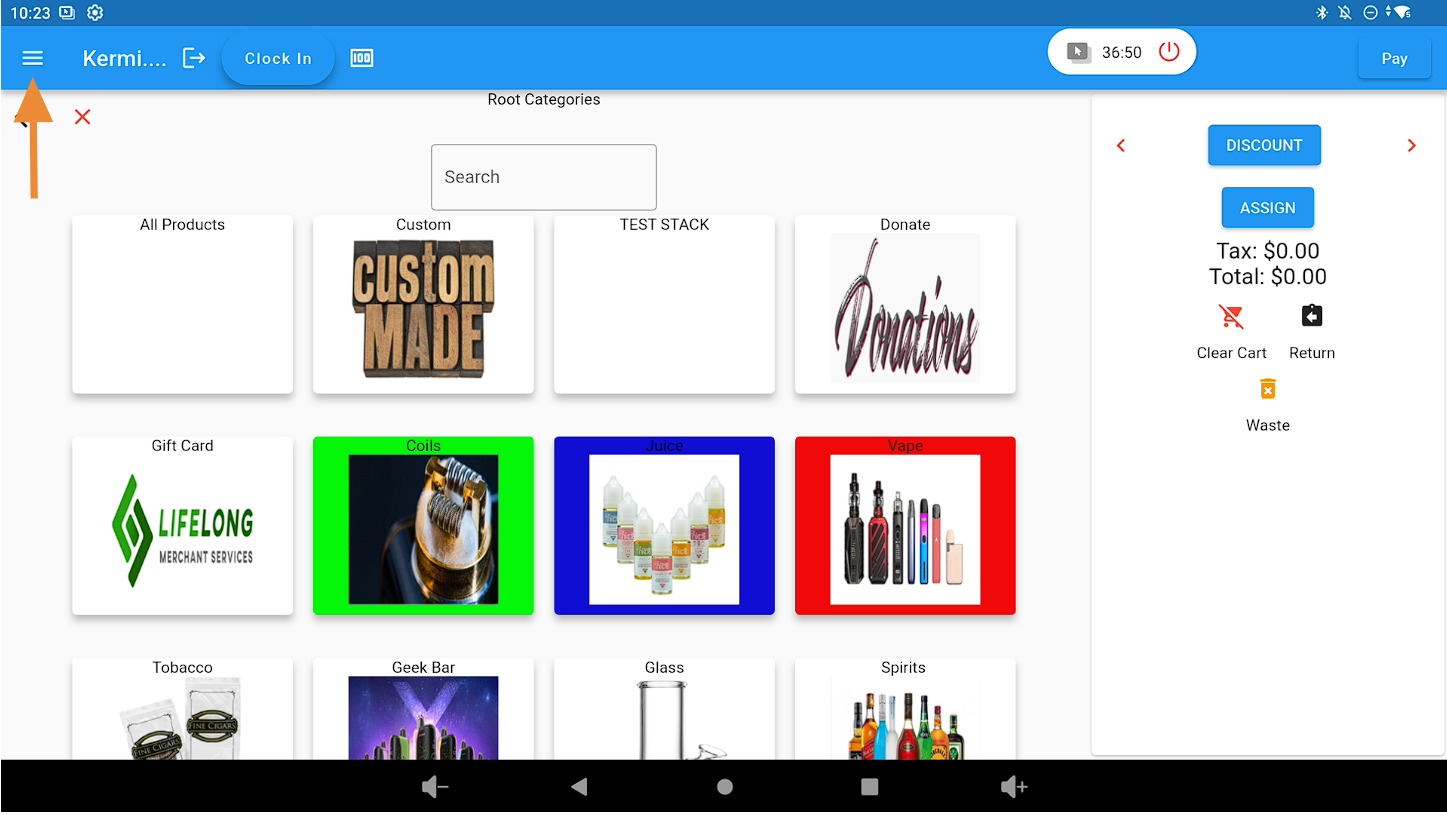
Open the main menu #
Click on the 3 bars in the top-left corner.
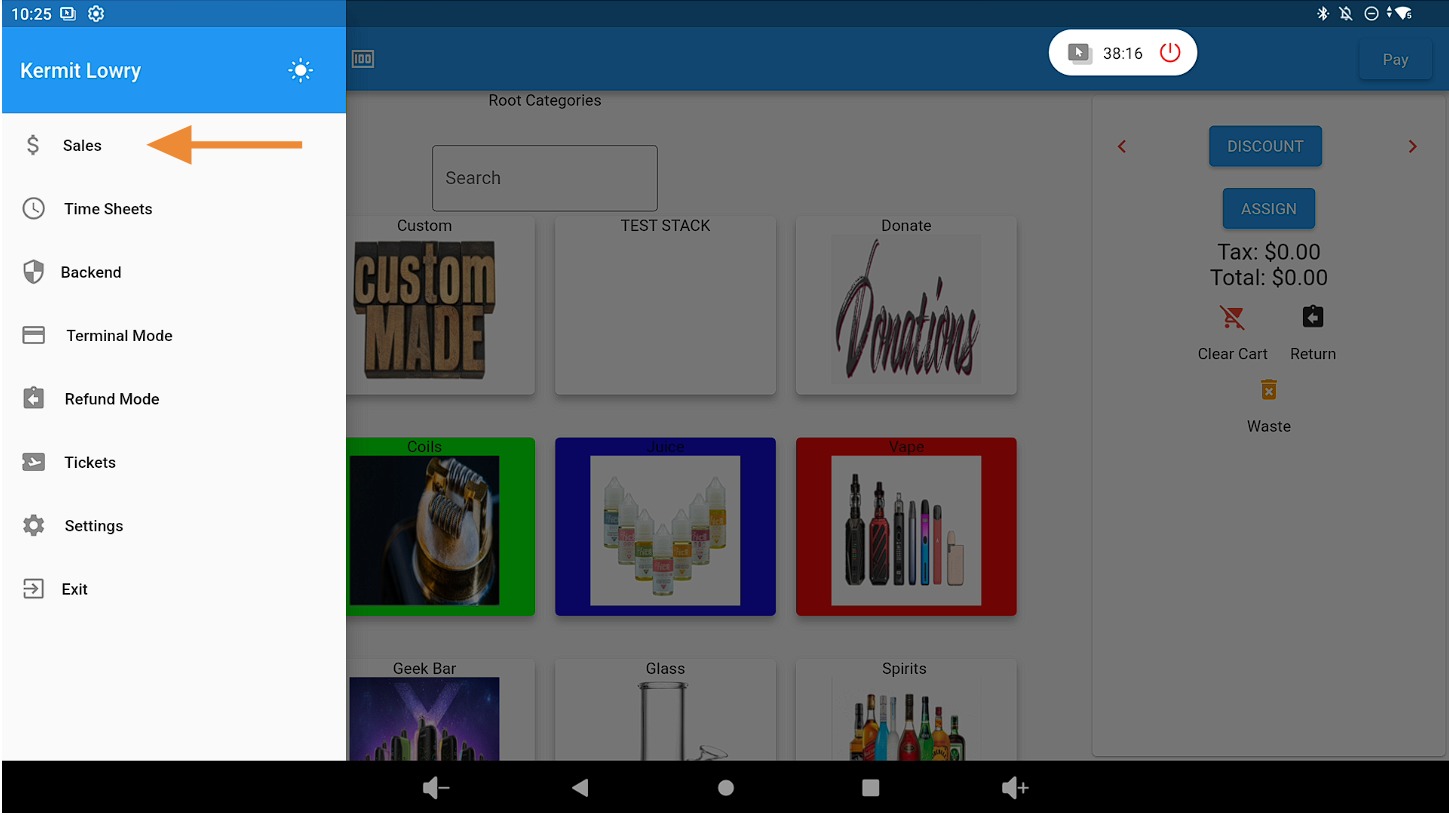
Go to Sales #
Click on the Sales tab.
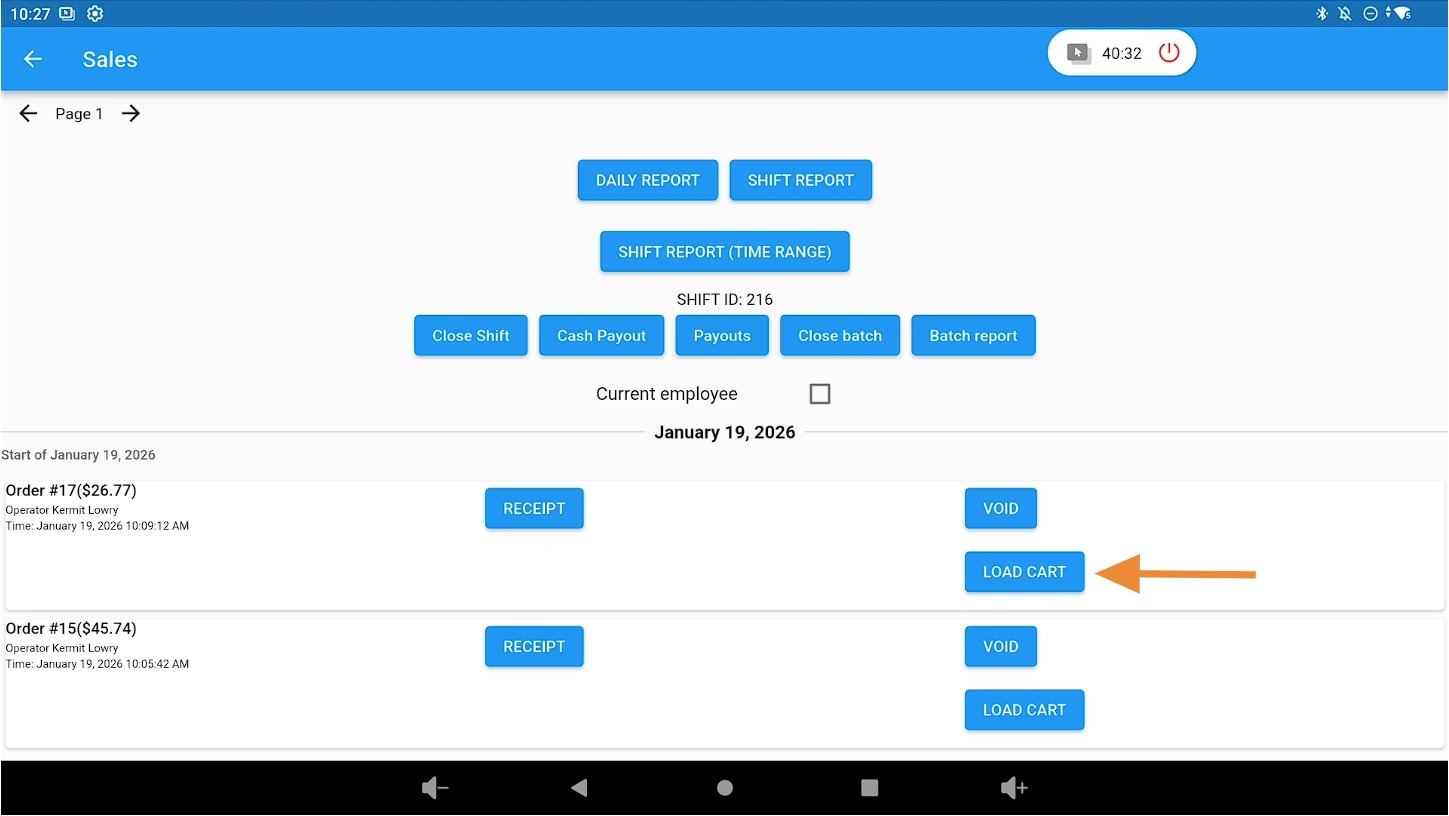
Load the original order #
Find the order and click the Load Cart button.
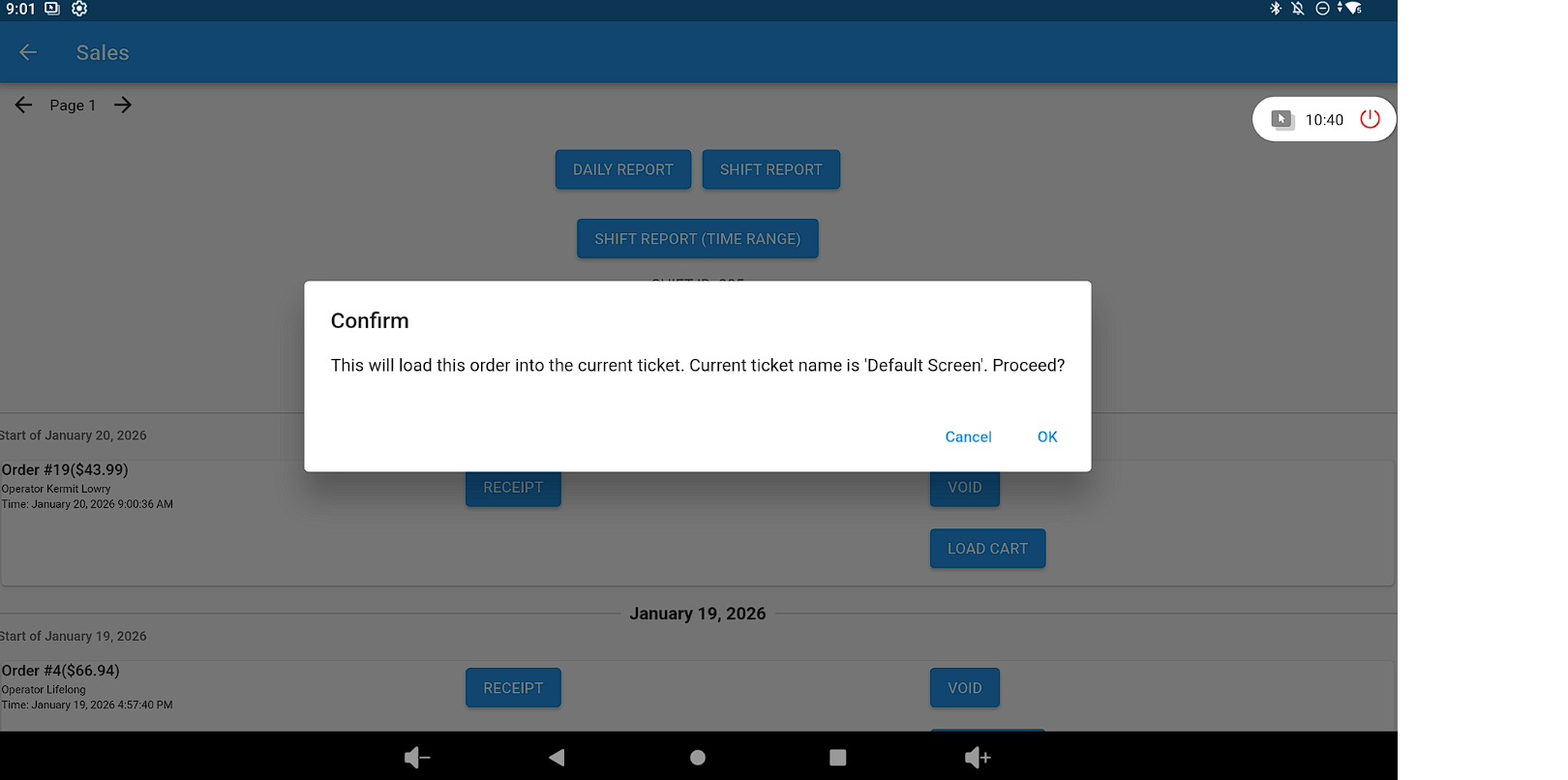
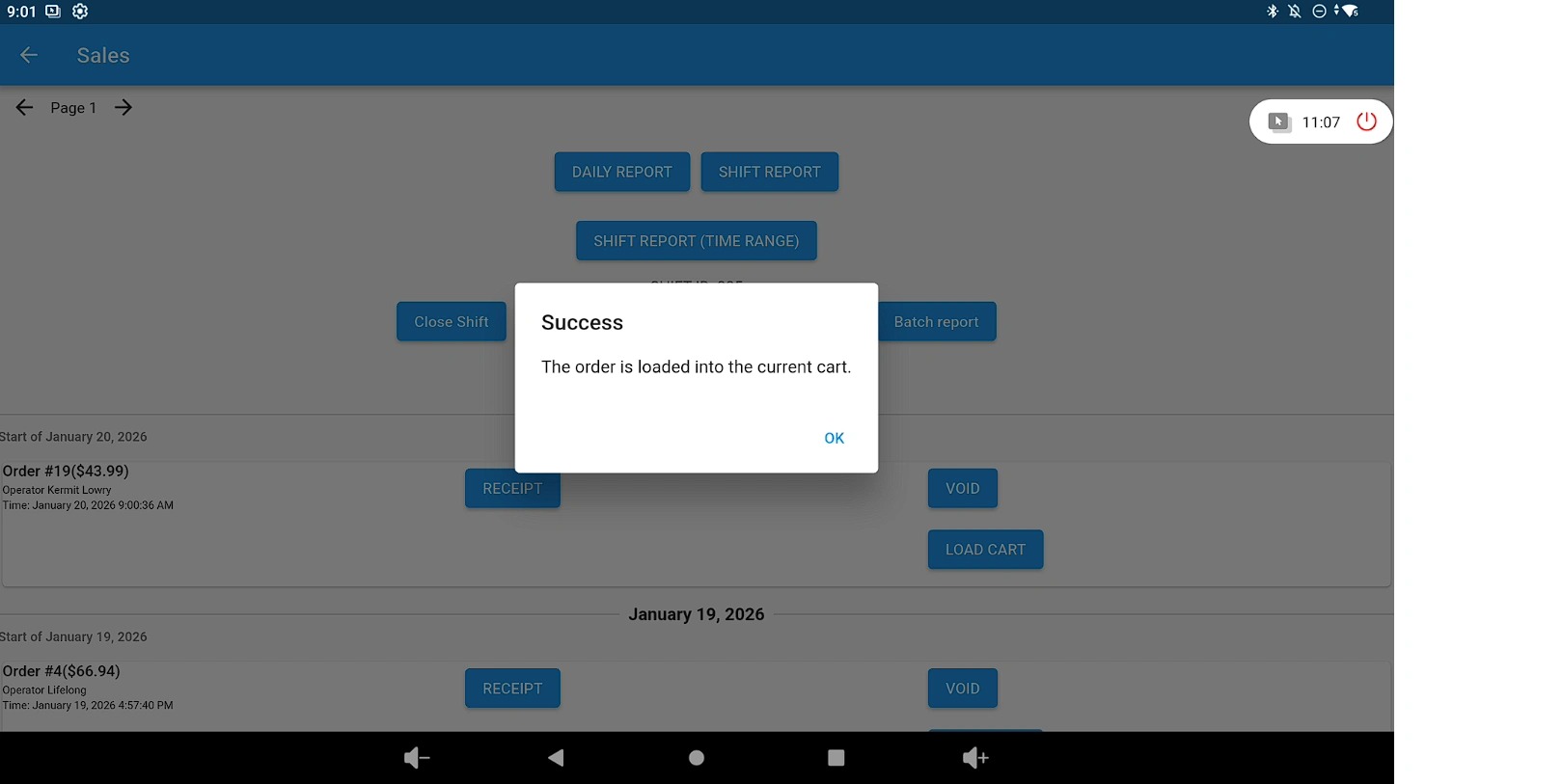
Confirm the prompt #
Click OK.
Confirm the second prompt #
Click OK.
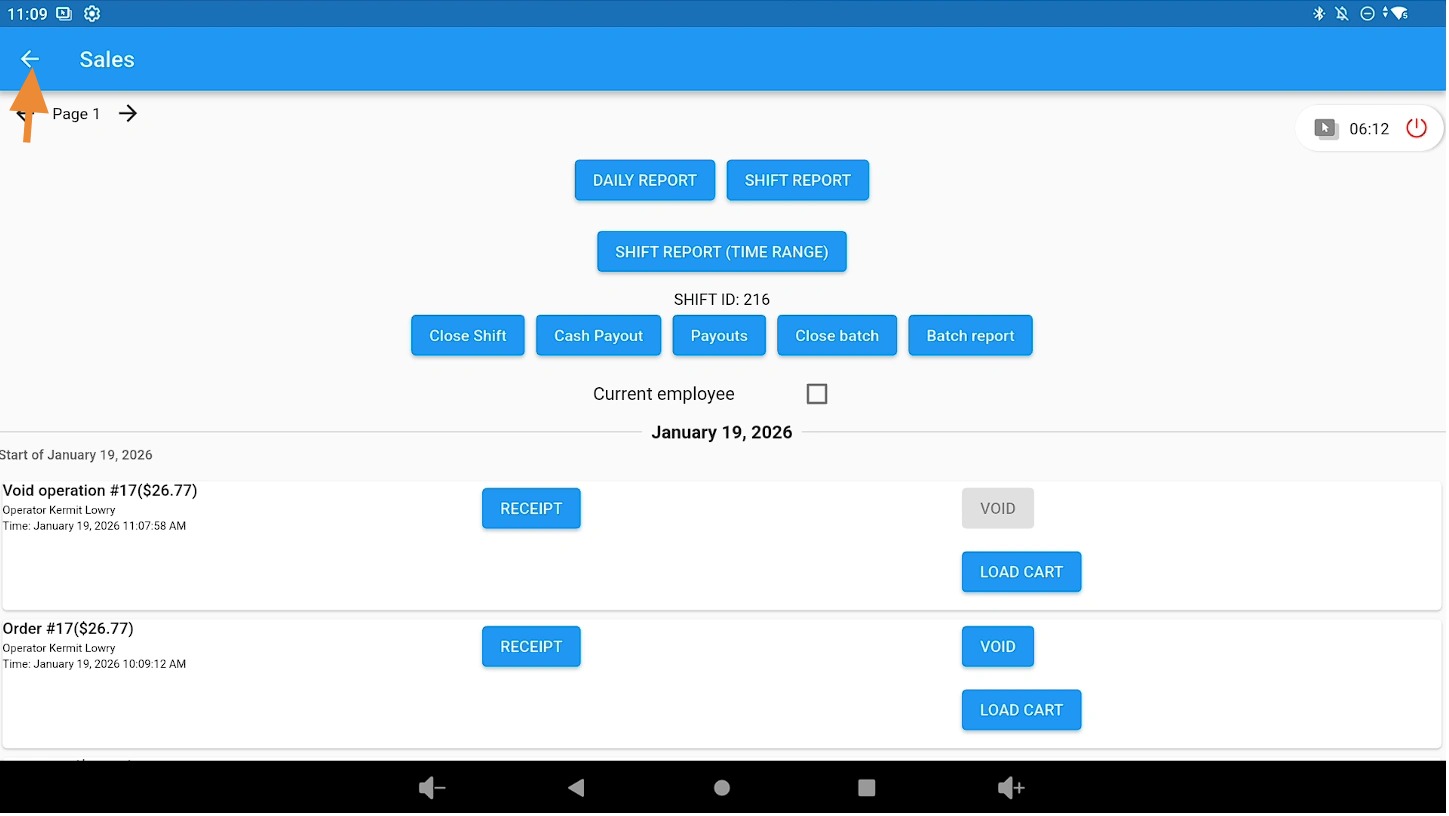
Return to the main screen #
Click the Back button in the top-left corner.
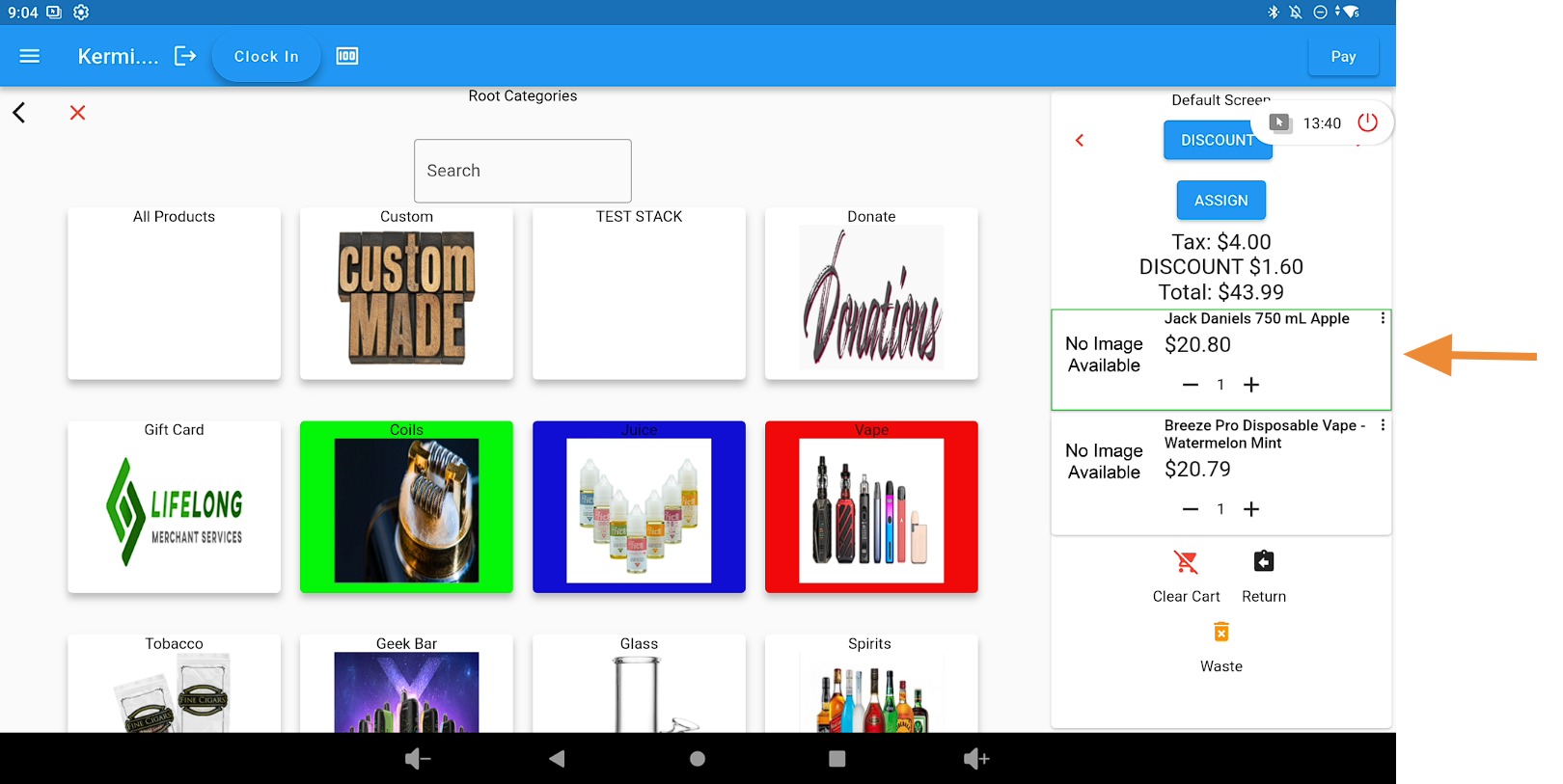
Select the items to refund #
Select the product or products being refunded by clicking each item.
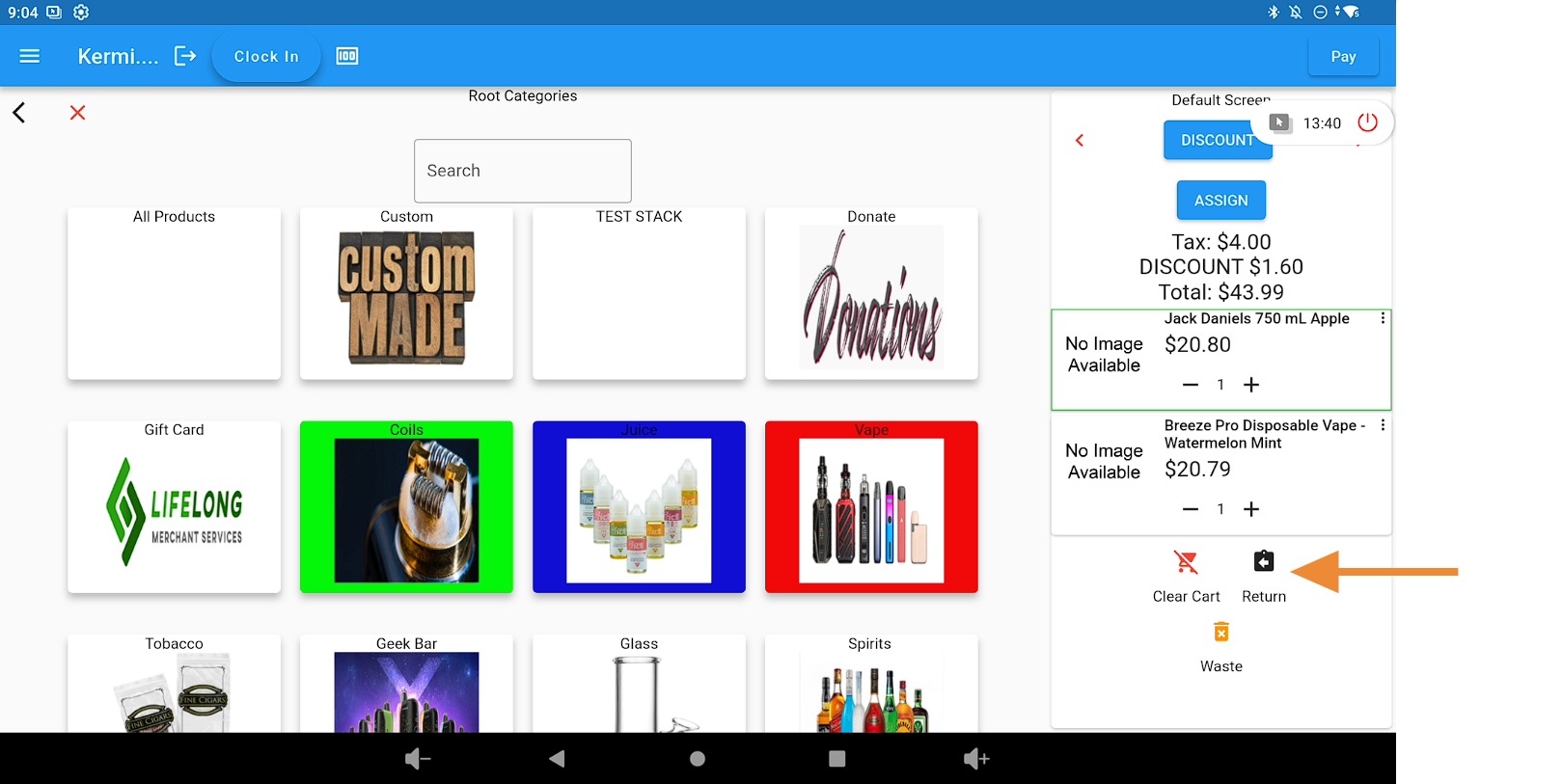
Choose a full or partial refund #
For a partial refund, remove any items not being refunded.
For a full refund, select all products.
Click the Refund button.
Verify the refund amount #
The refunded product or products should now show a negative amount.
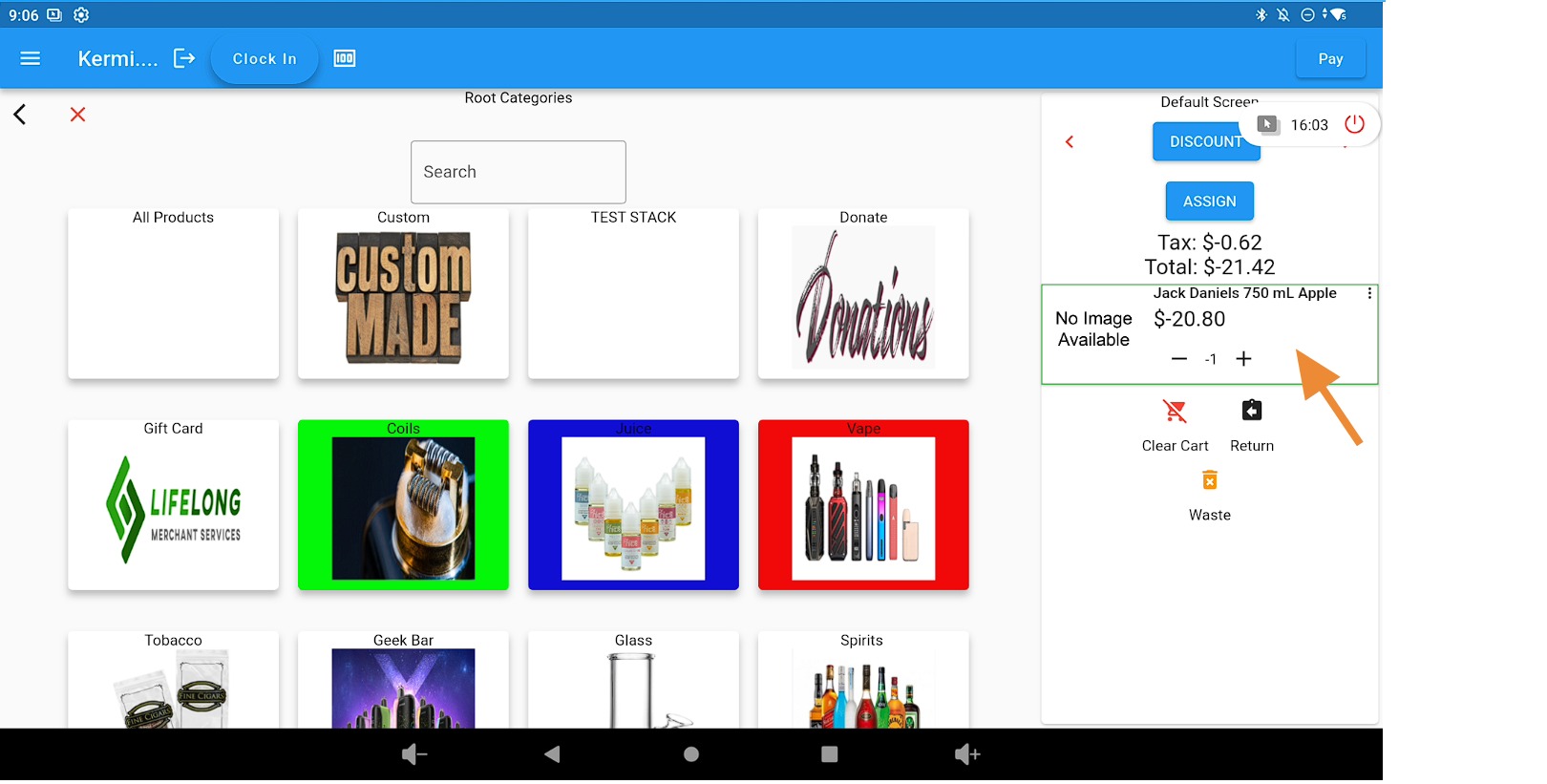
Proceed to payment #
Click the Pay button at the top-right of the screen.
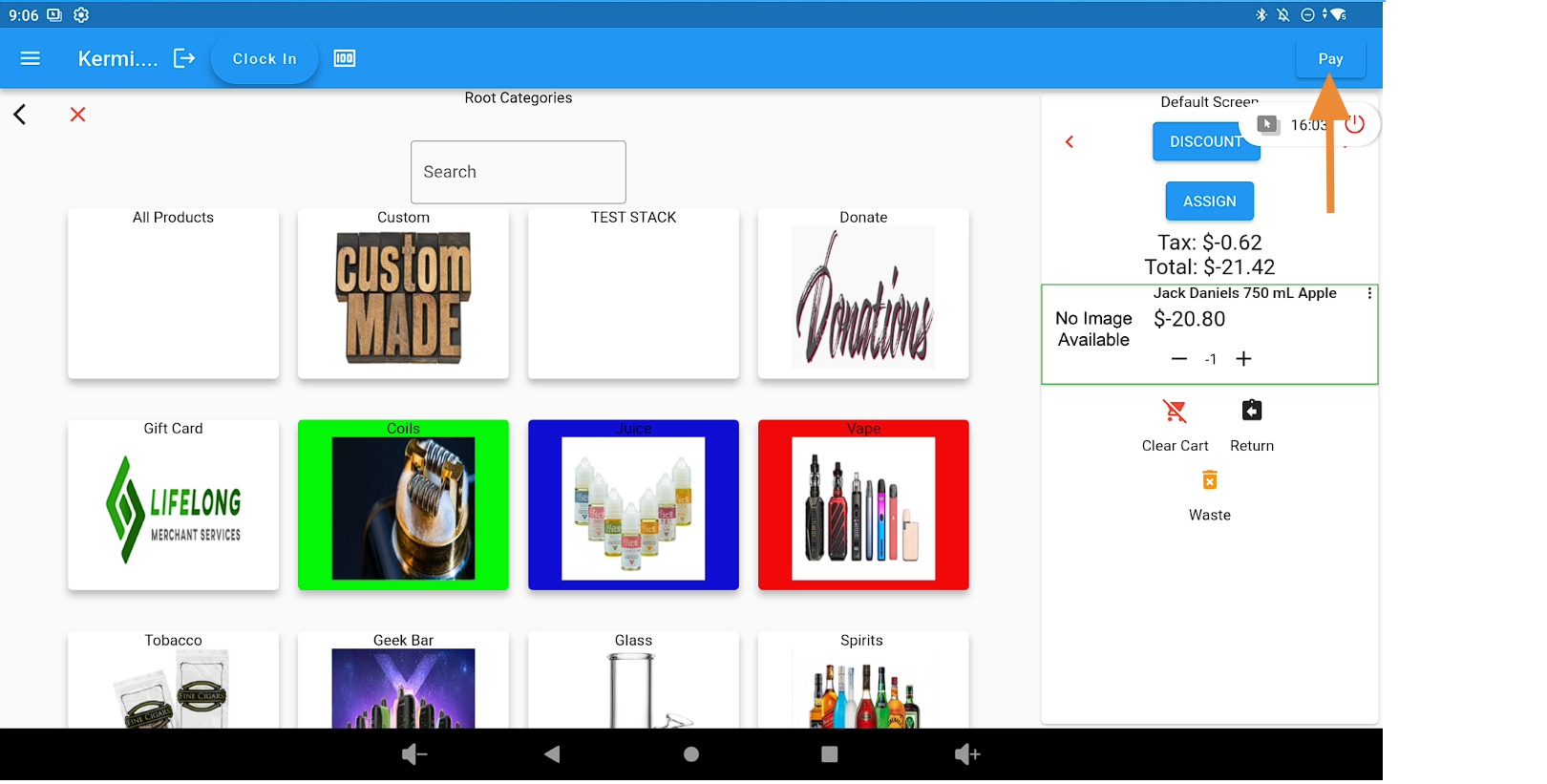
Process the refund by original payment type #
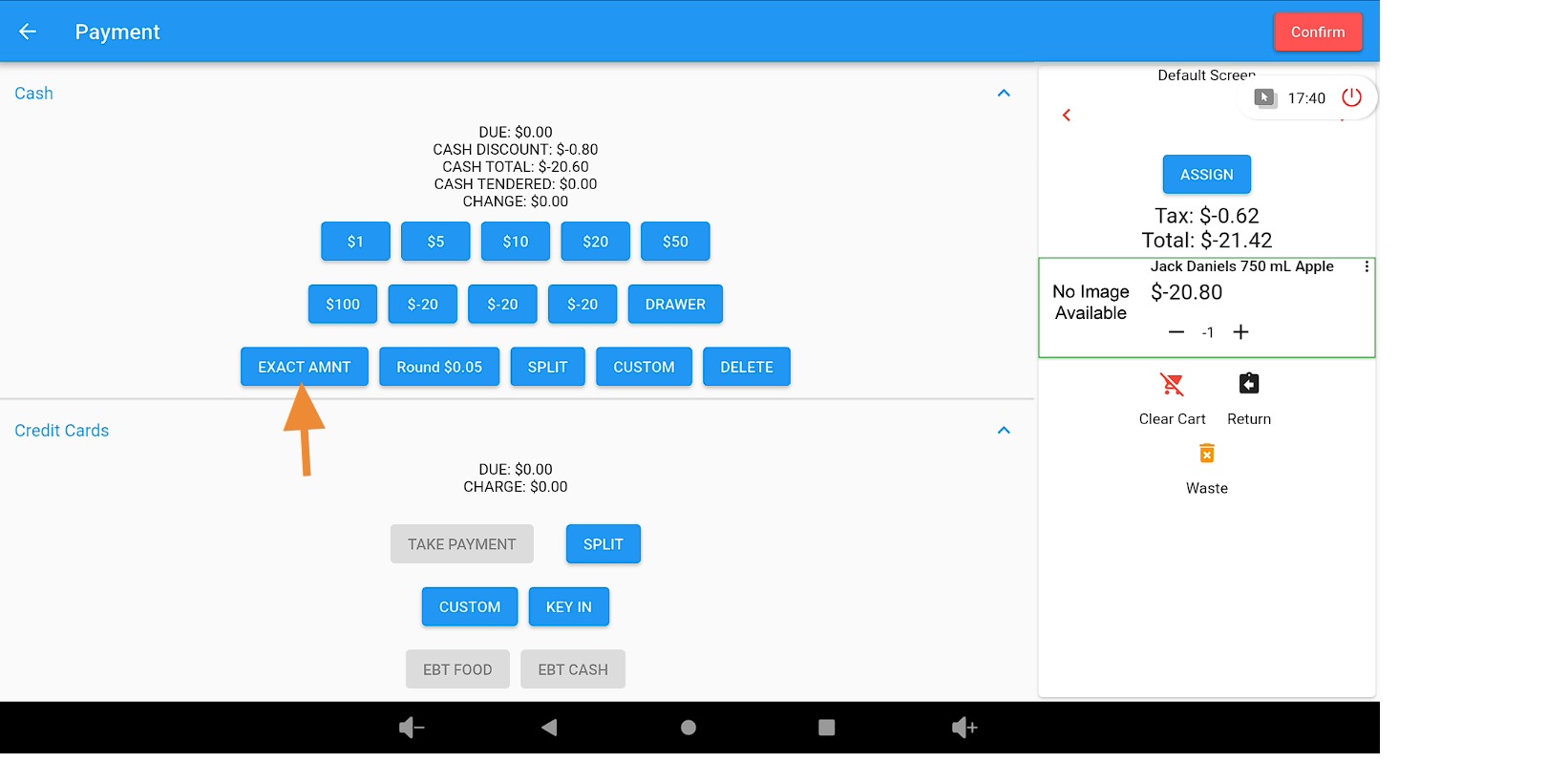
If the original payment was made in cash, issue the refund in cash by clicking Exact Amount.
If the original payment was made by card, click Take Payment and have the customer insert or tap their card to process the refund back to the card.
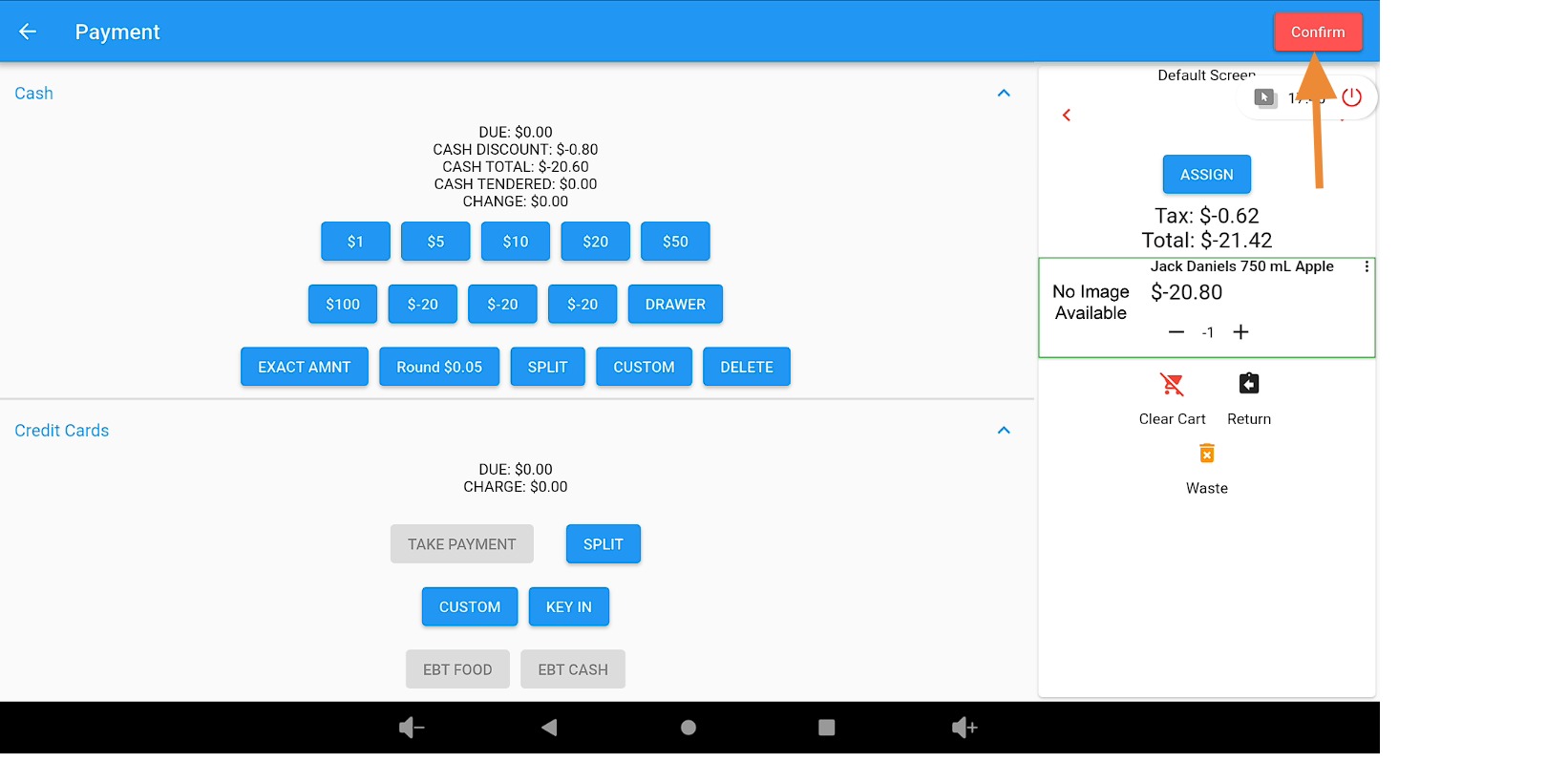
Confirm the refund #
Click the Confirm button to finish the refund.
Send the refund receipt and return to the main screen #
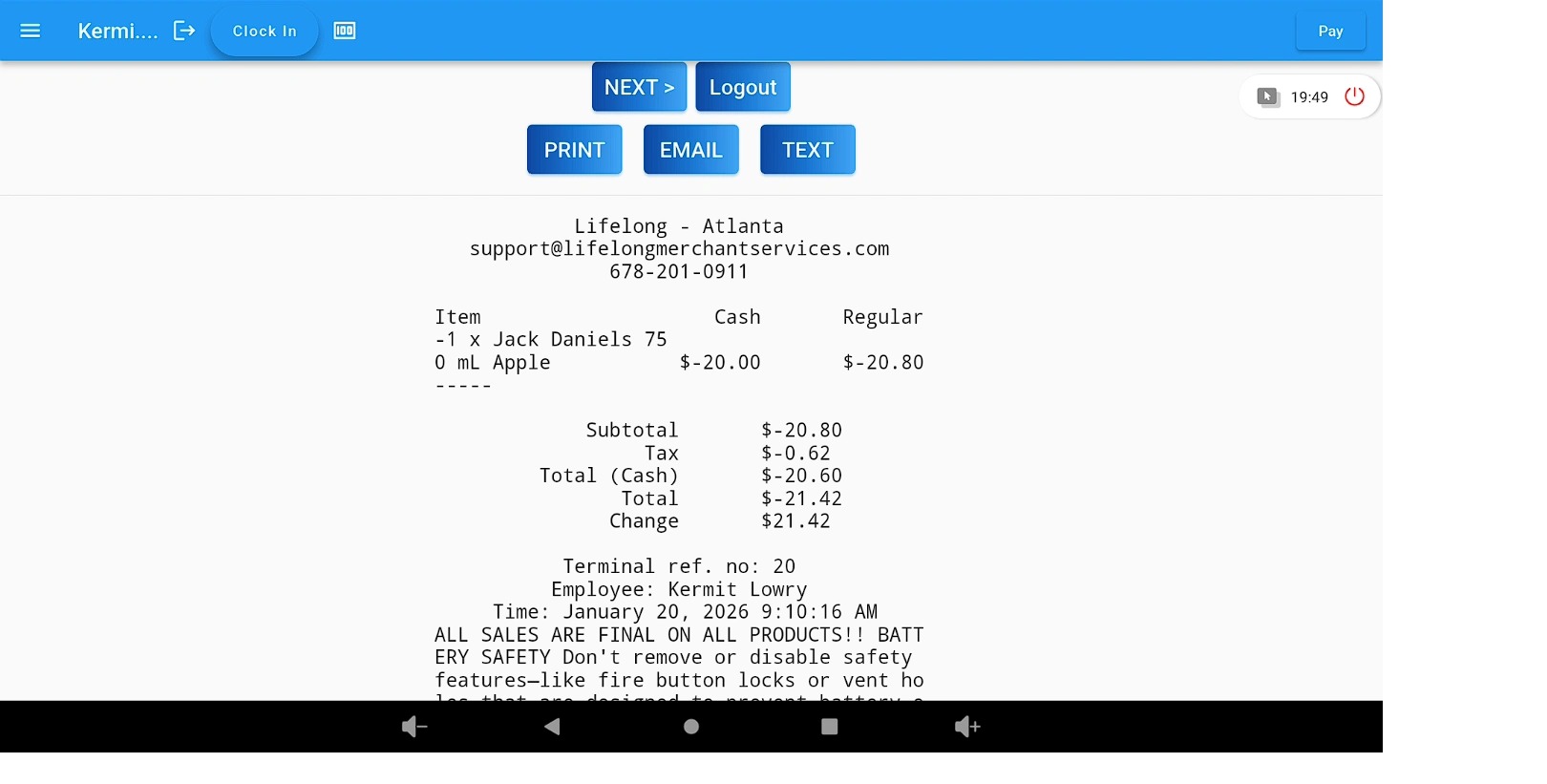
Print, email, or text the refund receipt.
Click the Next button to return to the main screen.
Related documentation #
How to void same day Cash & Card Transactions (Lifelong OS)
How to Refund Without A Receipt (Lifelong OS)


