Setup Creating Tables & Sections For Staff (Lifelong OS) (Bar / Restaurant) #
Tip: Learn how to set up efficient table sections for your bar and restaurant staff
1. Navigate to https://login.lifelongpos.com/login
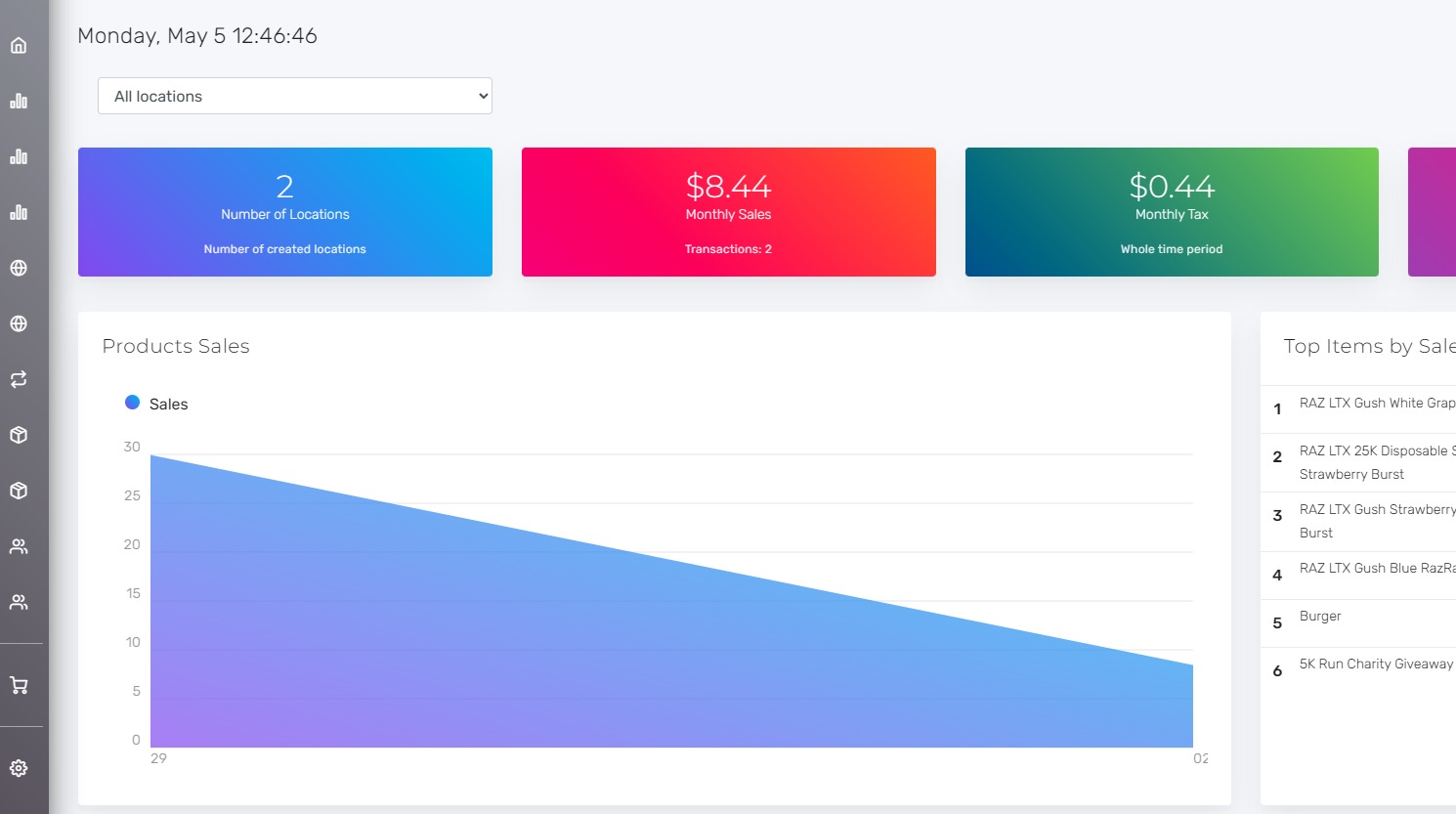
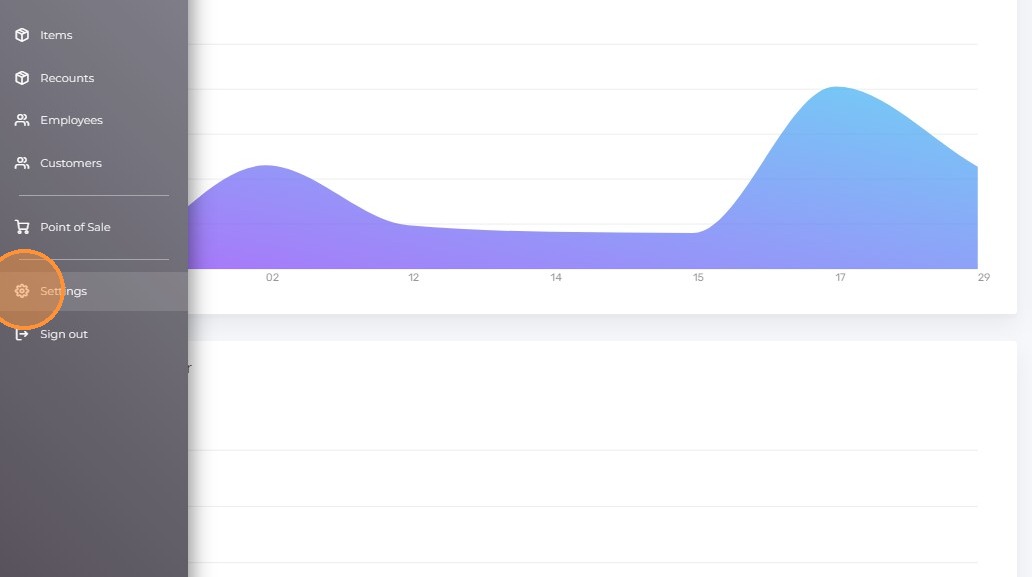
2. Click on the “Settings” tab on the left hand side of the screen.
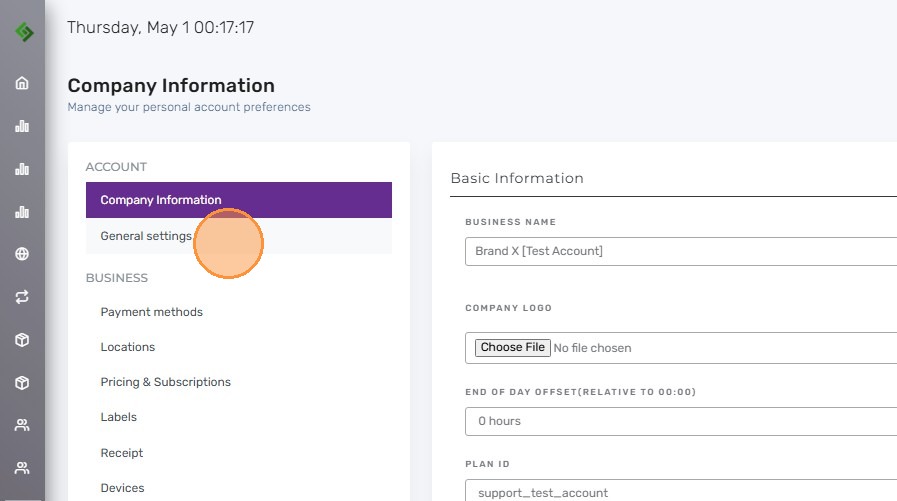
3. Click “General settings”
4. Click on “Rooms” the click on “Locations“
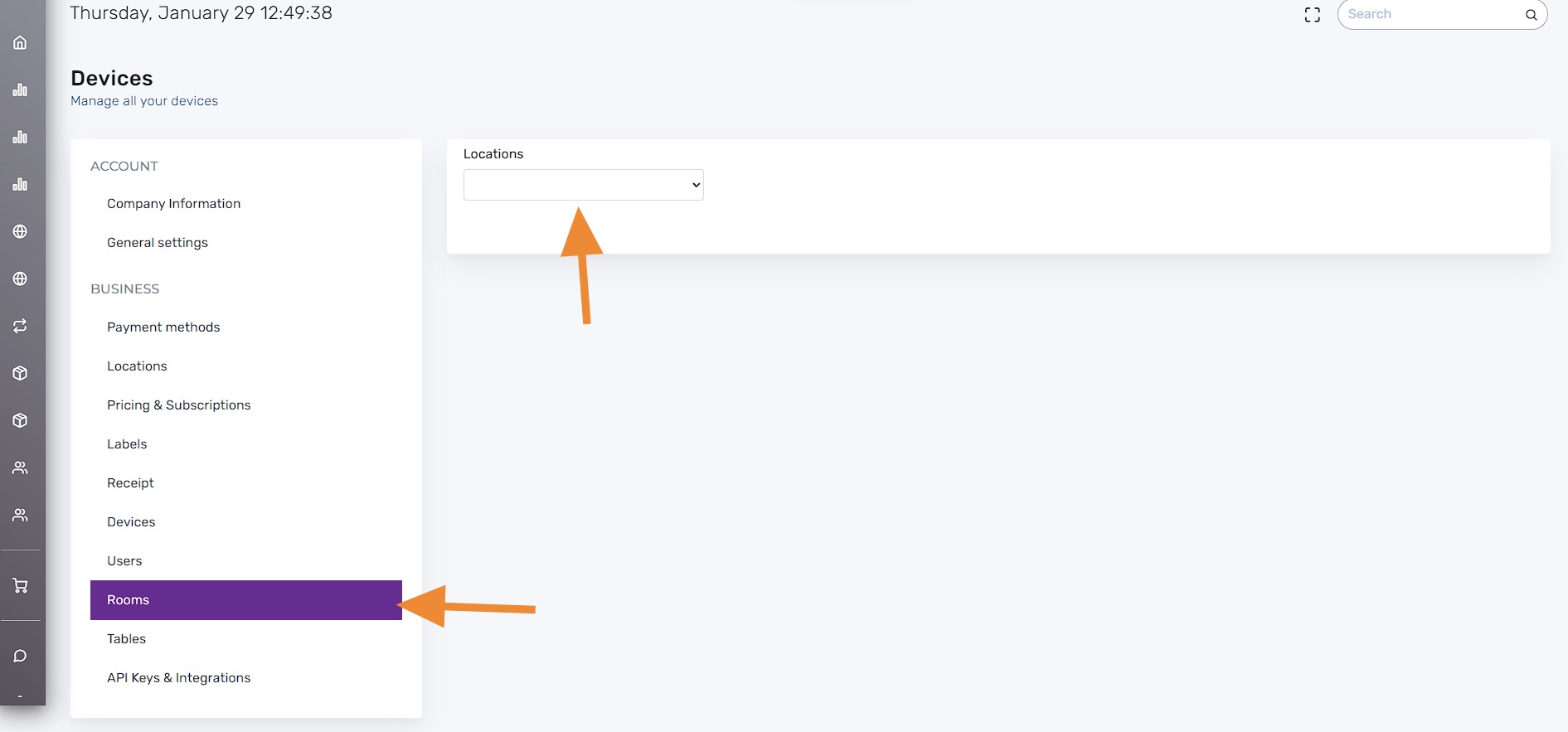
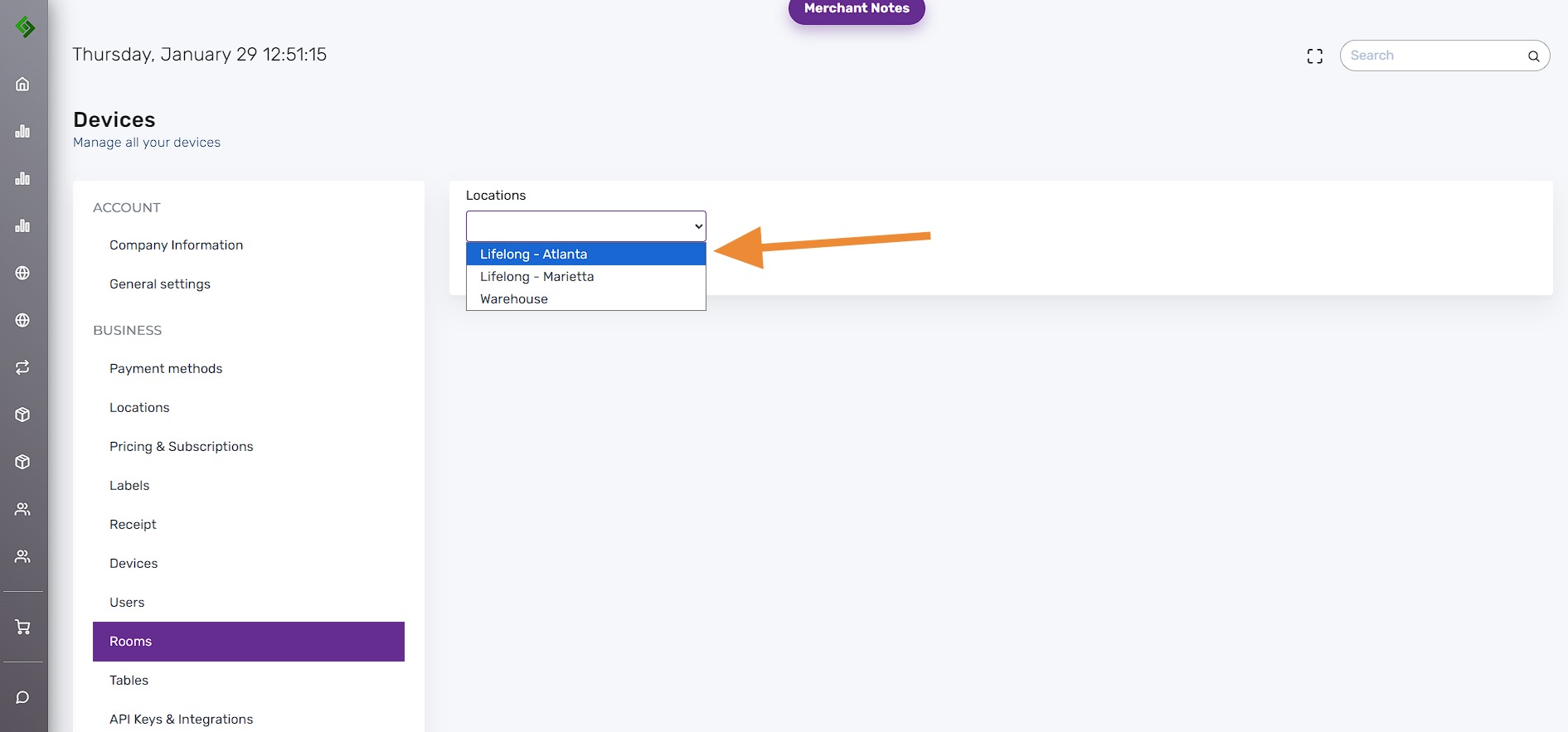
5. Select the location you want to work on
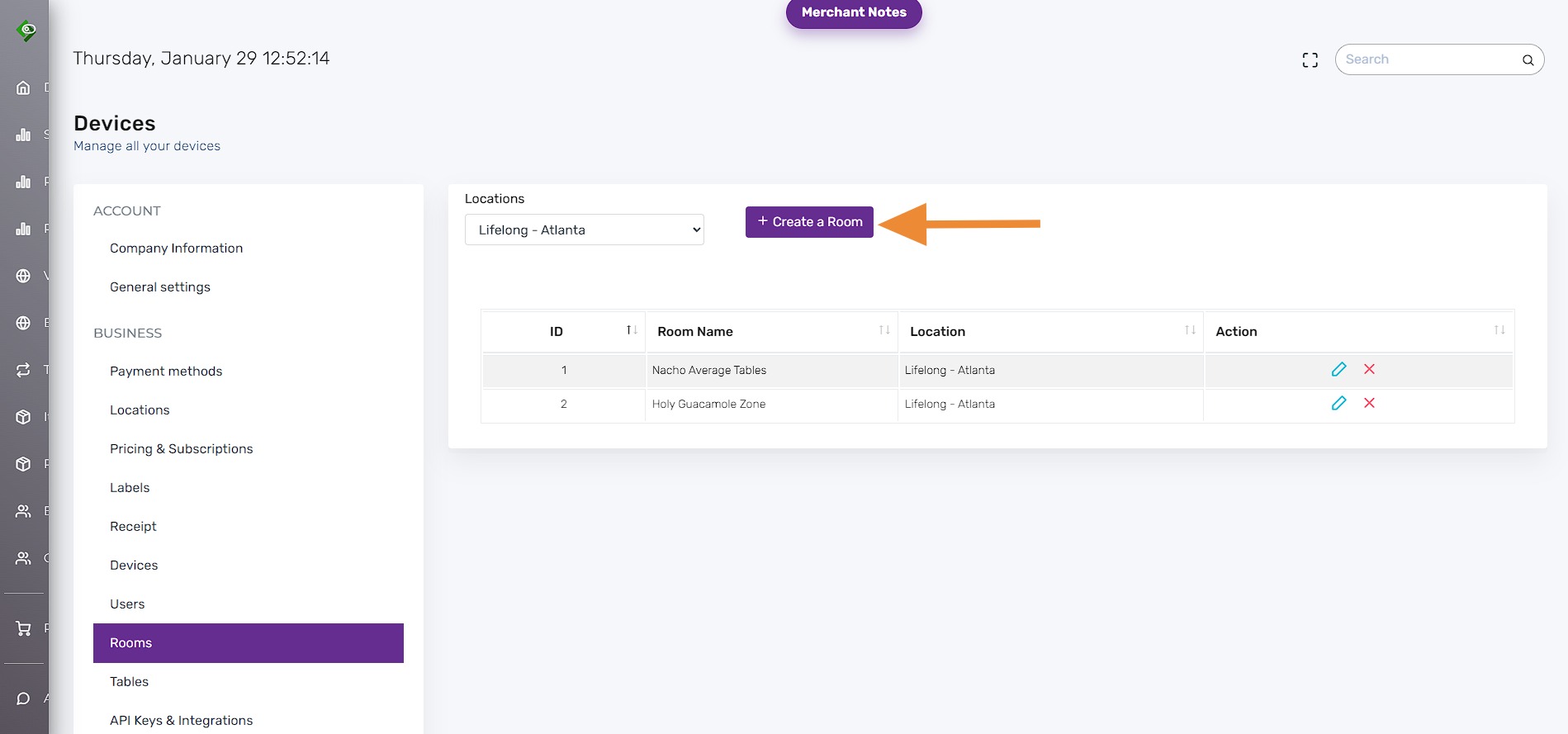
6. Click on “Create A Room“
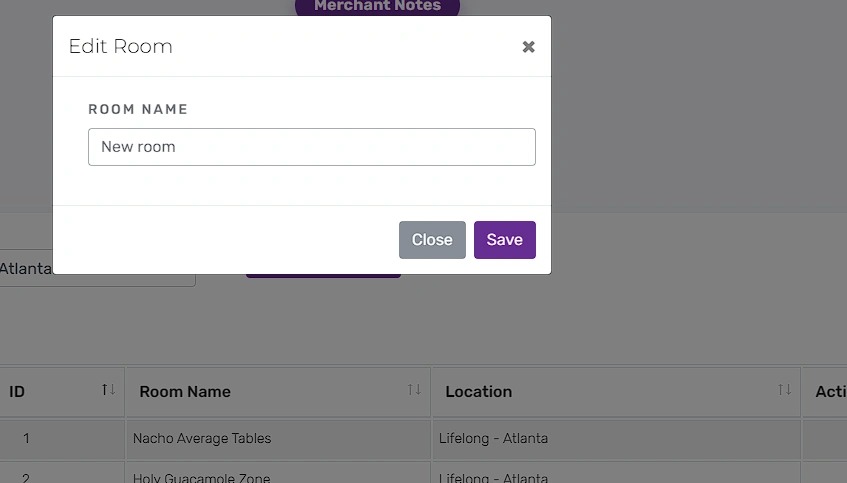
7. Name your new “Table” or “Section” under room name and click Save.
This step will create table sections for your bar and restaurant staff
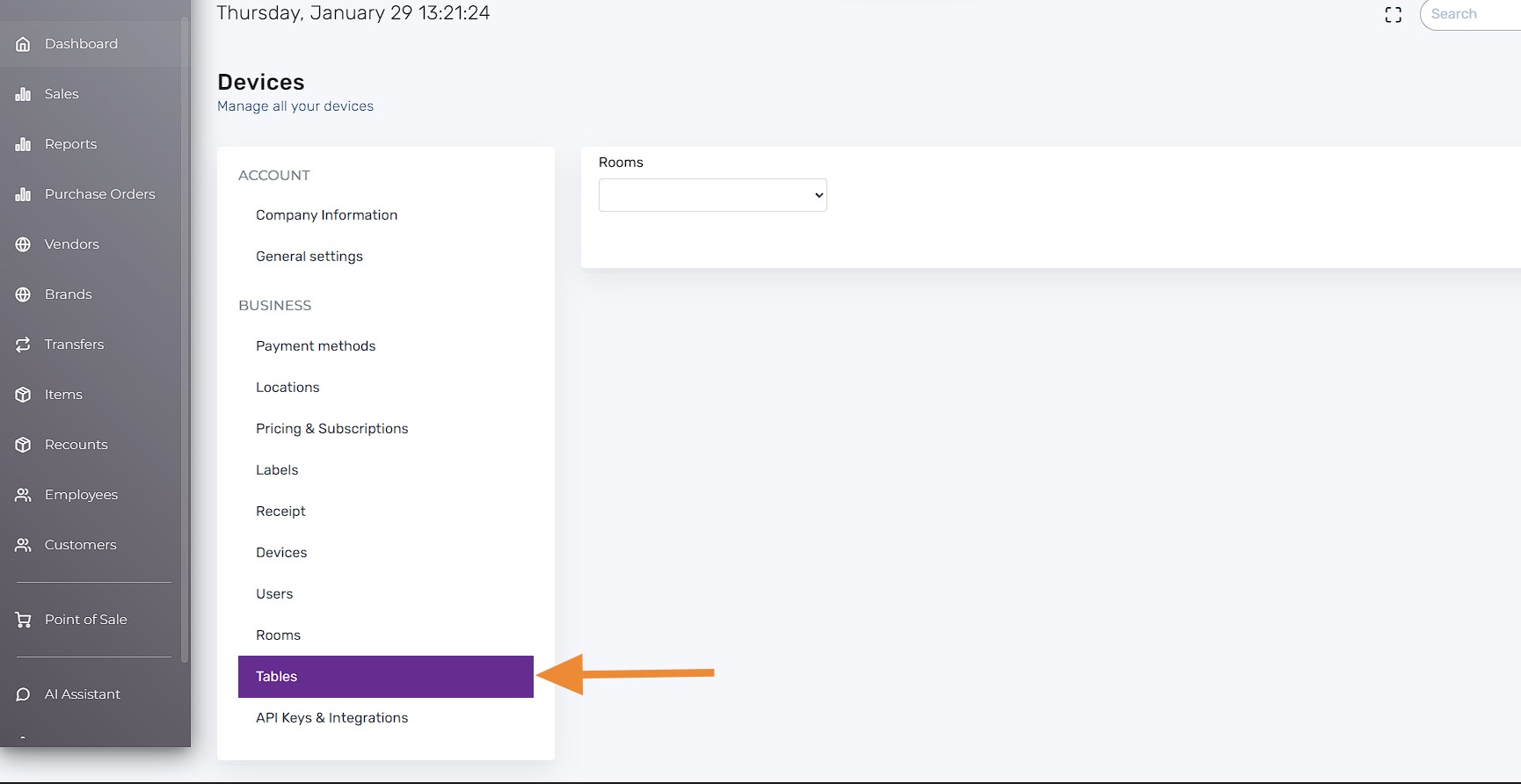
8. Now click on the “Tables” tab
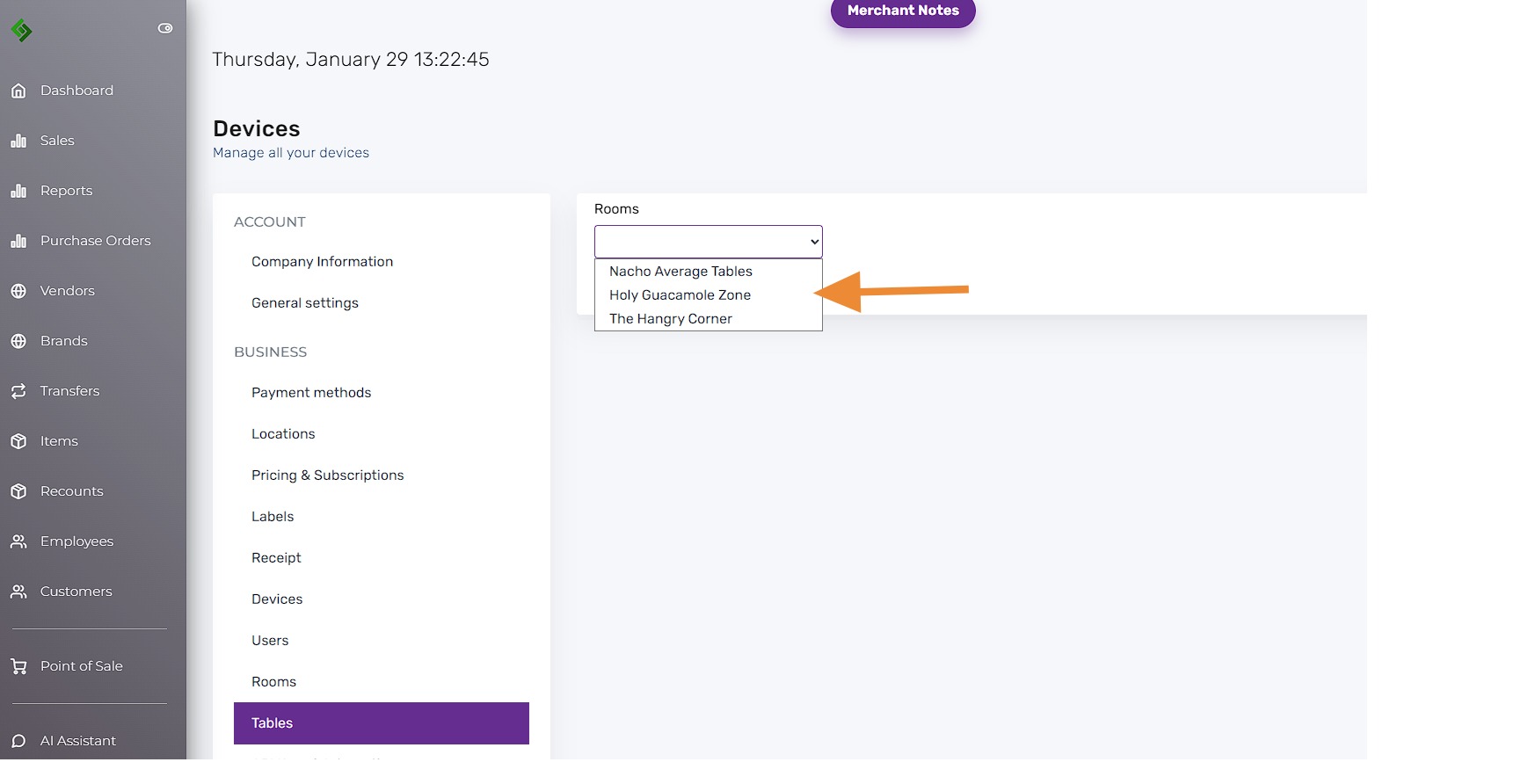
9. In the previous step, you created new table sections. Click on one of them to continue.
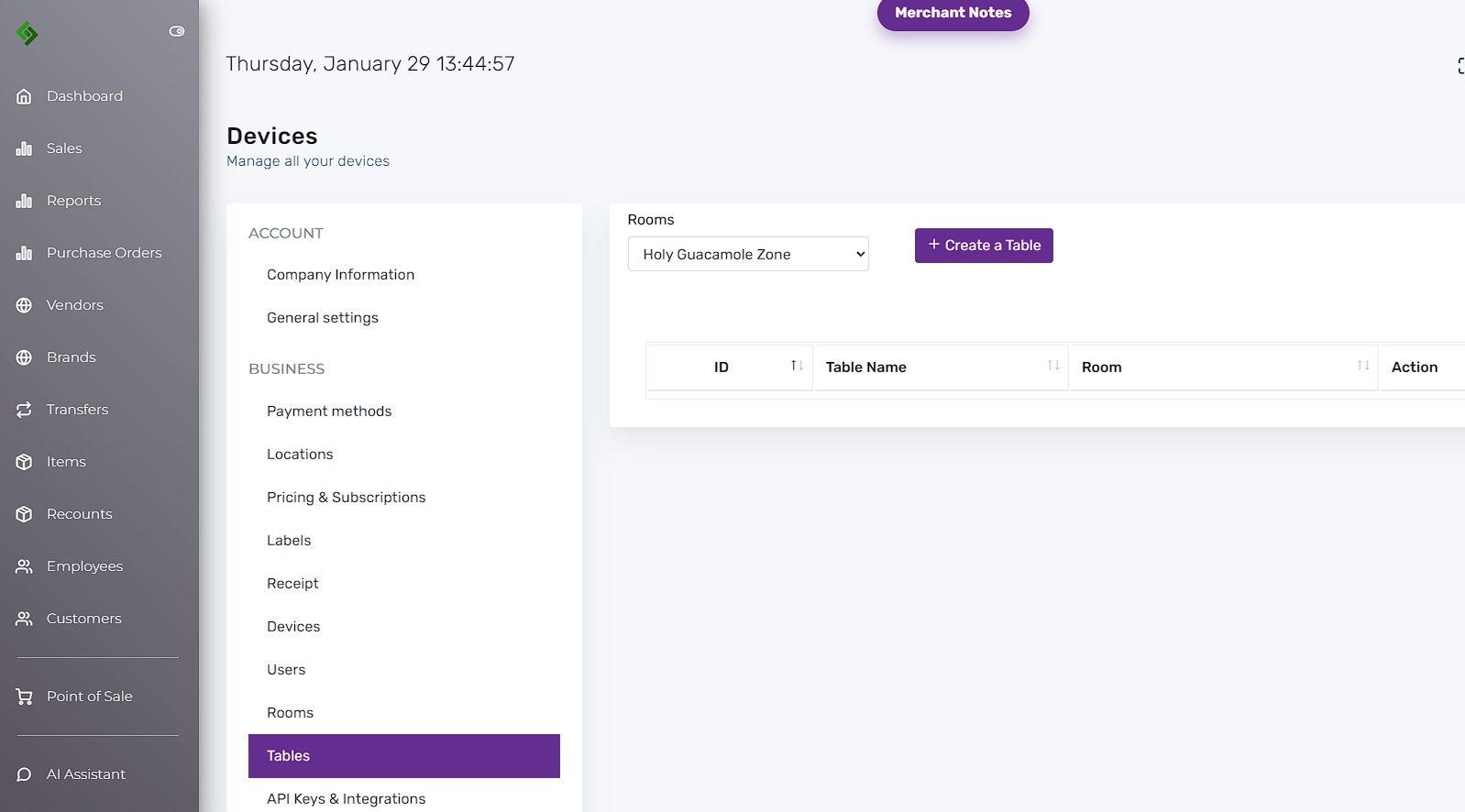
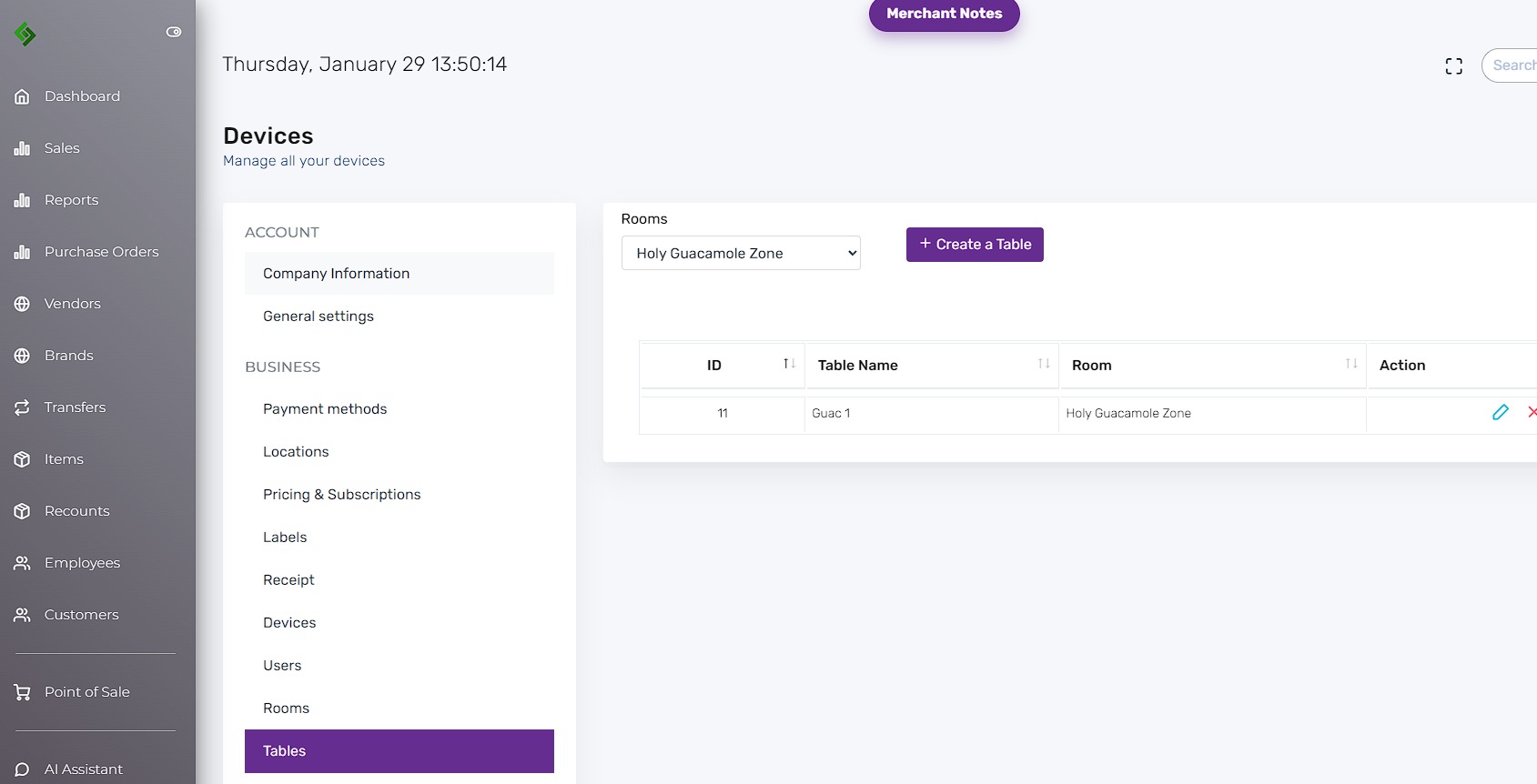
10. Click on the “Create A Table” button.
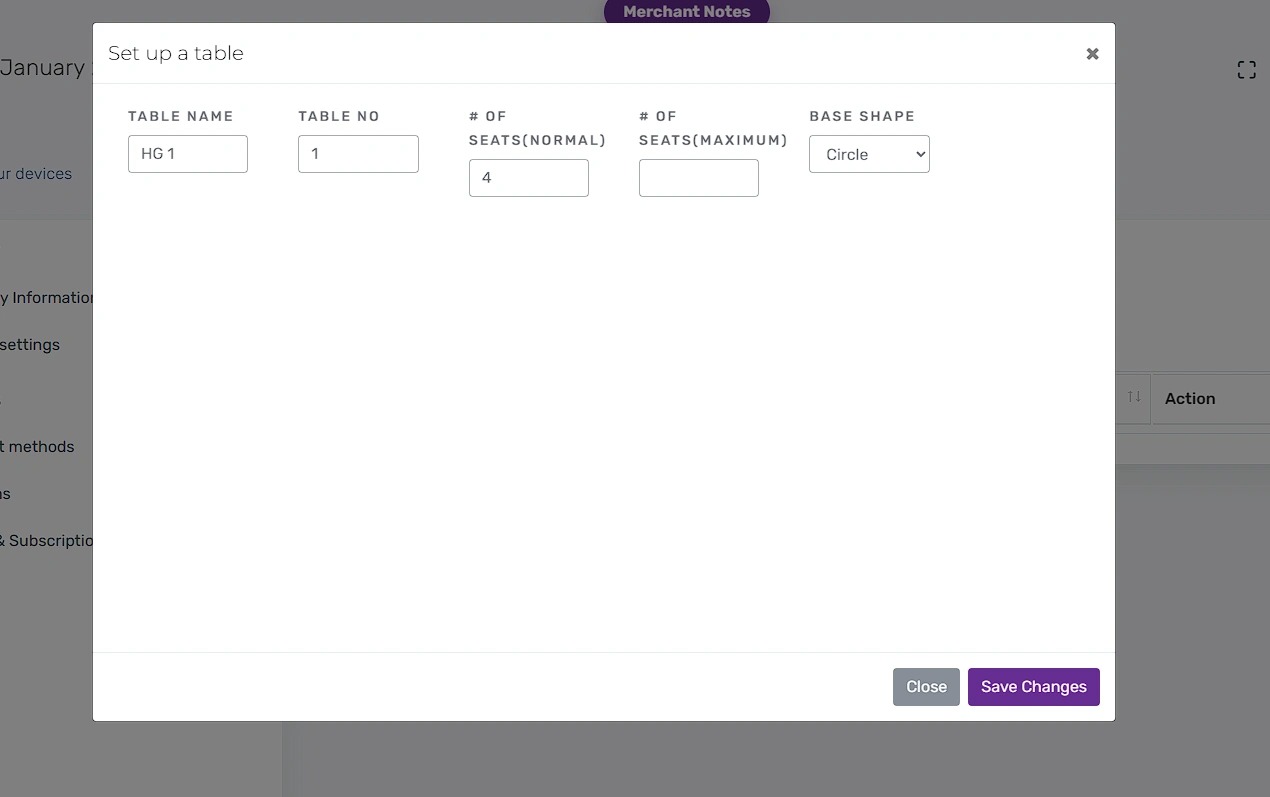
11. Name the Table, table number, # of seats and base shape of the table.
Click “Save Changes”
12. This screen shows all the tables you’ve created for this section of the bar or restaurant.
13. Open the Lifelong OS app on the point of sale.
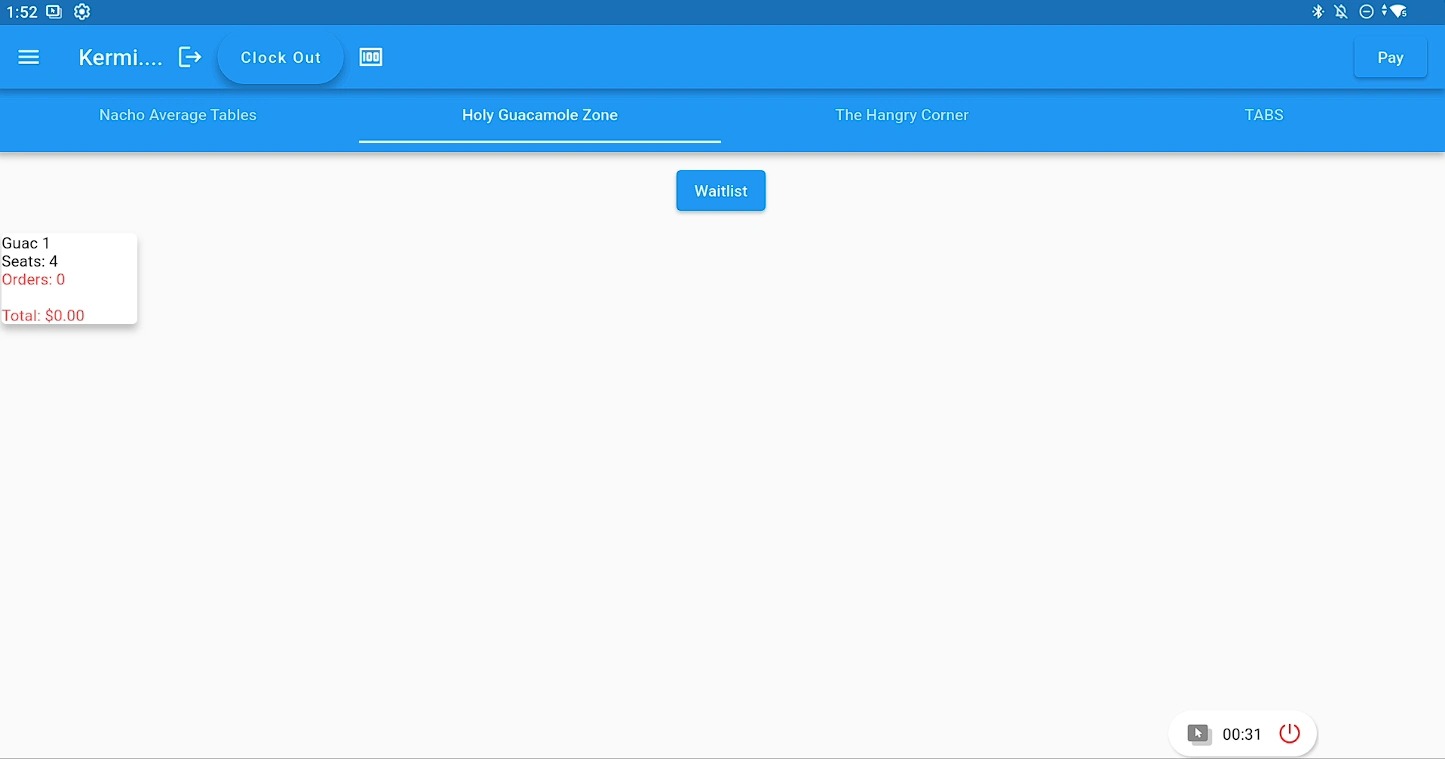
You’ll now see the section you created, along with the tables assigned to that section of the bar or restaurant.