
How To Set Up Mobile Dashboard for Lifelong Admin #
Access Lifelong POS on Mobile #
1. Navigate to https://login.lifelongpos.com/ on any mobile device.

Open the Menu #
2. Tap the three bars in the upper-left corner of the screen.
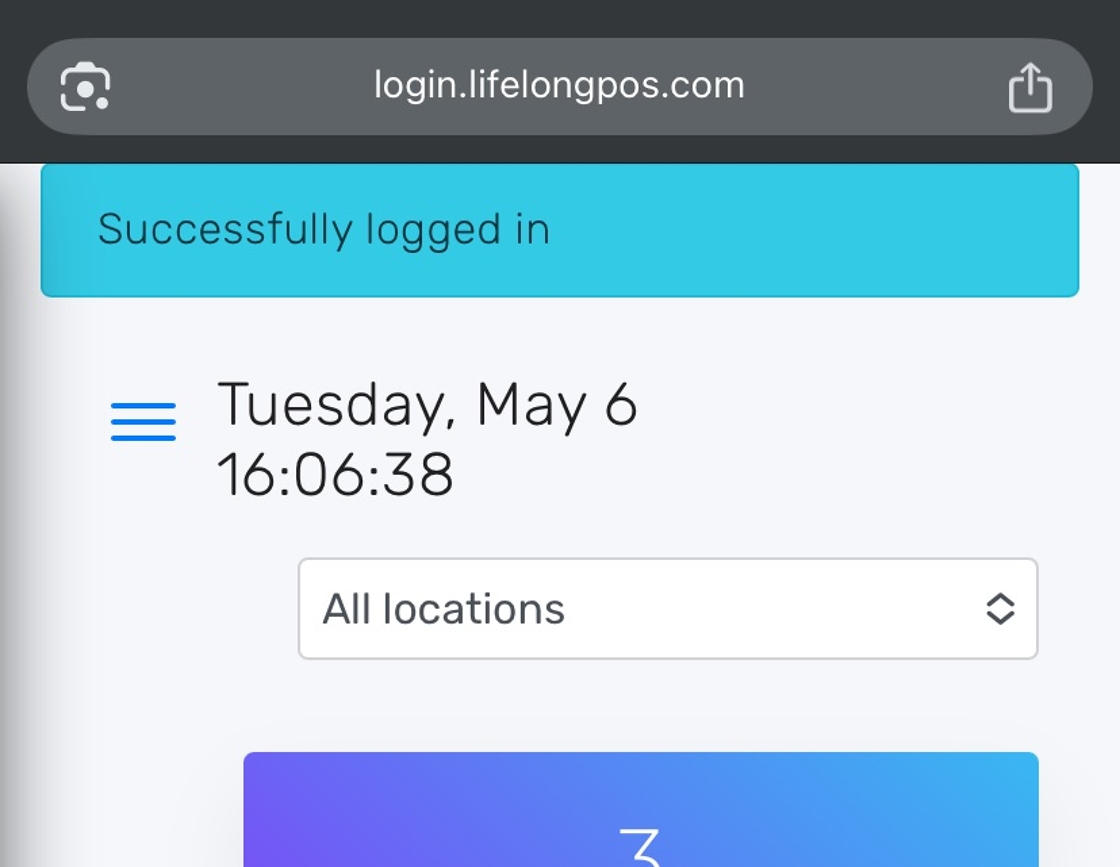
Navigate to Dashboard #
3. Click on the “Reports” tab.

4. Scroll down and tap on the “Dashboard” button.

Add Dashboard to Home Screen #
5. Add to Mobile Home Screen:
- On Google Chrome (Android): Tap the three dots in the upper-right corner.
- On Google Chrome (iPhone): Tap the share button in the upper-right corner.

6. Tap “Add to Home Screen”

7. Confirm by clicking “Add”.

Launch the Dashboard App #
8. A new gray “S” icon will appear on your home screen. Tap it to open the dashboard.

Tip #
Tip: The dashboard app lets you switch between locations, view top-selling categories, and access key stats—all in one place.


