Backend – Manage & Create Employees (Lifelong OS) #
Open the 3 Bar Menu in Lifelong OS #
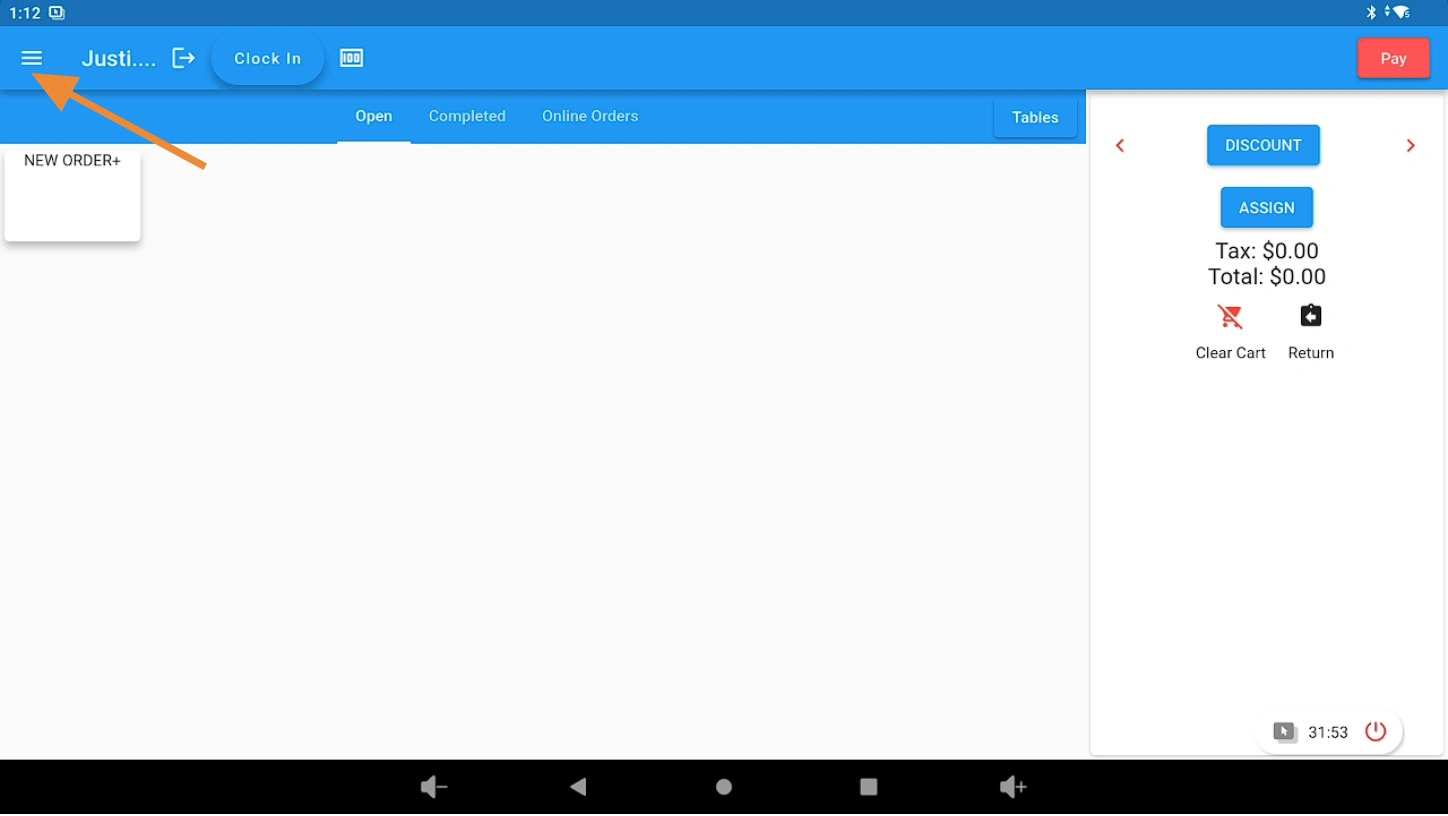
Open Lifelong OS and click on the “3 Bar Menu” button.
Select the Backend Tab #
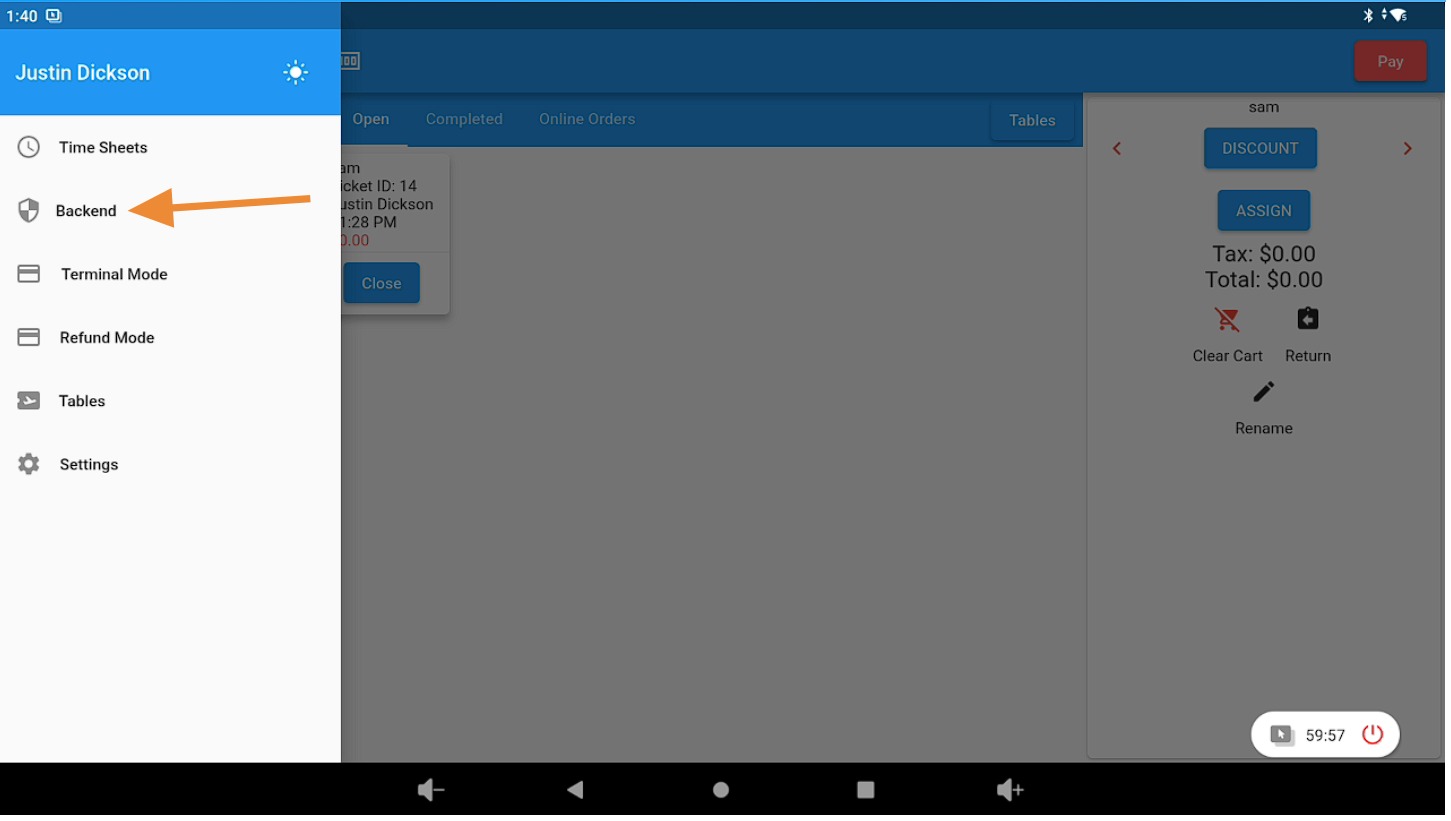
Click on the “Backend” tab.
Open the Employees Section #
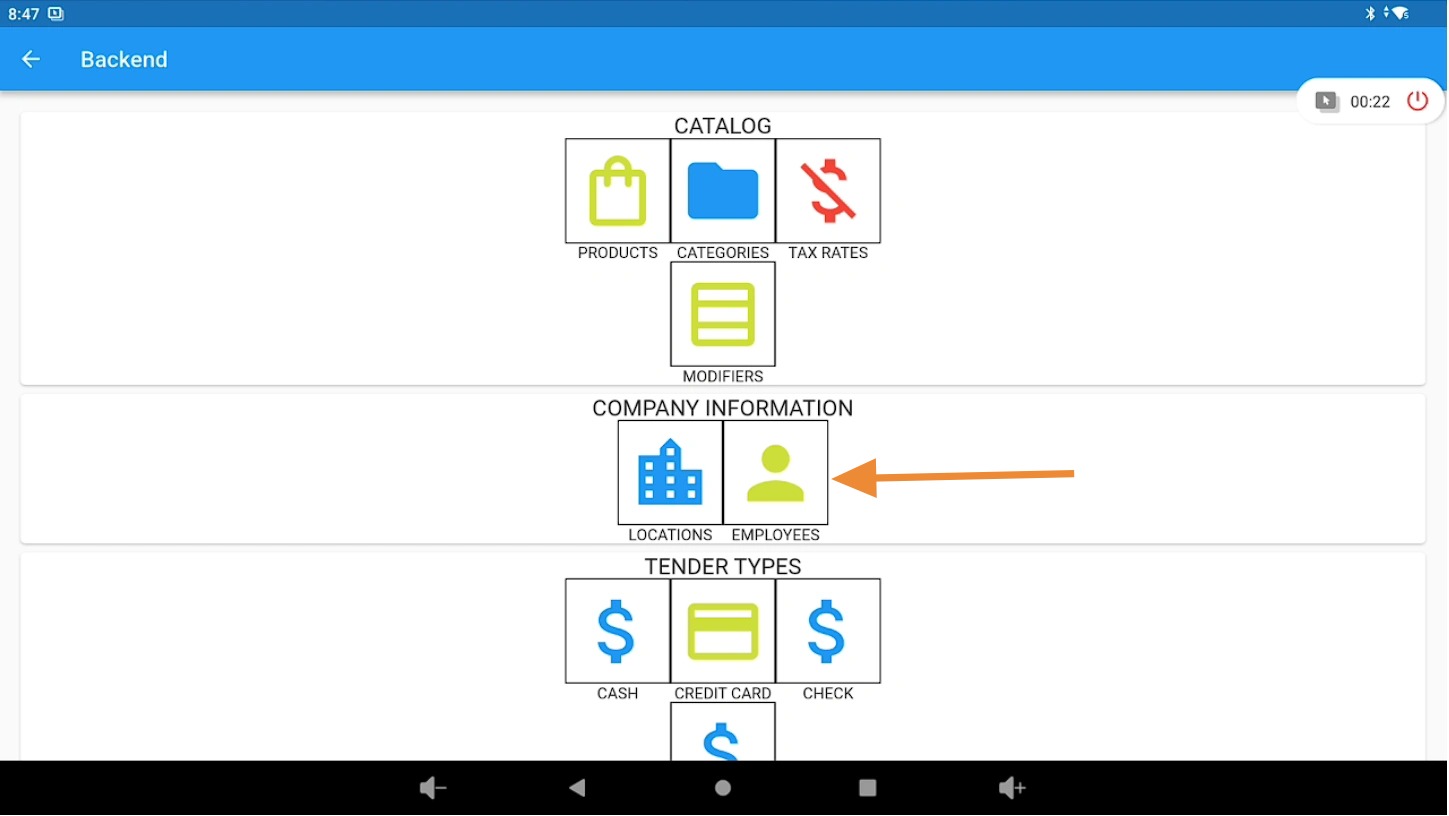
Under “Company Information”, click on the “Employees” icon.
Edit or Remove an Existing Employee #
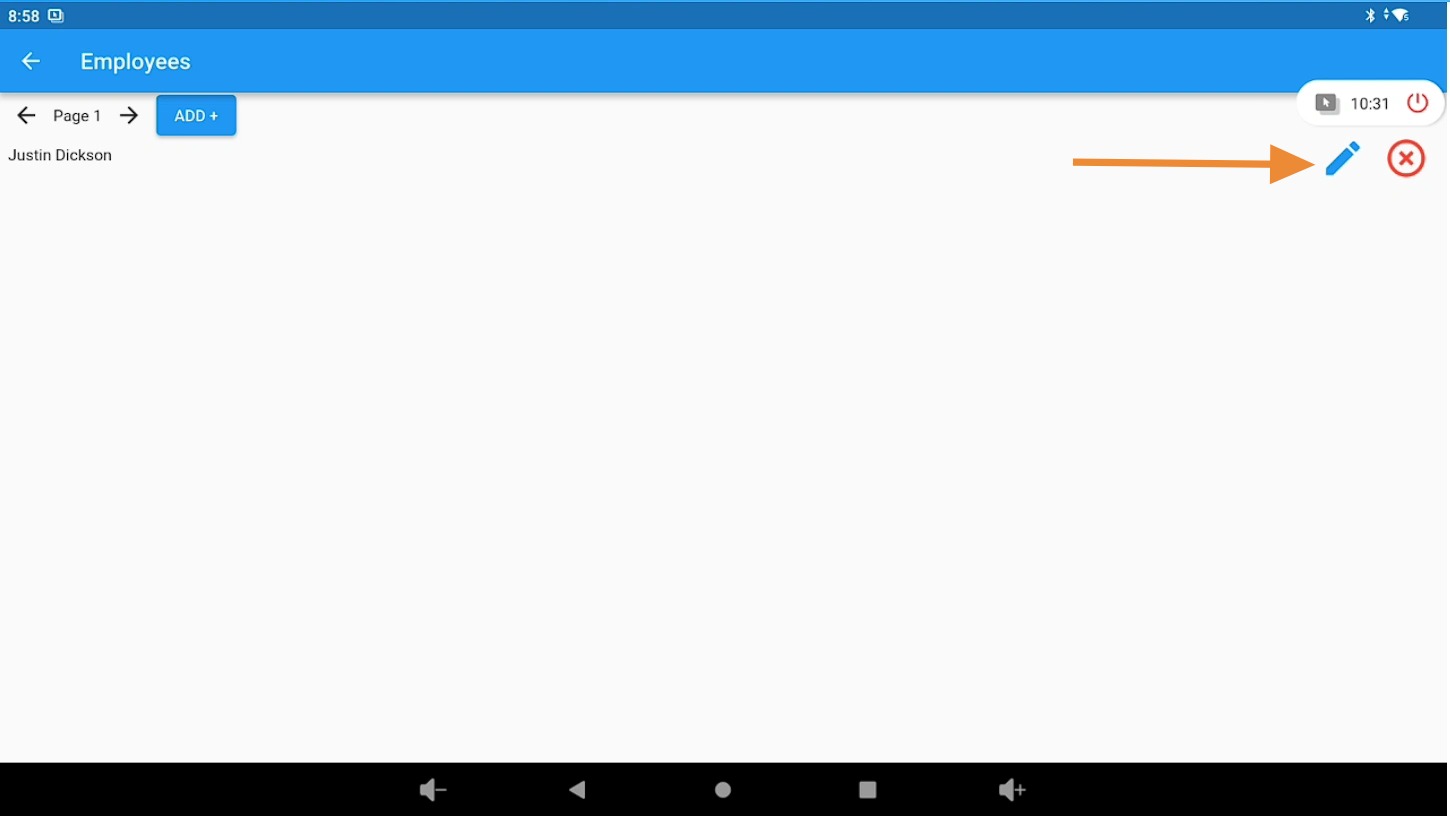
From the employee list:
- Click the pencil (edit) icon to update employee information.
- Click the red X button to delete or remove an employee.
Update Employee Information #
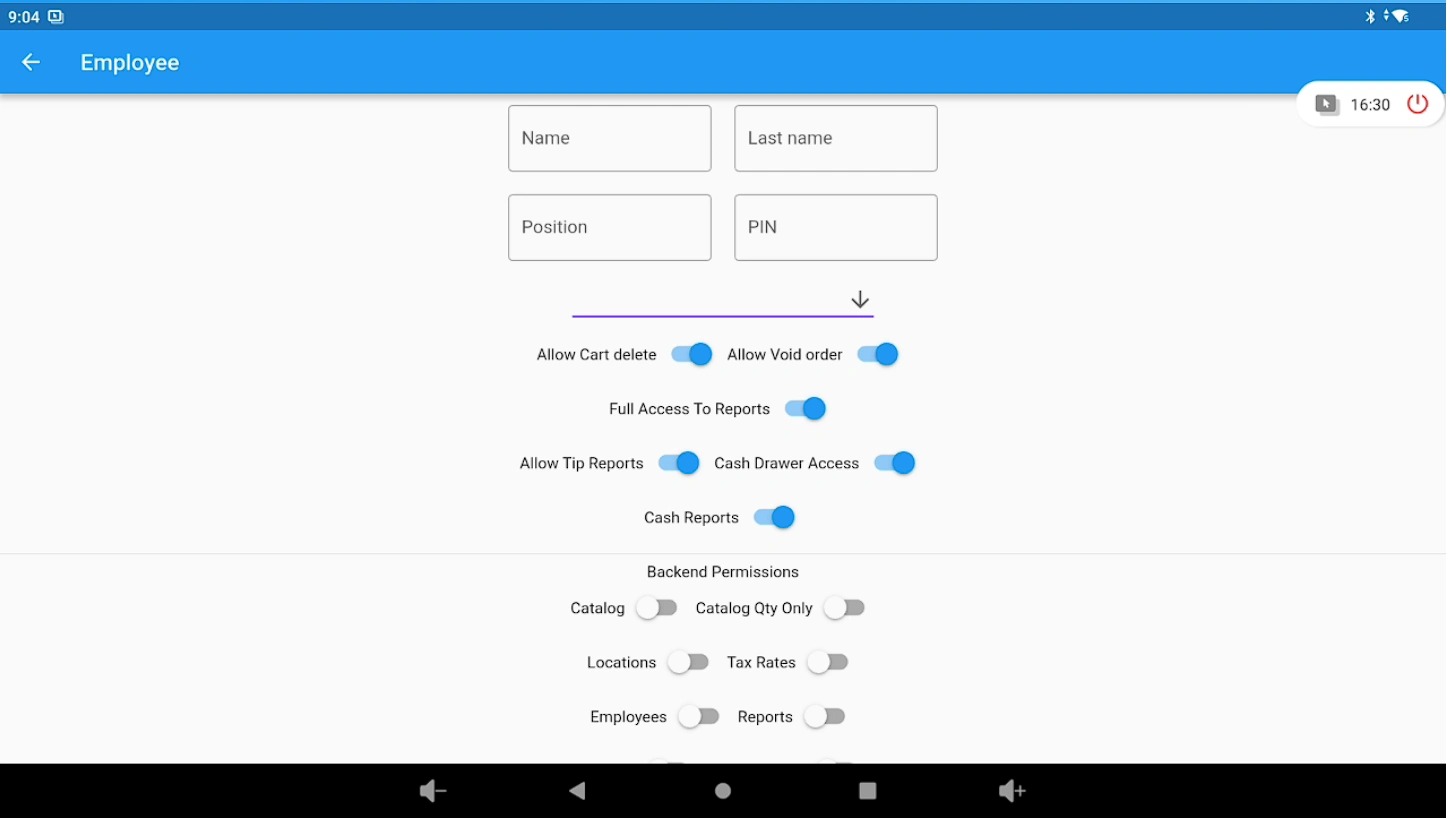
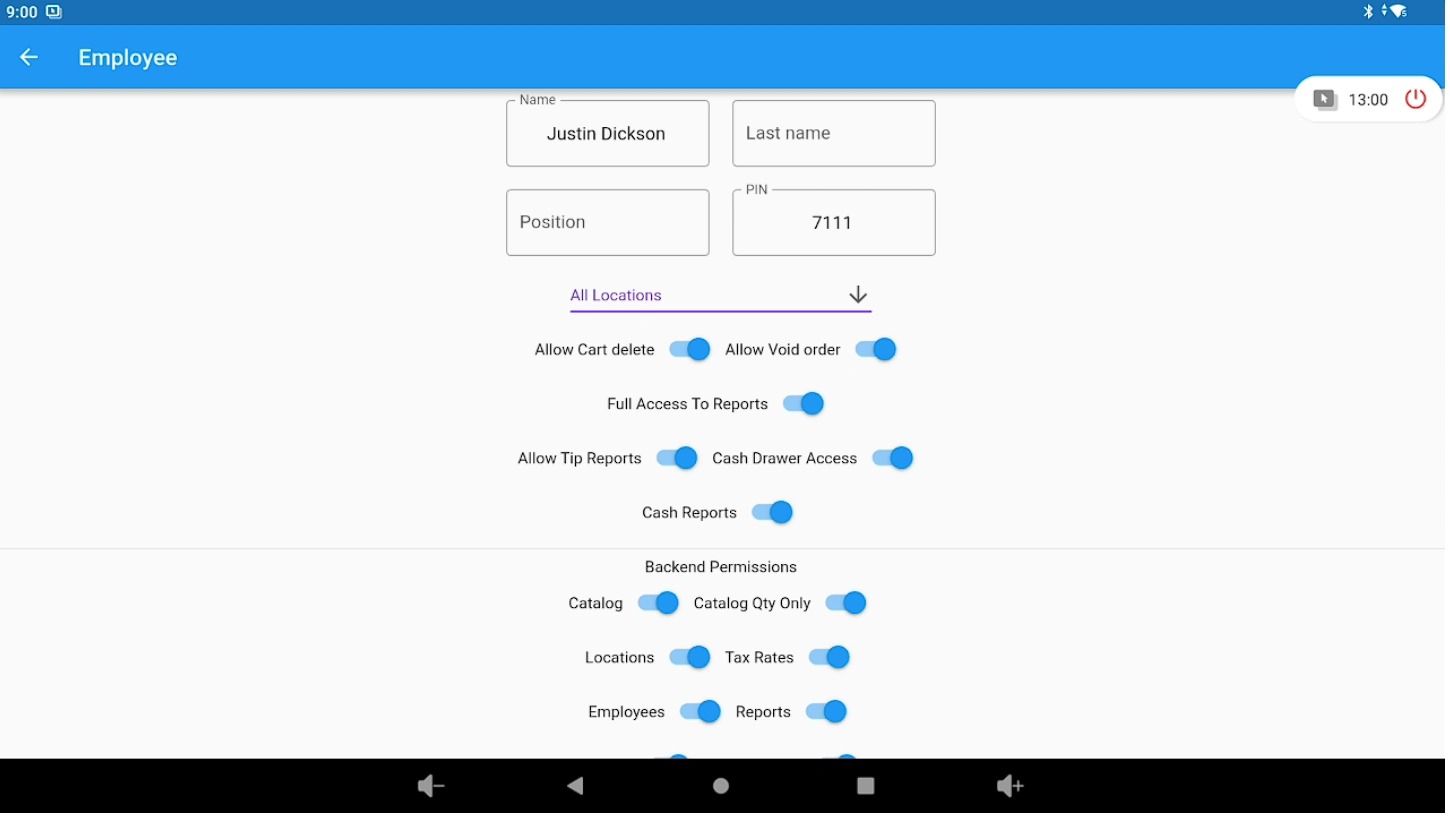
On this page, you can update all relevant employee information, including employee permissions.
Be sure to scroll to the bottom of the page and click Save to apply your changes.
Create a New Employee #
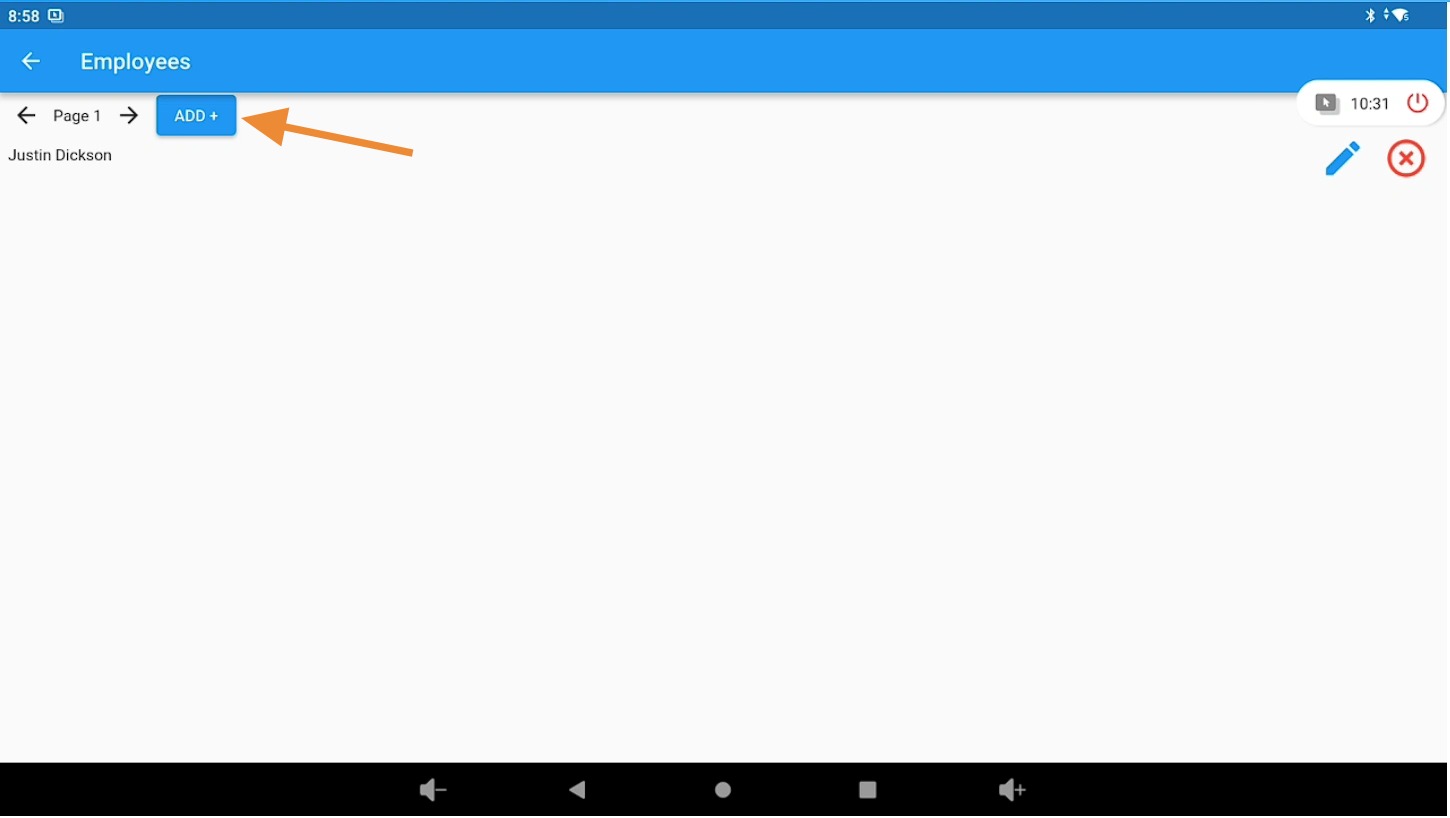
Click the Add New button to create a new employee.
Enter New Employee Details #
On this page, you can add a new employee and complete all relevant details, including setting their permissions.
The employee PIN must be 4 digits and is used to log in to Lifelong OS.
Be sure to scroll to the bottom of the page and click Save to apply your changes.