
How To Add Employees On Lifelong POS with Permissions #
Let’s learn how to add an employee on the Lifelong Point Of Sale register #
Follow the step-by-step instructions below.
Navigate to the Lifelong POS login page #
Go to https://login.lifelongpos.com/ on any web browser.
Access the Employees tab #
On the left-hand side of the page, click the tab “Employees”.

Click the “New Employee” button #
At the top right of the page, click the button “New Employee”.

Enter employee information #
You will be directed to a new screen where you can enter the relevant employee details.
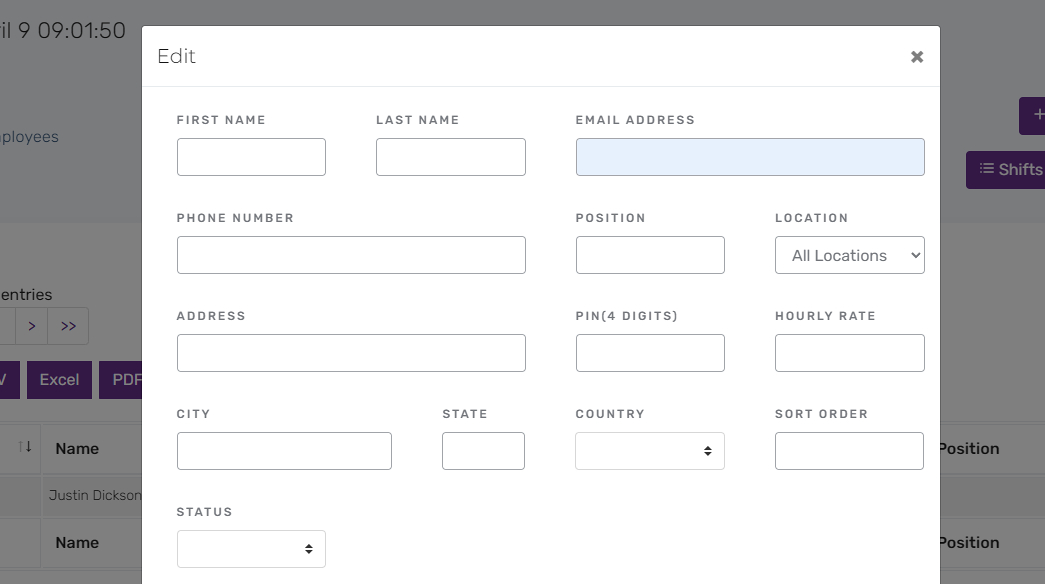
Required and optional employee fields #
Required:
- First & Last Name
- Position: e.g., Cashier, Assistant Manager, Manager
- PIN: 4-digit number
- Status: Active or Inactive
Optional:
- Phone Number
- Address, City, State, Country
- Hourly Rate
- Location (for multi-location businesses)
Set Point Of Sale permissions #
Basic Employees / Associates #
Not recommended features:
- Full Reports
- Cash Report
- Tip Report
- Voids
- Drawer Button
- Reports, Web Dashboard, Employees, Tax Rates, Locations, Tender Types, General Settings
Recommended features:
- Single Employee Report
- Cart Delete
- Discount Permission
- Kitchen Lock Override (restaurant use)
Native Backend Permissions #
(Visible under the shield icon at the bottom of the POS app)
- Catalog – Full Access
- Catalog – Quantity Only
> ⚠️ Most backend permissions are not recommended for basic employees.
Save the employee information #
Scroll down and click Save Changes after confirming the information.

Other user & employee related links #
- How To Add Employees On Lifelong POS & Permissions
- How To Add Backend Users On Lifelong Website Admin & Permissions


