
Cash Drawer: Pay In / Payout (Lifelong OS – Retail) #
Making a Cash Payout #
This option is used when you are taking cash out of the drawer.
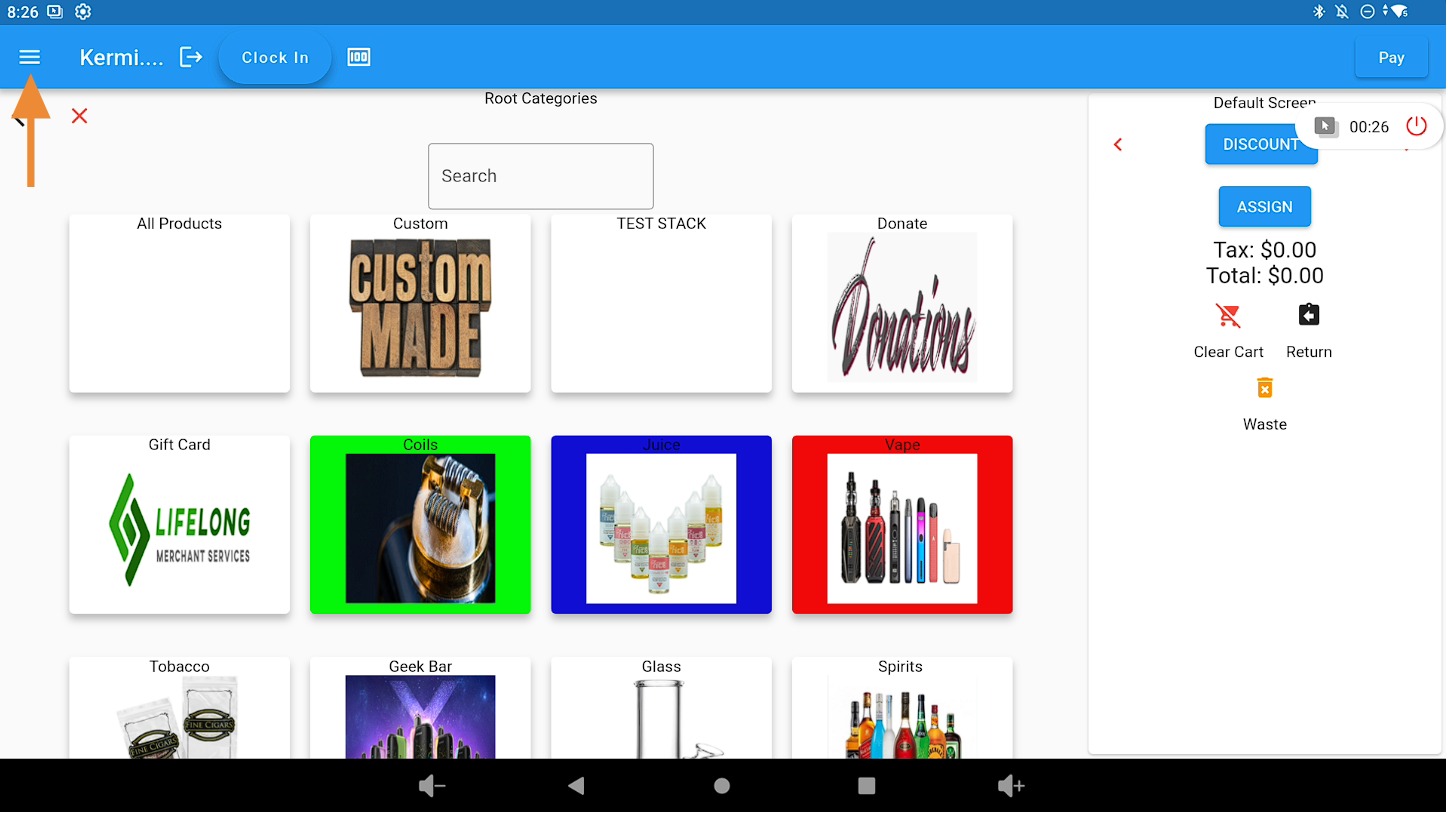
Open the 3 Bar Menu #
Click on the 3 bars on the top left corner.
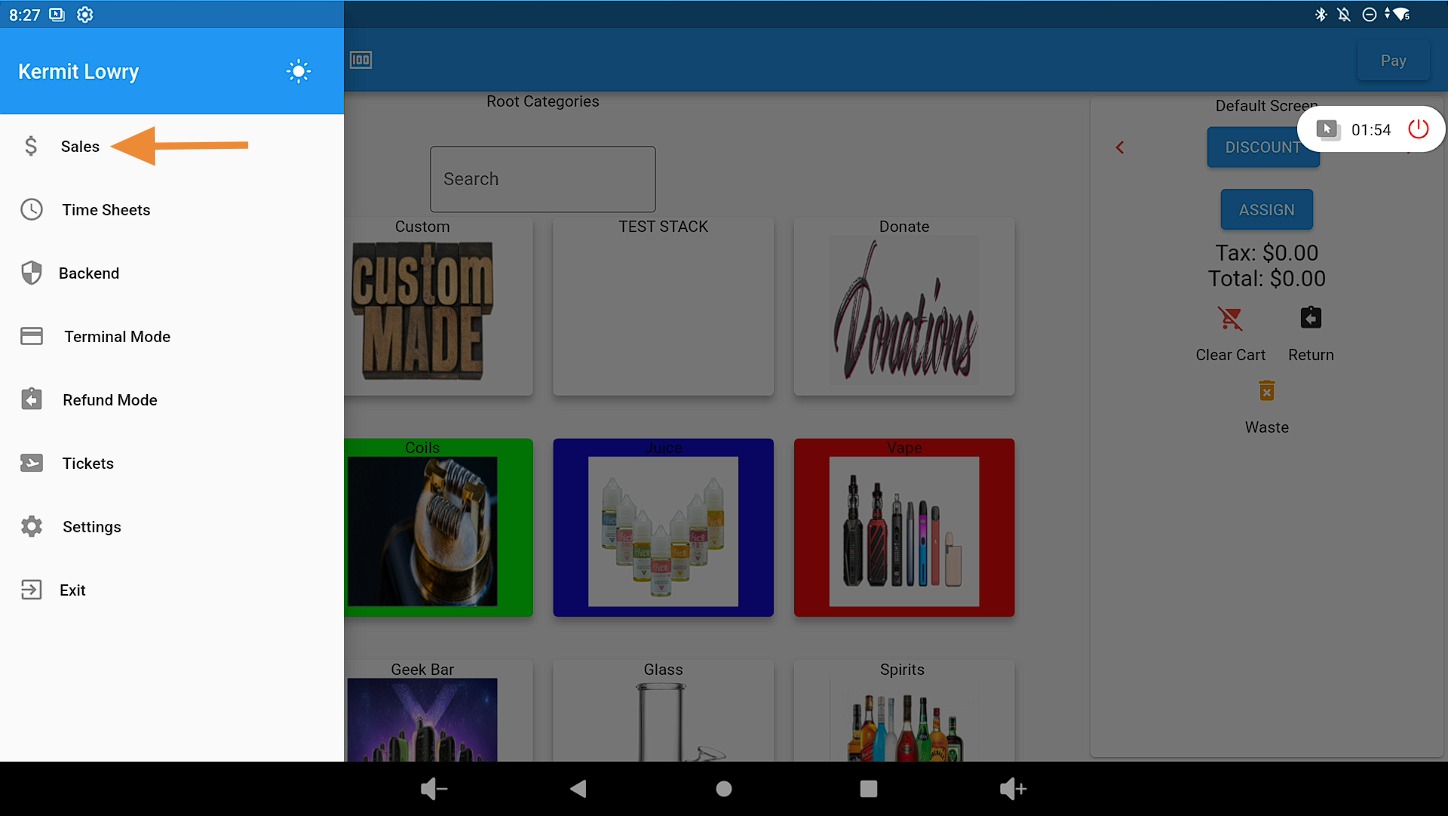
Open the Sales Tab #
Click on the Sales tab.
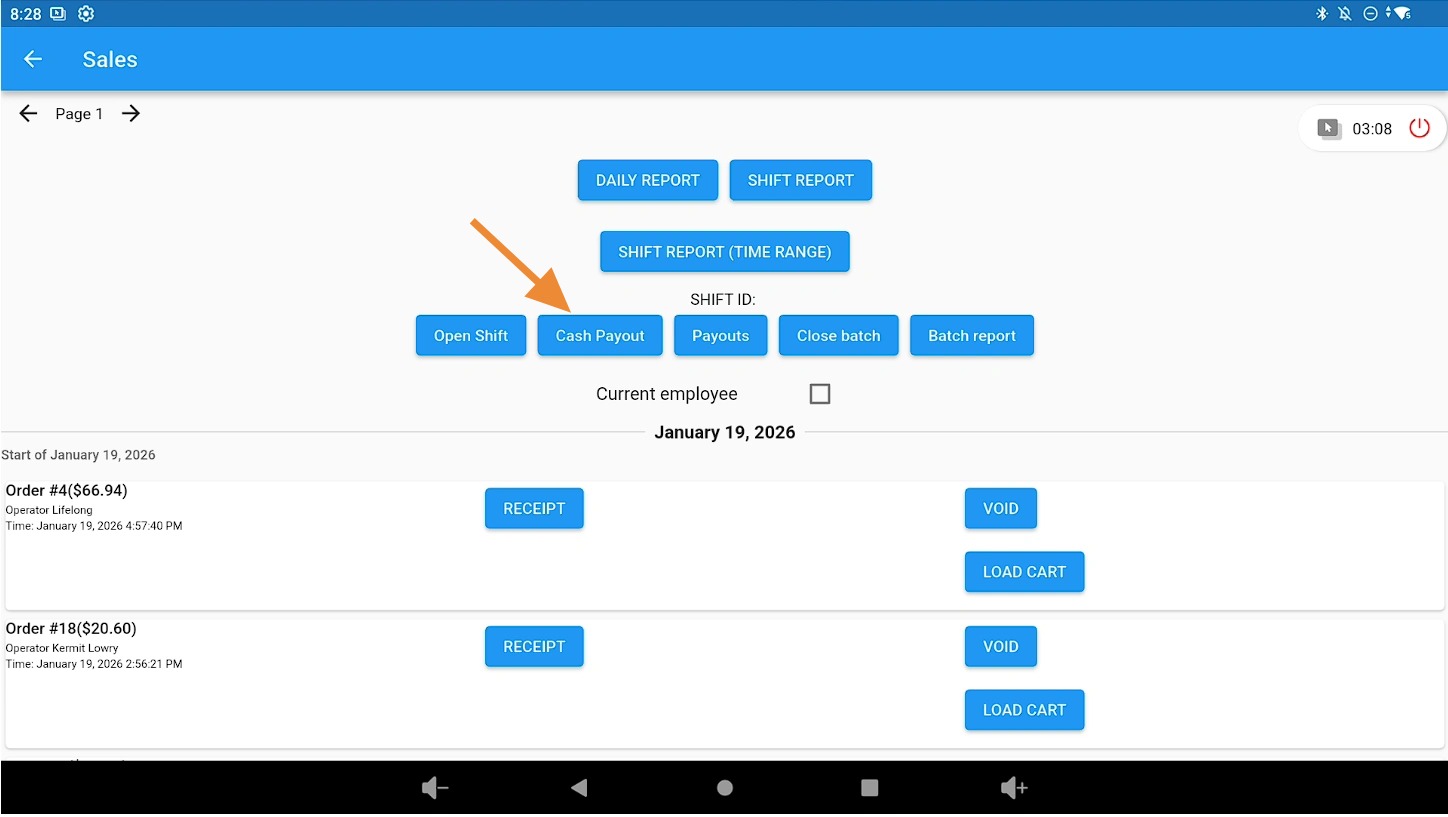
Select Cash Payout #
Click on the Cash Payout button.
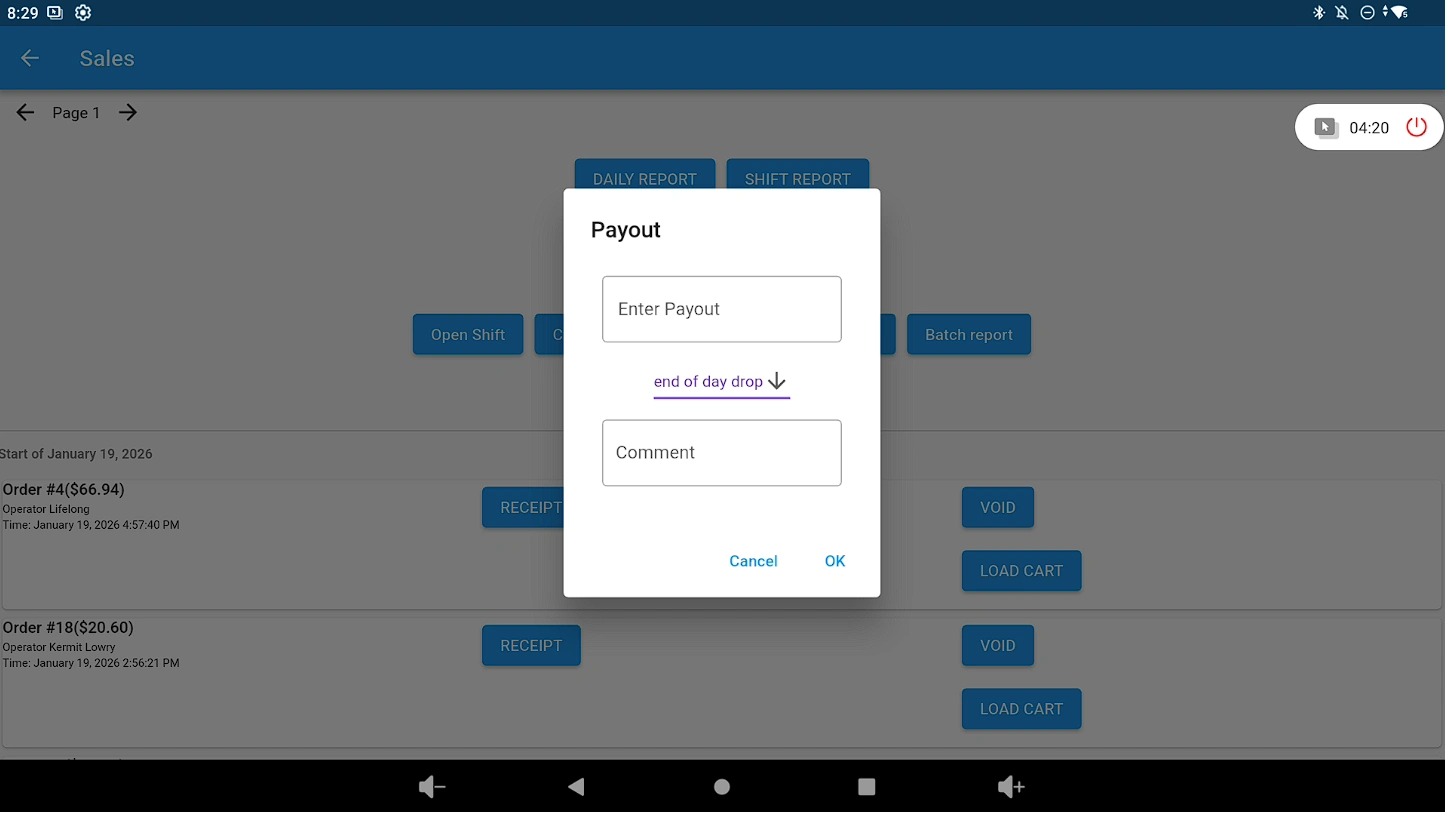
Enter the Payout Details #
Enter the payout amount and complete the following fields:
- Enter the payout amount.
- Add a comment (optional).
- Select a reason using the dropdown menu (for example: End of Day Drop, Shift Drop, Vendor, etc.).
- Click OK to complete the payout.
Payout Reason Examples #
Your dropdown menu may include different options depending on your store setup. If you need custom payout reasons, contact support to have them configured.
- Drop
- End of Day
- Vendor
- Cash Tips
- Pay Out
Where to Find the Payout Report #
To locate payout reports in the website backend:
- Go to the Sales tab.
- Select Reports.
- Choose Report Type: Payouts.
Making a Cash Pay-In #
This option is used when you are adding extra cash to the drawer.
Open the Pay-In Option #
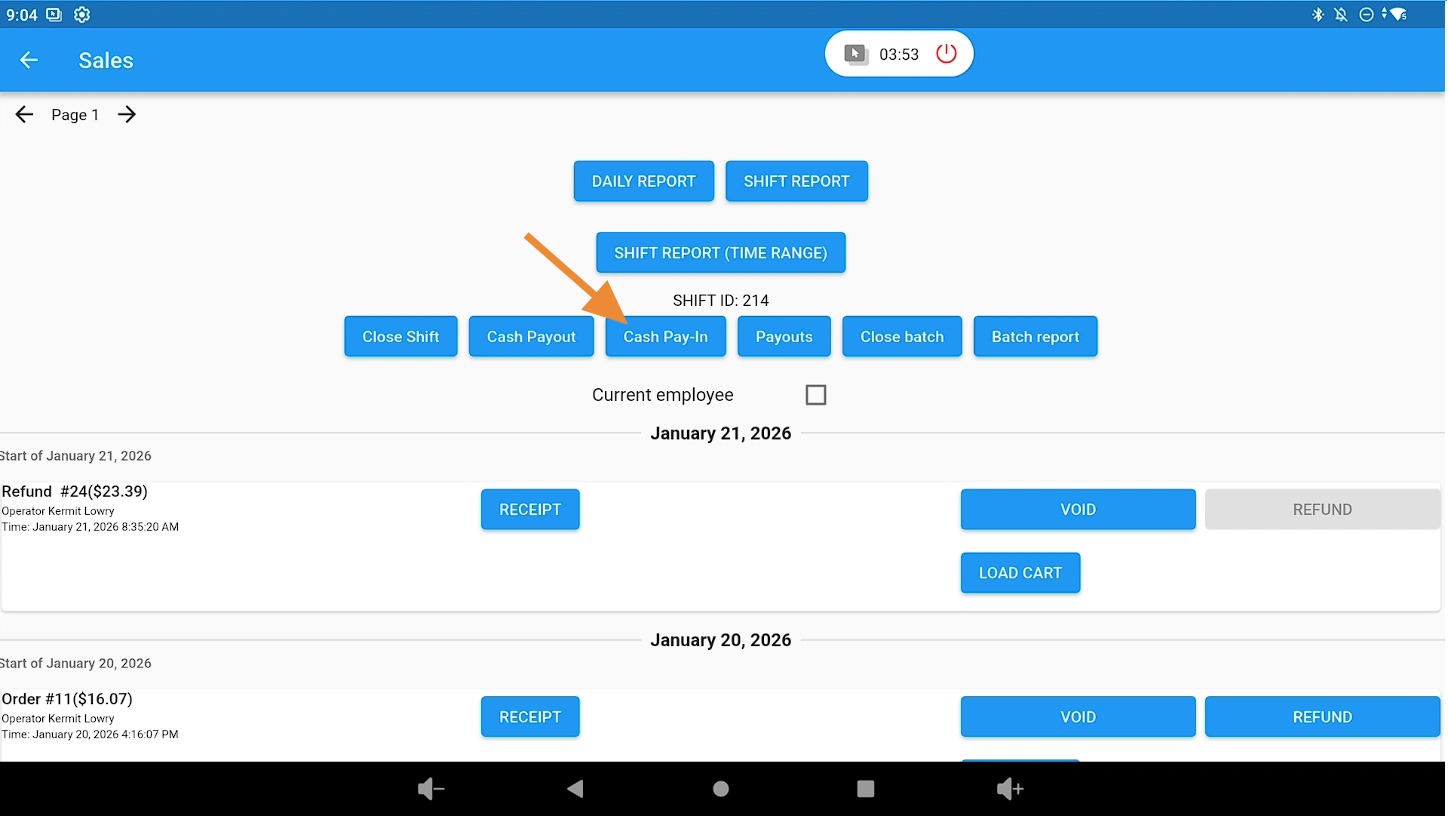
Access the cash drawer menu and select the Pay-In option.
Enter the Pay-In Amount #
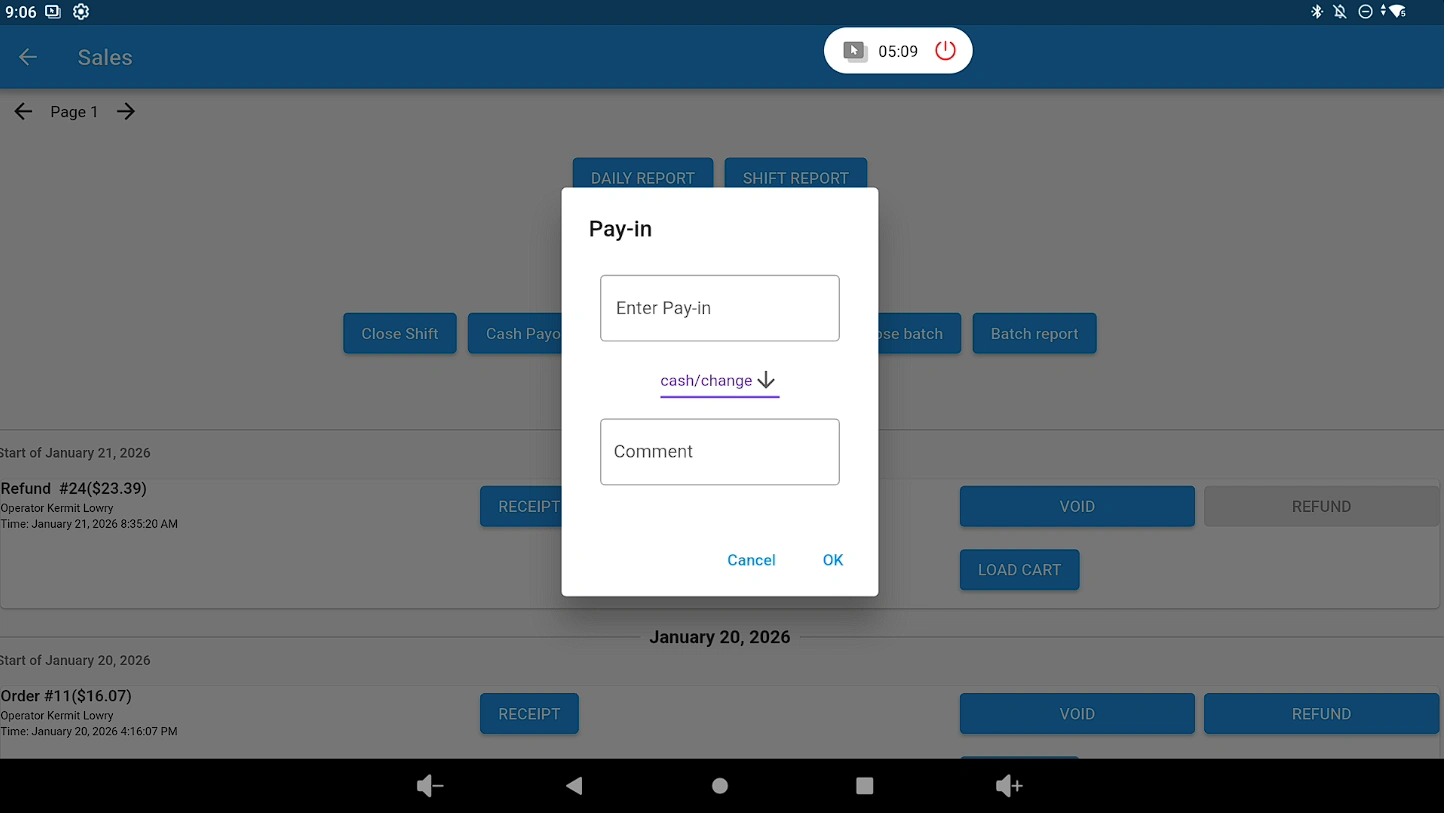
Enter the amount of cash being added to the drawer and confirm the transaction.
Verify the Pay-In on Reports #
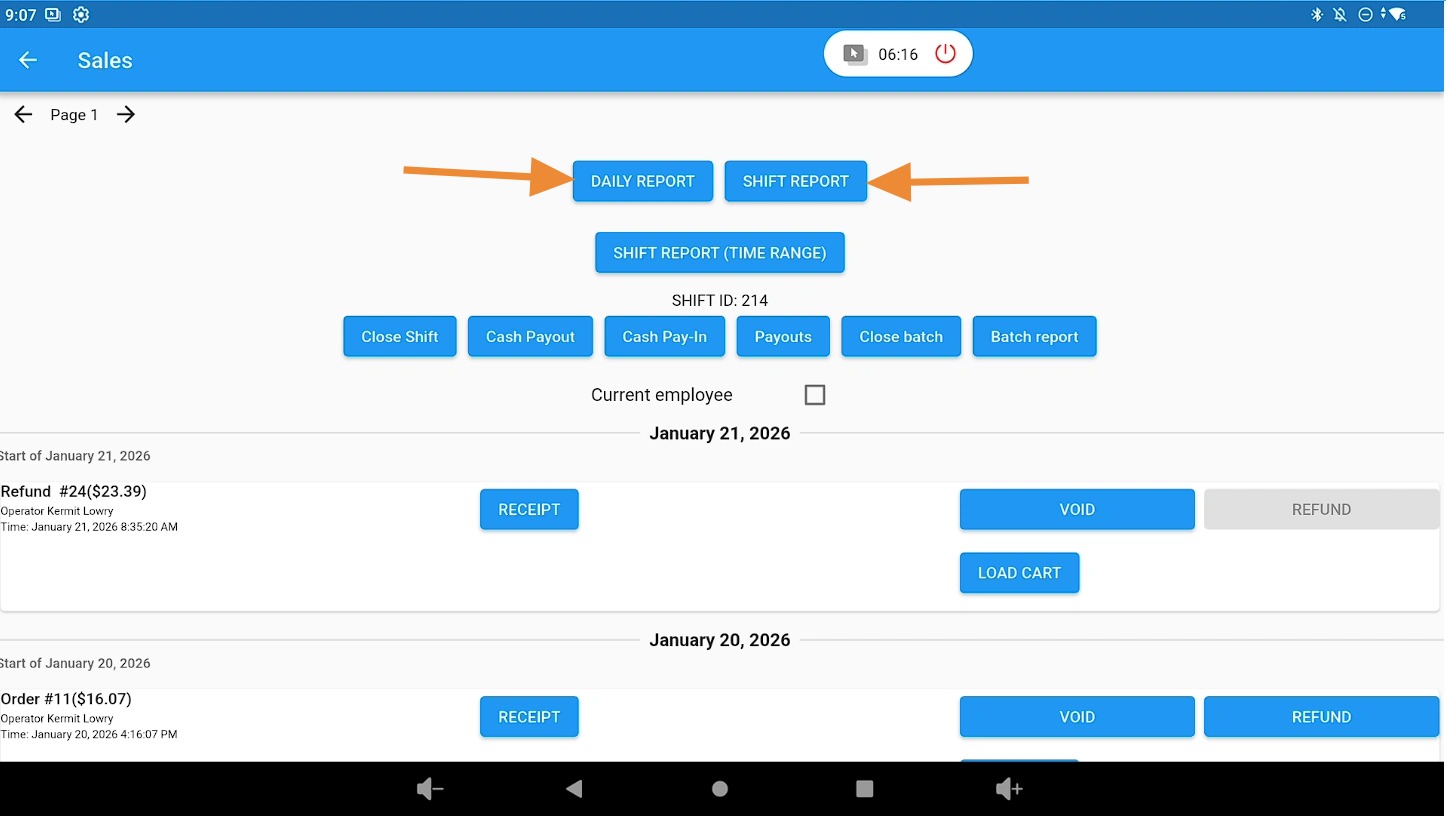
To verify the Pay-In amount, open either the Daily Report or the Shift Report.
View the Pay-In Amount on the Report #
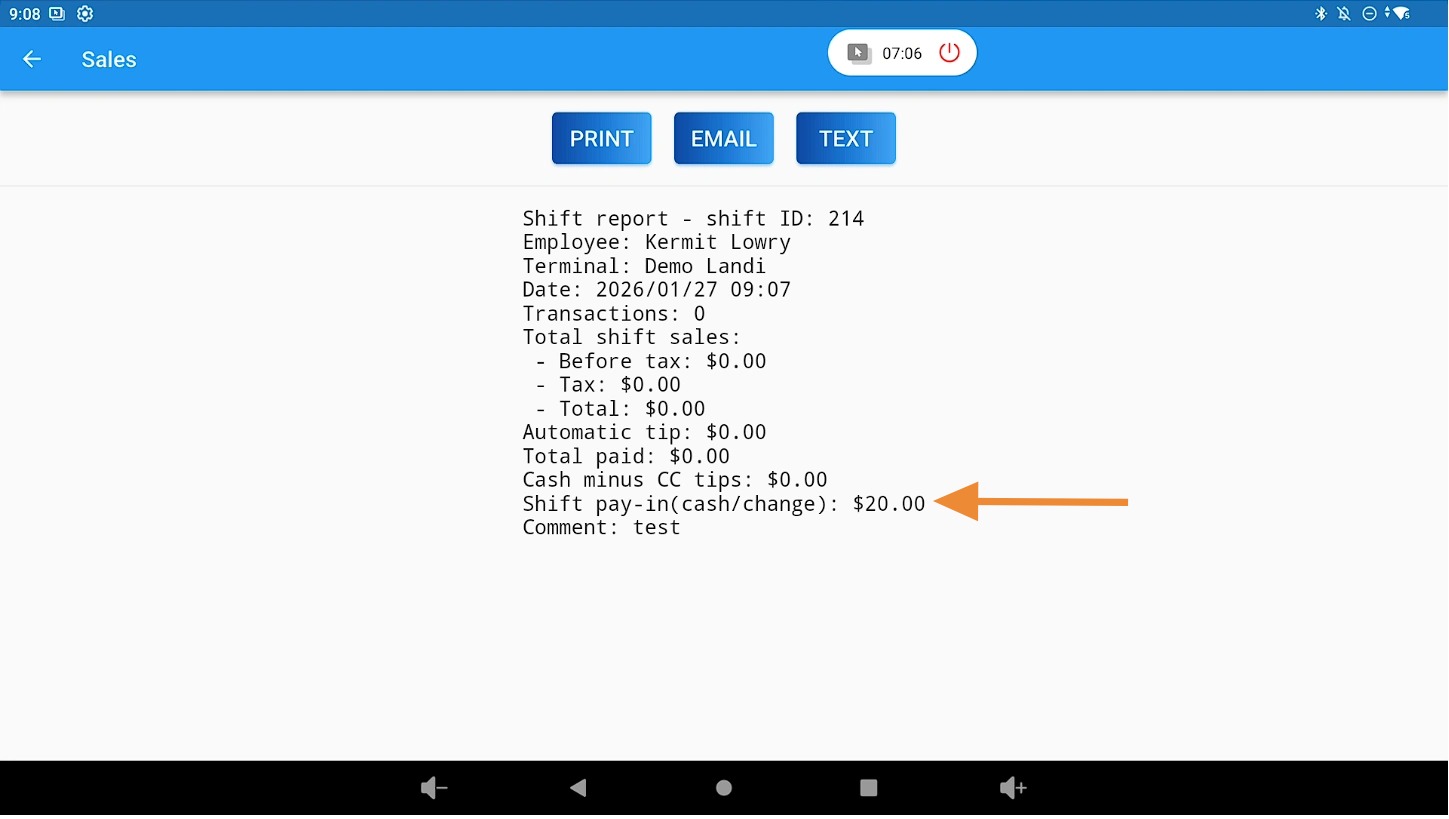
The generated report will display the recorded Pay-In amount.
Related Documentation #
For instructions on opening and closing a register shift, refer to the Cash Drawer Open / Close Shift documentation.


