
How to Add a Logo on Receipts in Lifelong POS #
Let’s learn how to Add a Logo on Receipts in Lifelong POS register #
Navigate to the Lifelong POS login page #
https://login.lifelongpos.com/

Click the “Settings” tab on the left hand side of the page #

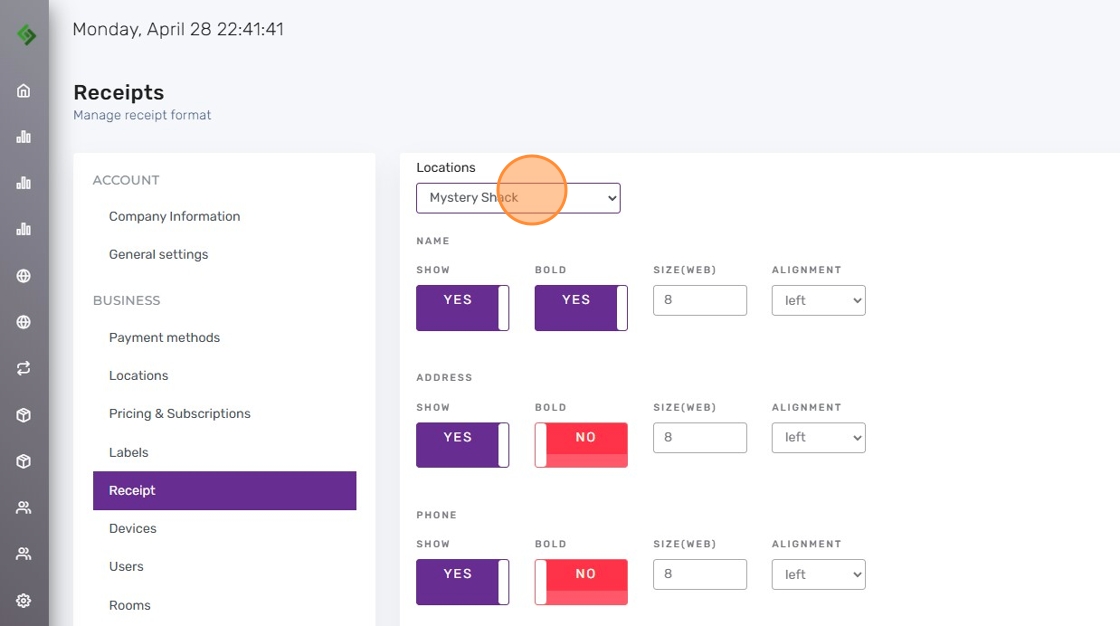
Click the “Receipt” tab #

Select the location where you want the logo to appear on the receipt #
Enable the “Logo/Show” option #
Scroll down, locate the “Logo/Show” option, and click it to say “Yes” to display the logo on the receipt.

Click the “Settings” tab on the left hand side of the page #

Click on the “Company Information” tab #

Upload your logo image #
If a logo isn’t displayed, click “Choose File,” select your logo image, and upload it to display on the receipt.

Click the Save button #
Scroll Down and click on the Save button.


