
How to Checkout a Customer (Lifelong OS – Retail) #
Made by Lifelong Support with Scribe
Add an item to the cart #
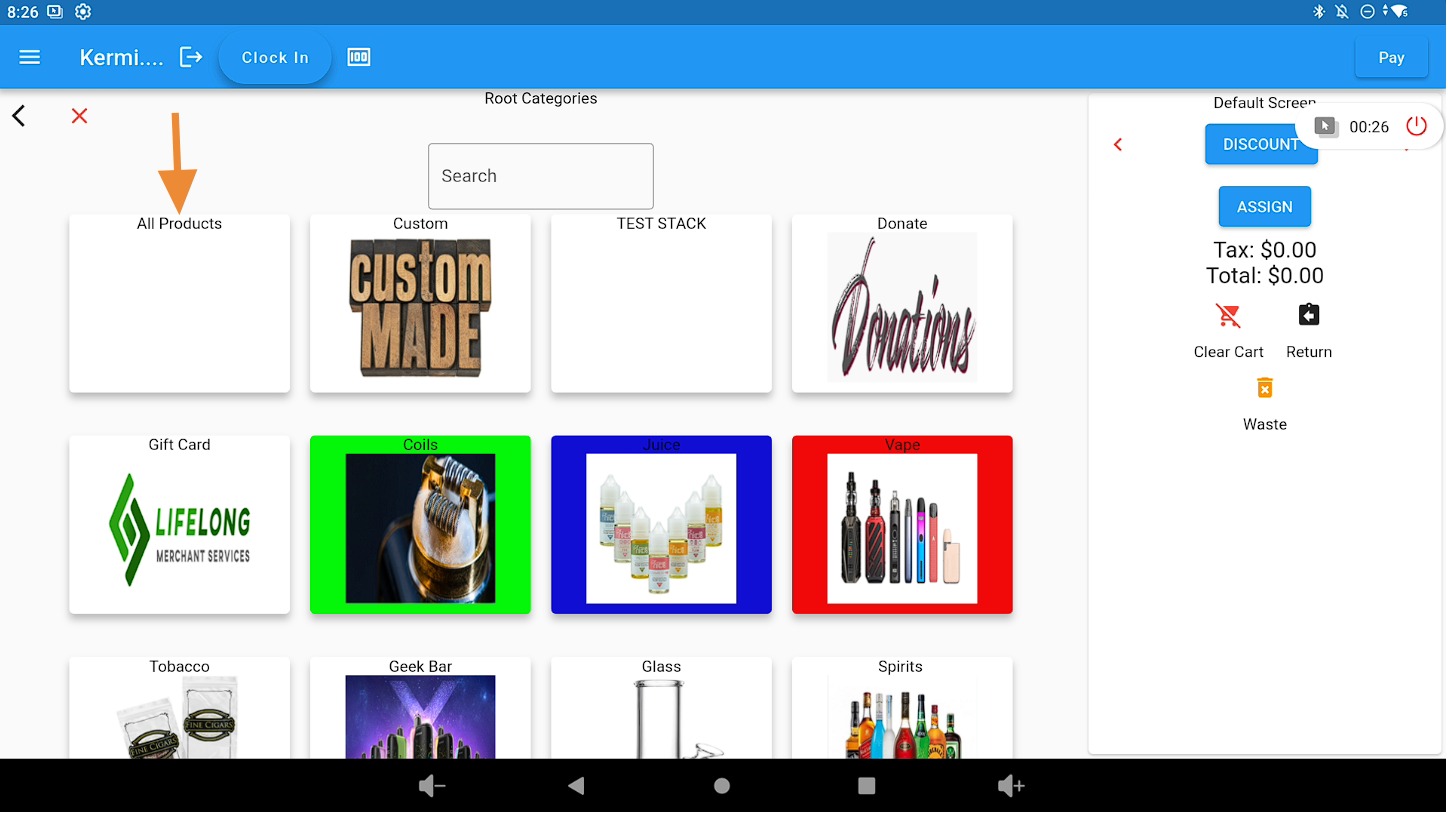
Click the All Products button or scan the item barcode to add it to the cart.
Open product search #
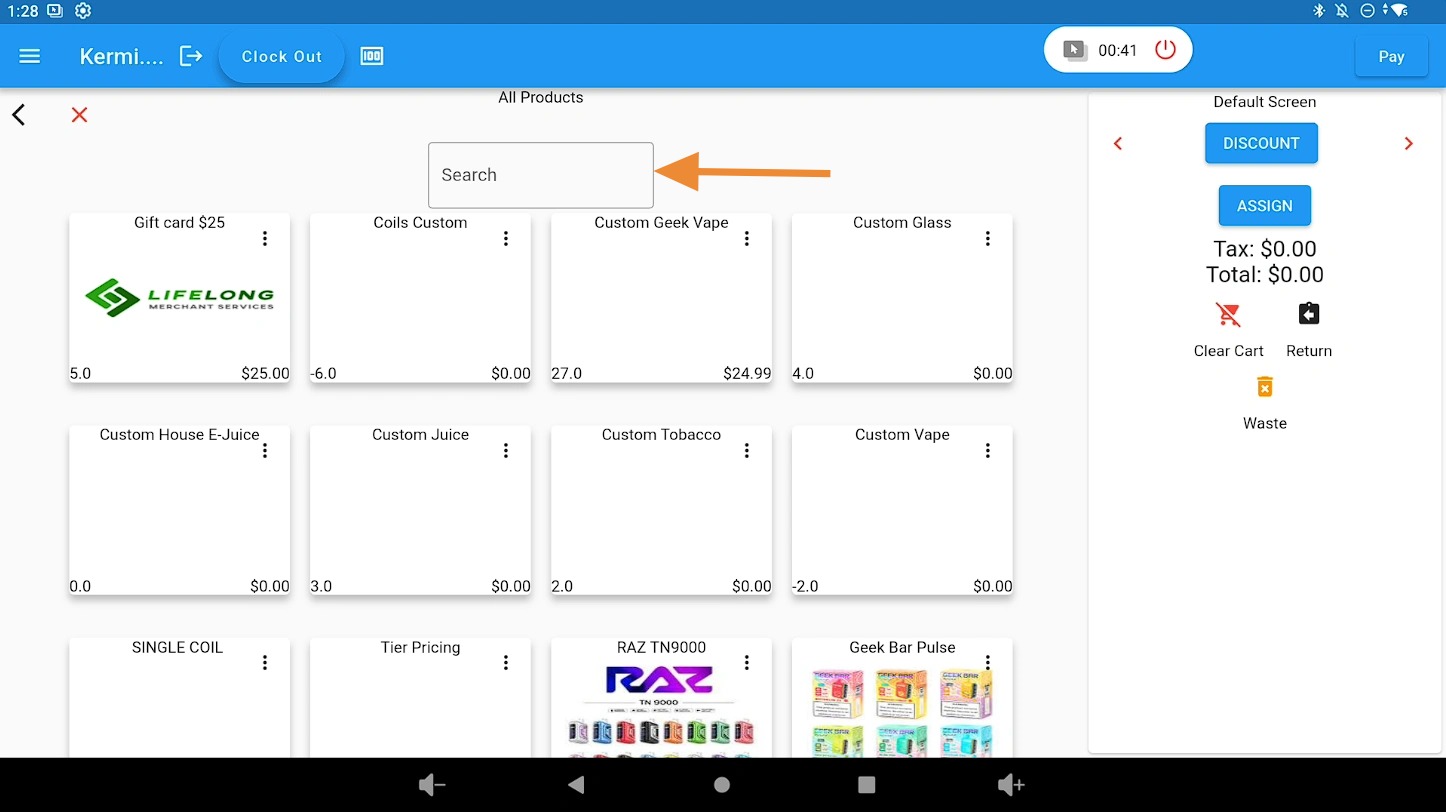
To search for a product manually, click the search bar.
Search for a product #
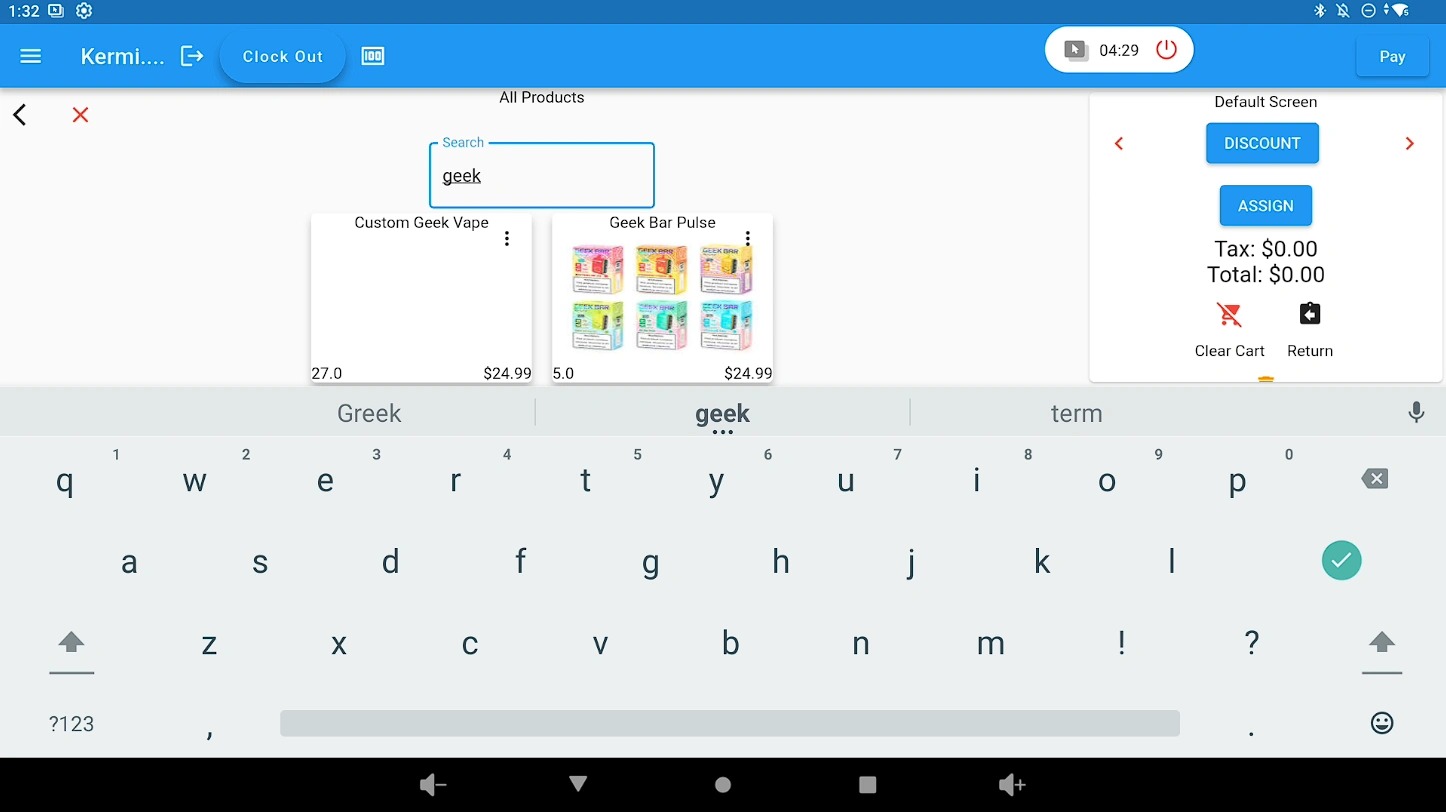
Type the product name into the search bar to display matching results.
Select the product #
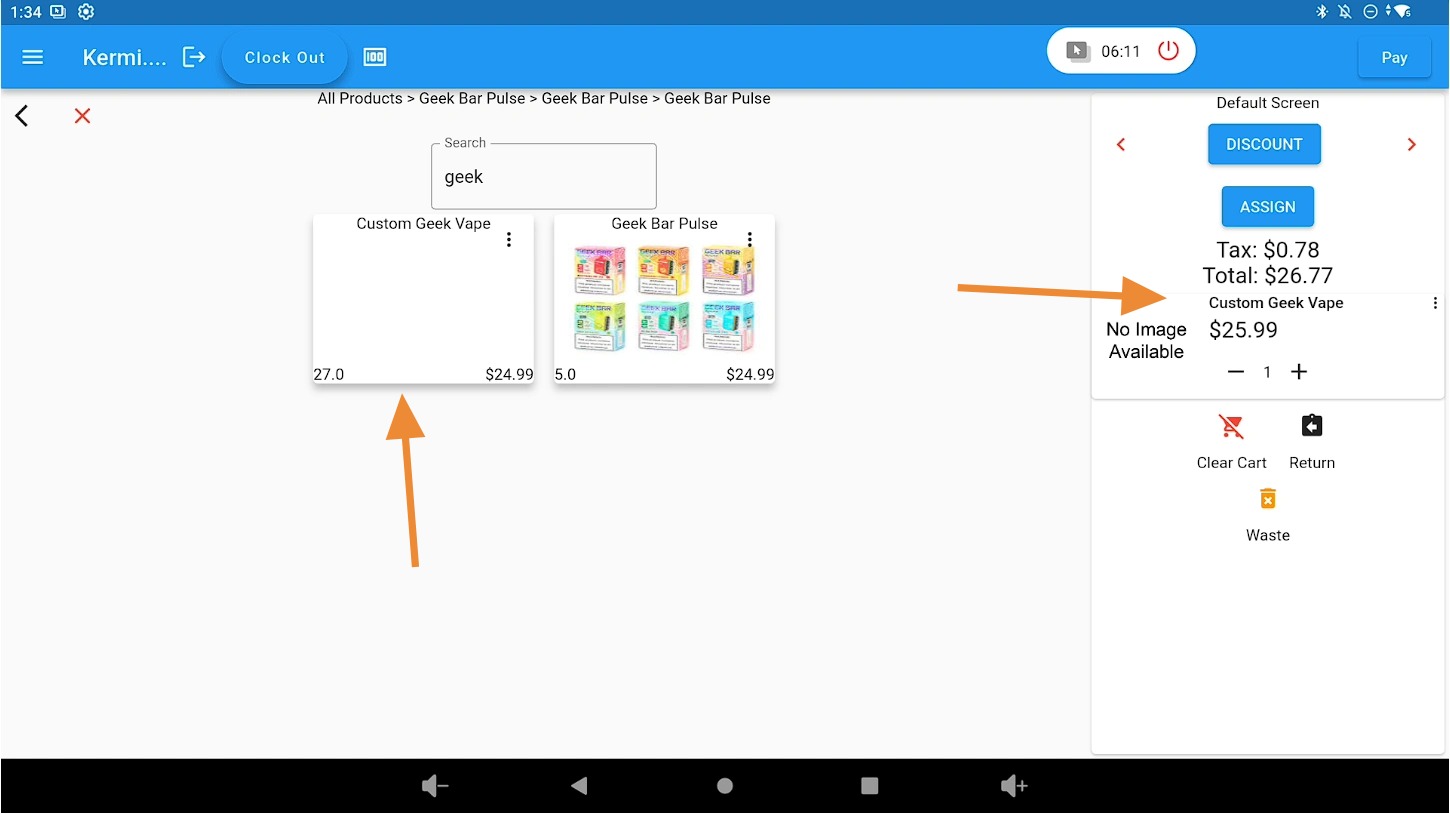
Click a product to add it to the cart on the right side of the page.
Go to payment #
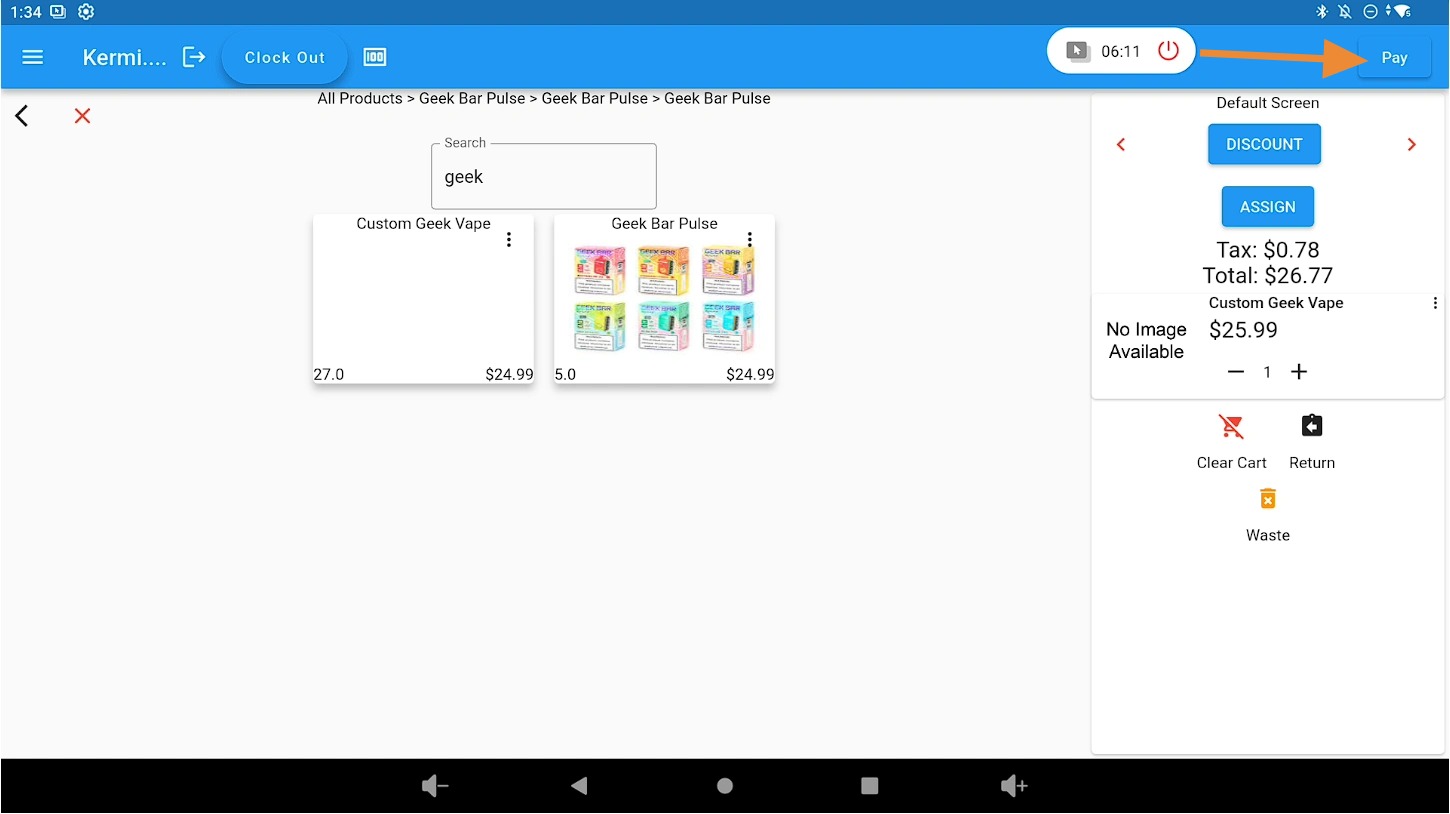
Click the PAY button at the top right of the page.
Review the payment checkout screen #
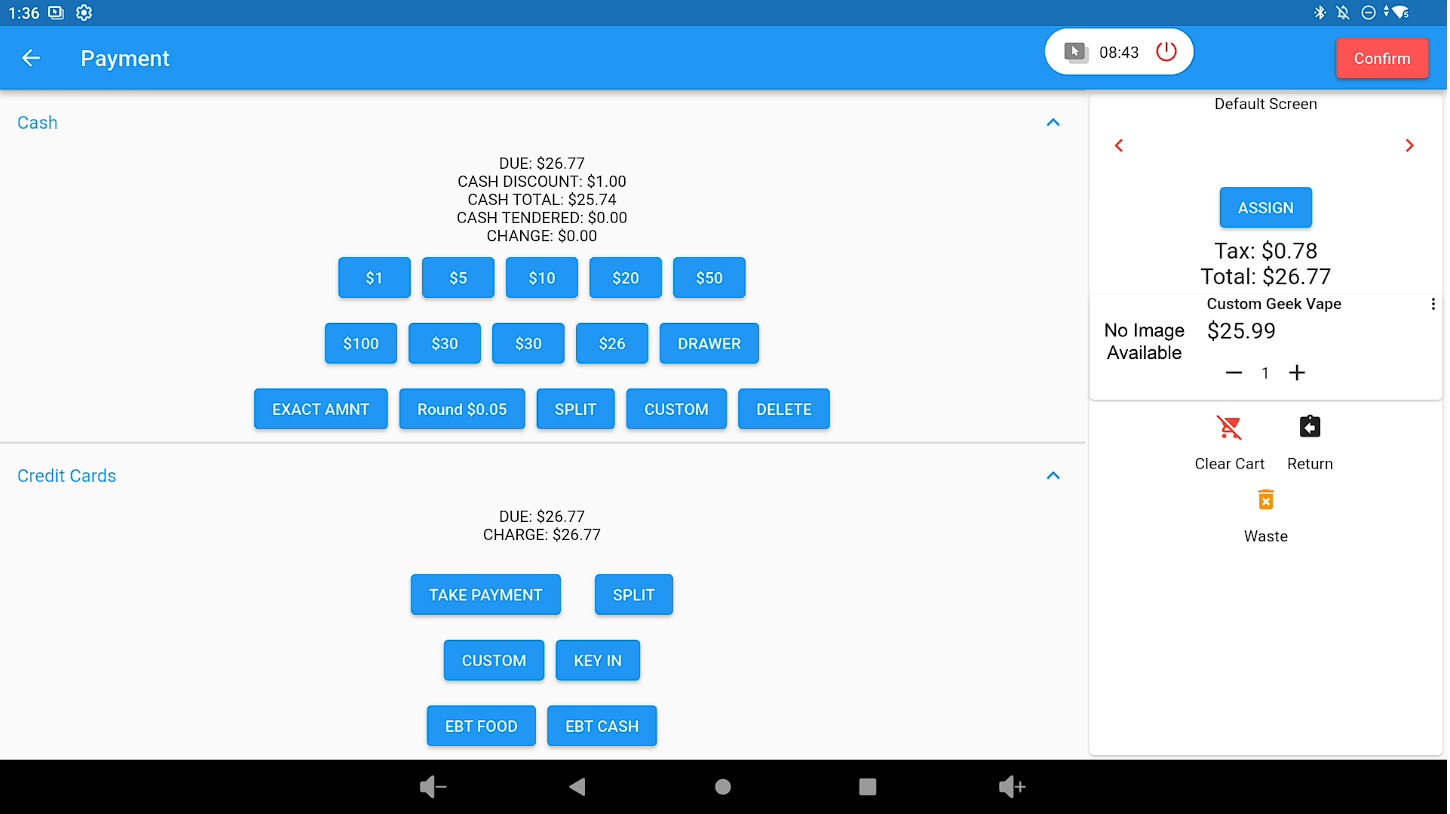
The Payment Checkout screen will open.
Complete checkout with cash, card, or split payment #
You can complete checkout using cash, card, or a split payment.
Cash
Click one of the pre-filled cash denominations such as $1, $5, or $10.
If the customer provides the exact amount, click EXACT AMOUNT.
For a different amount, click CUSTOM and enter the amount.
Click CONFIRM at the top left of the page to finalize the sale.
Credit Card
Click TAKE PAYMENT to process card payments.
Click KEY IN to manually enter the card details.
Other options such as EBT and DEBIT may also be available.
Split Payments
Cash and Card
Always process the cash portion first.
Click CUSTOM under the cash section and enter the cash amount.
Then go to the credit card section for the remaining balance and click TAKE PAYMENT to complete the transaction.
Multiple Cards
In the Credit Card section, click CUSTOM and enter the first card’s split amount.
Click OK.
Click TAKE PAYMENT to process the first card.
The remaining balance will appear for the second card.
Click TAKE PAYMENT again to complete the transaction.
Related documentation #
Cash Drawer: Open / Close Shift (Lifelong OS)


