Employee Time Clock Management (Lifelong OS) #
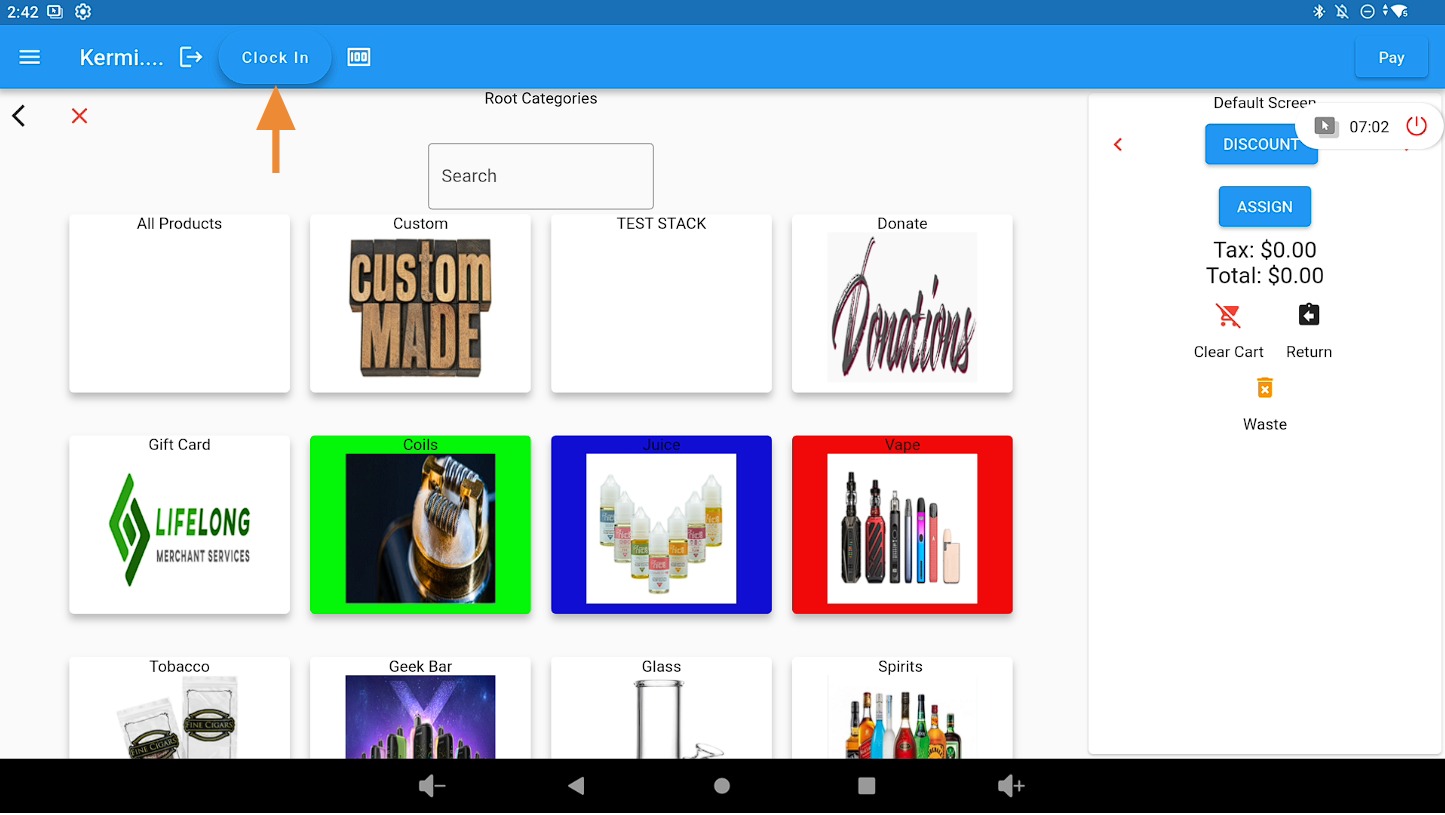
Click the Clock In Icon #
Click the “Clock In” icon in the top-left corner of the POS screen.
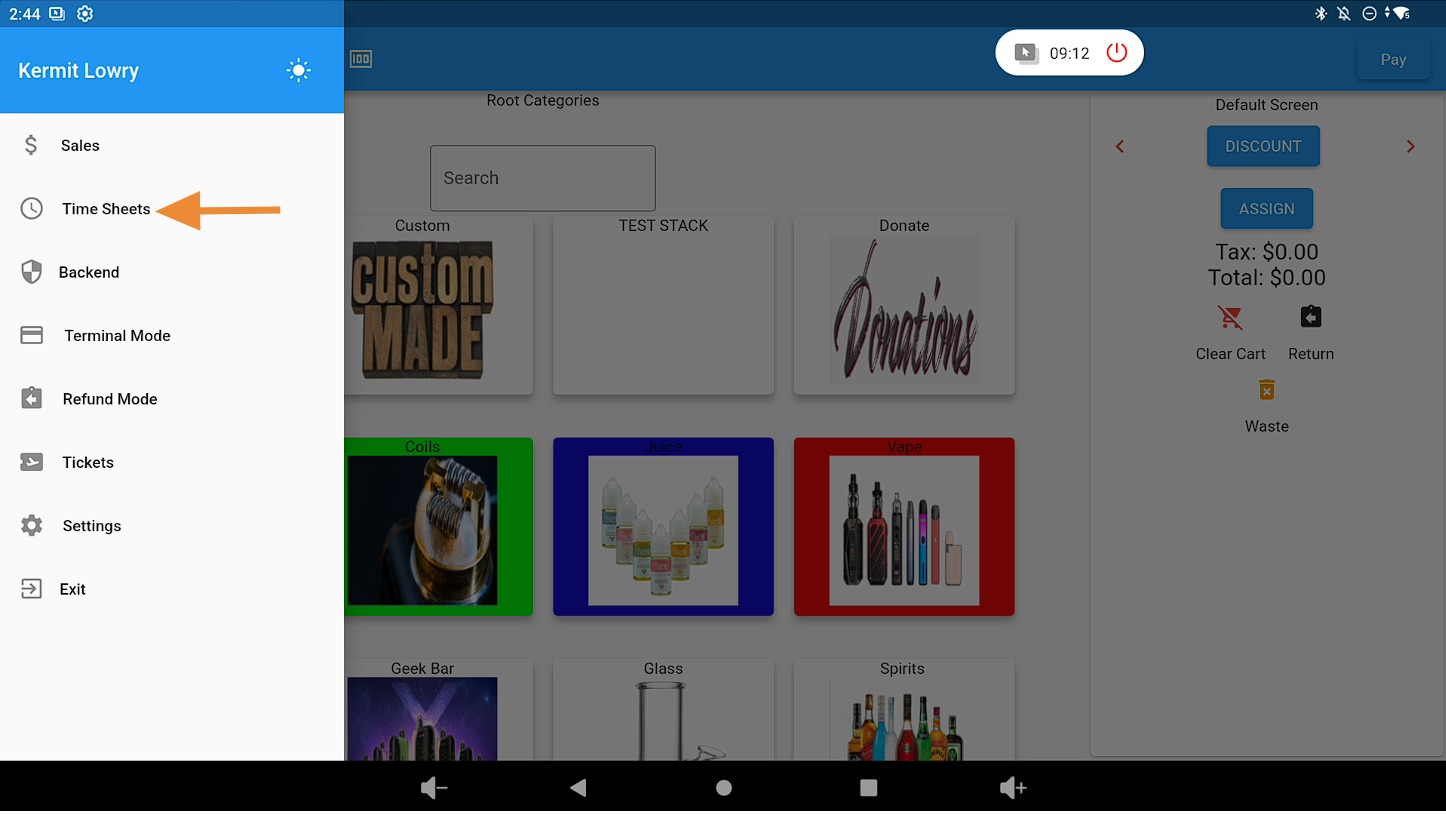
Select the Time Sheets Tab #
Click on the Time Sheets tab.
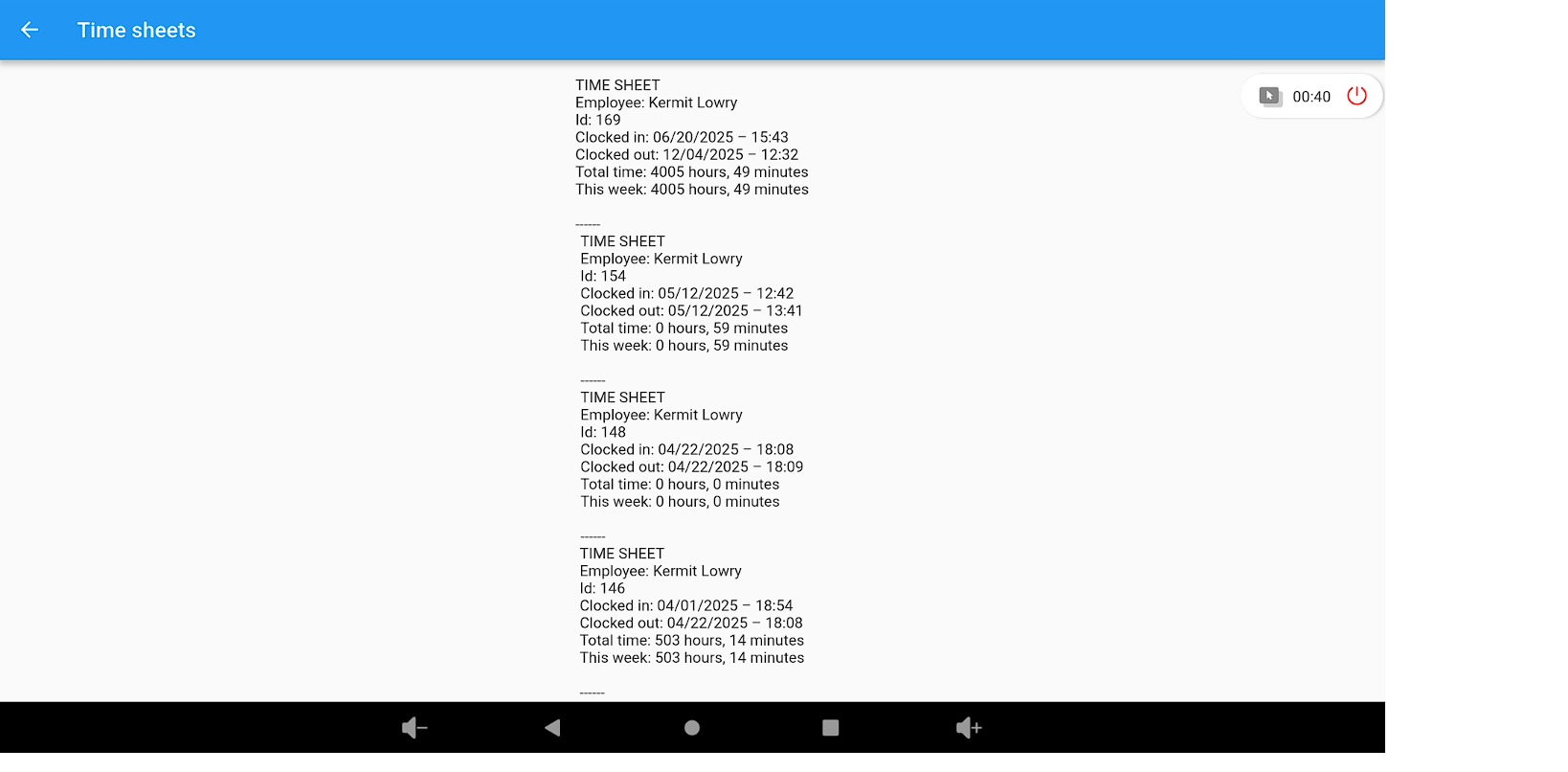
View Employee Timesheets #
Employees can review their clock-in and clock-out times directly within this section.
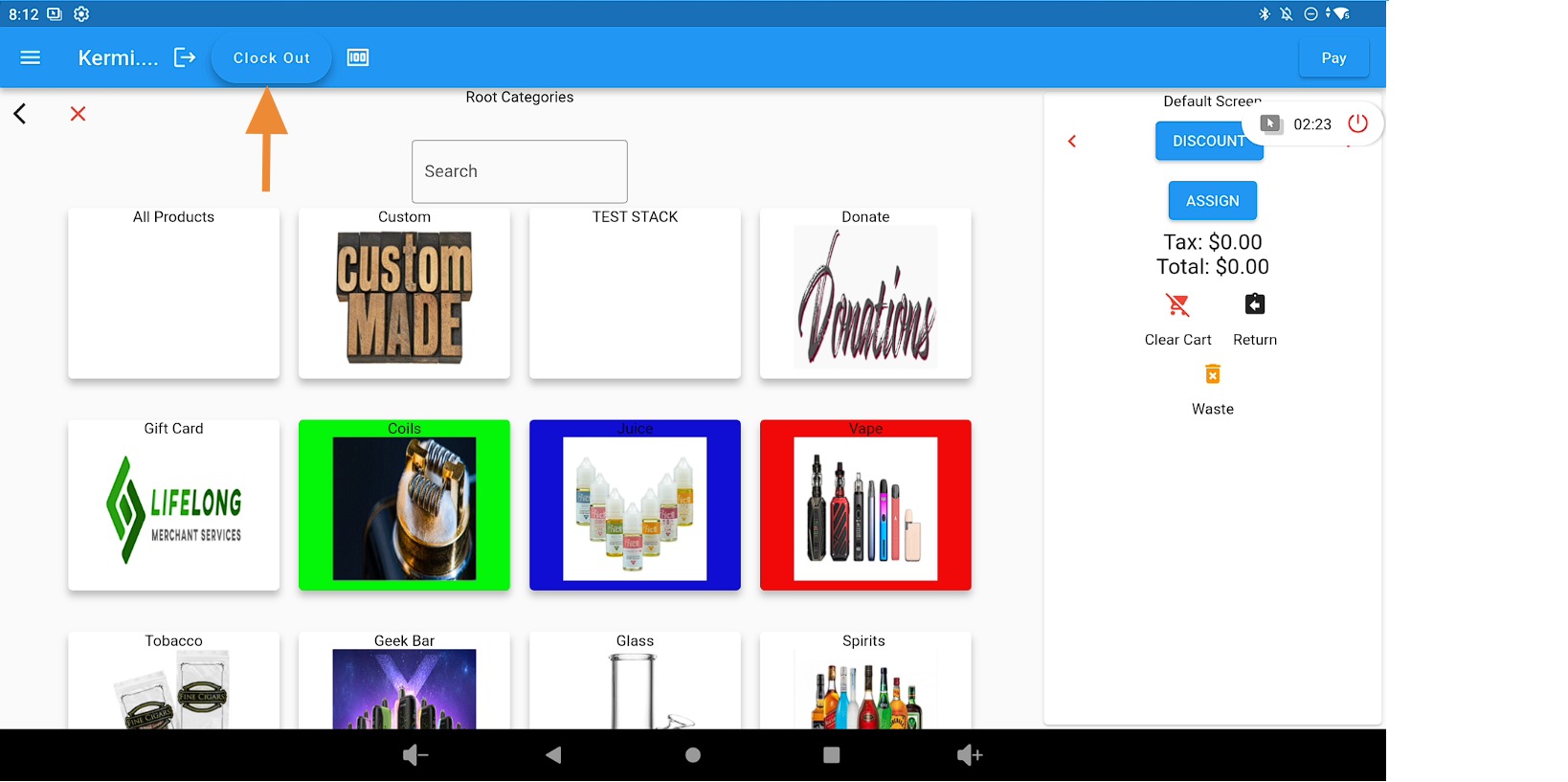
Clock Out at the End of the Shift #
When the employee’s shift is complete, click Clock Out.
Print & Manage Time Sheet Reports #
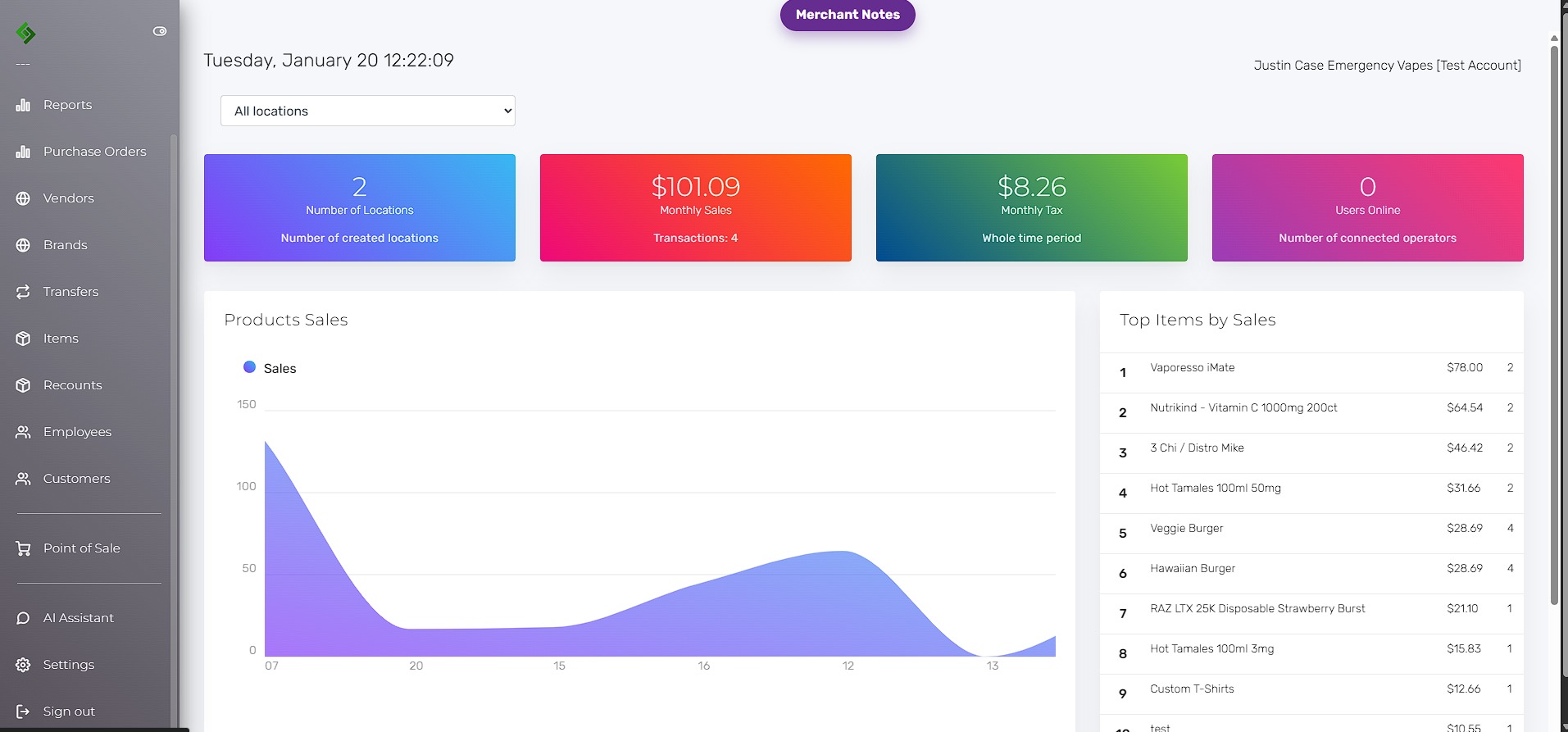
Navigate to the Lifelong OS Backend #
On a web browser, go to https://login.lifelongpos.com/
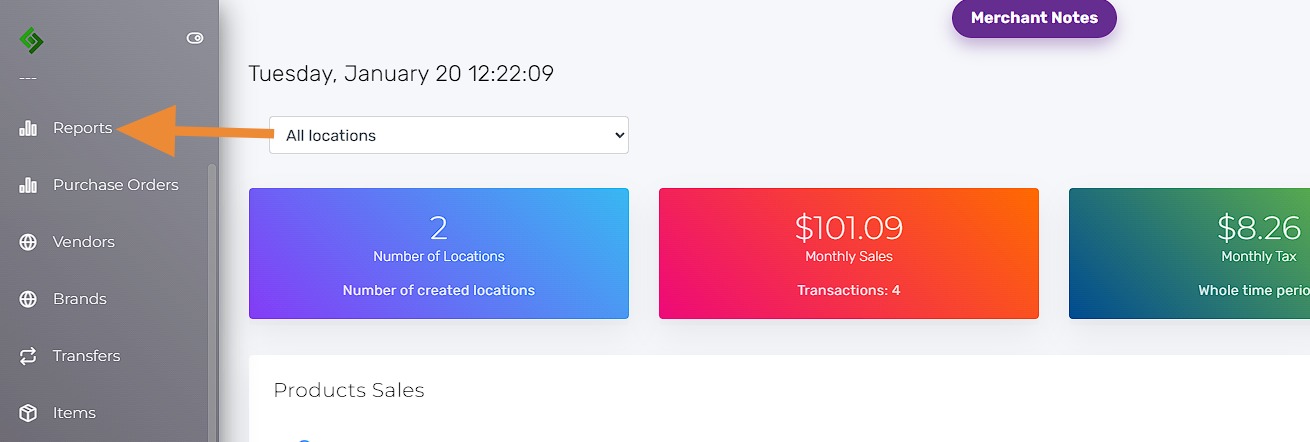
Click Reports #
Select the Reports tab.
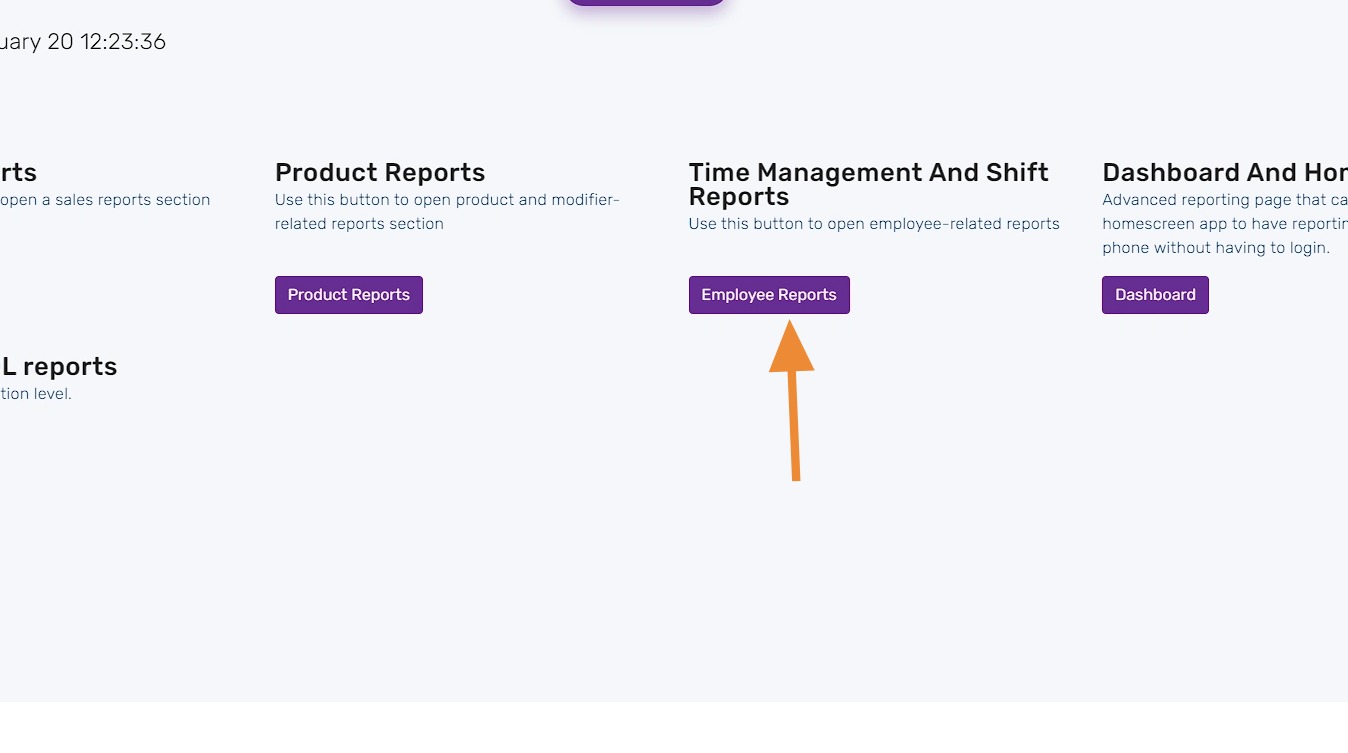
Open Employee Reports #
Under Time Management and Shift Reports, click Employee Reports.
Generate Employee Timesheet Report #
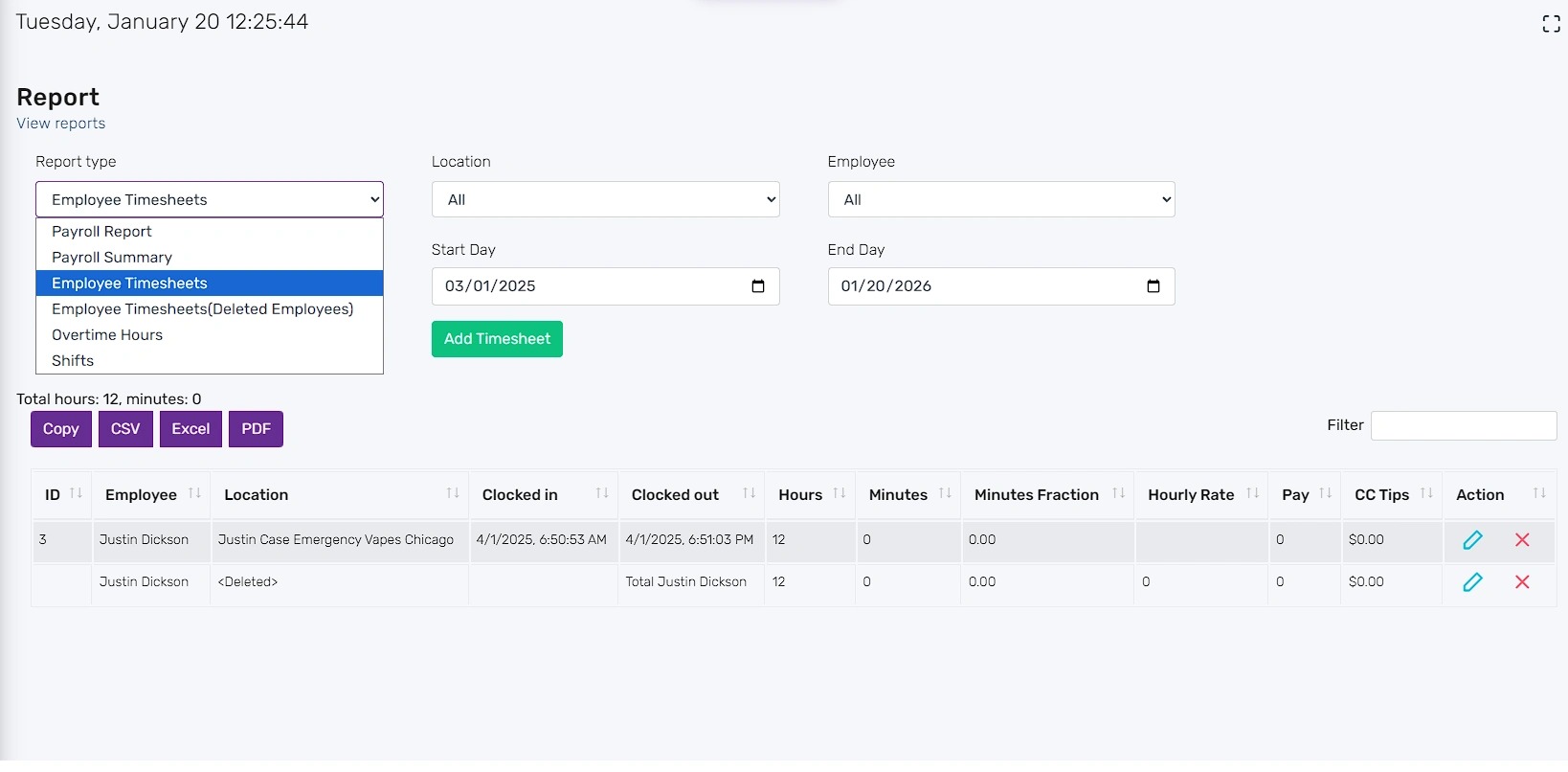
From the report dropdown, select Employee Timesheets.
Enter the desired date range, location, and employee.
The report can be downloaded in CSV, Excel, or PDF format.