
Enable Sales Commissions and Generate Report #
Navigate to the Login Page #
Go to https://login.lifelongpos.com/
Open Settings #
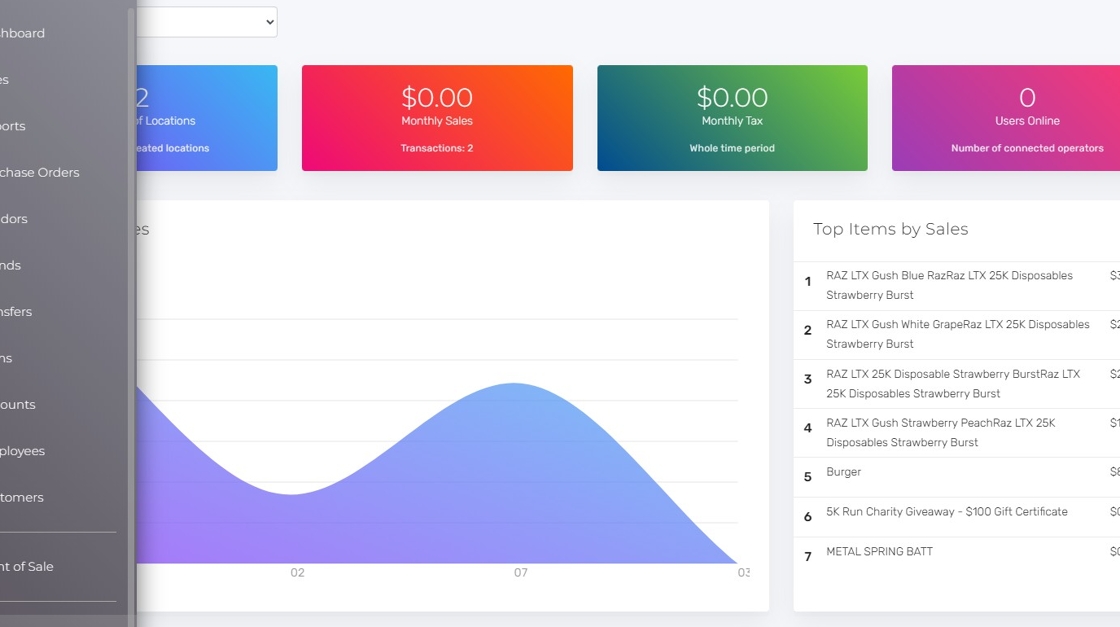
Click on the “Settings” tab on the left-hand side of the screen.

Access General Settings #
Click “General settings“.

Enable Sales Commissions #
Use Ctrl + F (Windows) or Command + F (Mac) to find the Enable sales commissions category header. Use the dropdown and click “Enable“.

Save Your Changes #
Scroll down to the bottom of the page and click “SAVE“.

Set Default Sales Commissions (Optional) #
Locate the Sales Commissions default category header. You can set a default commission (e.g., $1 per product sold or 5% per product). If you prefer per-product commissions, skip this step.

Sales Commissions by Product #
Access Items #
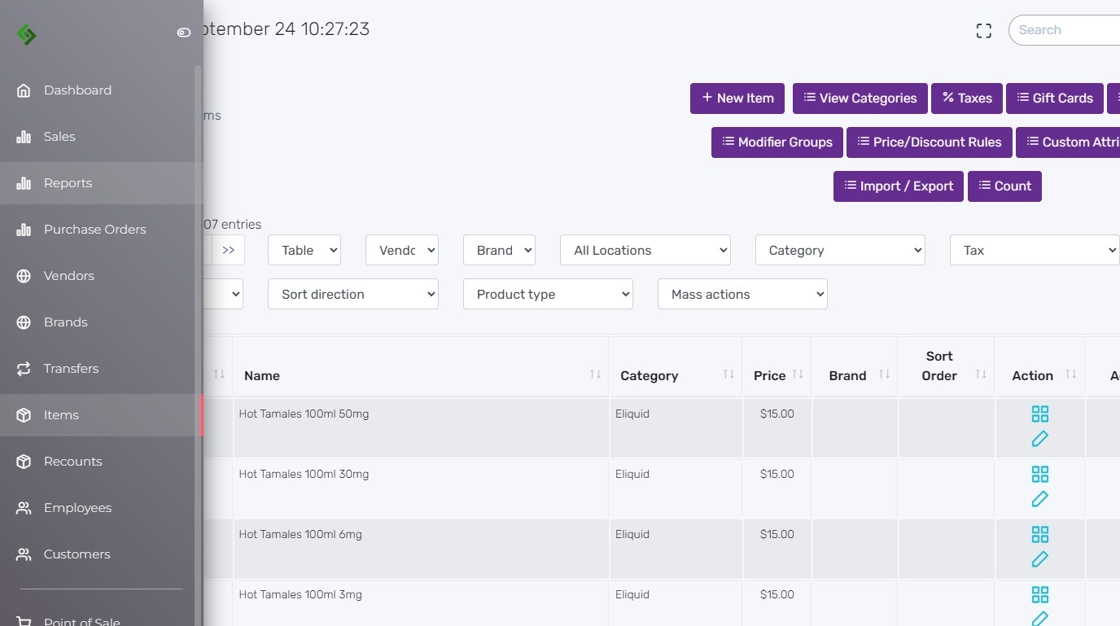
Click on the “Items” tab on the left-hand side of the screen.

Edit Product Commissions #
Search for the product and click on the “Edit Pencil” icon. (Optional) Use the mass action dropdown to update multiple products.

Enter Commission Percentage #
Find the “Commission %” field and enter a percentage (e.g., 5%).

Save Product Commission #
Scroll down and click “Save”.

Sales Commissions Reports #
Open Reports #
Click on the “Reports” tab on the left-hand side of the screen.
View Sales Reports #
Click “Sales Reports”.

Select Commissions Report #
Use the dropdown to select the “Commissions report” option.

Customize Report Filters #
The Sales Commission Report offers several options:
- Filter by Location – view commissions for a specific location.
- Filter by Employee – select a single employee or view all employees.
- Period Type – choose Day or Month, then set the dates.

Generate the Report #
Click the “Get report” button.

View Custom Report #
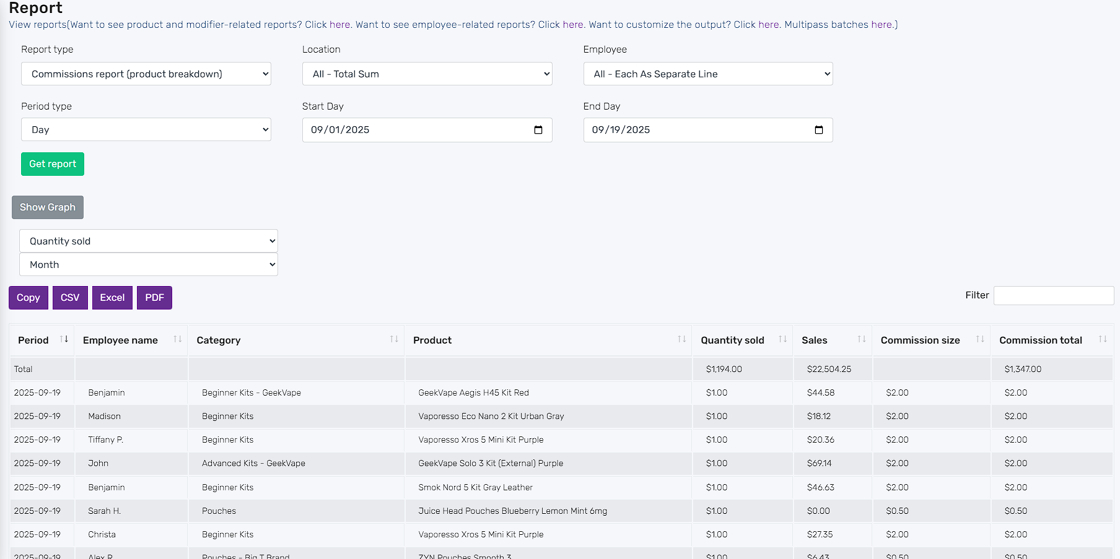
See your custom report with dates, employee names, total sales, and commissions for each employee.

View Commissions Report (Product Breakdown) #
See products sold along with commissions applied to each.
View Commissions Report (Category Breakdown) #
See product categories sold along with commissions applied to each.


