
Multiple Vendors #
Enabling allows multiple vendors per item
Navigate to the Lifelong POS login page #
https://login.lifelongpos.com/

Click “Settings” #

Click “General settings” #

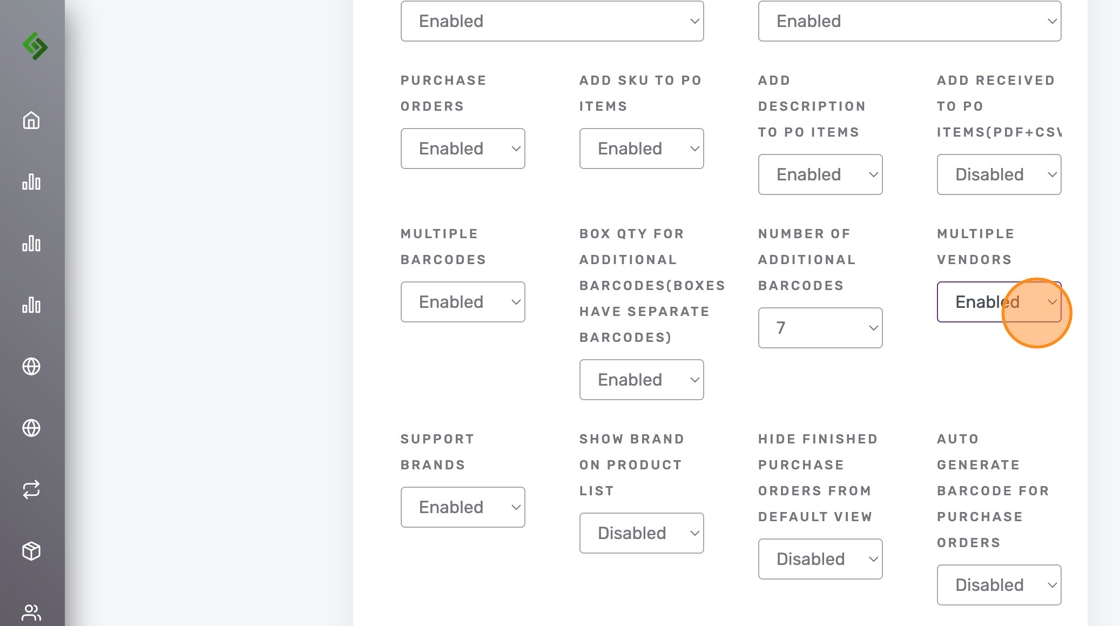
Enable Multiple Vendors in Stock Management settings #
Stock Management subcategory > Multiple Vendors dropdown menu > Enabled
Scroll to the bottom of the page and click “SAVE” #

Item View #
When enabled, the “Add Vendor +” button will appear in the item view.


