
Reports: Product Reports / Full Inventory Report #
Let’s view the Full Inventory Report #
Follow the step-by-step instructions below.
Navigate to the Lifelong POS Login #
https://login.lifelongpos.com/
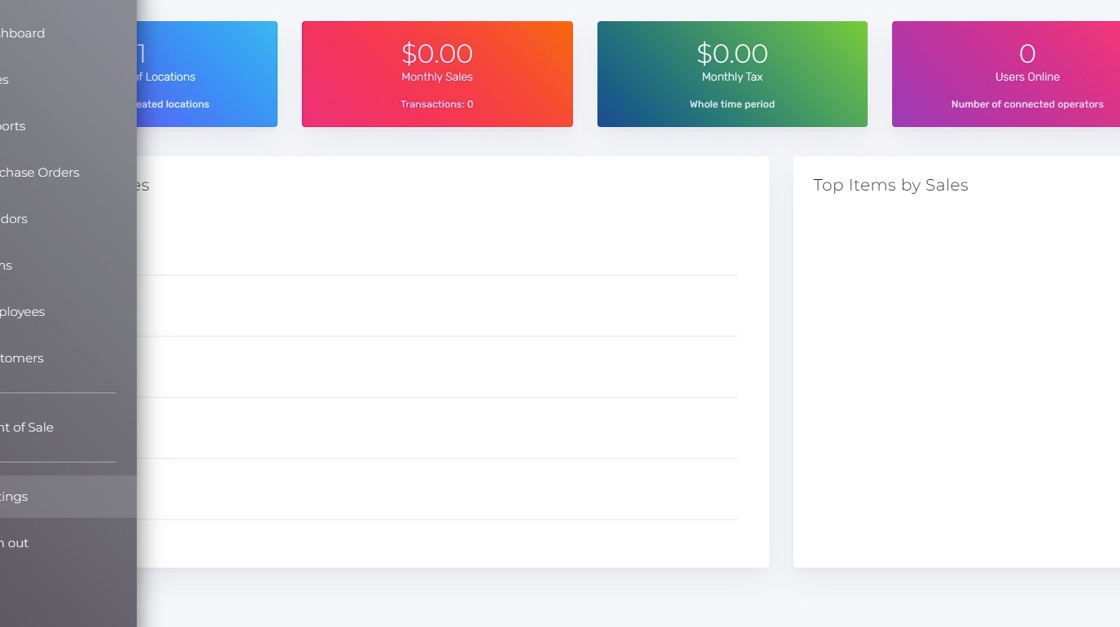
Click on the “Reports” tab #
Located on the left-hand side of the screen.

Select “Product Reports” #

Choose ‘Full Inventory Report’ #
Use the Report Type dropdown to select it. Then, select the Location and click the Get Report button.

View the Full Inventory Report #
This report shows each product’s name, retail & wholesale cost, category, and current stock quantity. You can also export it as CSV, Excel, or PDF.

Other Available Product Reports #
- Product Reports / No Sales Items Report (Date Range)
- Product Reports / Modifiers Sales Report
- Product Reports / Inventory Adjusts For A Period
- Product Reports / Category Stock History
- Product Reports / Product Stock History
- Product Reports / Product Sales History
- Product Reports / Product Sales Matrix (Year + Month)
- Product Reports / Vendor Sales + Quantity On Hand Report (Date Range, Wholesale & Retail)
- Product Reports / Brand Sales Report (Date Range, Wholesale & Retail)
- Product Reports / Vendor Sales Valuation Report (Date Range, Wholesale & Retail)
- Product Reports / Sales Items + On Hand Report (Date Range)
- Product Reports / Sales Items Report (Date Range)
- Product Reports / Sales Items Report (For All Time)
- Product Reports / Sales By Attribute Report
- Product Reports / Product Past Valuation Report (Wholesale & Retail)
- Product Reports / Product Valuation Report (Wholesale & Retail)
- Product Reports / Category Valuation Report (Wholesale & Retail)
- Product Reports / Past Inventory Valuation Report (Wholesale & Retail)
- Product Reports / Inventory Valuation Report (Wholesale & Retail)
- Product Reports / Category Margin Report
Additional Reports #
- Reports: Product Reports / Category Inventory Report
- Reports: Product Reports / Low Stock Items
- Reports: Product Reports / Products By Vendor
- Reports: Product Reports / Full Inventory Report


