
Inventory: Mass Actions For Items / Products in Lifelong POS – Update Tax Class #
Let’s learn how to change multiple products with mass actions on the Point Of Sale register. #
Follow the step-by-step instructions below.
Navigate to Lifelong POS #
Go to https://login.lifelongpos.com/ on any web browser.

Click the “Items” tab #
Located on the left-hand side of the page.

Search for a product name #
Click the “Search” field at the top right of the page.
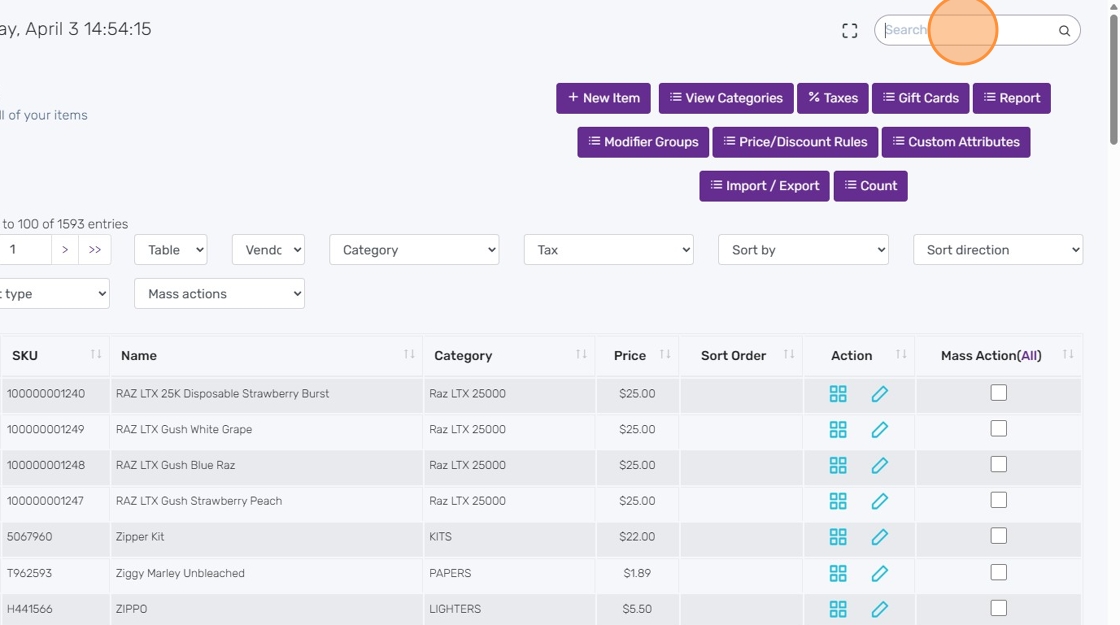
Type in your product and hit enter #
Example: RAZ LTX. Make sure to hit enter or click the magnifying glass.

Select the items #
Click “All” to select all items, or choose specific ones.

Ensure all items are selected #
All selected items will be updated in the next step.

Click the Mass Actions dropdown #
Select Update Tax Class as an example.

Select the correct tax class #
Some products may have combined taxes like Sales Tax + Hemp Tax.

Click OK to confirm #
This updates the Tax Class of the selected products.

Tax class updated successfully #
All selected products are now updated with the new tax class.
Other Available Mass Actions #
- Print Labels / Click Here
- Print Labels (2x) / Click Here
- Print Custom Labels / Click Here
- Update Vendor Information / Click Here
- Update Tax Class / Click Here
- Update Category / Click Here
- Update Product Price / Click Here
- Update Price to Cost + Markup / Click Here
- Update Product Name / Click Here
- Update Product Name & Price by percentage / Click Here
- Update Product Cost / Click Here
- Update Low Stock Quantity / Click Here
- Update Low Stock Quantity by Location / Click Here
- Update Product Quantity / Click Here
- Update Mod Groups / Click Here
- Add Tier Pricing / Click Here
- Delete Tier Pricing / Click Here
- Quick Update / Click Here
- Clone Item / Click Here
- Delete Item / Click Here


