
Creating Discounts: Coupon / By Percentage #
1. Let’s create a new discount rule using the “Coupon / By Percentage” option. Follow the instructions below.
Getting Started #
2. Navigate to https://login.lifelongpos.com/ in your browser.

3. Click the “Items” tab on the left side.

4. In the top right, click “Price/Discount Rules”.

5. Click the “New Price/ Discount Rule” button.

6. Fill in the form:
- Name: Enter a name (e.g., “Instagram 15%”).
- Pricerule Type: Select “Coupon / By Percentage”.
- Leave product/category fields blank to apply to all items.

7. Enter the discount amount: Type “15” in the Amount field (for 15%), then click “Save Changes.”

Tip: Additional options:
- Days of the Week – Set active days.
- Hours of the Day – Define time windows.
- Start & End Dates – Choose a date range.
- Excluded Categories – Exclude specific categories.
- Brands – Limit to select brands.
Use these to customize when and how the discount applies.
Creating the Coupon & QR Code #
8. Click the “Coupons” button.

9. Click “New Coupon.”
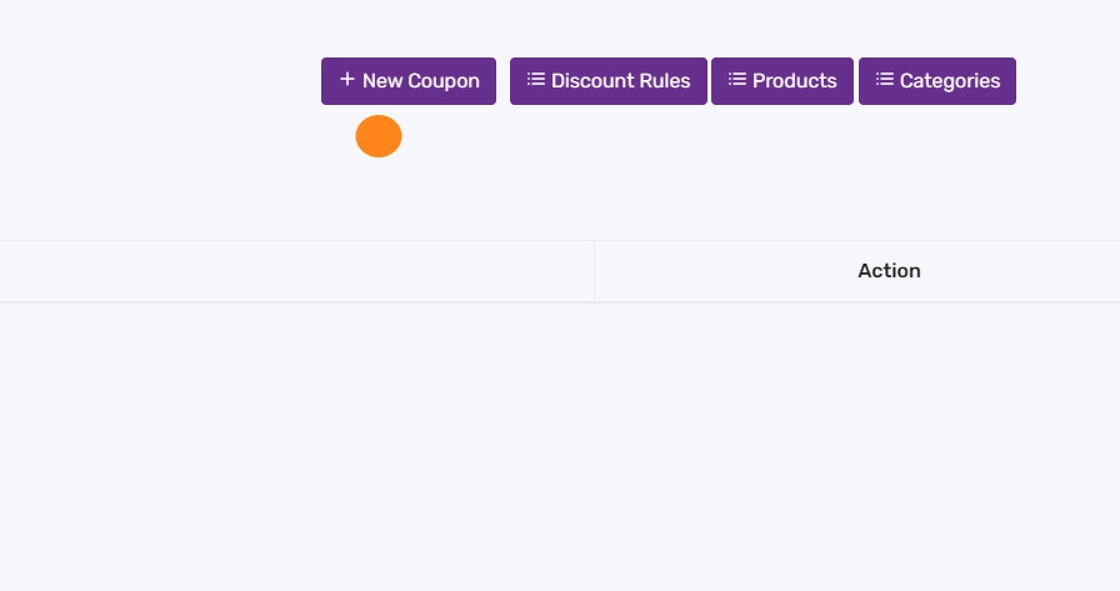
10. Set coupon details:
- Code: Enter the promo code.
- Discount Rule: Select the rule you just created.
- Optional: Enable usage limits (single use/customer or total).
- Optional: Assign to a specific customer.
Click “Save Changes.”

11. You’ll see your coupon listed. Click the edit (pencil) icon to generate/print your QR code.

12. Use the options to print or save the QR code for promos.

How to Use the Coupon on POS #
13. Add items to the POS cart, then click the Discount button.

14. Click the Coupon button.

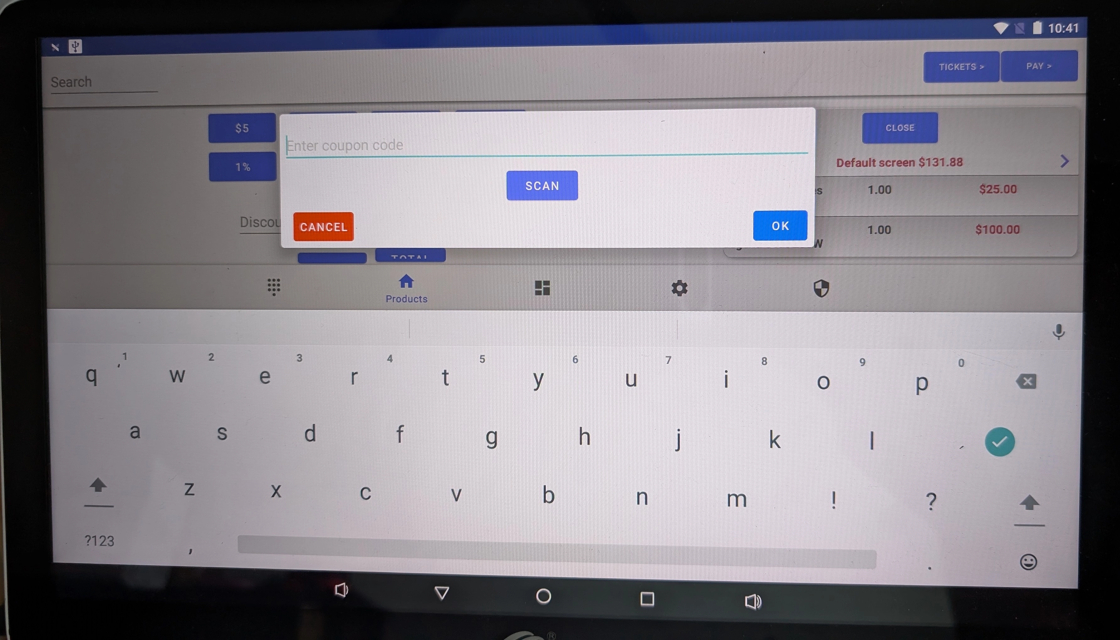
15. Enter the coupon code (e.g., “instagram15”) or scan the QR, then click OK.
16. Complete checkout by clicking Pay and processing payment.
Additional Discount Guides #
17. Click here to access all guides on price and discount rules.


