
Creating Discounts : Cart Item / Buy X, Get Amount For Free #
✅ How It Works #
Trigger condition: Customer must buy at least X items in the cart (across all or selected categories/products).
Reward: Get 1 free product (example: buy 2, get 1 free)
1. Create a New Discount Rule #
Use the “Cart Item / Buy X, Get Amount For Free” option. Follow the step-by-step instructions below.
2. Log In to Lifelong POS #
Navigate to https://login.lifelongpos.com/ on a web browser.
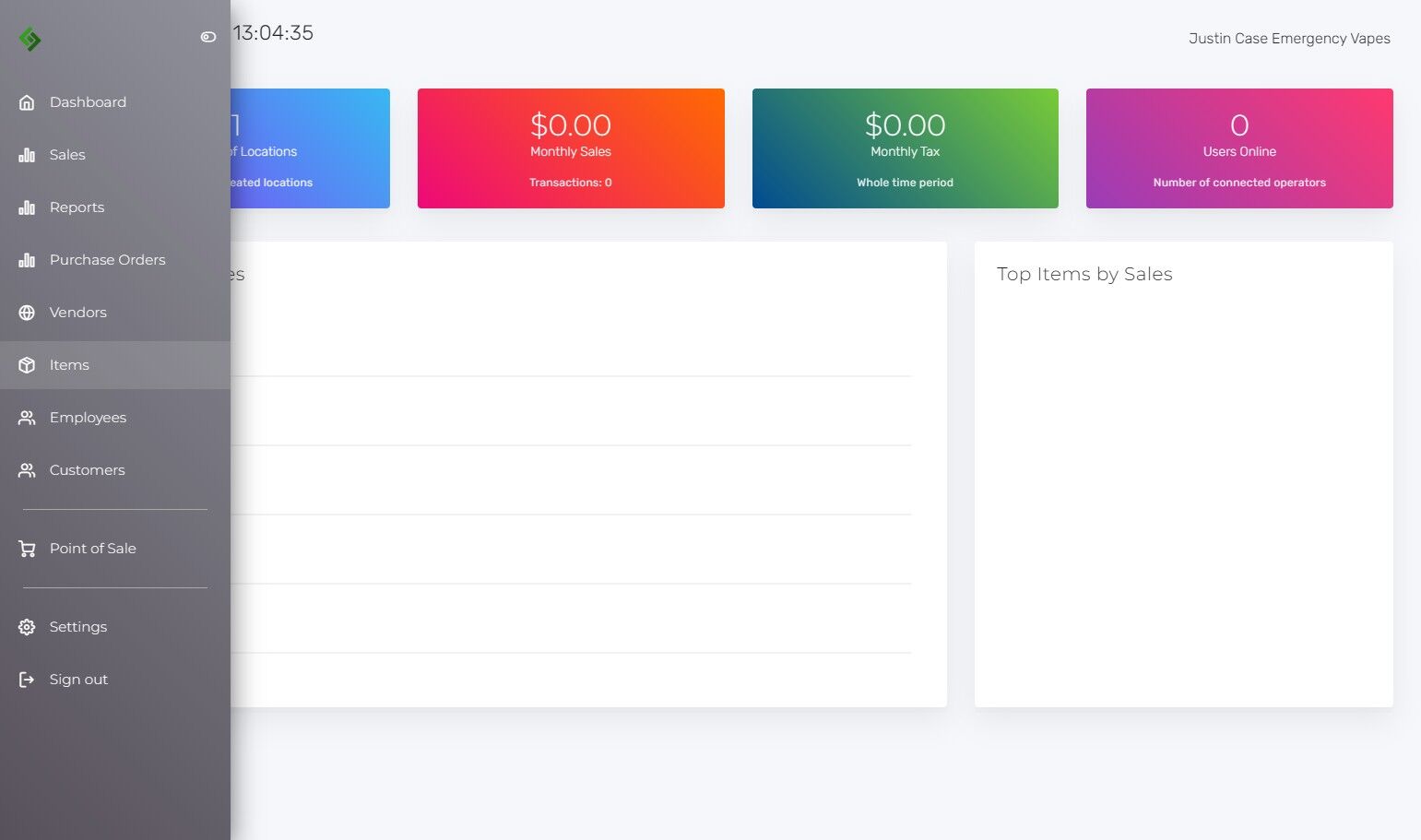
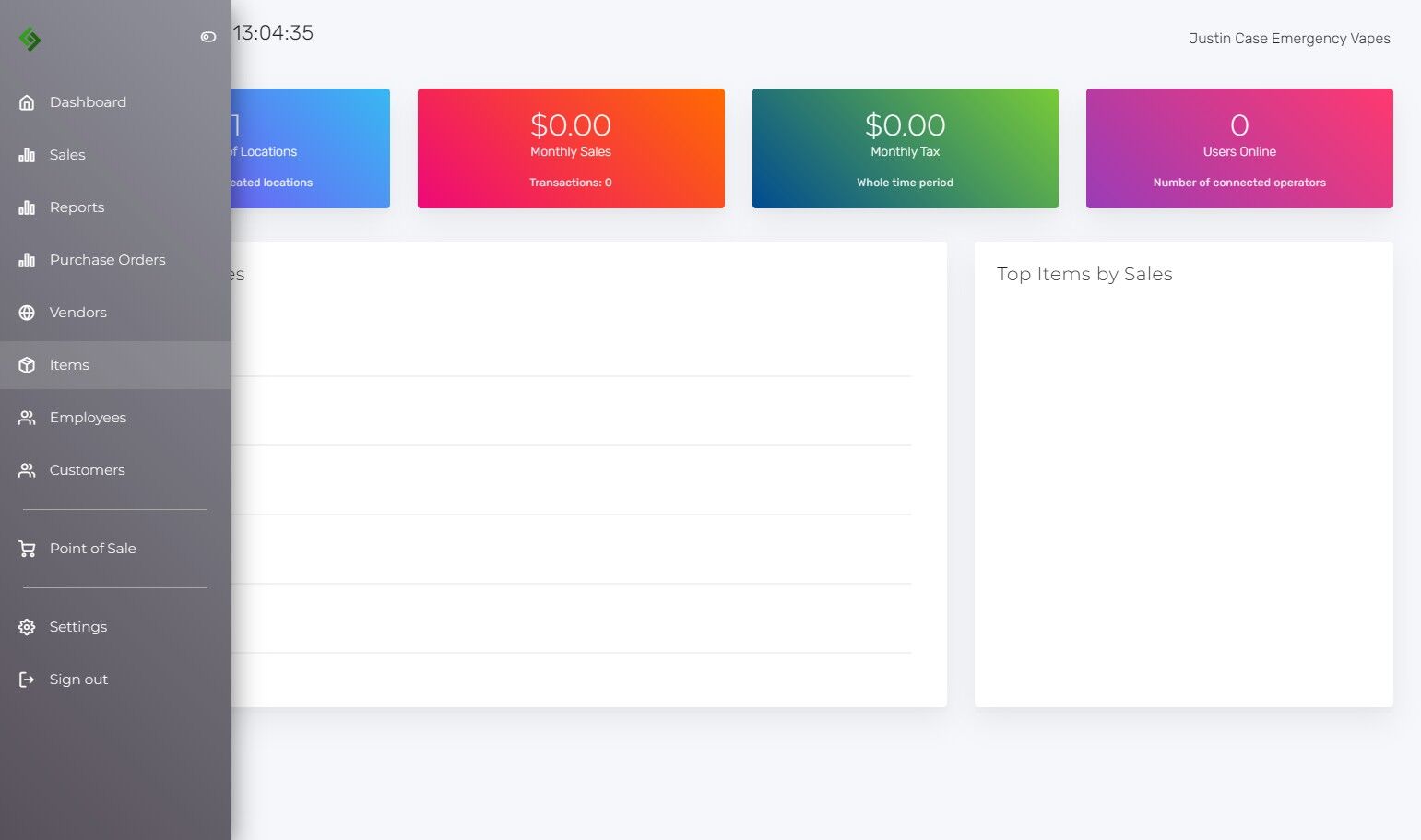
3. Access the Items Tab #
Click on the “Items” tab on the left-hand side of the screen.
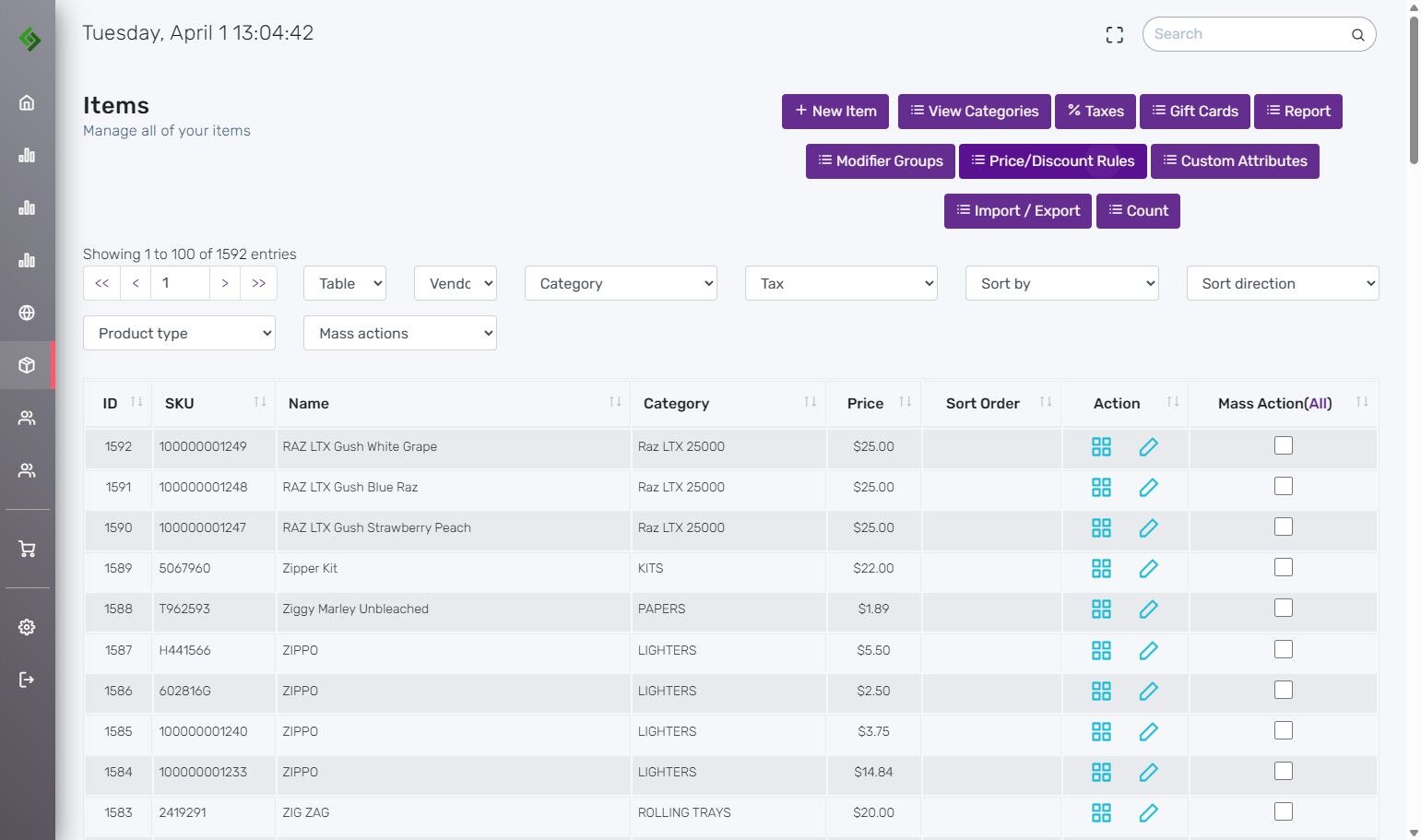
4. Open Price/Discount Rules #
At the top right of the screen click on “Price/Discount Rules”.
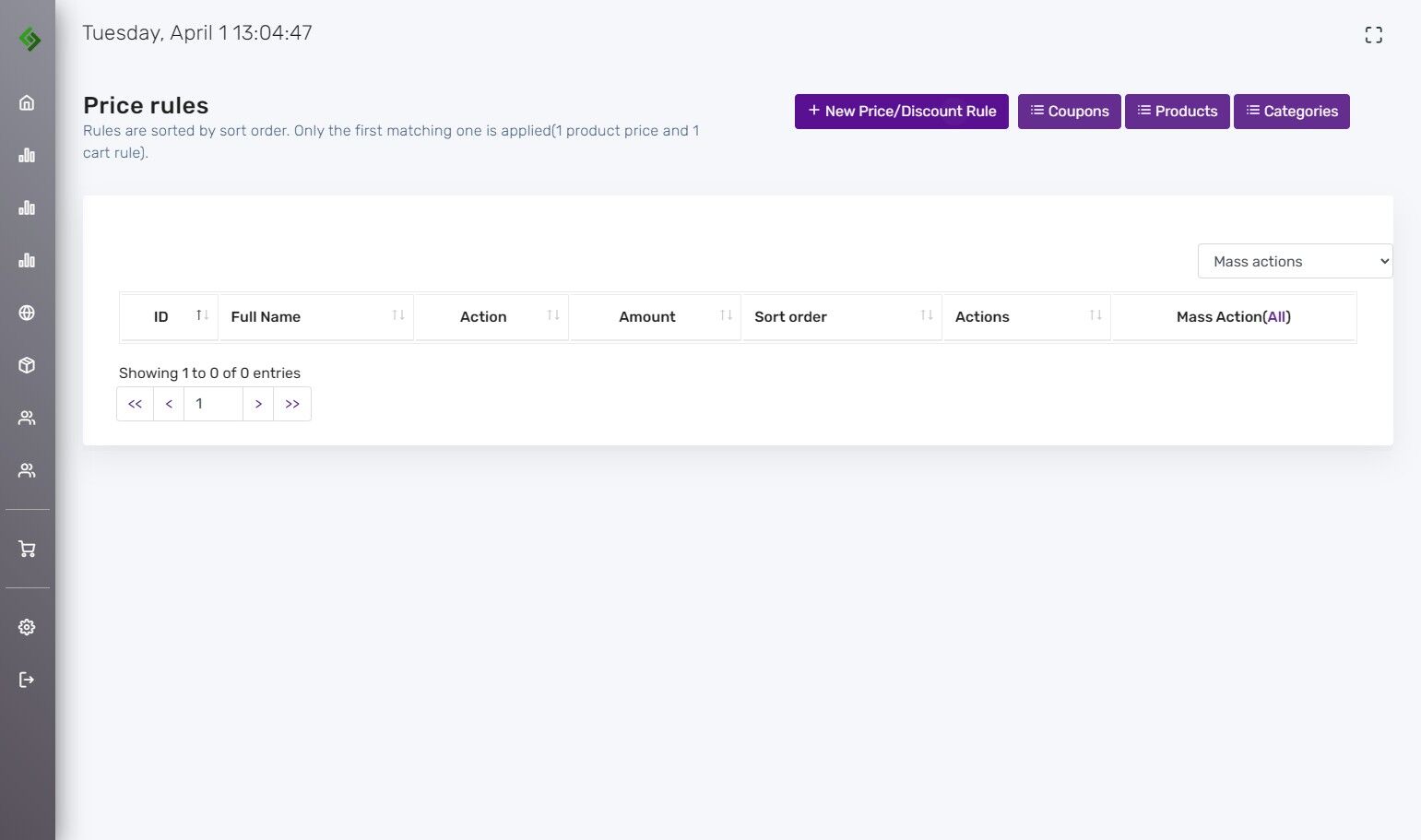
5. Create a New Rule #
Click on “New Price/Discount Rule” to create a new discount.
6. Name Your Discount #
Click the “Name” field to type in the name of your discount. (Example:) Type “Raz Buy 2 get 1 free”
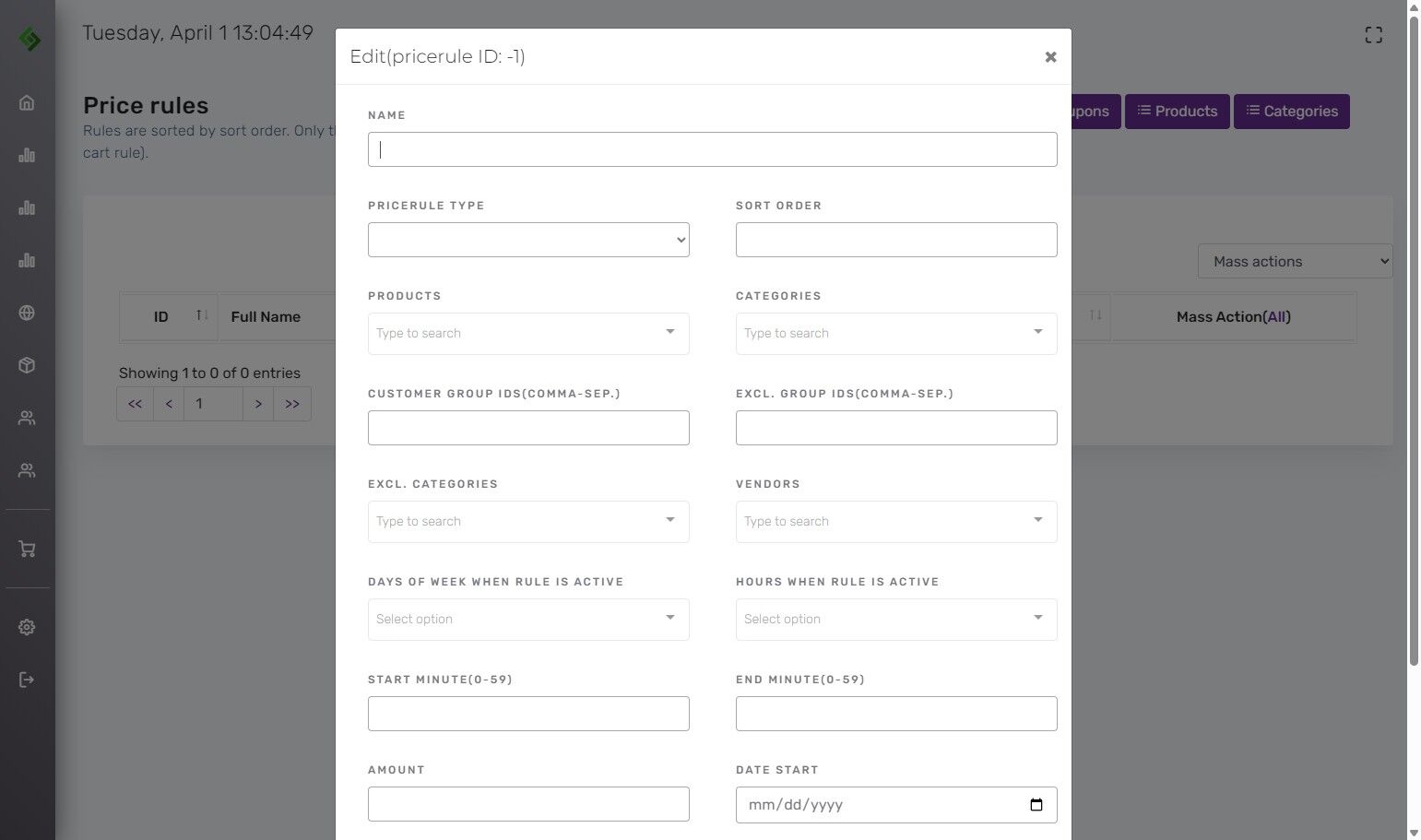
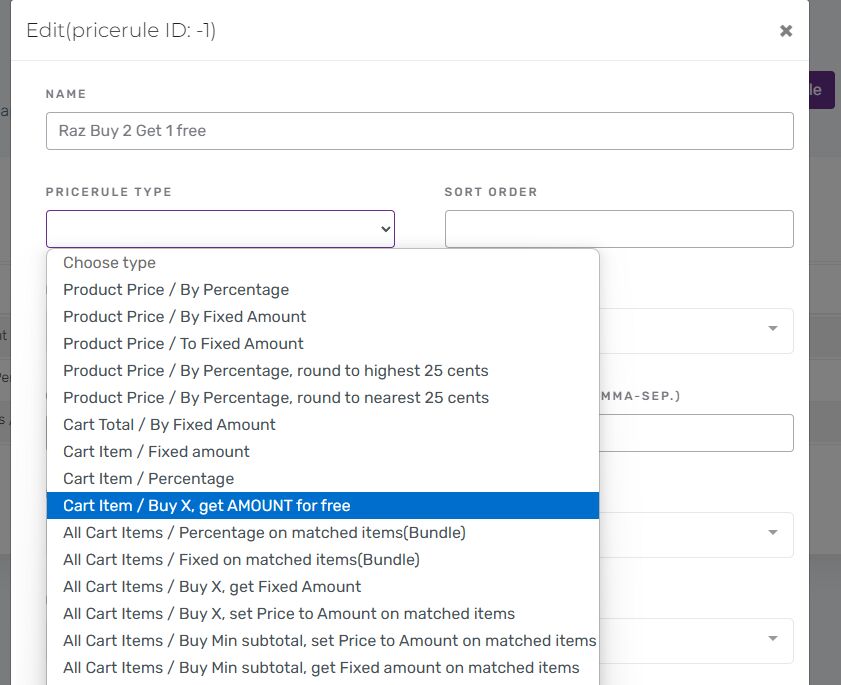
7. Select Discount Type #
Choose the “Cart Item / Buy X, Get Amount For Free” option. This allows you to set a fixed discount price for products.
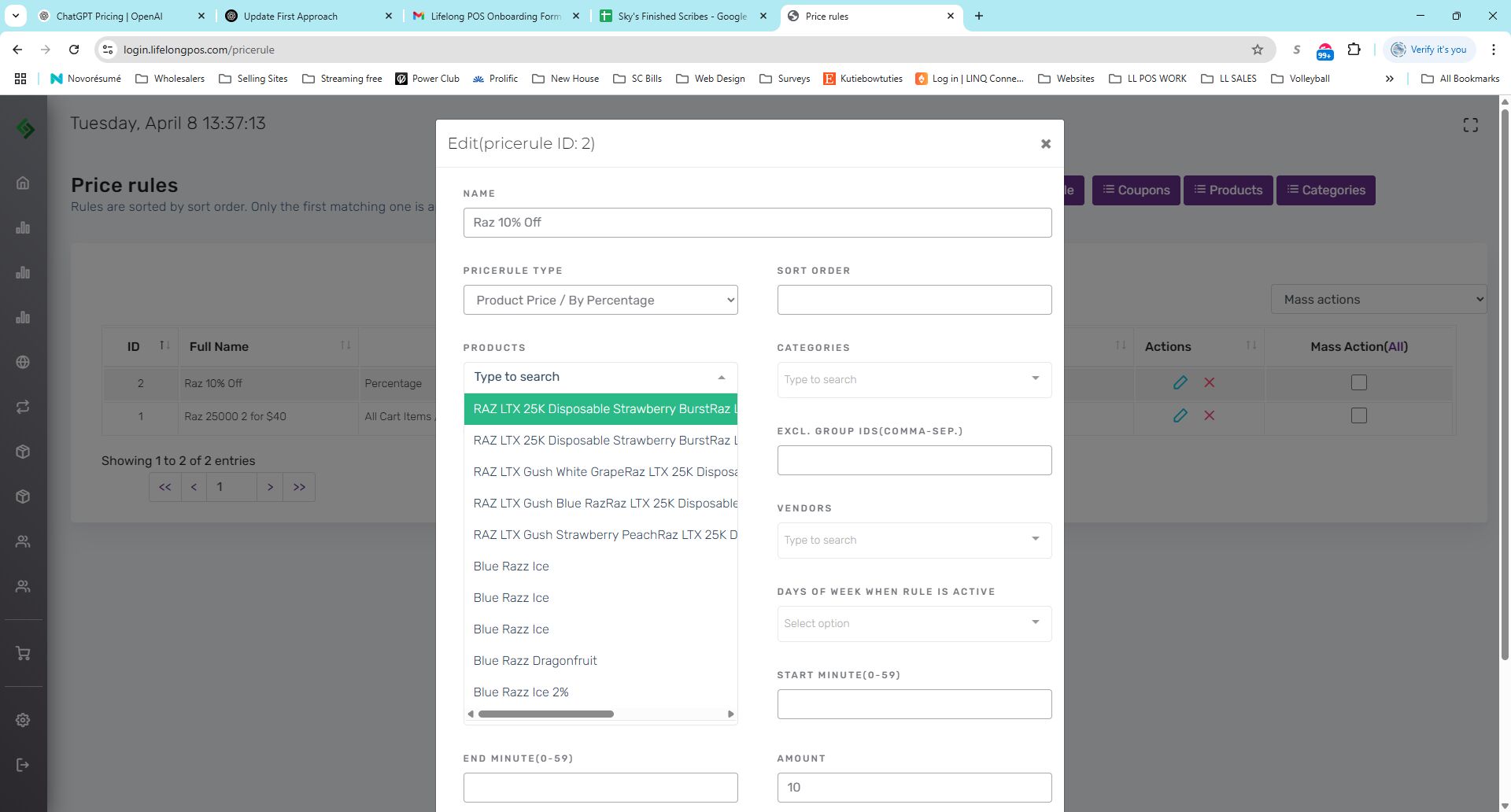
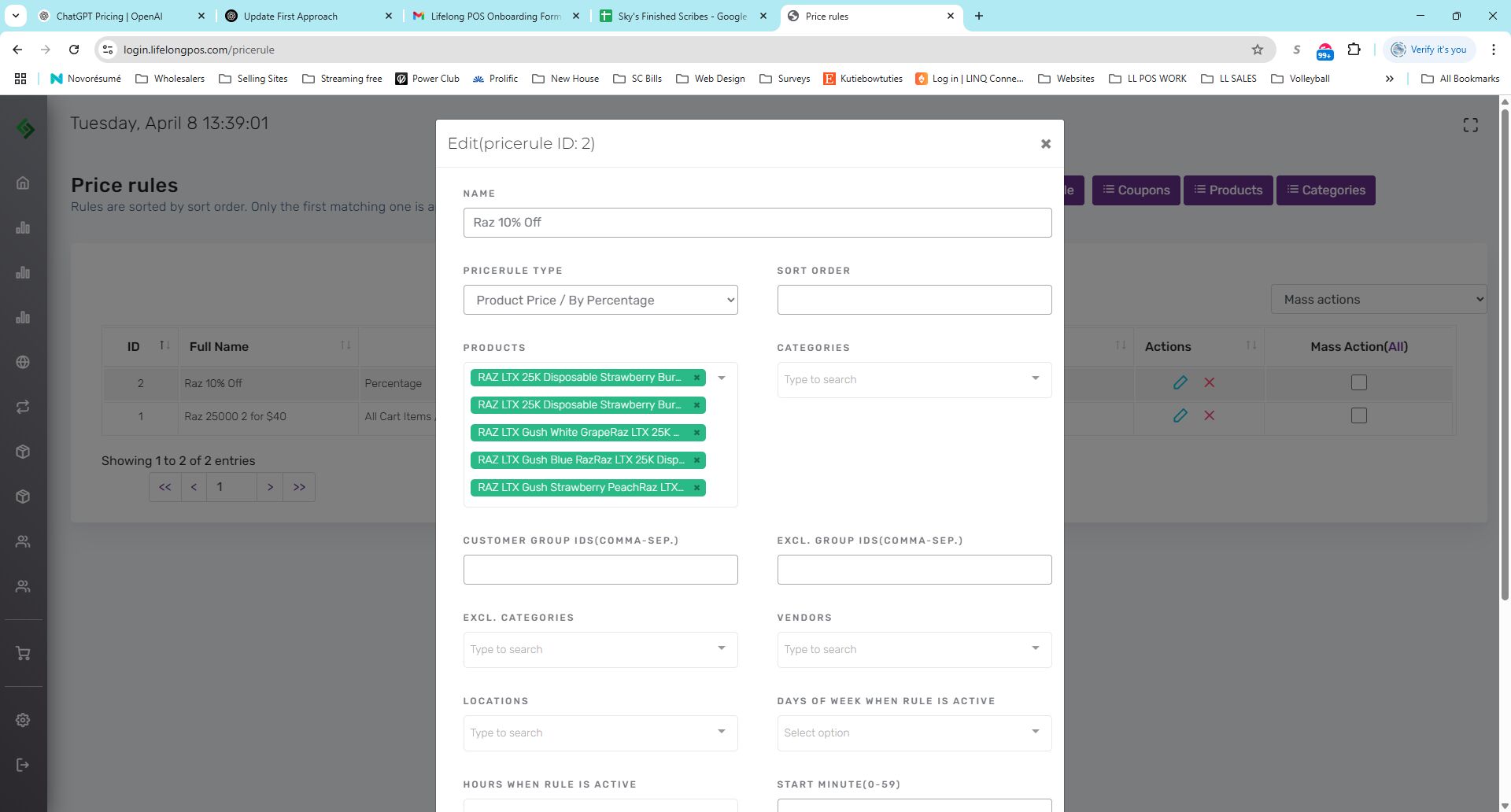
8. Select Products #
Click the “Type to search” box under products and start typing the name of the product(s) you want to include. You can also choose Categories but avoid selecting both categories and individual products.
9. Add Additional Products #
To add another product to the discount, click the dropdown under products and select the next item.
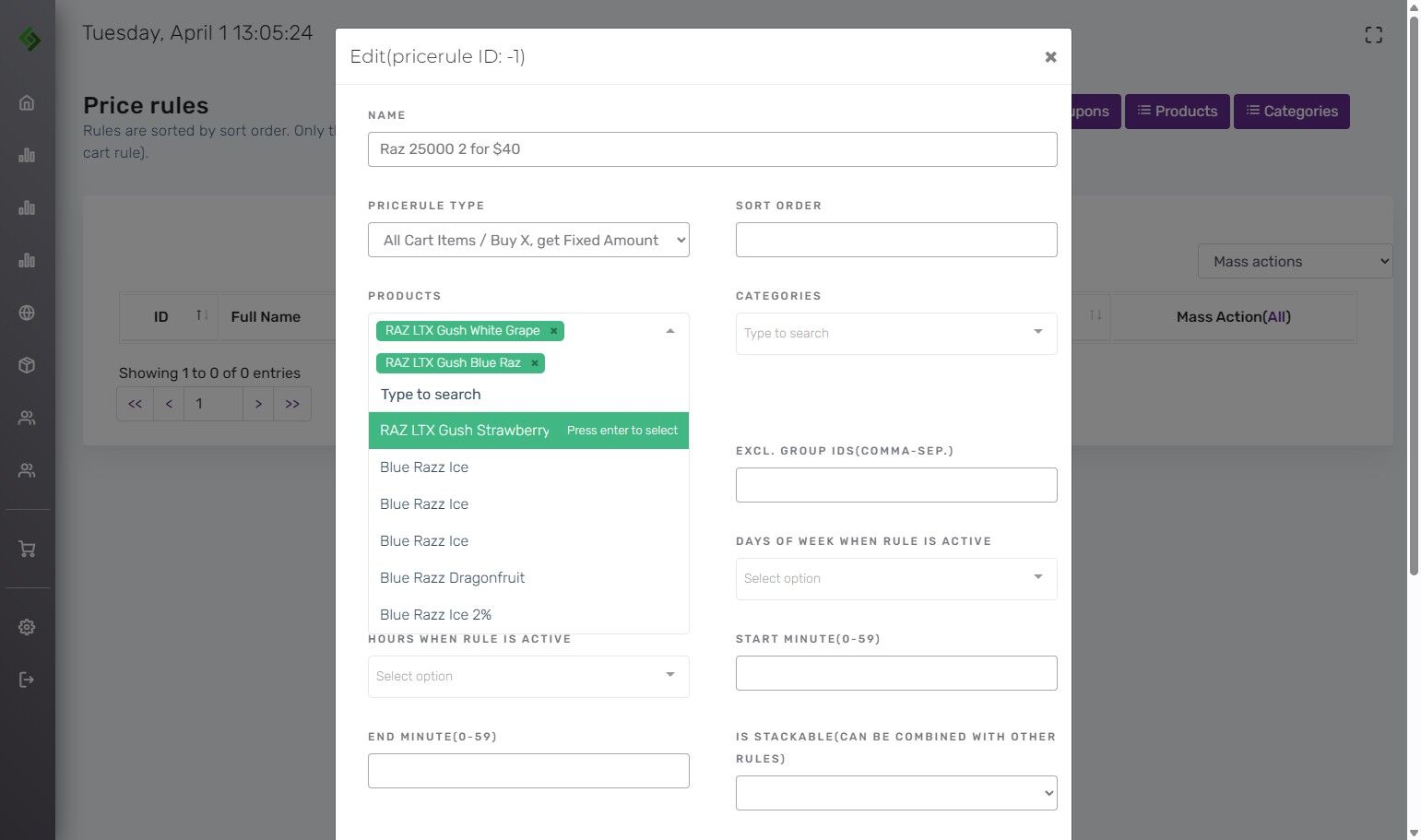
10. Finalize Product Selection #
After all items are listed, it should appear correctly. To remove an item, click the X next to its name. Click the up arrow to finalize.
11. Set Discount Parameters #
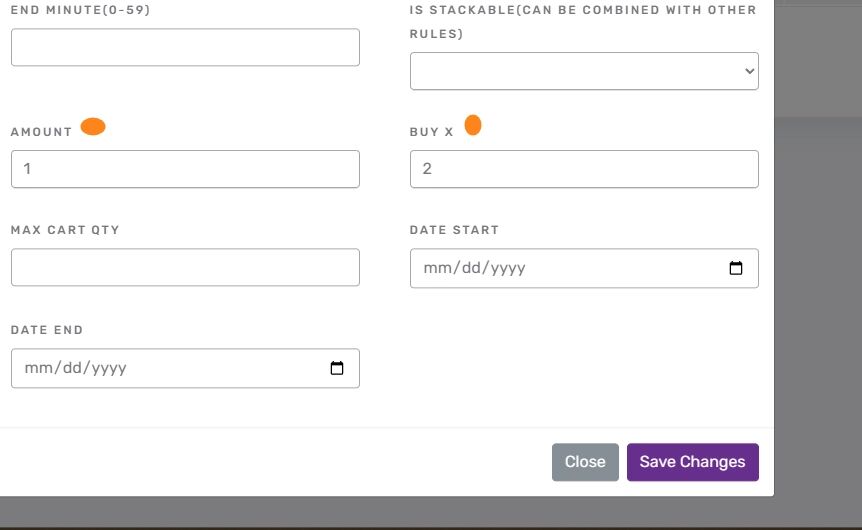
Scroll to the ‘Amount’ field to enter the number of free items. Use the ‘Buy X’ field to specify the required purchase quantity.
12. Save the Discount Rule #
Click “Save Changes” to apply your settings.
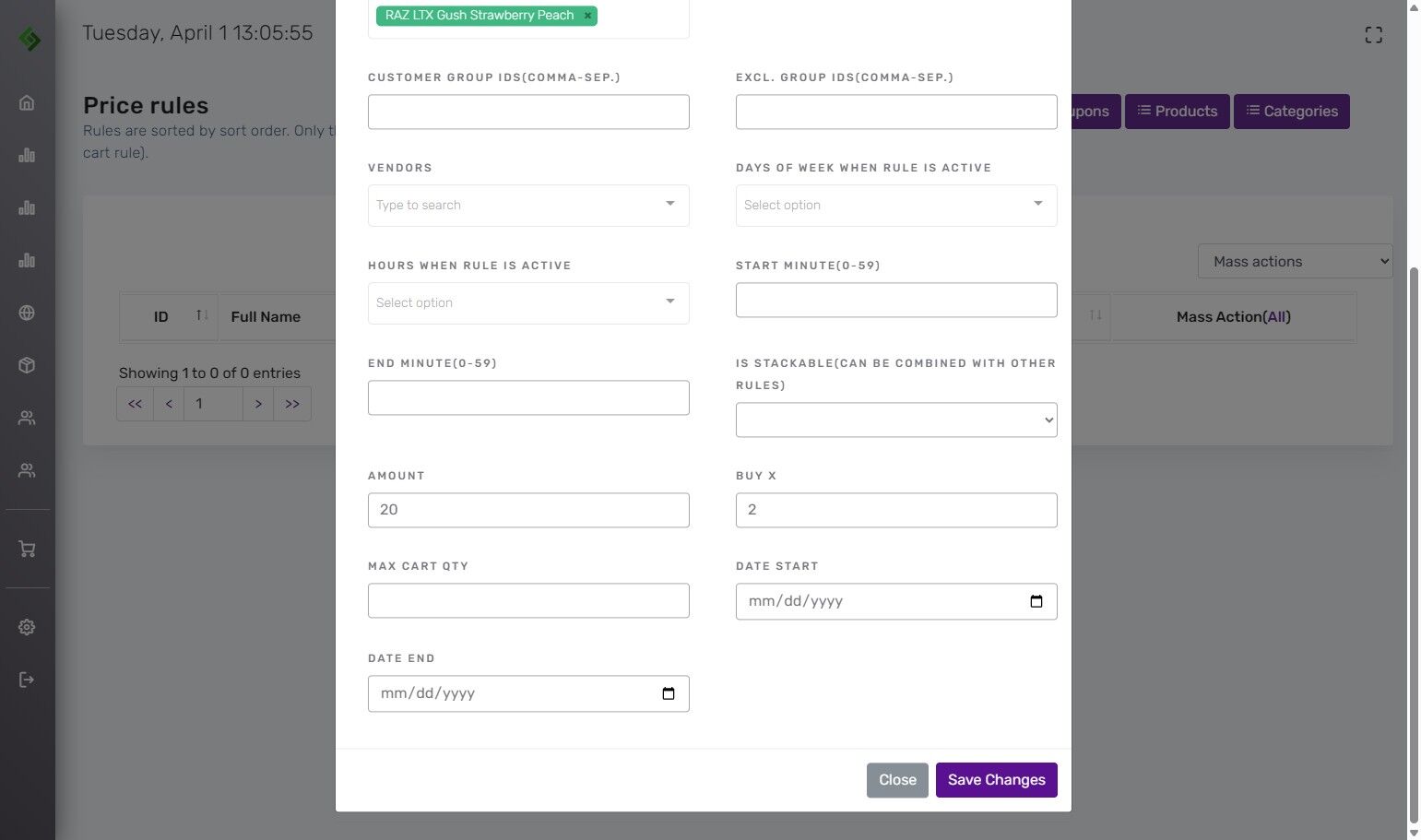
13. Customize Discount Timing #
- Days of the Week: Choose specific days when the discount applies.
- Hours of the Day: Set active hours, like Happy Hour.
- Start & End Dates: Specify when the discount starts and ends.
These settings help tailor discount availability.
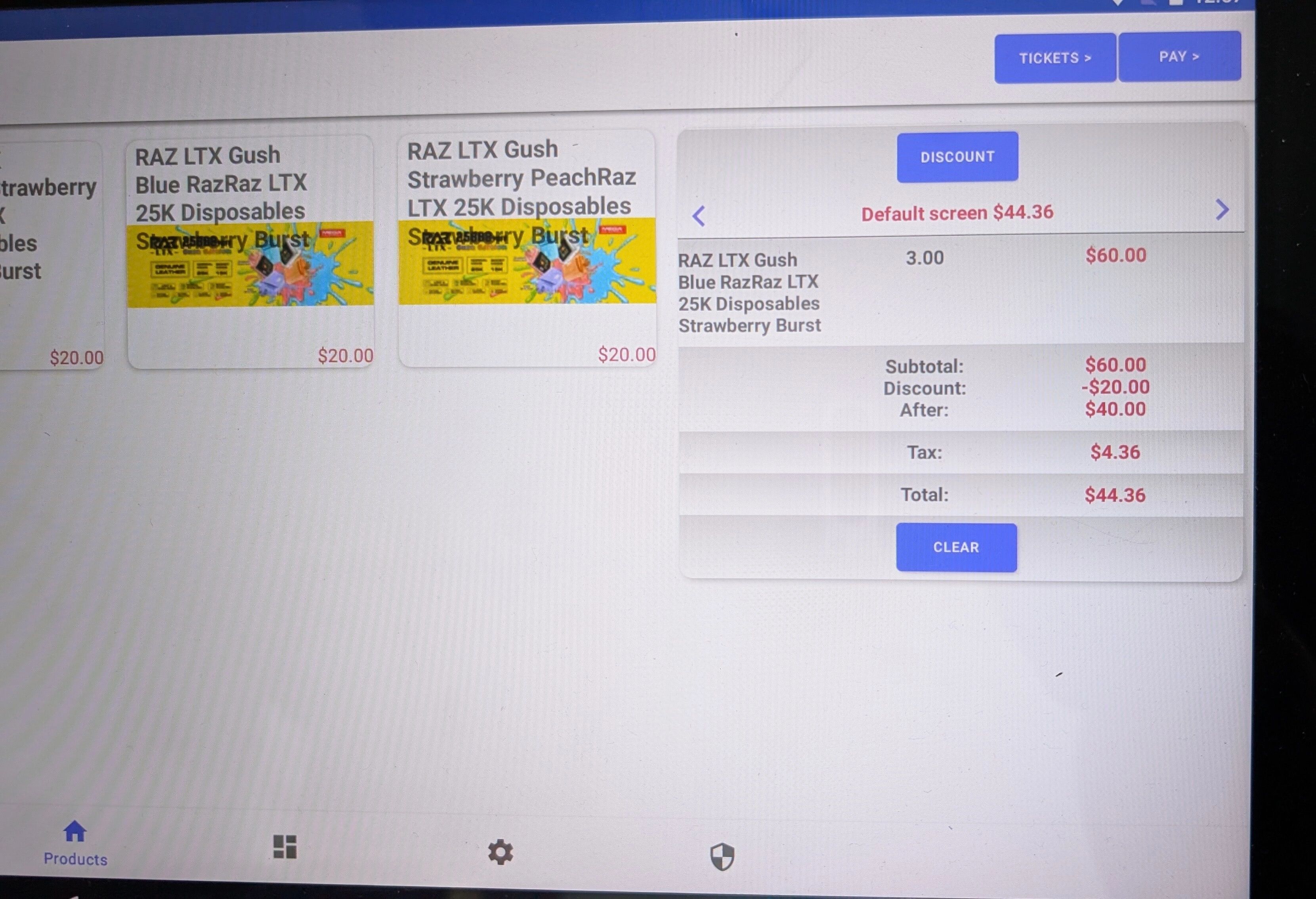
14. Discount Preview in Cart #
Here, the cart shows 3 of the designated items with a $20 retail discount applied from the Buy 2, Get 1 Free promotion.
🎯 Summary Tip #
This feature allows businesses to apply a Buy X, Get 1 free discount when specific products are added to the cart at the POS.
This discount is great for boosting order value and driving sales by encouraging larger purchases.
Additional Discount Guides #
Click here to see all the available guides for setting up Price and Discount Rules.


