Create a New Customer Group in Lifelong POS #
Learn How to Create Customer Groups #
Follow the step-by-step instructions below to set up customer groups in Lifelong POS.
Navigate to the Lifelong POS Login Page #
https://login.lifelongpos.com/
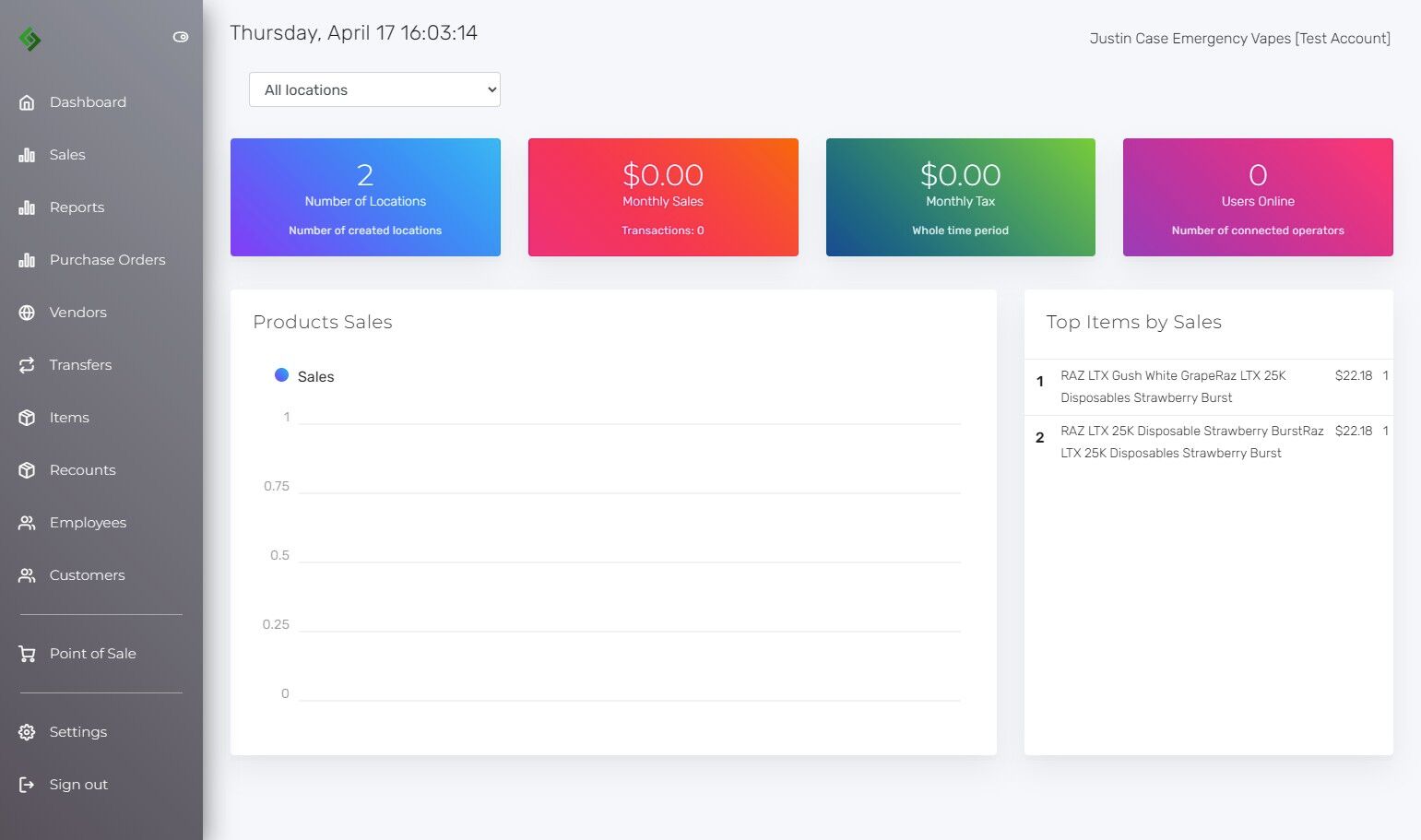
Click the “Customers” Tab #

Select “Customer Groups” #
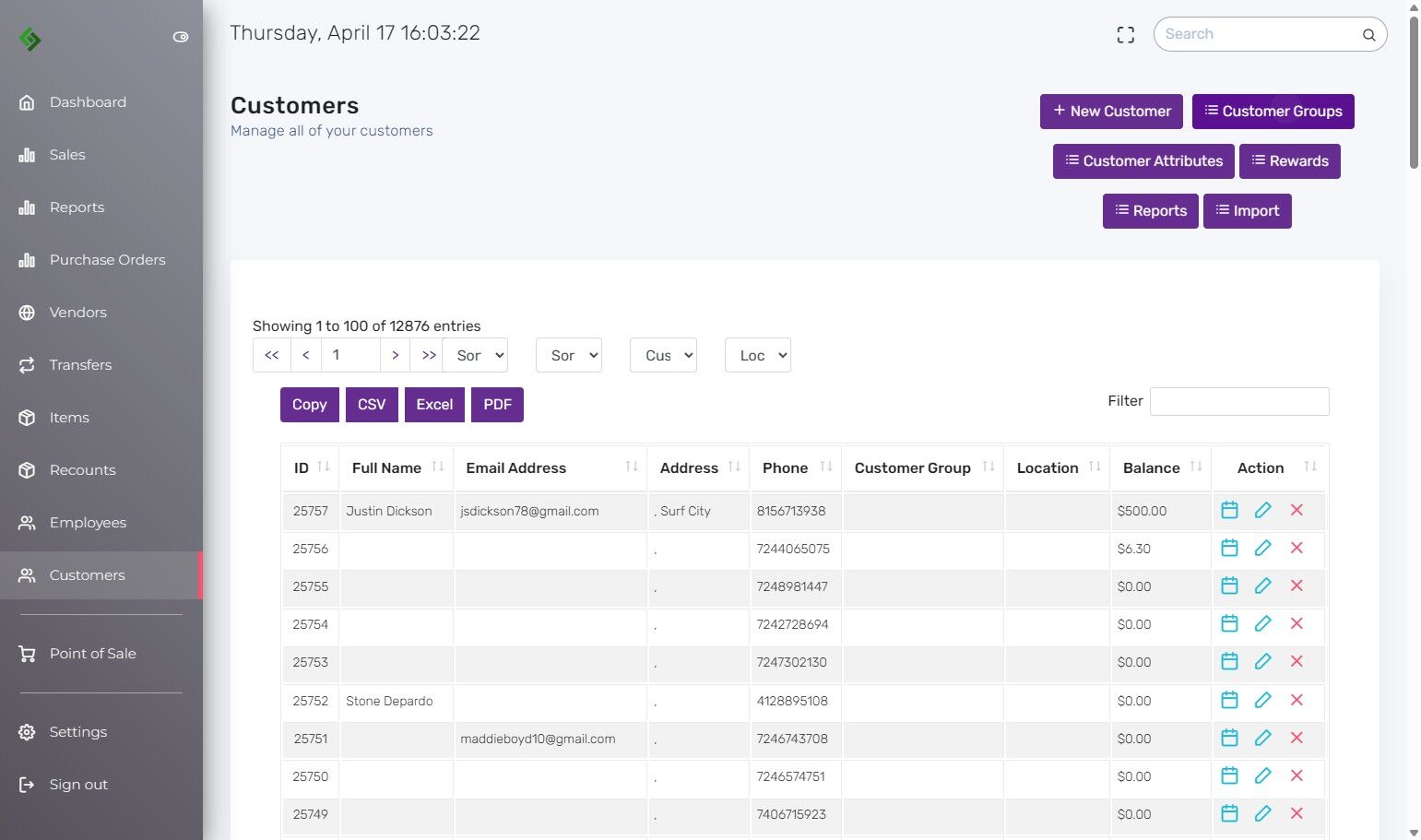
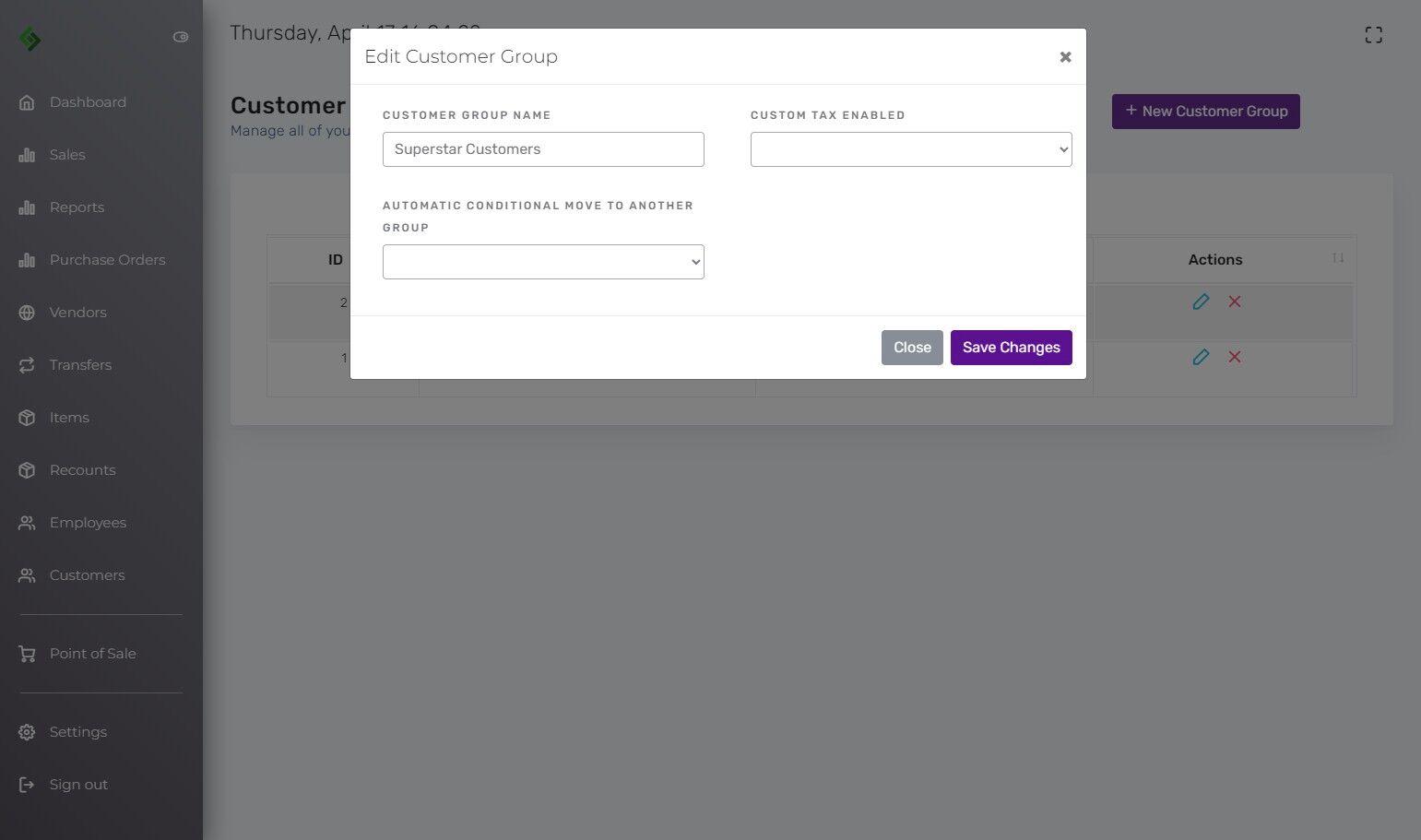
Click “New Customer Group” #

Name Your Customer Group #
Example: “Superstar Customers”
Custom tax and other fields are optional.
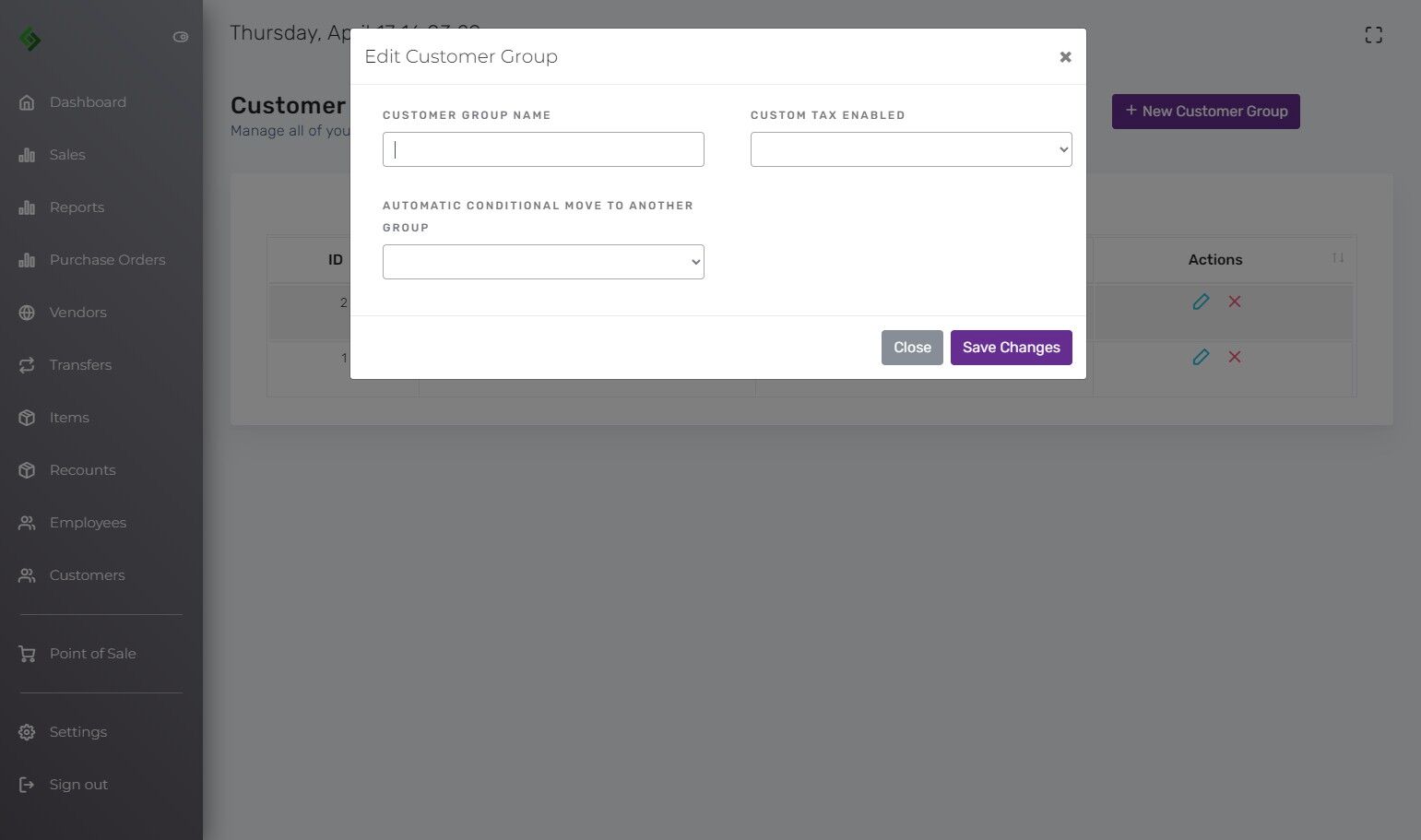
Click “Save Changes” #
Adding a Customer to the Group #
Click the “Customers” tab again.
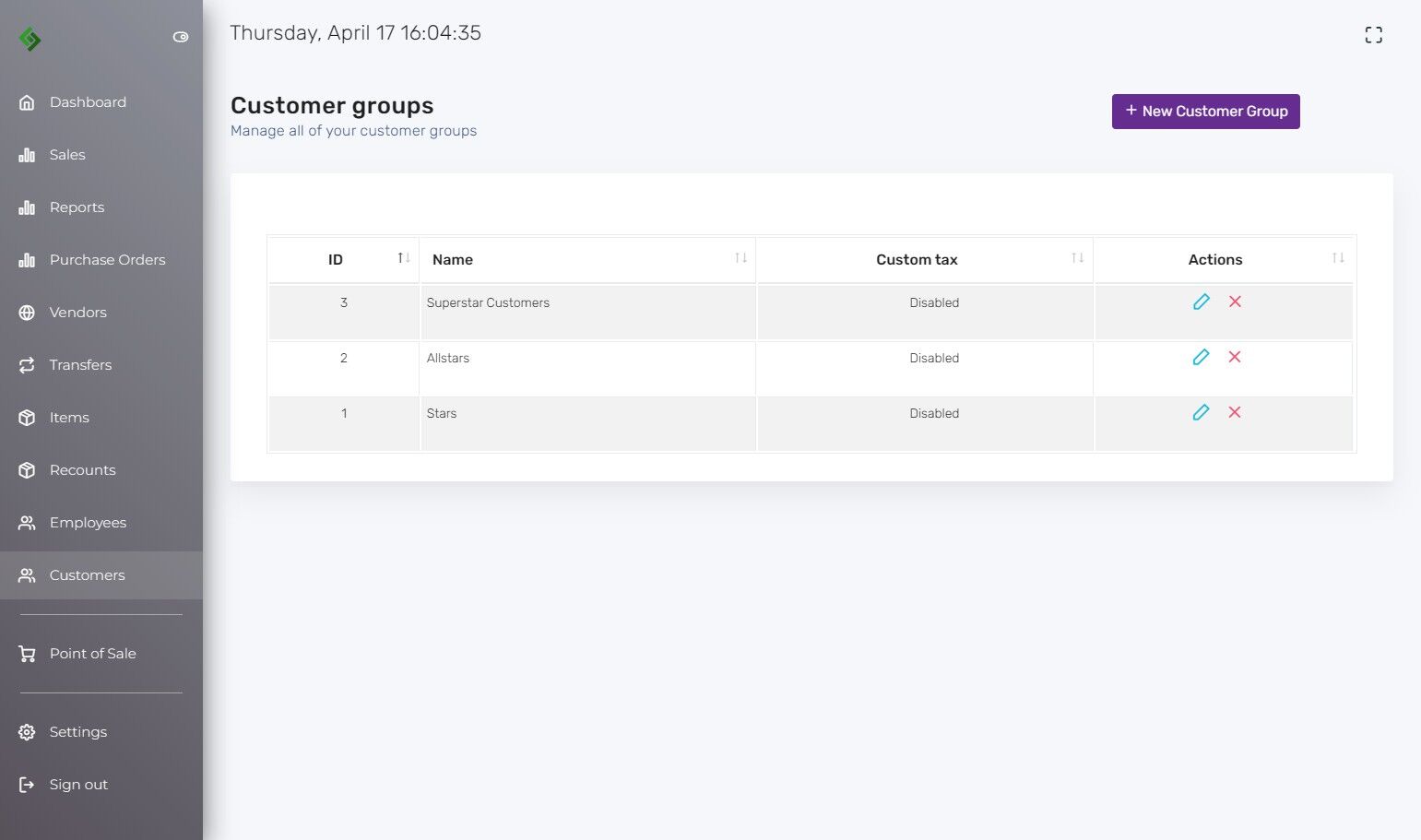
Search and Edit the Customer #
Use the search bar at the top right or scroll through the list. Click the pencil icon to edit a customer’s profile.

Assign the Customer Group #
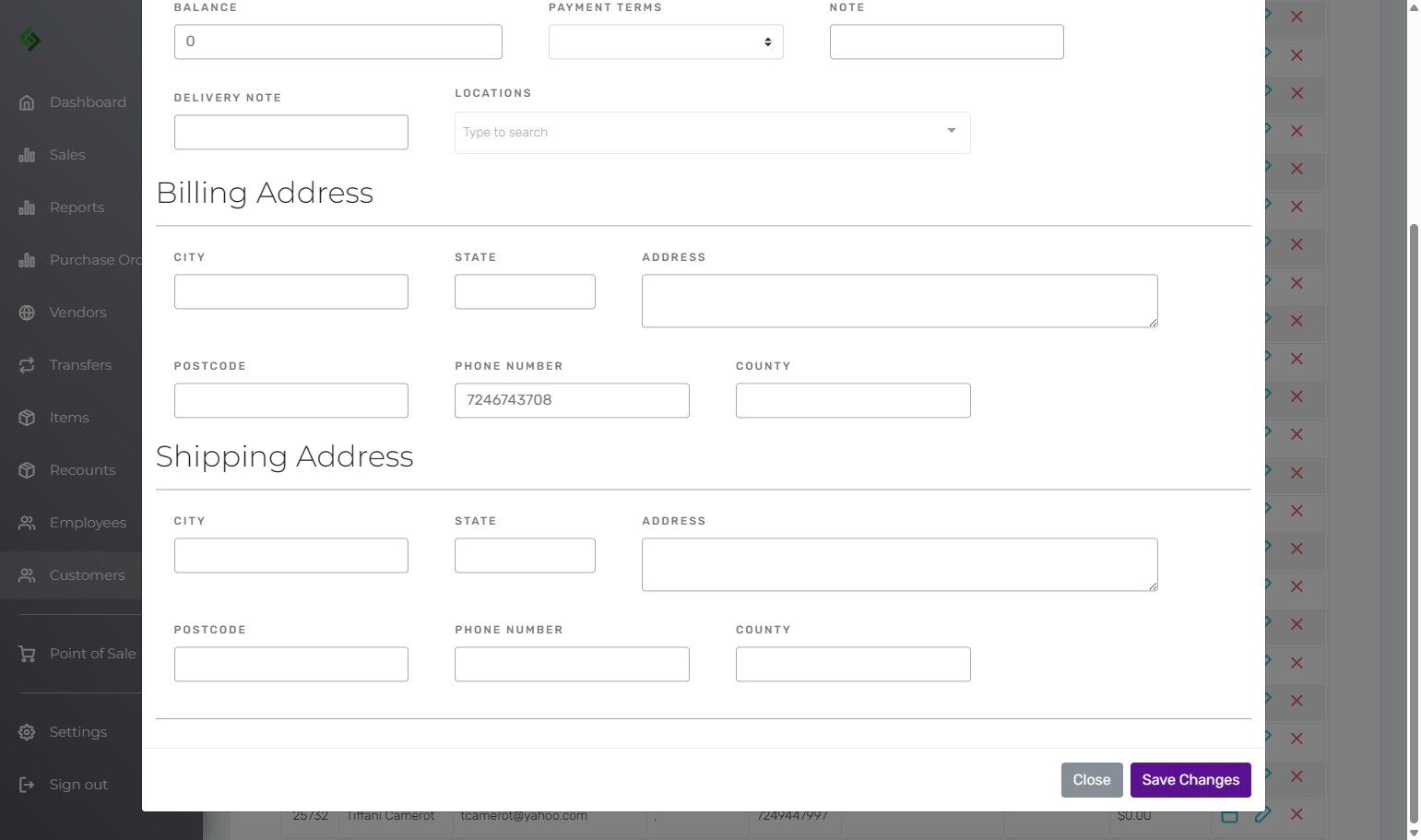
Choose the group you created, such as “Superstar Customers”. This applies any linked benefits or perks.
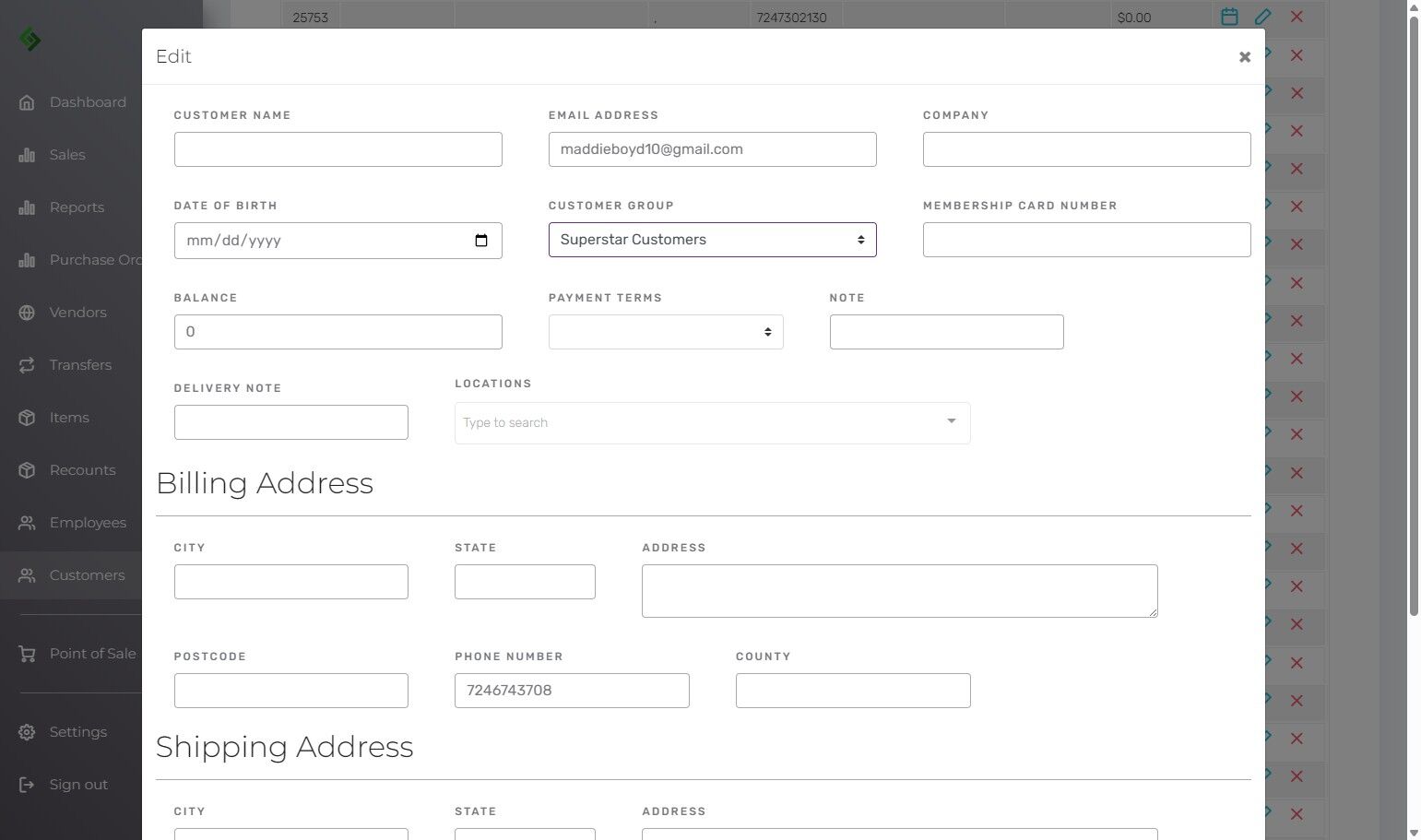
Click “Save Changes” #