
Creating a New Loyalty Customer Rewards Program #
Let’s create a New Loyalty Customer Rewards Program #
Navigate to Lifelong POS #
Use any web browser to visit: https://login.lifelongpos.com/ or https://manage.acadiapos.com/login
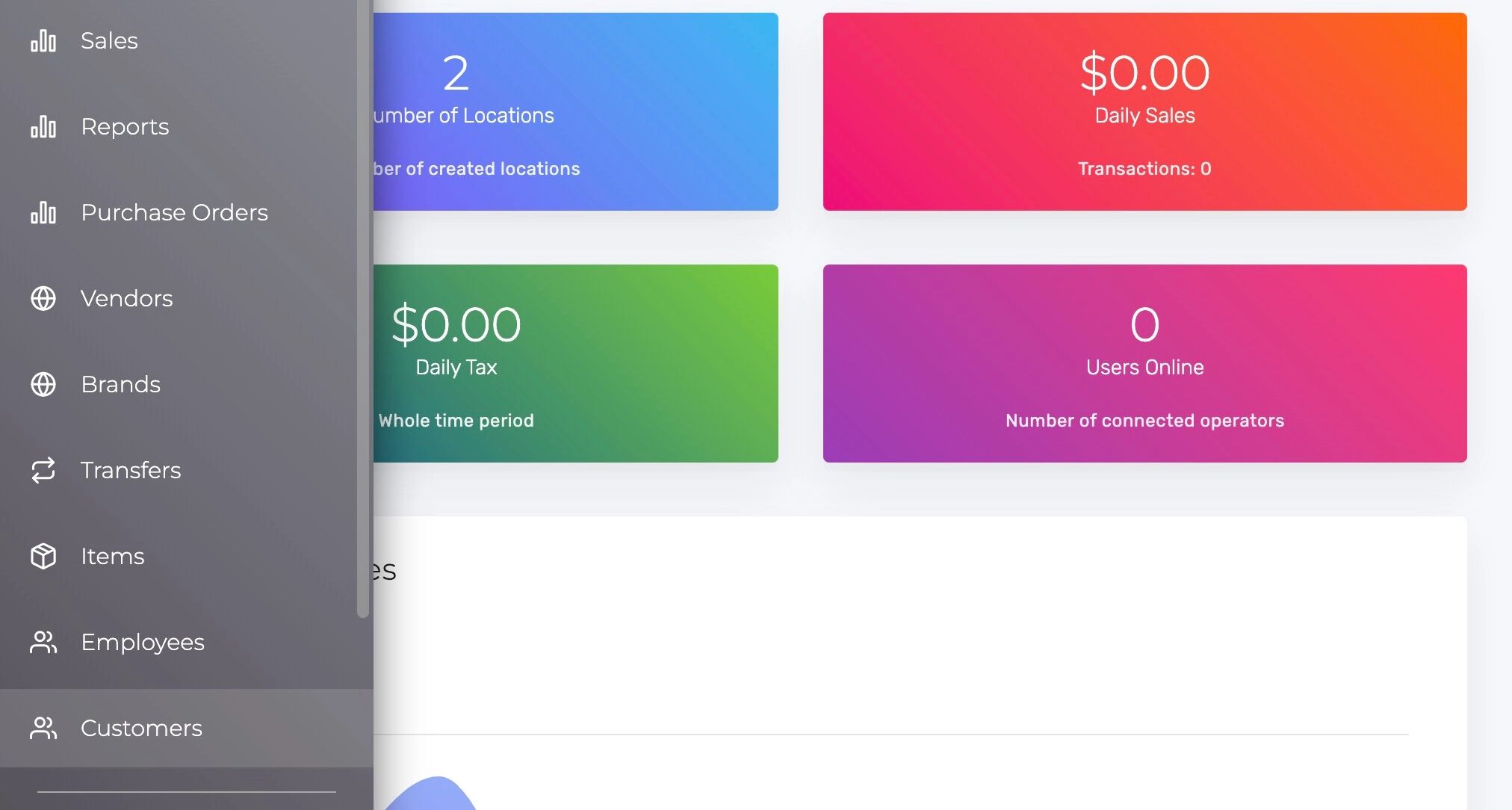
Access the Customers Tab #
Click on the “Customers” tab on the left-hand side of the screen.
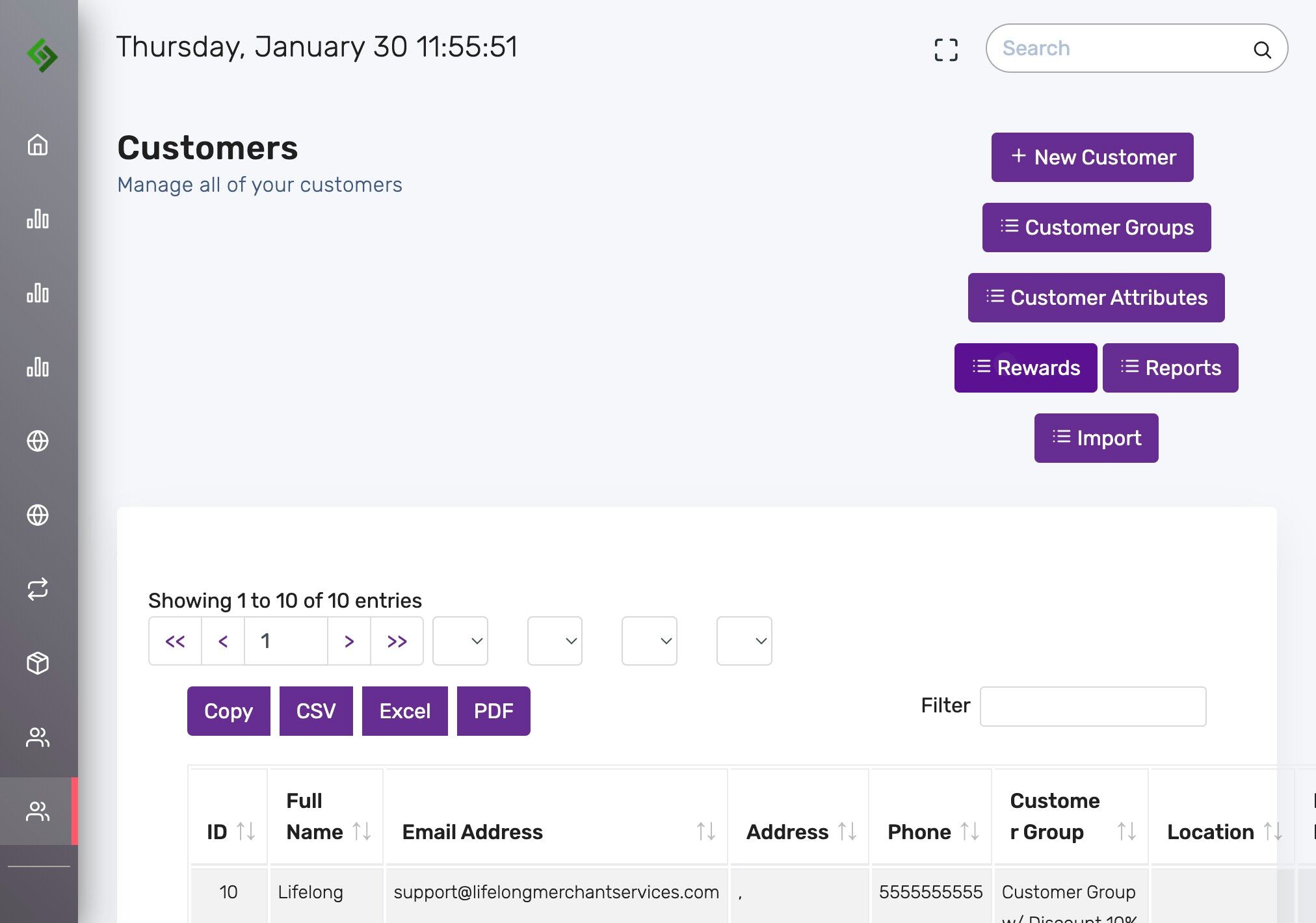
Select the Rewards Section #
Click “Rewards”
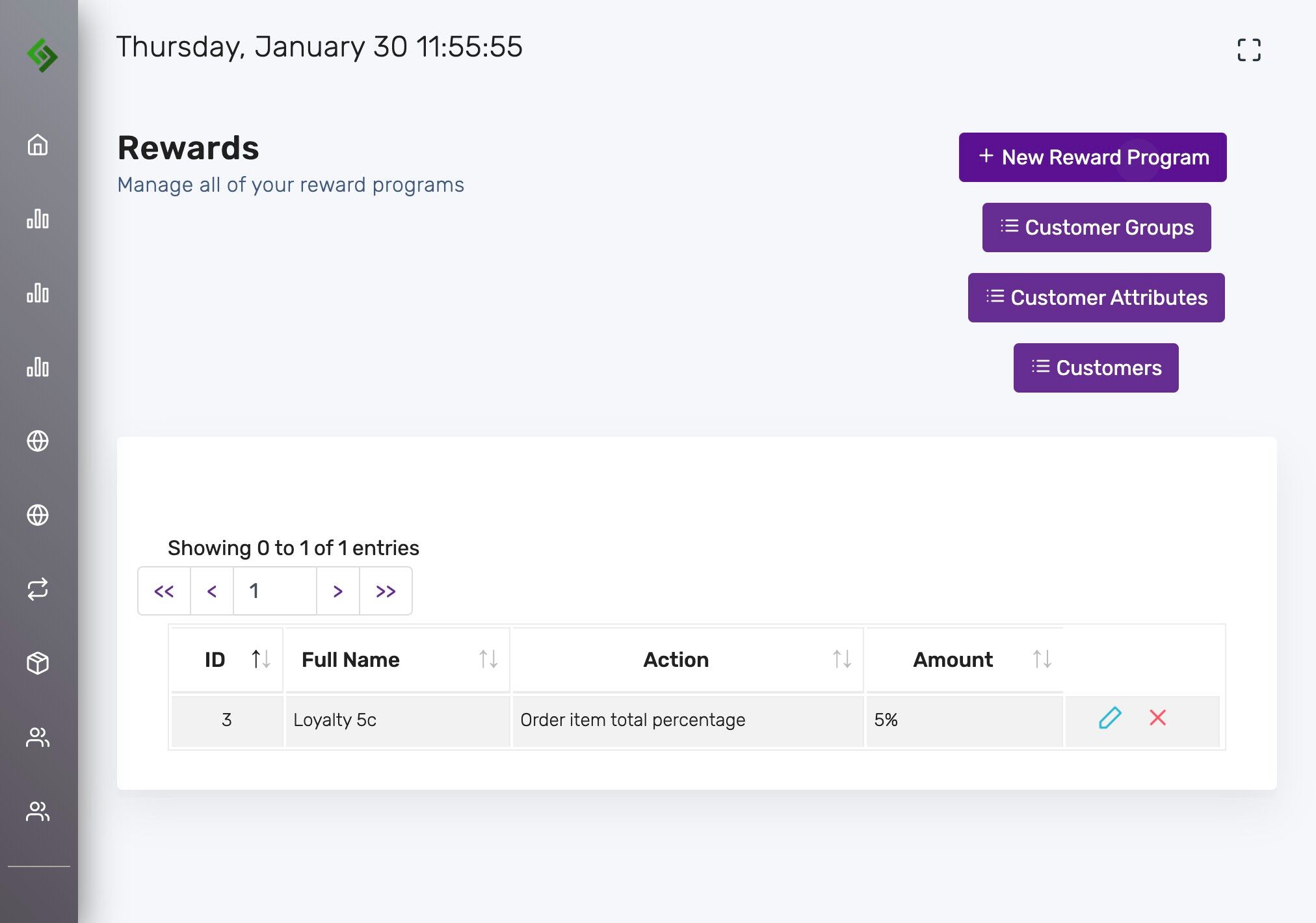
Create a New Reward Program #
Click “New Reward Program”
Name Your Loyalty Rewards Program #
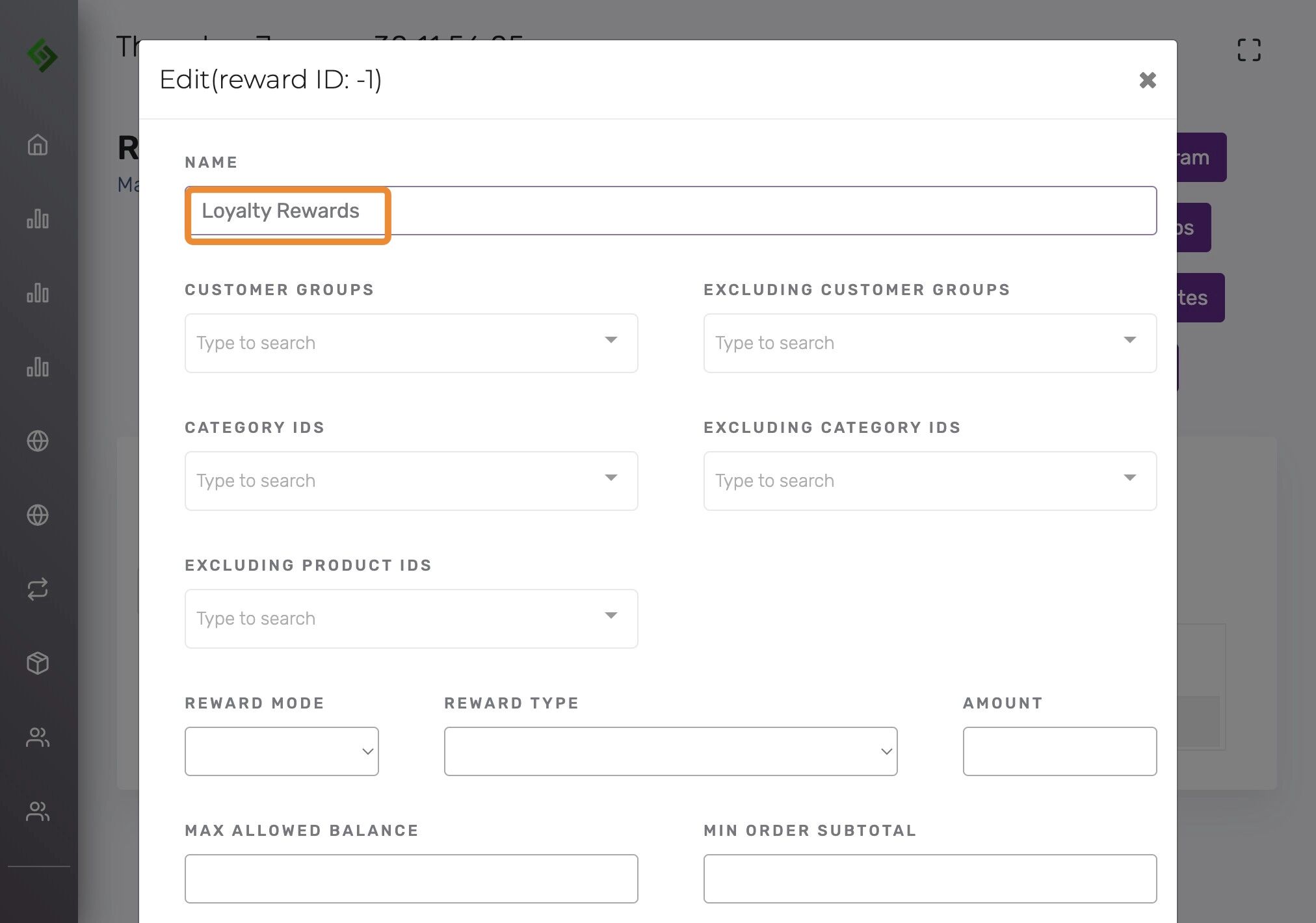
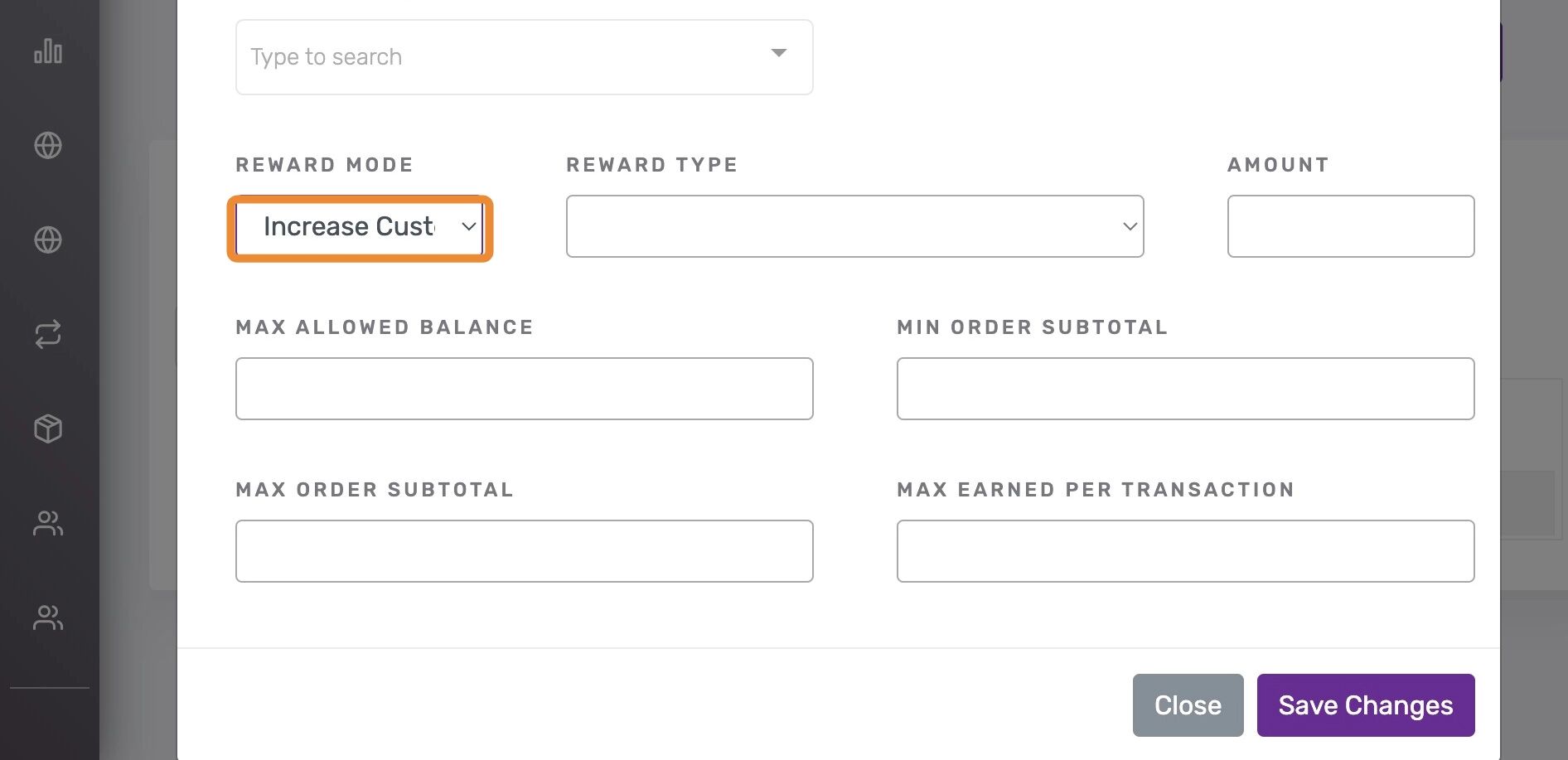
Select the Increase Customer Balance Option #
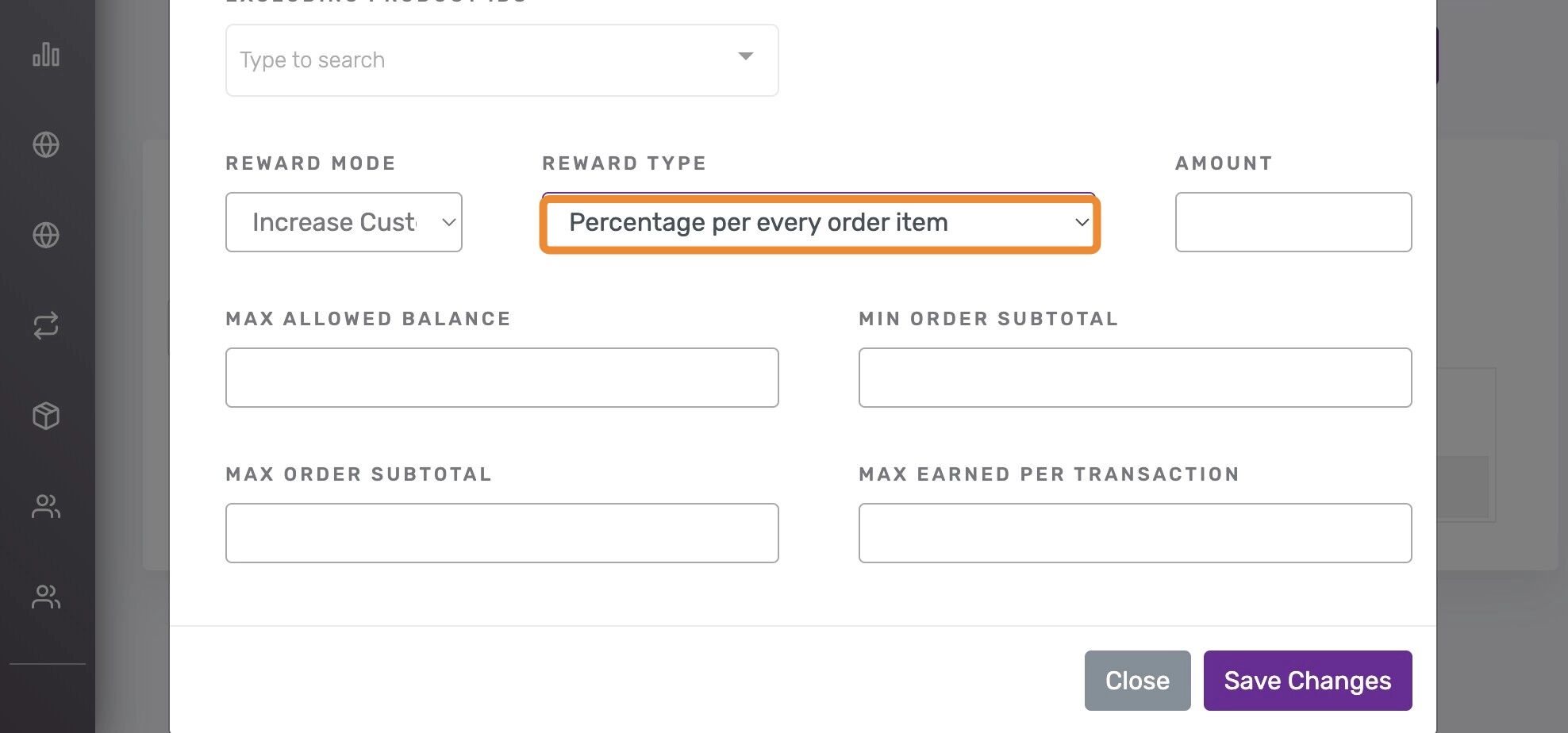
Choose the Percentage per Order Item Option #
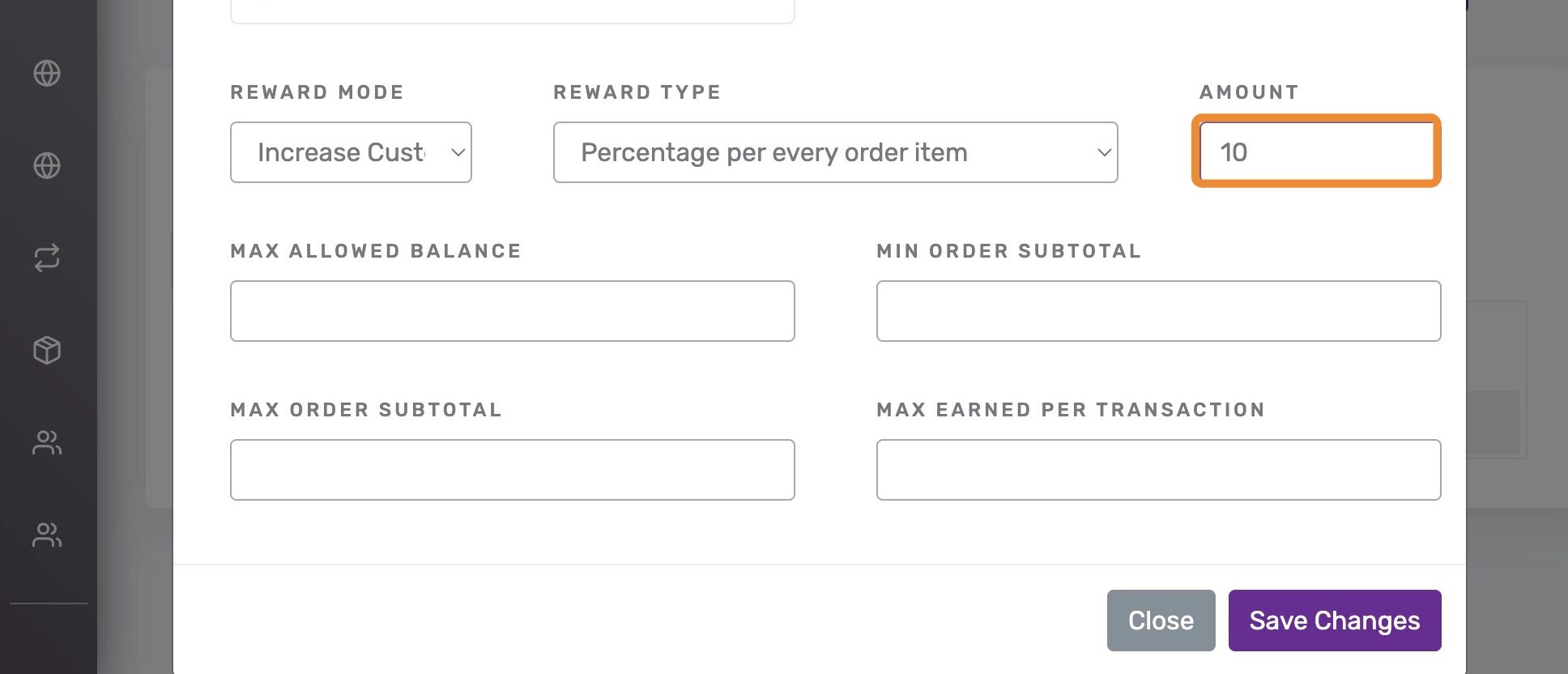
Enter the Earning Percentage #
Input the percentage under ‘Amount’ to determine how much the customer earns per dollar spent.
Example: 10% means the customer earns $0.10 per $1 spent.
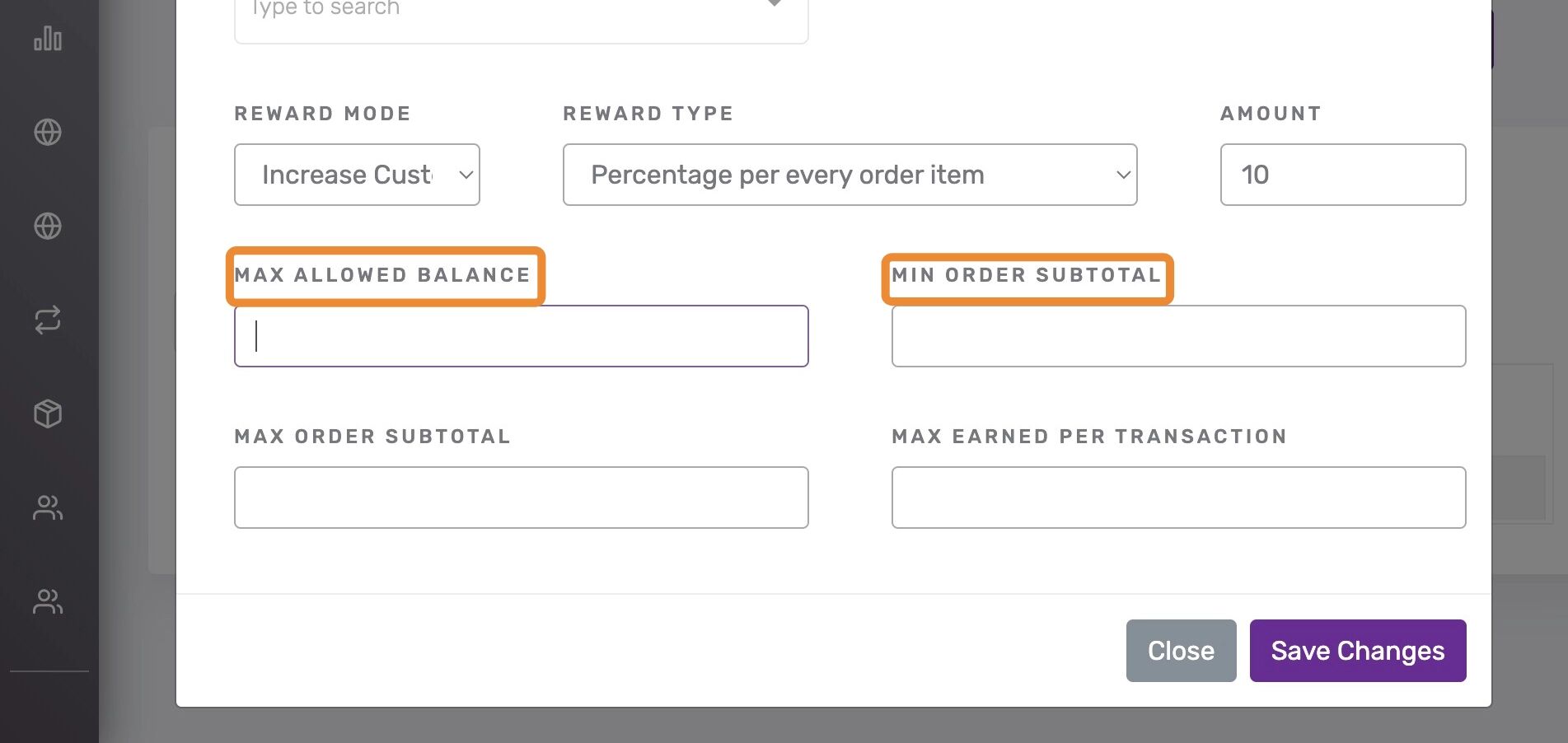
Optional Settings #
🔒 Max Allowed Balance: Maximum balance a customer can accumulate. No rewards are earned beyond this point.
🧾 Min Order Subtotal: Minimum subtotal required to earn rewards.
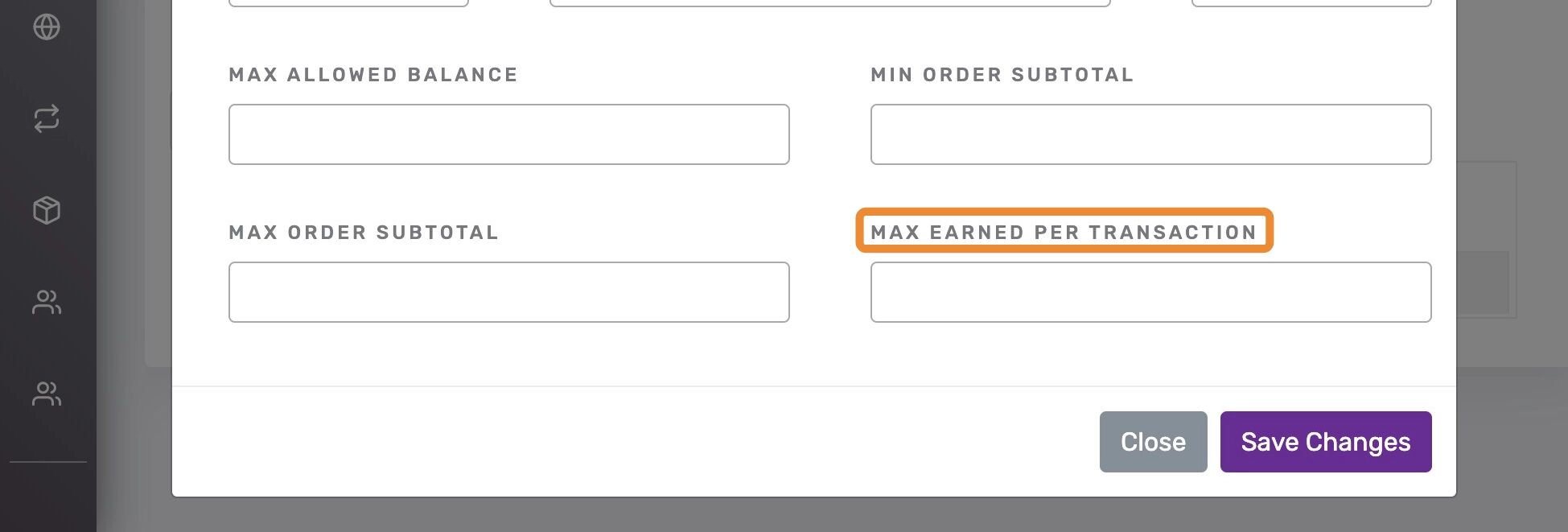
Set Max Earned Per Transaction #
Limits rewards a customer can earn per transaction. Click “Save Changes” to apply.
Optional Redeeming Rewards Settings #
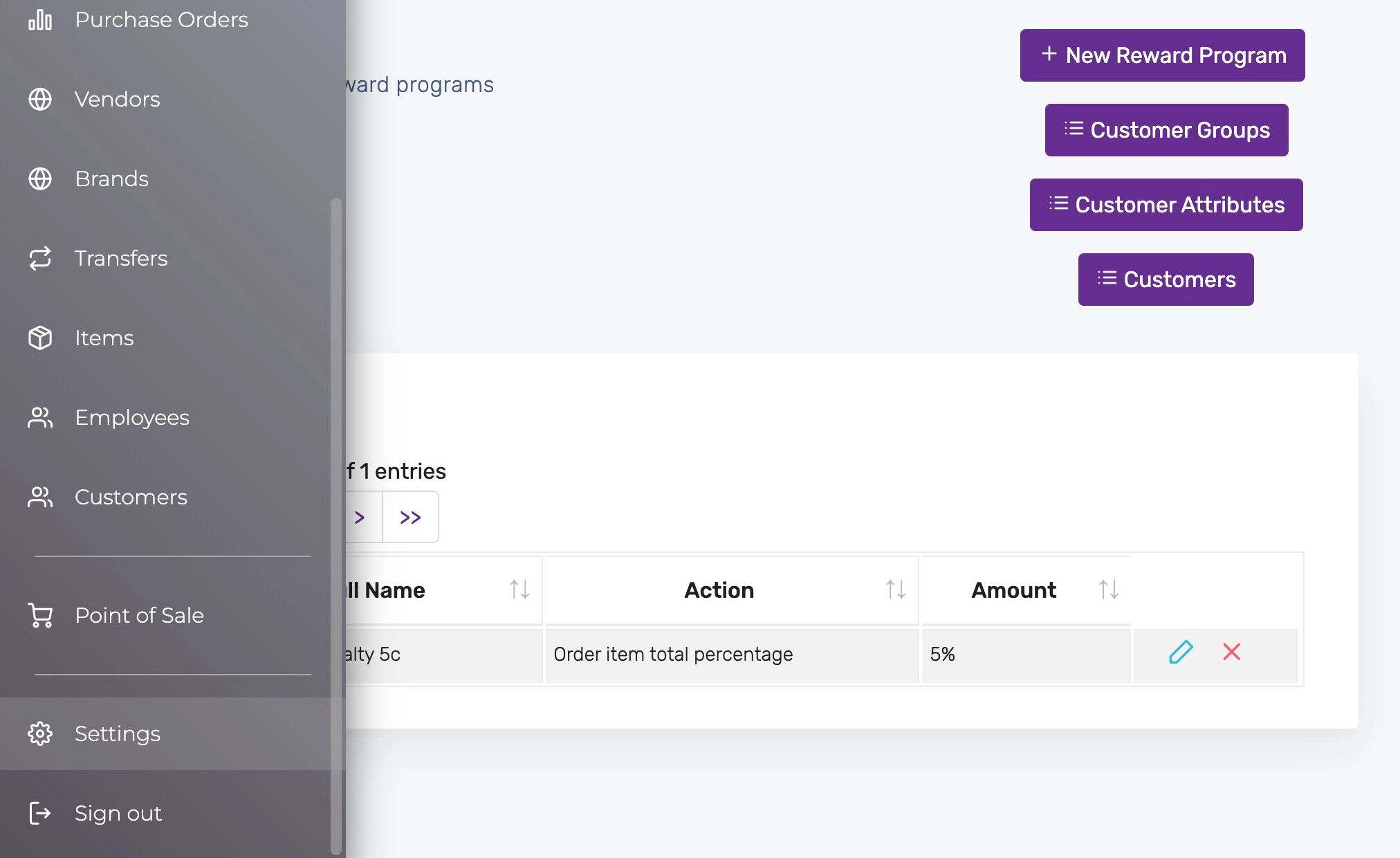
Access Settings #
Click “Settings”
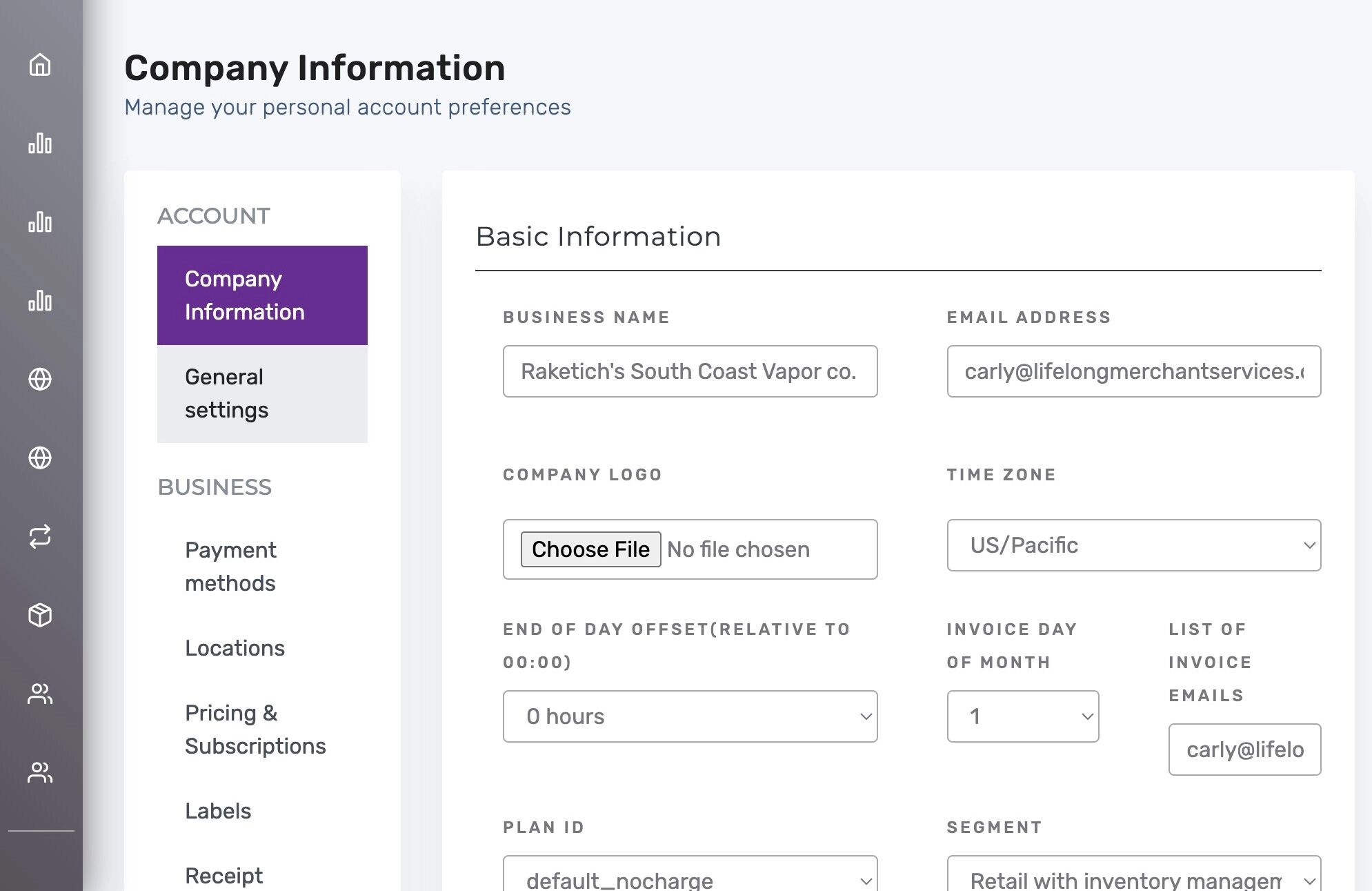
Open General Settings #
Click “General settings”
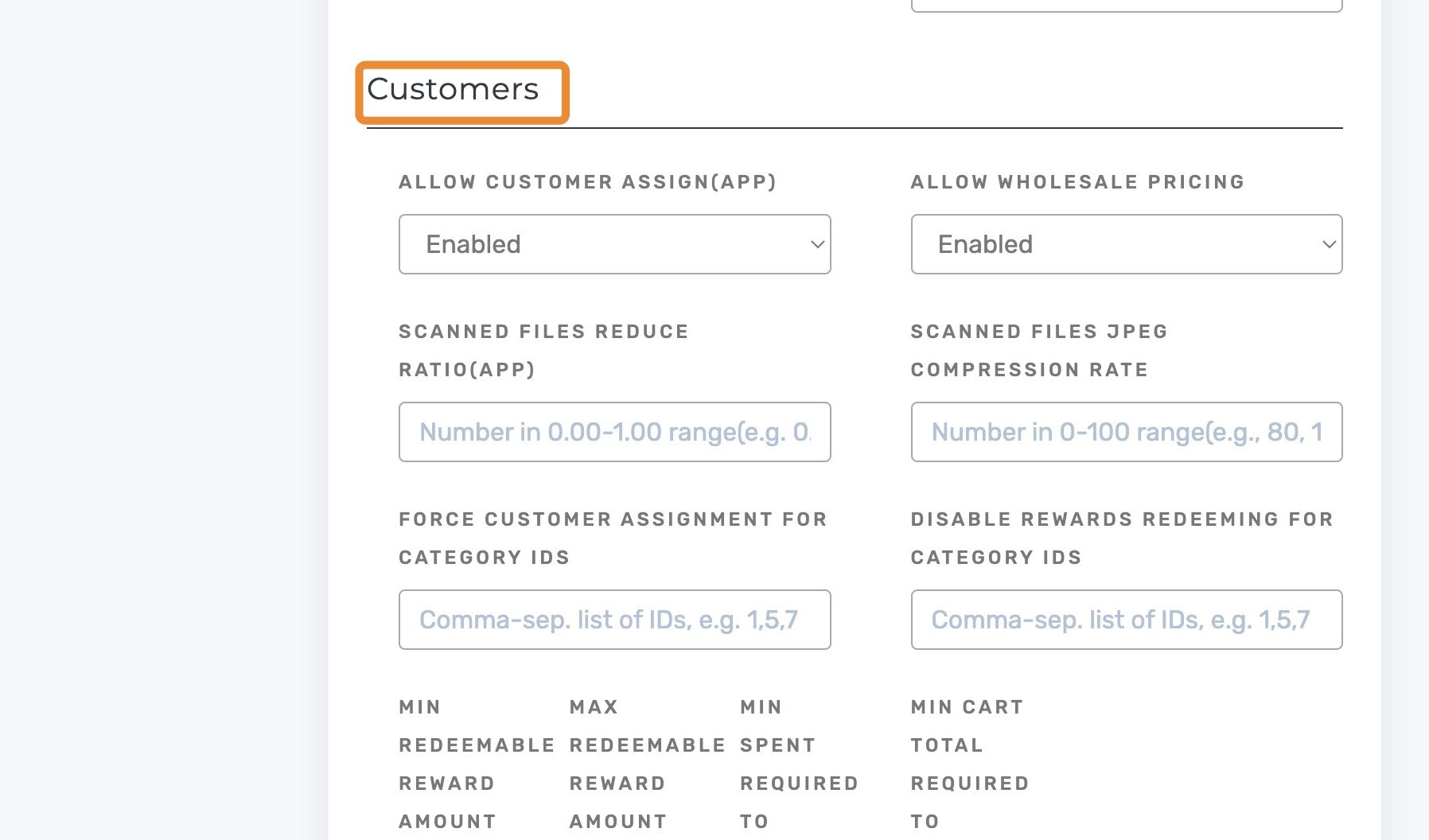
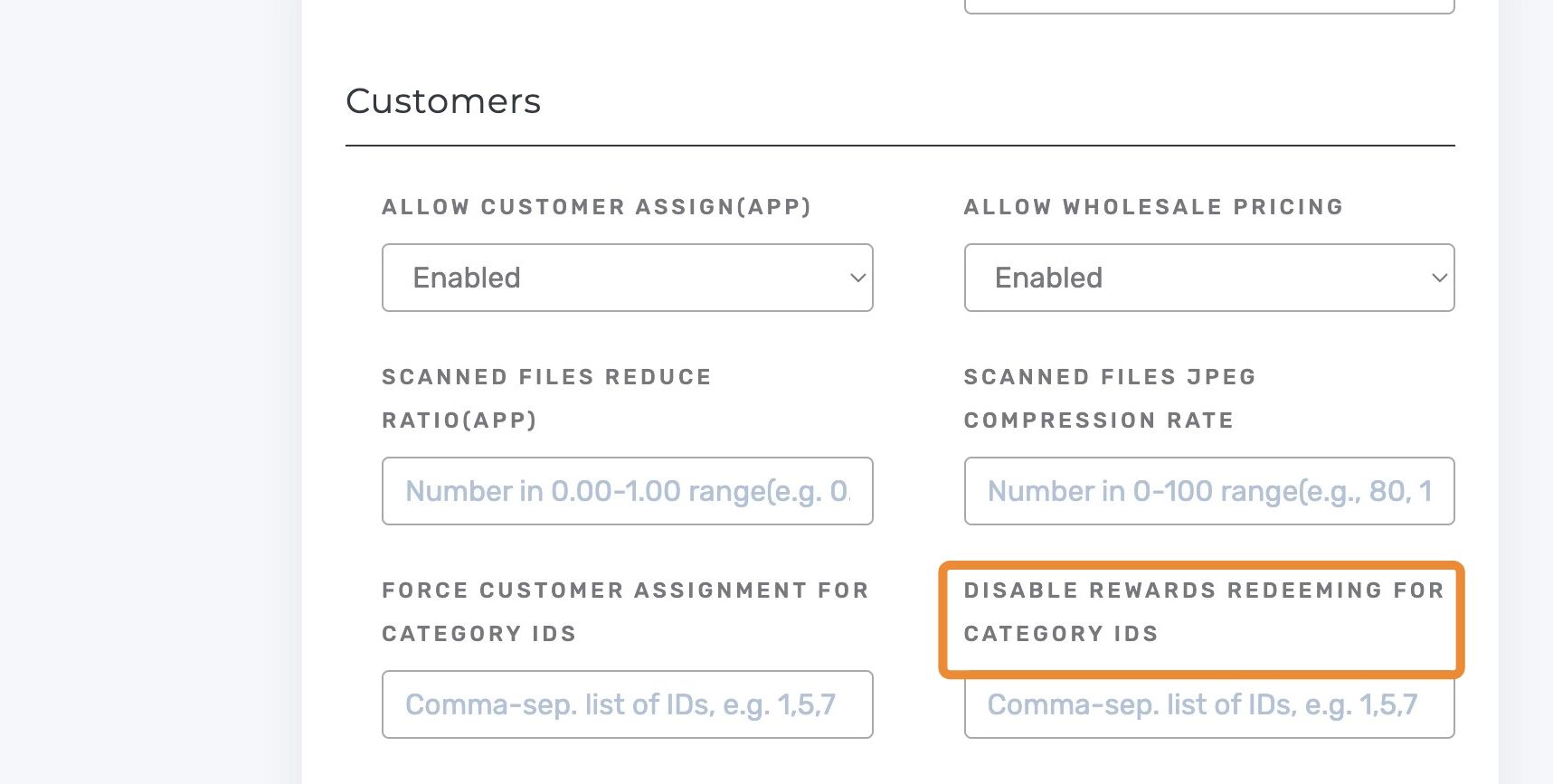
Locate the Customers Section #
Scroll to “Customers” header or use Ctrl + F (Windows) / Command + F (Mac) to find it quickly.
Disable Rewards for Specific Categories #
Add category IDs where rewards shouldn’t apply.
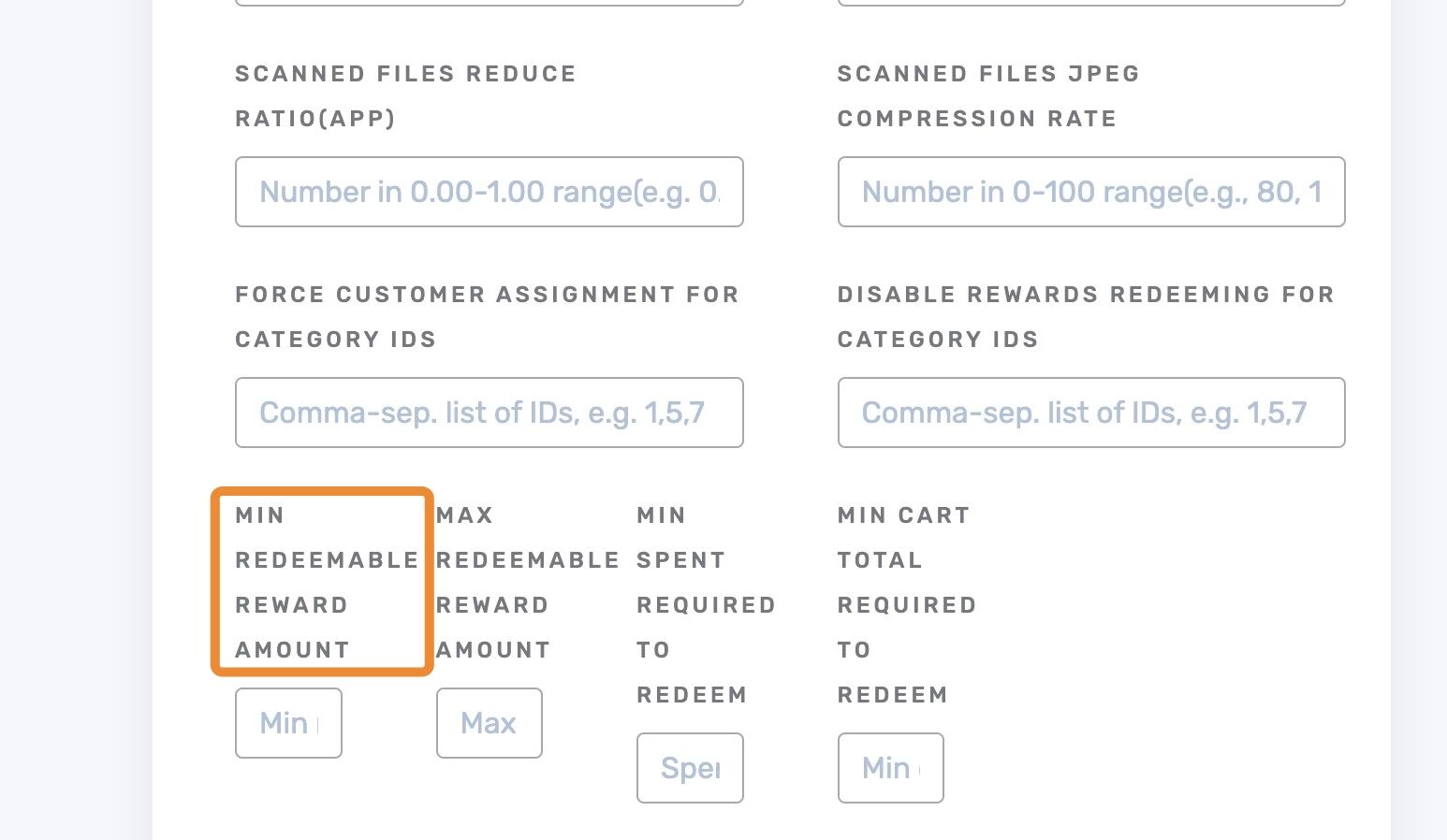
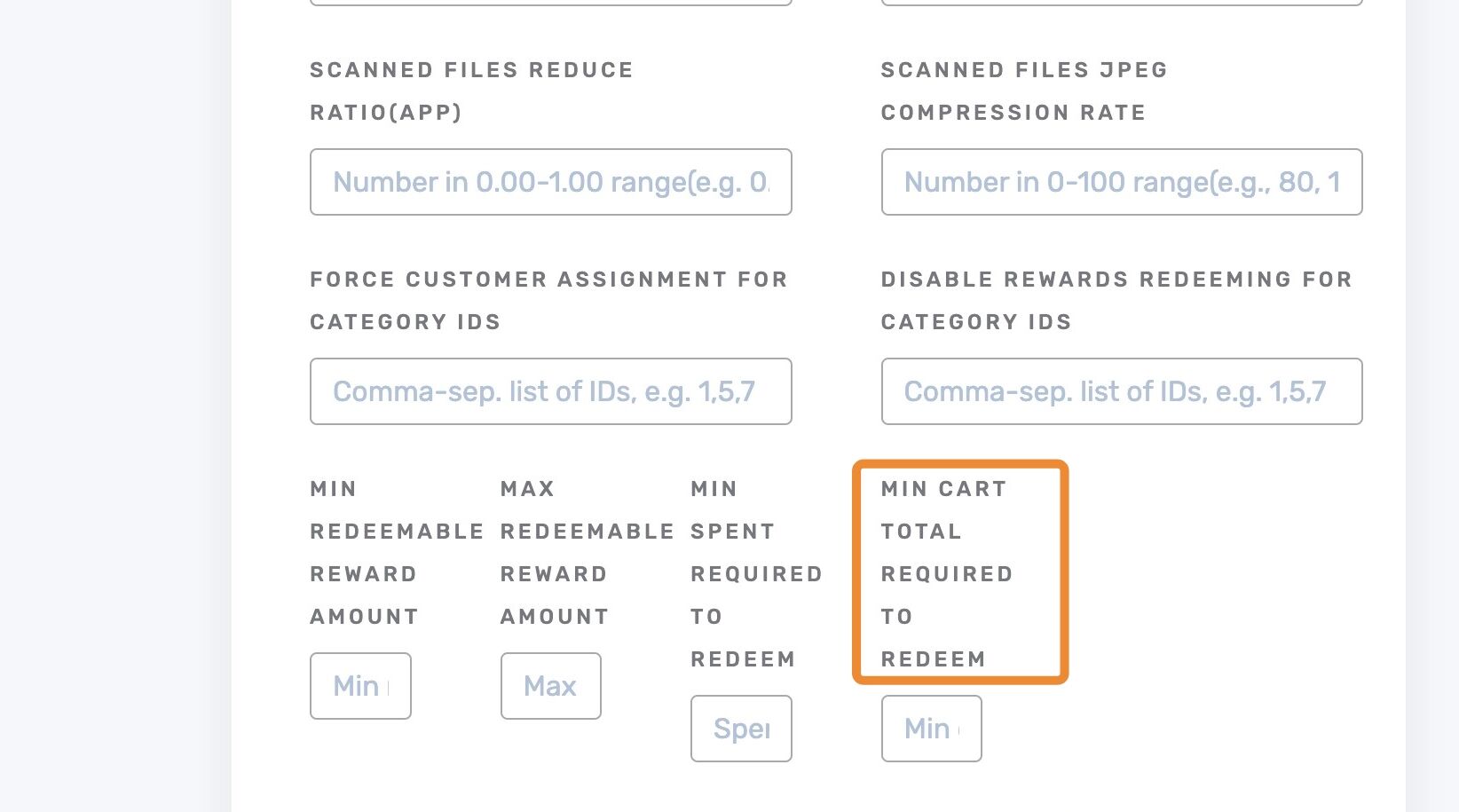
Set Minimum Redeemable Reward Amount #
Minimum balance required to use rewards.
Example: If minimum is $5, customers must have at least $5 to redeem.
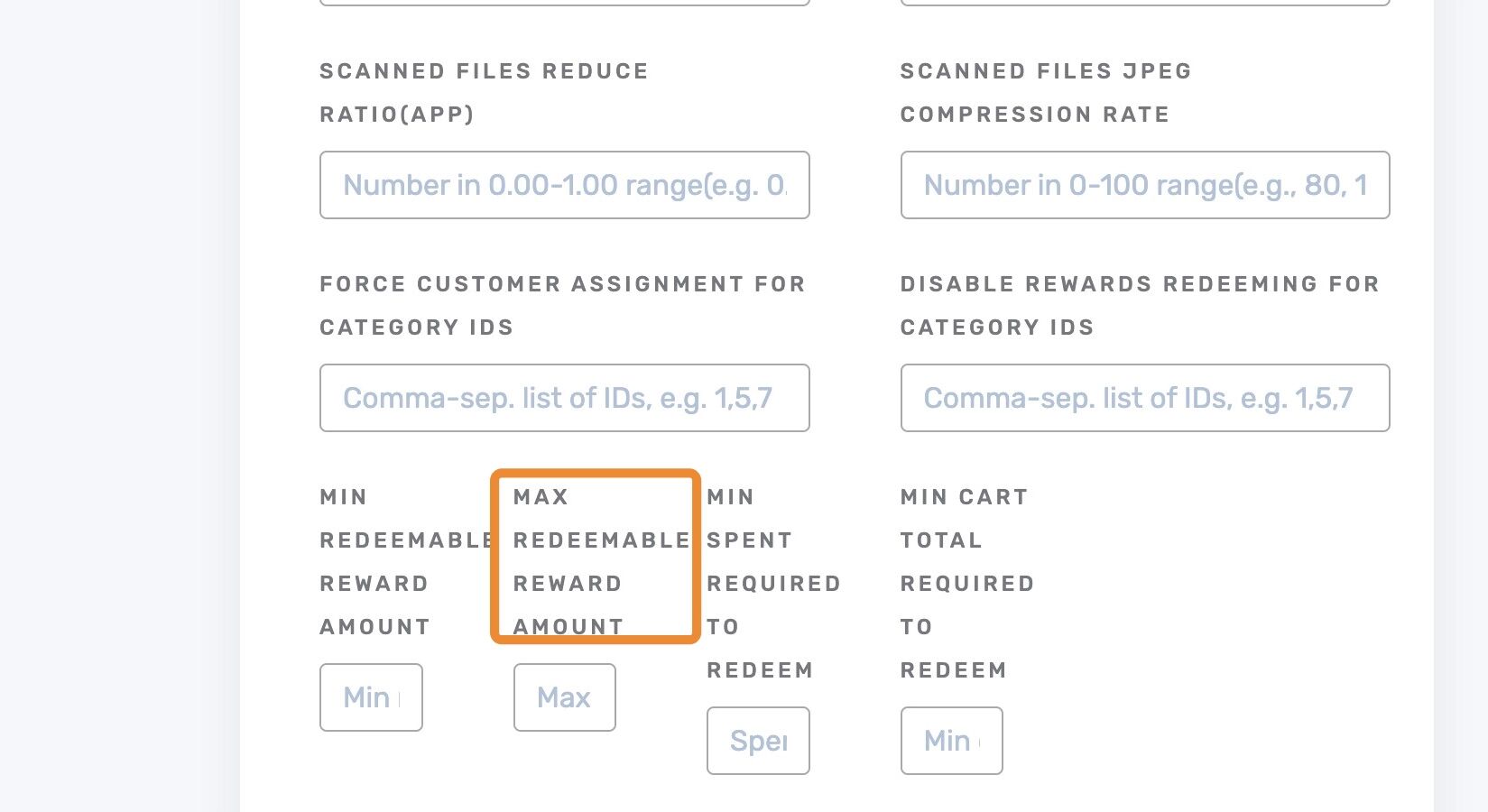
Set Maximum Redeemable Reward Amount #
Limits how much can be redeemed per transaction.
Example: If the max is $10 and customer has $20, they can only use $10 per transaction.
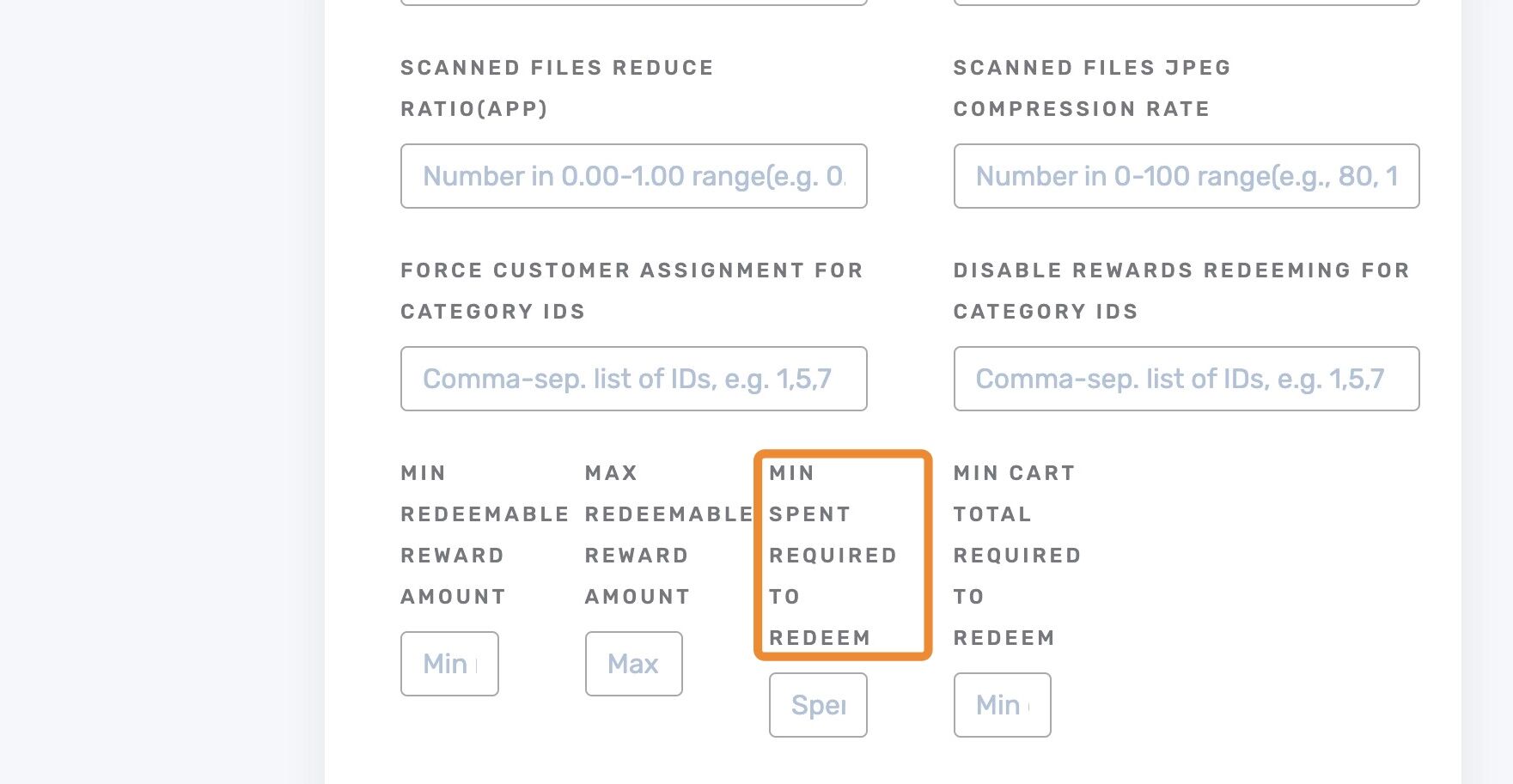
Set Minimum Spend Required to Redeem #
Total customer spend required before rewards can be used.
Example: If $50 is required, the customer must spend $50 before redeeming.
Set Minimum Cart Total Required to Redeem #
Minimum cart total (pre-tax, post-discount) to apply rewards.
Example: If minimum is $10 and cart is $8, customer will receive a notice to increase total.
Save Your Reward Settings #
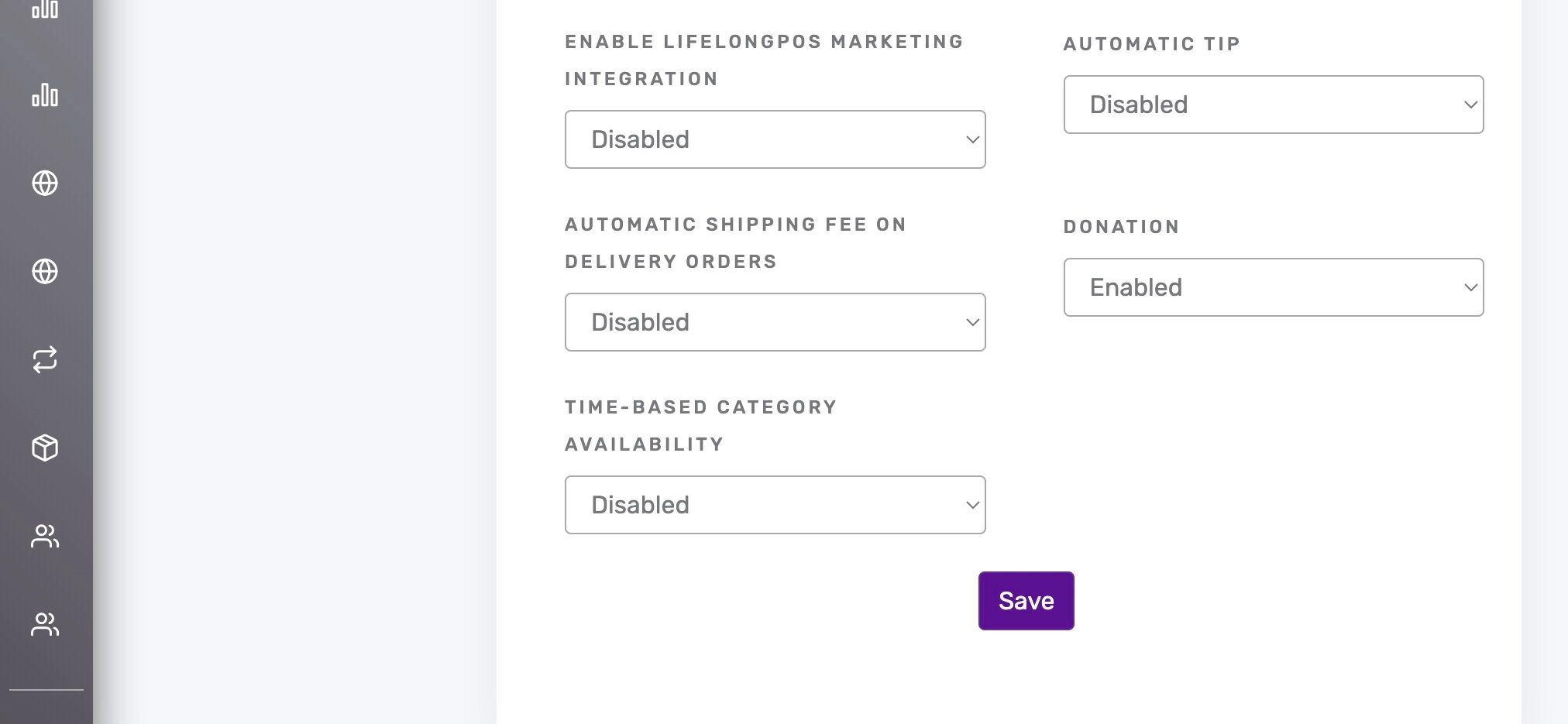
Slide to the bottom and click “Save”
Other Related Guides #
- Create a New Customer Group in Lifelong POS
- How To Add A New Customer Through The Lifelong Website
- How to Create a New Customer Attribute Field
- Creating a New Loyalty Customer Rewards Program
- Managing Loyalty on Specific Categories and Products


